> ## Documentation Index
> Fetch the complete documentation index at: https://help.goghl.ai/llms.txt
> Use this file to discover all available pages before exploring further.
# Button Builder
## What it is
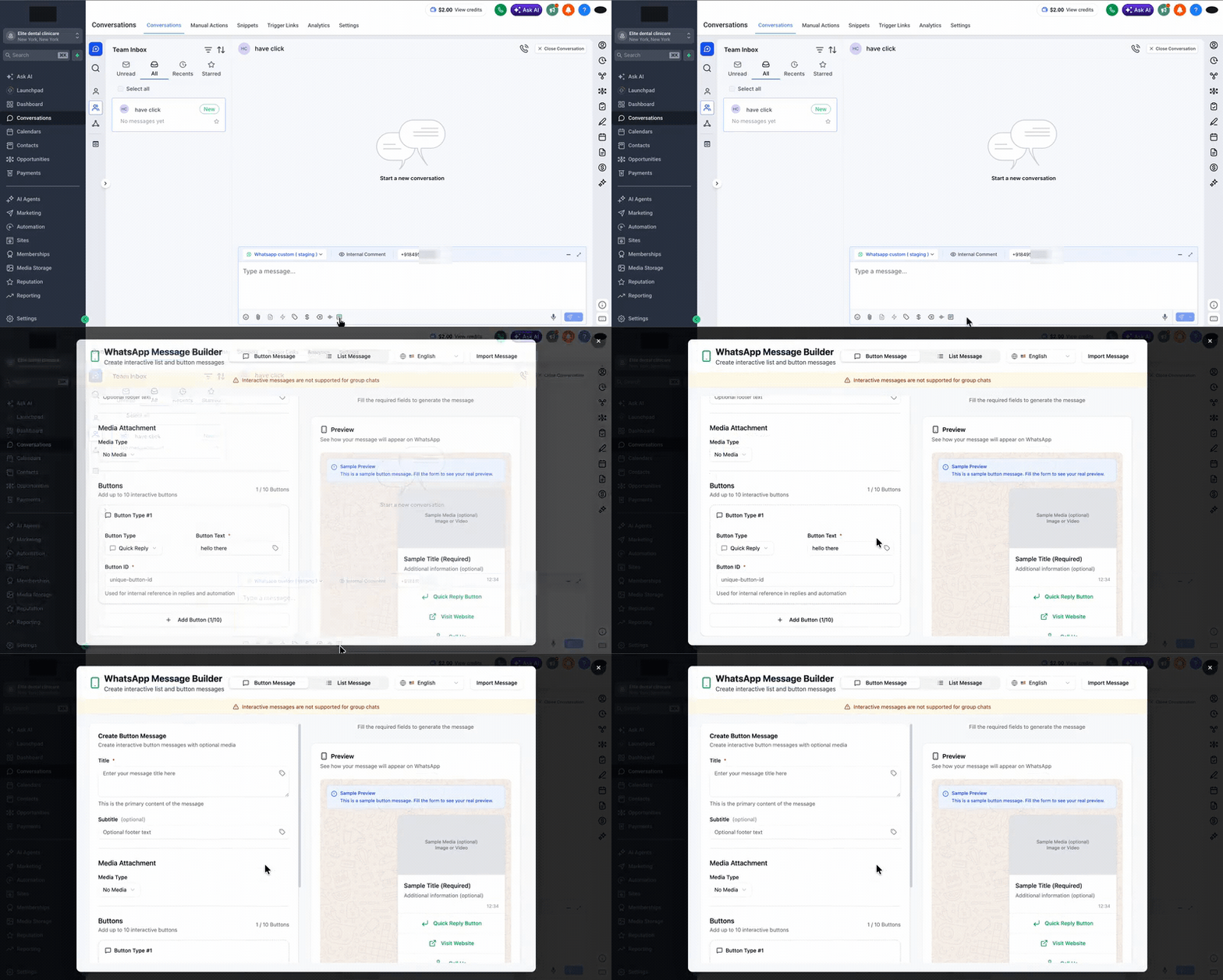
Add a pop-up builder for creating tappable message buttons. Compose interactive button messages visually instead of formatting them by hand.
 ## How to enable it
Open your **GoGHL dashboard**.
Go to the **Custom Script** settings.
Turn on the **Button Builder** toggle.
Agency‑level only. The toggle applies to all sub‑accounts at once. If the Custom JS script isn't installed yet, complete the [one‑time setup](/custom-js/overview) first.
## How to use it
Open a WhatsApp conversation in the **Conversations** tab.
Click the **message builder** icon in the composer toolbar to open the **WhatsApp Message Builder**.
Choose **Button Message** or **List Message**.
Fill in the title, optional subtitle and footer, attach media if needed, and add your buttons (up to 10).
Check the live **Preview** on the right.
Scroll down to **Generated Message** and click **Copy**. This is the formatted message string for the buttons you built.
## How to enable it
Open your **GoGHL dashboard**.
Go to the **Custom Script** settings.
Turn on the **Button Builder** toggle.
Agency‑level only. The toggle applies to all sub‑accounts at once. If the Custom JS script isn't installed yet, complete the [one‑time setup](/custom-js/overview) first.
## How to use it
Open a WhatsApp conversation in the **Conversations** tab.
Click the **message builder** icon in the composer toolbar to open the **WhatsApp Message Builder**.
Choose **Button Message** or **List Message**.
Fill in the title, optional subtitle and footer, attach media if needed, and add your buttons (up to 10).
Check the live **Preview** on the right.
Scroll down to **Generated Message** and click **Copy**. This is the formatted message string for the buttons you built.
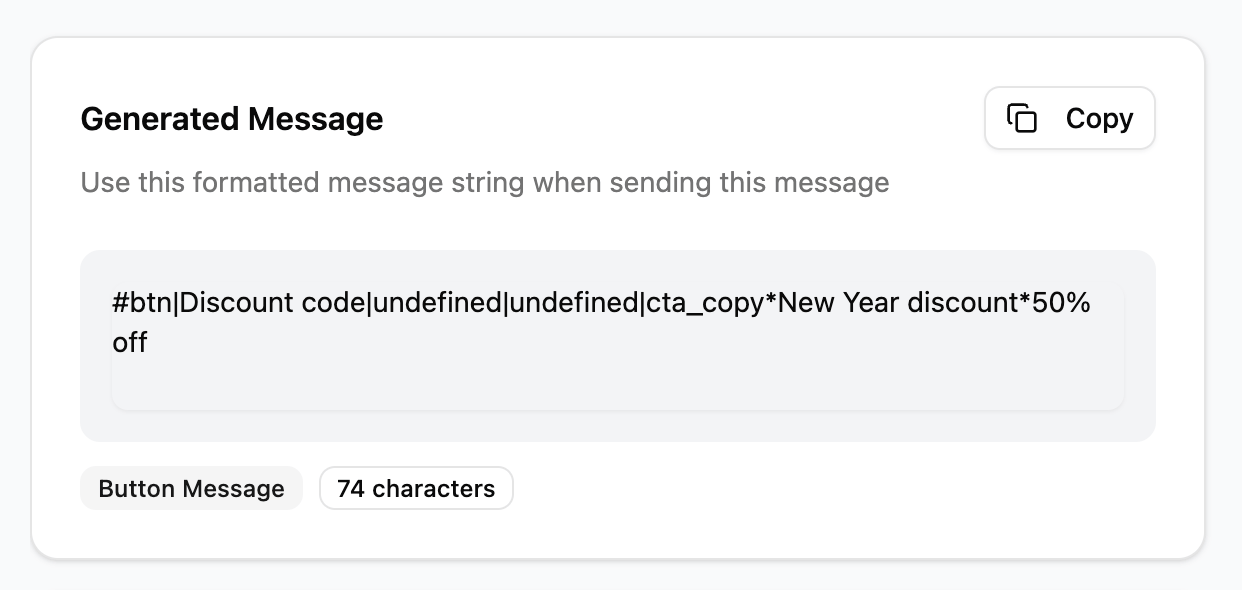 Paste the copied string into the message composer in the conversation.
Click **Send**. The contact receives it as a tappable button message on WhatsApp.
## Notes & limitations
* Interactive messages are not supported in group chats
* For the full format reference, see [List Button](/whatsapp/list-button)
***
## Support
If you need help with the setup or onboarding:
* WhatsApp Support: [Chat on WhatsApp](https://wa.me/+12267248710?text=Hi%2C%20I%20need%20help%20with%20Button%20Builder.)
* Email: [**support@goghl.ai**](mailto:support@goghl.ai)
This documentation is built and hosted on [Mintlify](https://mintlify.com), a developer documentation platform.
Paste the copied string into the message composer in the conversation.
Click **Send**. The contact receives it as a tappable button message on WhatsApp.
## Notes & limitations
* Interactive messages are not supported in group chats
* For the full format reference, see [List Button](/whatsapp/list-button)
***
## Support
If you need help with the setup or onboarding:
* WhatsApp Support: [Chat on WhatsApp](https://wa.me/+12267248710?text=Hi%2C%20I%20need%20help%20with%20Button%20Builder.)
* Email: [**support@goghl.ai**](mailto:support@goghl.ai)
This documentation is built and hosted on [Mintlify](https://mintlify.com), a developer documentation platform.