> ## Documentation Index
> Fetch the complete documentation index at: https://help.goghl.ai/llms.txt
> Use this file to discover all available pages before exploring further.
# Reply Formatter
## What it is
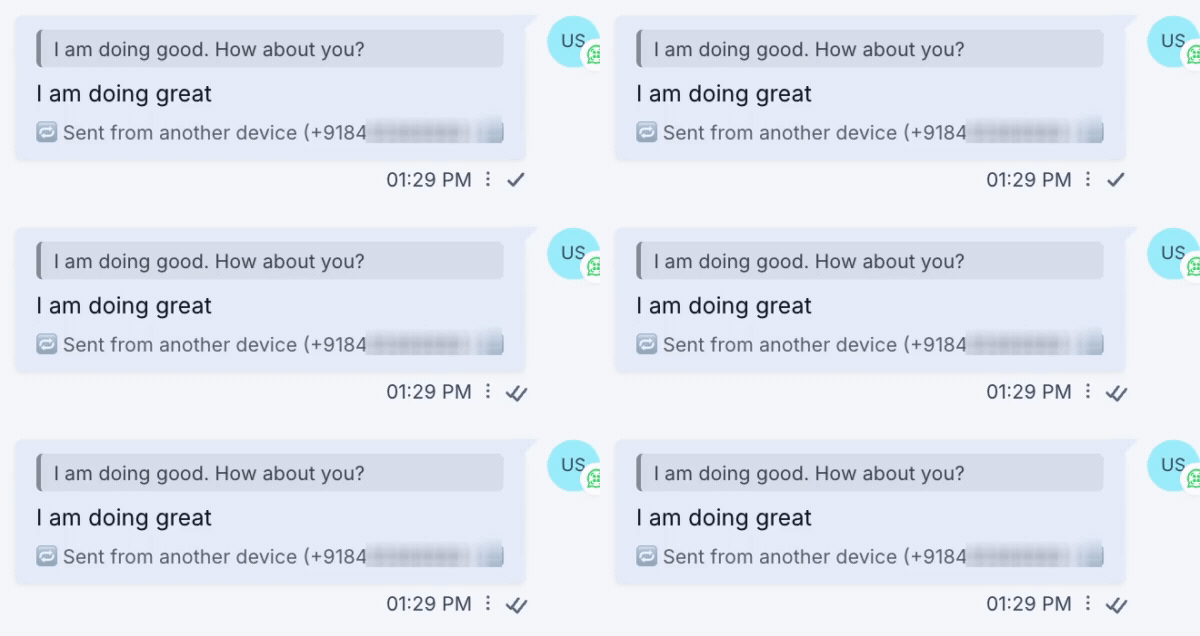
Style quoted replies in the CRM so they look the way they do on WhatsApp. When a contact replies to a message, or you reply from your phone, the quoted message is shown above the reply text instead of as plain text, giving every reply clear context inside the conversation.
 ## How to enable it
Open your **GoGHL dashboard**.
Go to the **Custom Script** settings.
Turn on the **Reply Formatter** toggle.
Agency‑level only. The toggle applies to all sub‑accounts at once. If the Custom JS script isn't installed yet, complete the [one‑time setup](/custom-js/overview) first.
## How to use it
Nothing else to configure. Once the toggle is on, quoted replies in the conversation are formatted like WhatsApp:
* Replies from a contact show the quoted original message above the reply text
* Replies sent from your phone or WhatsApp Web are synced into the CRM with the quoted message and a **Sent from another device** label
## Notes & limitations
* Quoting a message from inside the CRM is not available yet. This feature only formats replies that were quoted on WhatsApp
* Regular messages that are not replies are unchanged
***
## Support
If you need help with the setup or onboarding:
* WhatsApp Support: [Chat on WhatsApp](https://wa.me/+12267248710?text=Hi%2C%20I%20need%20help%20with%20Reply%20Formatter.)
* Email: [**support@goghl.ai**](mailto:support@goghl.ai)
This documentation is built and hosted on [Mintlify](https://mintlify.com), a developer documentation platform.
## How to enable it
Open your **GoGHL dashboard**.
Go to the **Custom Script** settings.
Turn on the **Reply Formatter** toggle.
Agency‑level only. The toggle applies to all sub‑accounts at once. If the Custom JS script isn't installed yet, complete the [one‑time setup](/custom-js/overview) first.
## How to use it
Nothing else to configure. Once the toggle is on, quoted replies in the conversation are formatted like WhatsApp:
* Replies from a contact show the quoted original message above the reply text
* Replies sent from your phone or WhatsApp Web are synced into the CRM with the quoted message and a **Sent from another device** label
## Notes & limitations
* Quoting a message from inside the CRM is not available yet. This feature only formats replies that were quoted on WhatsApp
* Regular messages that are not replies are unchanged
***
## Support
If you need help with the setup or onboarding:
* WhatsApp Support: [Chat on WhatsApp](https://wa.me/+12267248710?text=Hi%2C%20I%20need%20help%20with%20Reply%20Formatter.)
* Email: [**support@goghl.ai**](mailto:support@goghl.ai)
This documentation is built and hosted on [Mintlify](https://mintlify.com), a developer documentation platform.