> ## Documentation Index
> Fetch the complete documentation index at: https://help.goghl.ai/llms.txt
> Use this file to discover all available pages before exploring further.
# Update Marketplace App to Enable iMessage
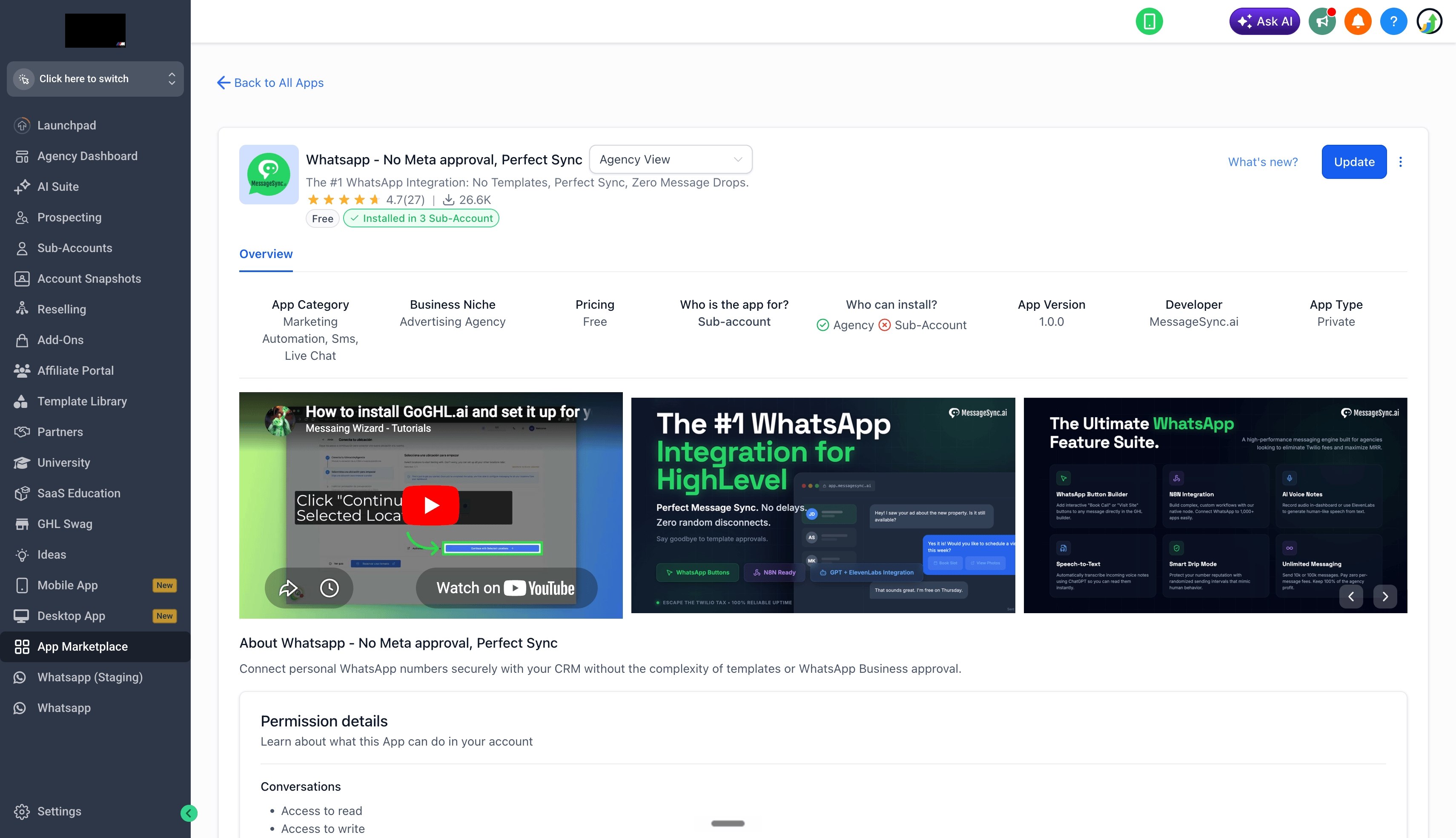
> If you installed the marketplace app , you won't see iMessage as a channel in Conversations until you update it. The flow is now a single click - no uninstall/reinstall required.
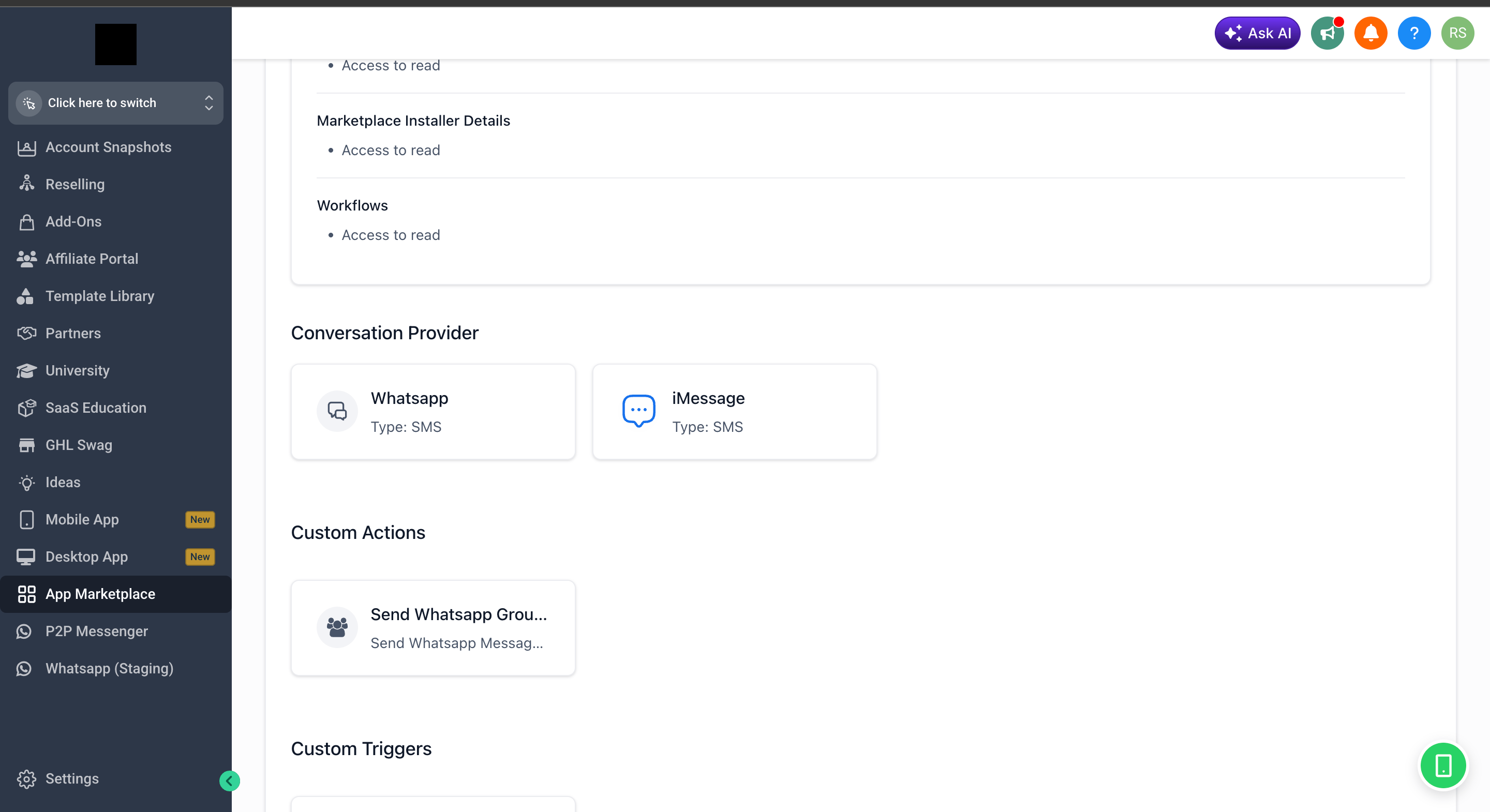
Conversation providers are refreshed when the marketplace app is updated on a sub-account. Clicking **Update** pulls in the latest provider list, which is what makes **iMessage** show up alongside your other channels.
***
Open the marketplace app's page in your CRM and click **Update** in the top right.
 Scroll down the app details page to the **Conversation Provider** section - you should now see **iMessage** listed alongside your existing providers.
 Head into **Conversations** in your sub-account - iMessage is now selectable as a channel from the message composer dropdown.
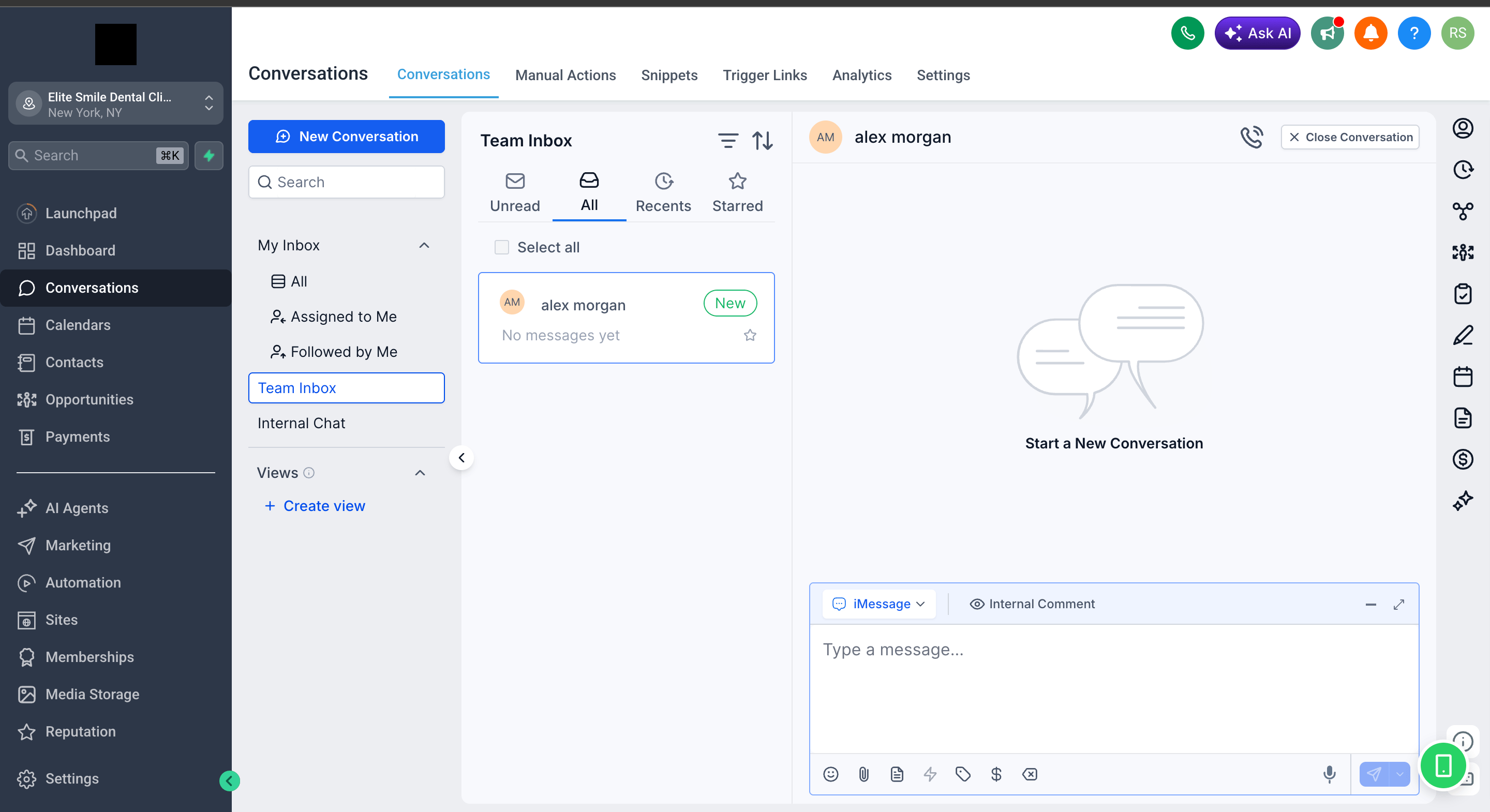 Your sub-account now has iMessage as a native conversation channel. If you haven't yet set up the Mac sync app, head back to the [iMessage Full Setup](/imessage/getting-started) guide to finish the rest of the flow.
***
## Support[](#support "Direct link to Support")
If you need help with the setup or onboarding:
* WhatsApp Support: [Chat on WhatsApp](https://wa.me/+12267248710?text=Hi%2C%20I%20need%20help%20with%20Update%20Marketplace%20App%20to%20Enable%20iMessage.)
* Email: [**support@goghl.ai**](mailto:support@goghl.ai)
Your sub-account now has iMessage as a native conversation channel. If you haven't yet set up the Mac sync app, head back to the [iMessage Full Setup](/imessage/getting-started) guide to finish the rest of the flow.
***
## Support[](#support "Direct link to Support")
If you need help with the setup or onboarding:
* WhatsApp Support: [Chat on WhatsApp](https://wa.me/+12267248710?text=Hi%2C%20I%20need%20help%20with%20Update%20Marketplace%20App%20to%20Enable%20iMessage.)
* Email: [**support@goghl.ai**](mailto:support@goghl.ai)