> ## Documentation Index
> Fetch the complete documentation index at: https://help.goghl.ai/llms.txt
> Use this file to discover all available pages before exploring further.
# Android SMS Setup
> Learn how to connect your Android phone to your SMS provider so you can send and receive SMS text messages right inside your CRM. Your phone becomes the gateway, so messages go out from your own number using your existing cell plan.
The **SMS Sync** app turns your Android phone into a personal SMS gateway. Every message you send from CRM is relayed through your phone's SIM, and every reply is synced straight back into your CRM conversations.
***
## Setup Video[](#setup-video "Direct link to Setup Video")
***
## What You Need Before Starting[](#what-you-need-before-starting "Direct link to What You Need Before Starting")
Make sure you have these ready before you begin:
* An Android phone with an active SIM and a working cell/SMS plan
* The phone plugged into power (so it can run the app 24/7)
***
## Part 1: Connect Your CRM & Install the Marketplace App[](#part-1-connect-your-crm--install-the-marketplace-app "Direct link to Part 1: Connect Your CRM & Install the Marketplace App")
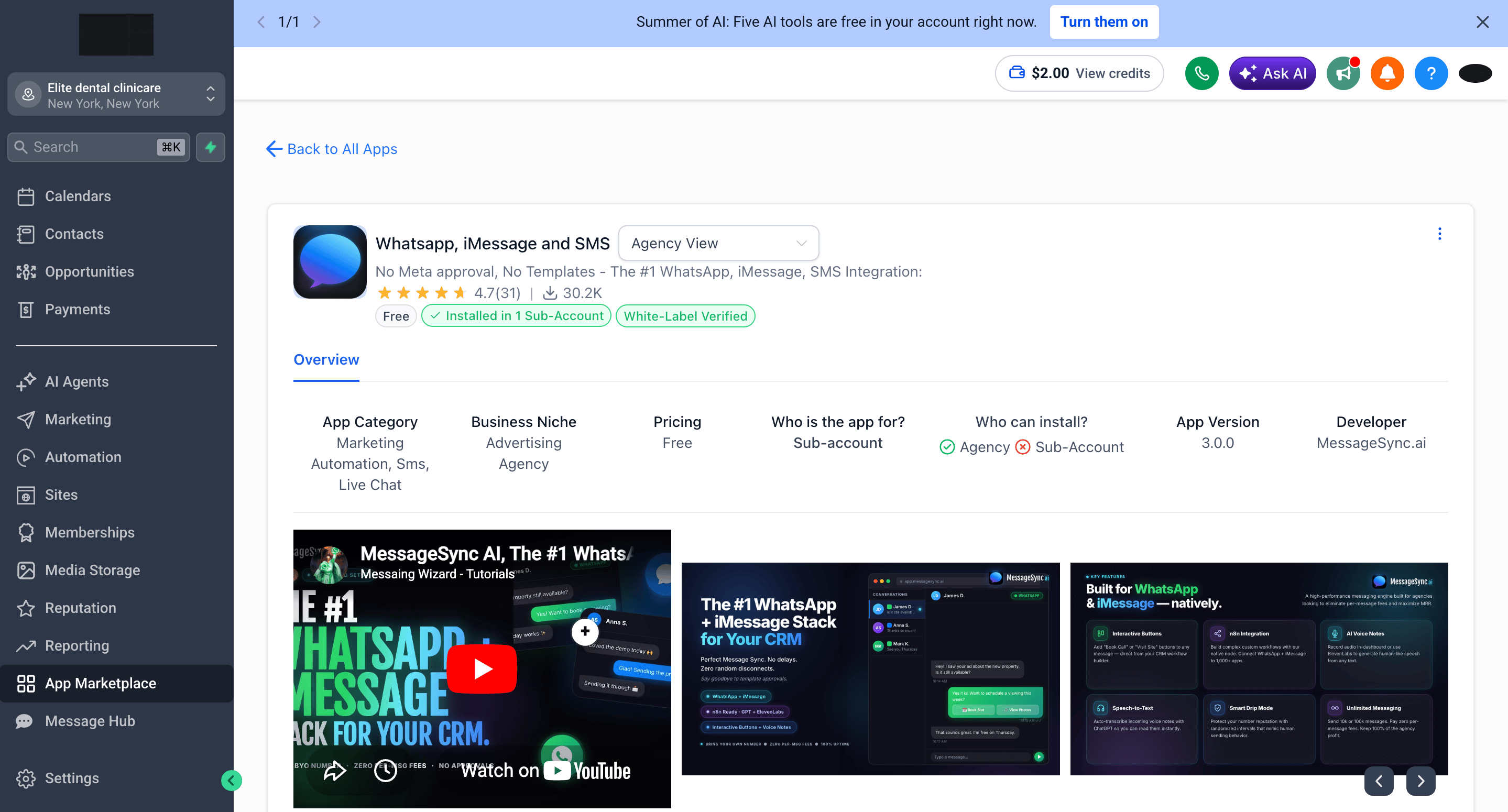
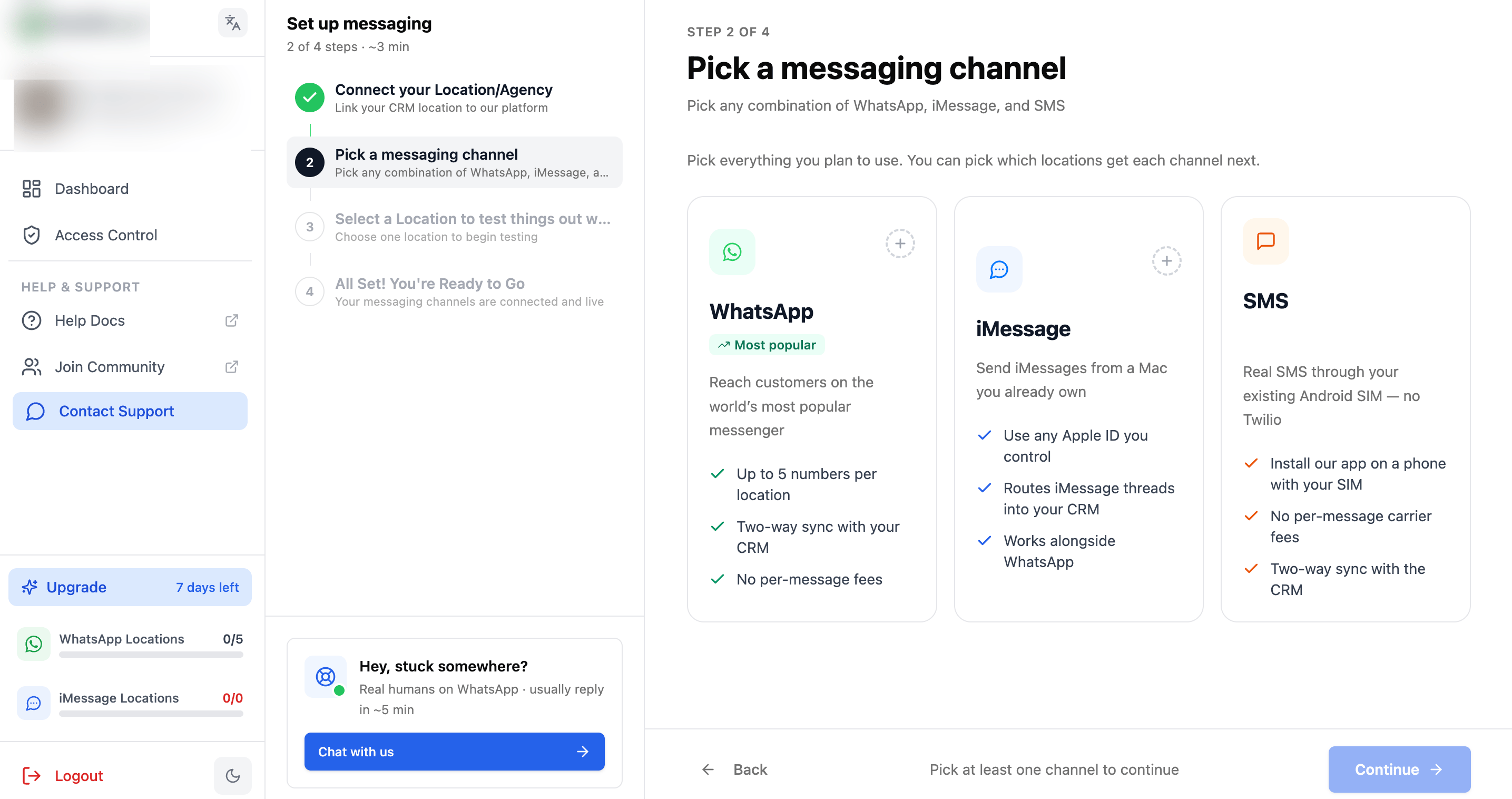
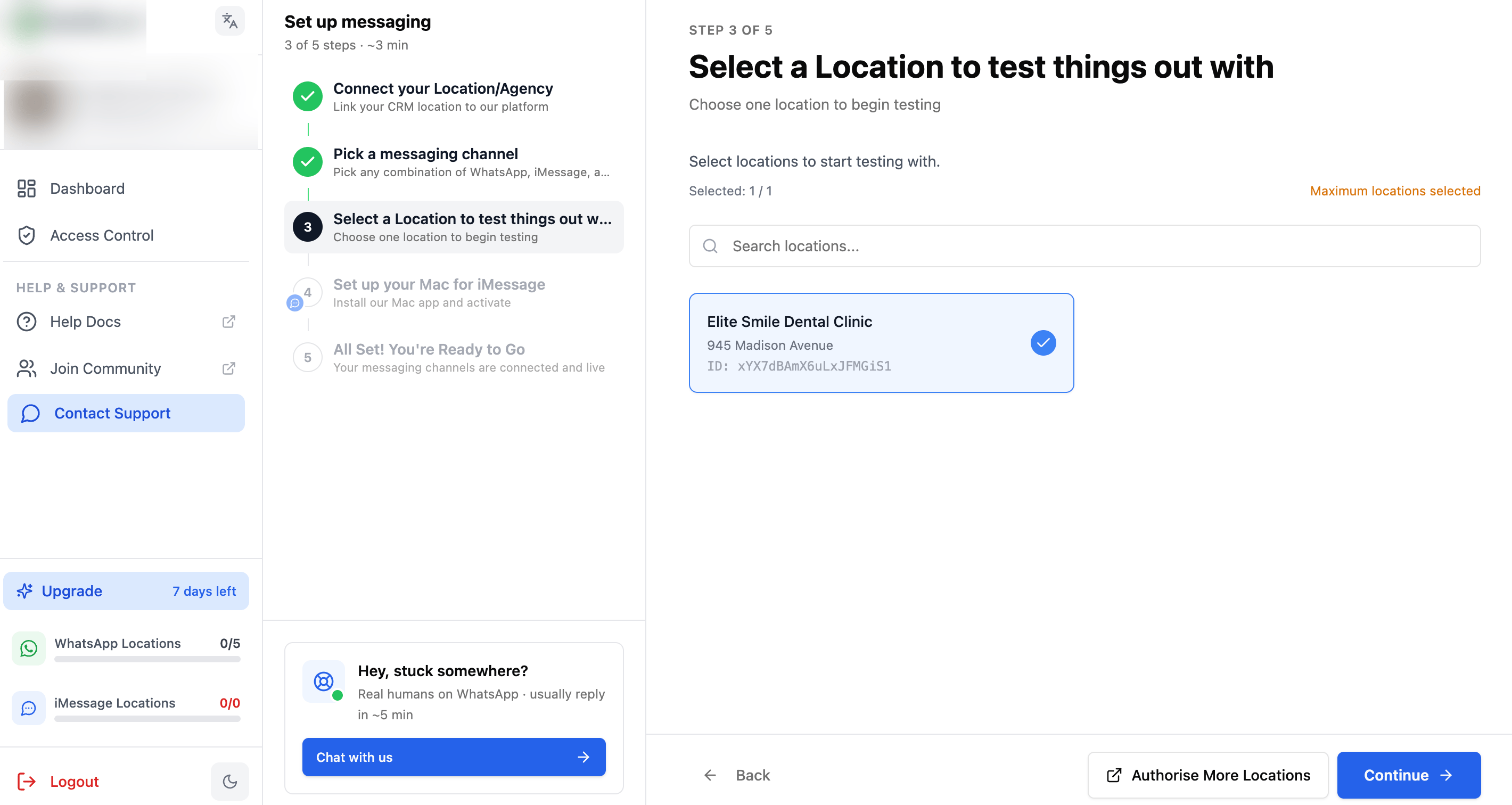
Before touching your phone, connect your CRM and install the marketplace app so SMS appears as a channel in your sub-account.
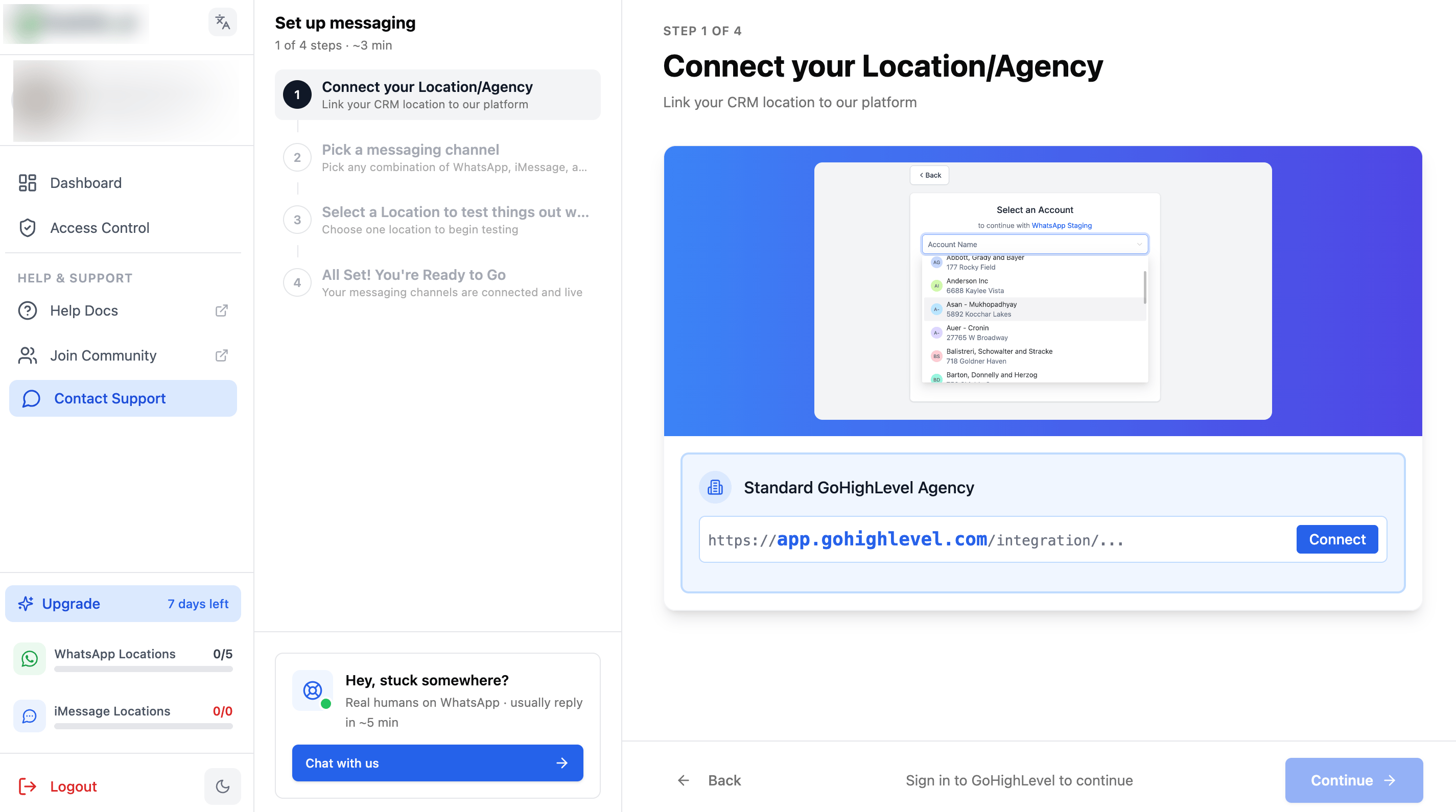
1. Visit your **SMS provider** dashboard and log in (or create your account).
2. Go to your dashboard and click the **Connect** button.
Install the marketplace app on your sub-accounts. If you're an **agency user**, choose **Install under all locations** and enable automatic installation for future locations. Connect each sub-account individually.
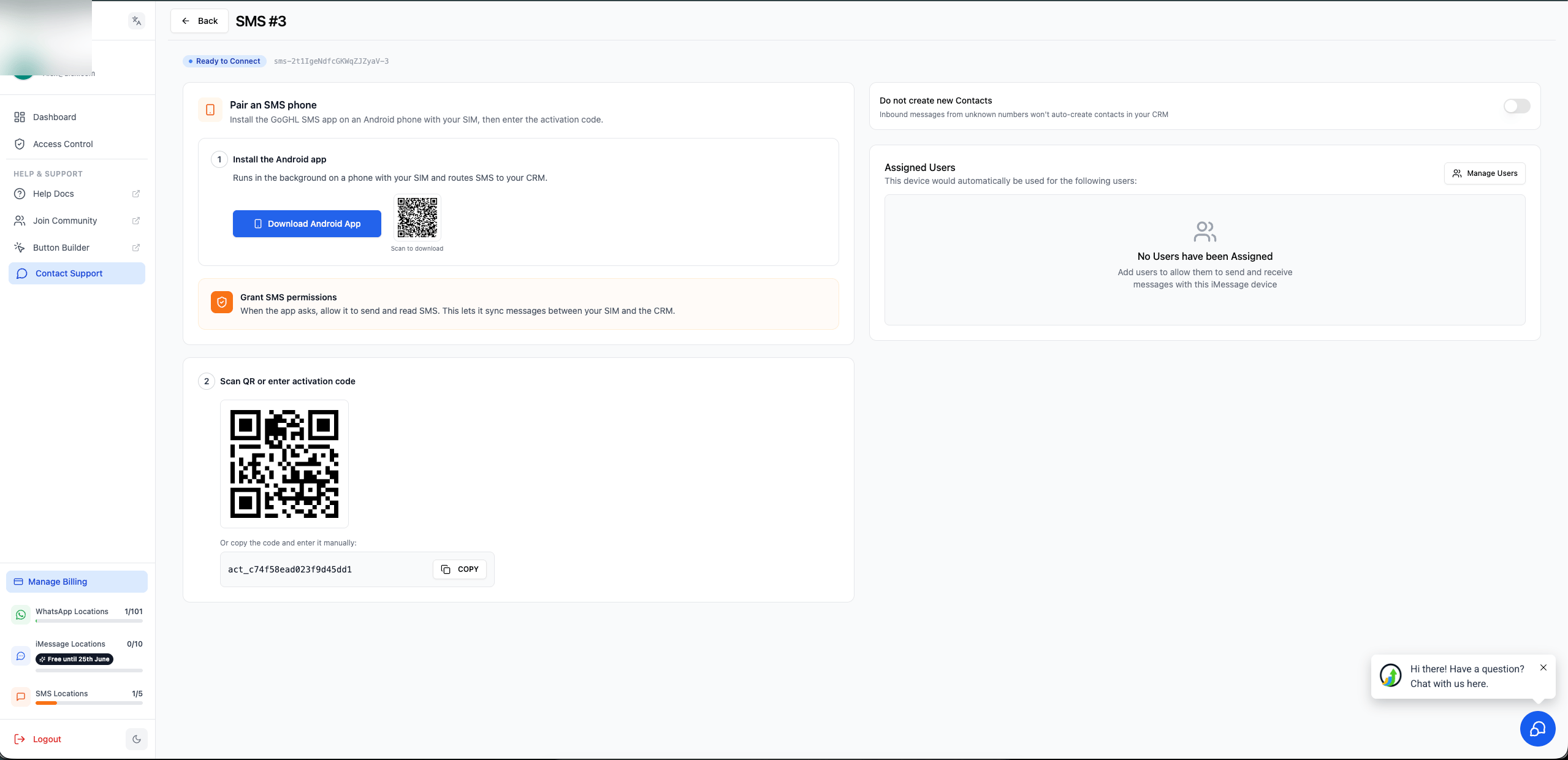
Open the device page in your dashboard. From here you'll **download the Android app** and grab the **QR / activation code** used to pair your phone in Part 2.
***
## Part 2: Set Up the SMS Sync App on Android[](#part-2-set-up-the-sms-sync-app-on-android "Direct link to Part 2: Set Up the SMS Sync App on Android")
Now we'll install the app on your phone. It acts as the bridge between your SIM and your CRM.
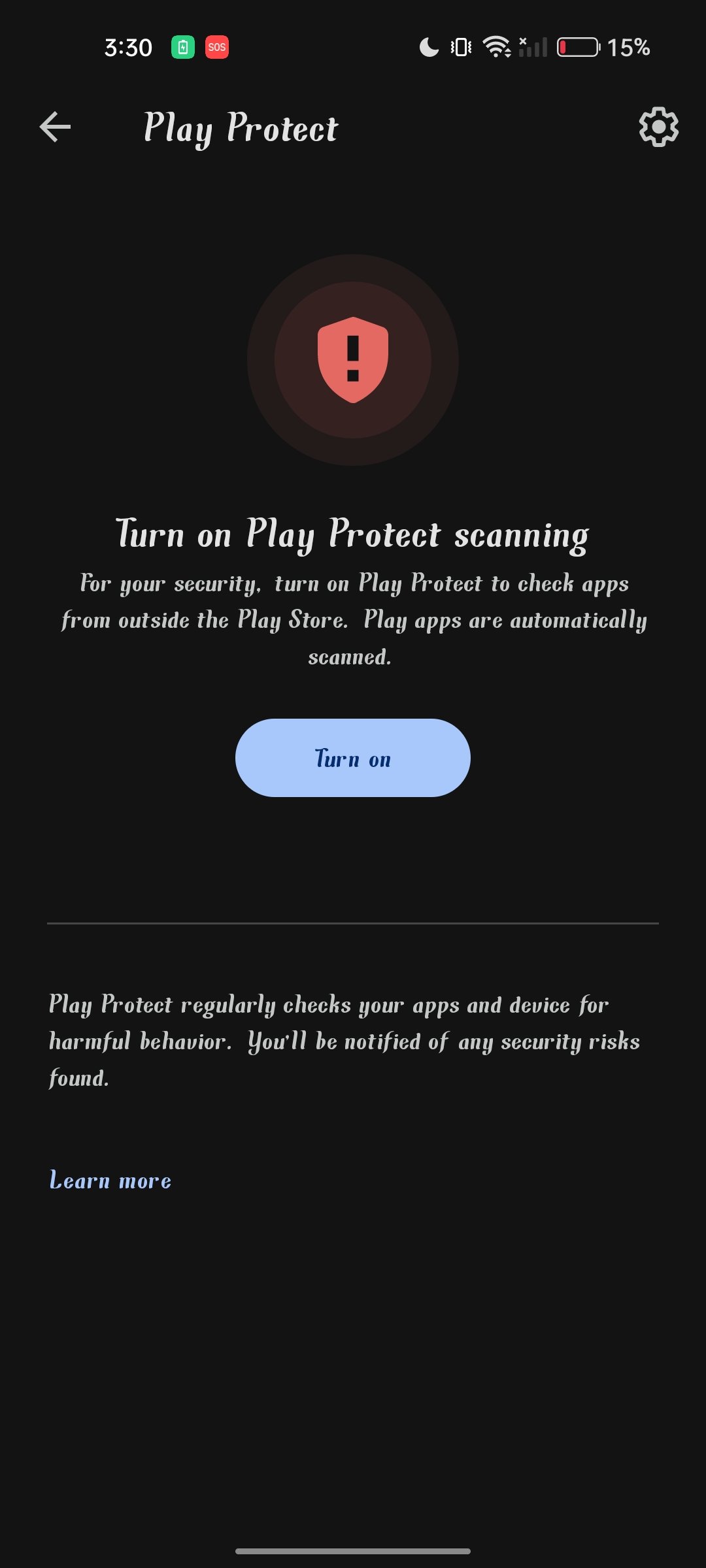
Google Play Protect can block the app from installing or running correctly, so turn it off first.
1. Open the **Google Play Store**.
2. Tap your **profile icon** (top right) → **Play Protect**.
3. Tap the **settings gear** and turn **off** all Play Protect scanning.
Always keep Play Protect **off** when installing or updating the SMS Sync app.
1. Open **Chrome** on your Android phone.
2. From your dashboard's device page, tap **Download Android App** to download the APK file (allow the download if prompted).
3. Open the downloaded file from **Files → Downloads**, tap the APK, then tap **Install**.
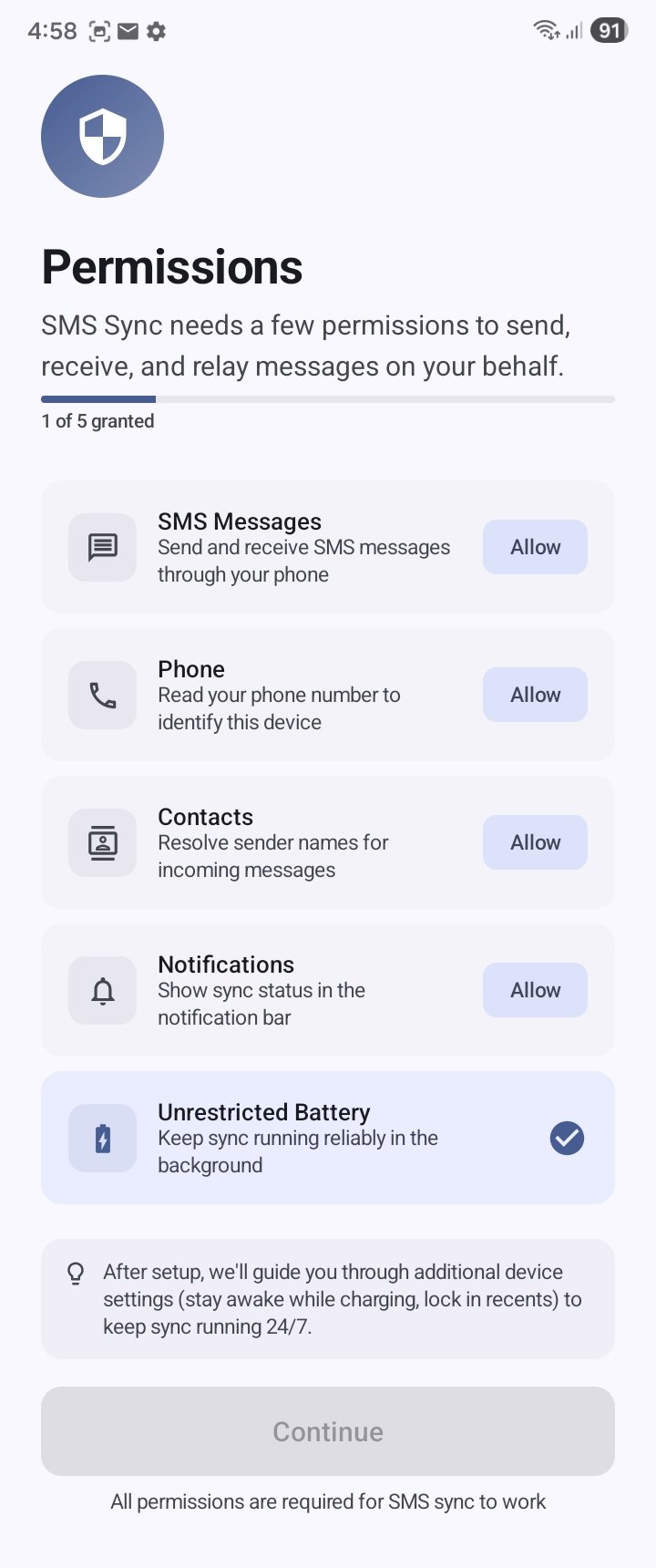
When you open the app, it asks for the permissions it needs to send, receive, and relay messages. Tap **Allow** for **every** request.
The app needs all five:
* **SMS Messages**: send and receive texts through your phone
* **Phone**: read your number to identify this device
* **Contacts**: resolve sender names for incoming messages
* **Notifications**: show sync status in the notification bar
* **Unrestricted Battery**: keep sync running reliably in the background
The app **must** be allowed to run in the background at all times. Without unrestricted battery and background activity, messages will stop syncing when the screen is off.
If a permission is greyed out, go to **Settings → Apps → SMS Sync → ⋮ (3 dots) → Allow Restricted Settings**, then grant it. Also turn **off** "Pause app activity if unused" so the app never gets suspended.
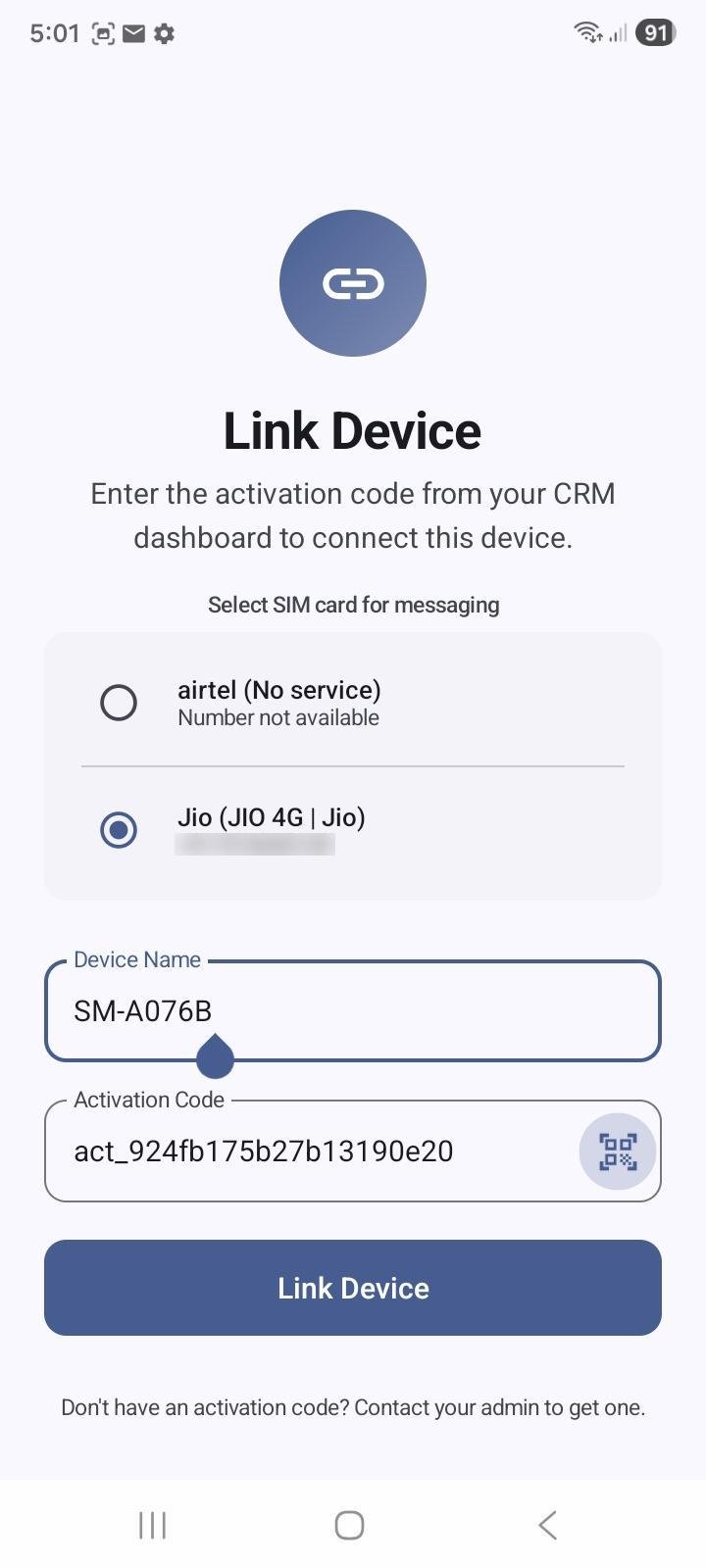
On the **Link Device** screen, connect the app to your CRM with an activation code.
1. **Select the SIM card** you want to use for messaging (important on dual-SIM phones, pick the SIM with an active number).
2. Give the device a **Device Name** (e.g. your phone model) so you can recognise it in the dashboard.
3. In your CRM dashboard, copy your **Activation Code** and paste it into the app, or tap the **QR icon** to scan it instead.
4. Tap **Link Device**.
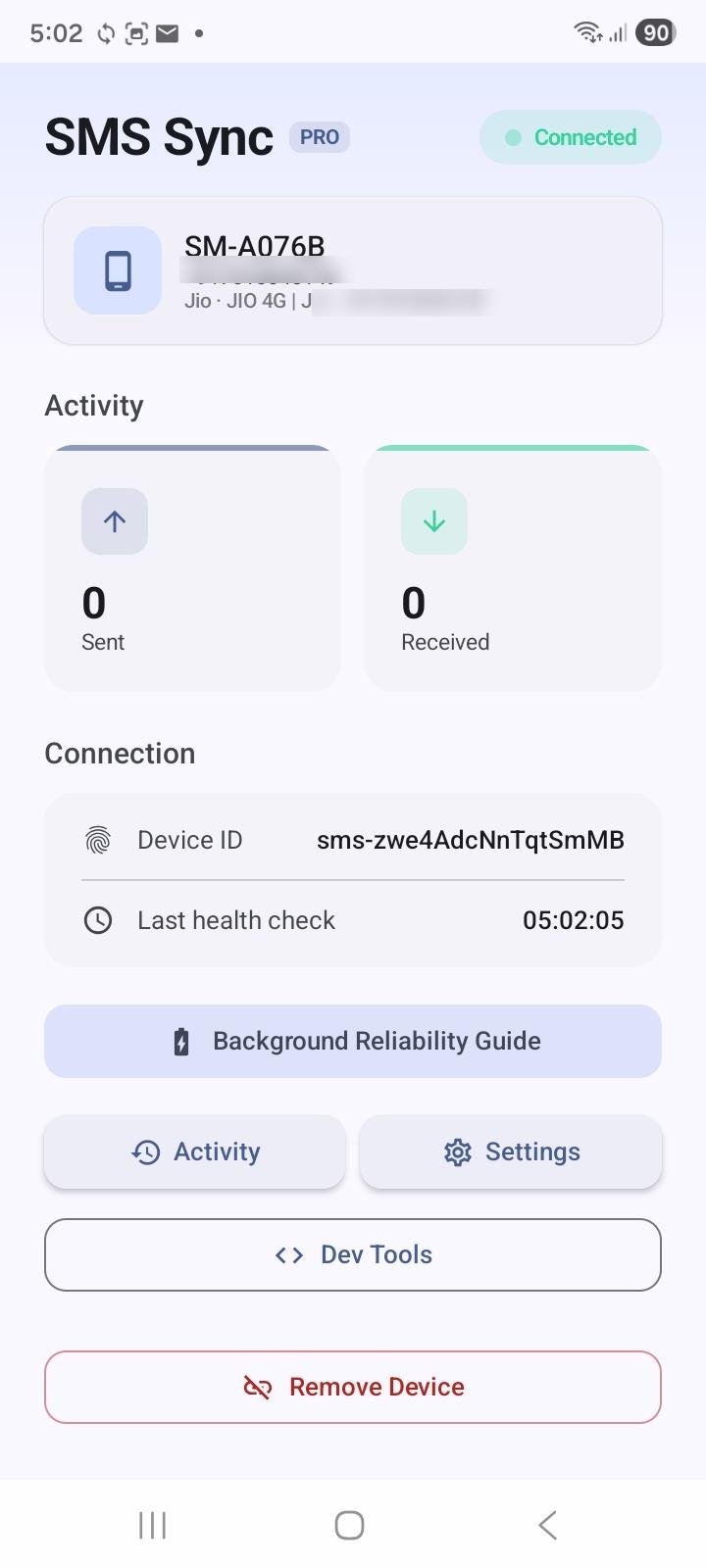
Once linked, the app shows a **Connected** status with your device name, number, and live **Sent / Received** activity counters.
***
## Part 3: Send a Test Message[](#part-3-send-a-test-message "Direct link to Part 3: Send a Test Message")
Let's confirm everything works end-to-end.
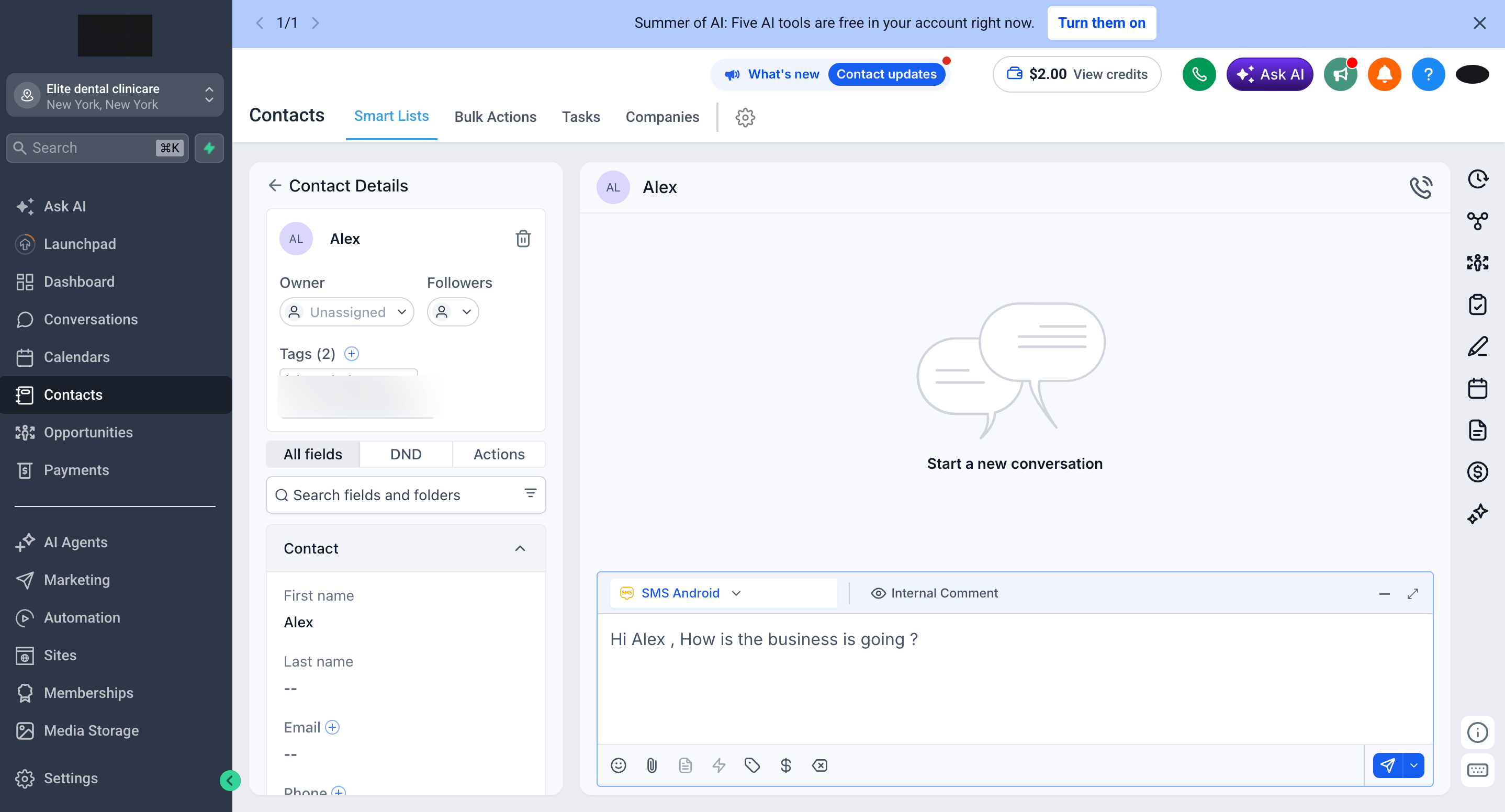
Open any contact inside CRM and go to the **Conversations** tab.
Choose **SMS Android** from the message-type dropdown.
Type a quick test message and hit **Send**.
Confirm the message **sends successfully** and the **reply is received**, both should appear in CRM, and the counters in the app should tick up.
***
## Final Checklist[](#final-checklist "Direct link to Final Checklist")
Keep your gateway running reliably:
* **Keep Alive in Background** is ON
* **Sync Received** is ON
* Phone stays plugged into power
* App is **not** battery-optimised or "paused when unused"
* Correct SIM selected (dual-SIM phones)
* Use the app for **all** messaging, not your native SMS app
***
## Troubleshooting[](#troubleshooting "Direct link to Troubleshooting")
If messages aren't sending, work through these in order:
| Symptom | Fix |
| --------------------------------- | ------------------------------------------------------------------------------- |
| App won't install / keeps closing | Play Protect is ON → turn it **off** |
| Messages stuck / not sending | A permission is missing → **Allow all** |
| Syncing stops when screen is off | App is being paused → disable pause & enable unrestricted battery |
| Replies not reaching CRM | App isn't the **default SMS app** → set it |
| Nothing routes at all | Device not assigned to sub-account, or SMS routing not enabled in the dashboard |
### Dashboard Monitoring[](#dashboard-monitoring "Direct link to Dashboard Monitoring")
In your dashboard, check the device's **status** (Active), **battery level**, **connection** (Wi-Fi/Mobile), **permissions status**, and **last ping**. Errors here usually point straight to the setup issue.
**Start texting!** Your Android phone is now a fully connected SMS gateway for your CRM.
***
## Support[](#support "Direct link to Support")
If you need help with the setup or onboarding:
* WhatsApp Support: [Chat on WhatsApp](https://wa.me/+12267248710?text=Hi%2C%20I%20need%20help%20with%20Android%20SMS%20Setup.)
* Email: [**support@goghl.ai**](mailto:support@goghl.ai)
 The app needs all five:
* **SMS Messages**: send and receive texts through your phone
* **Phone**: read your number to identify this device
* **Contacts**: resolve sender names for incoming messages
* **Notifications**: show sync status in the notification bar
* **Unrestricted Battery**: keep sync running reliably in the background
The app needs all five:
* **SMS Messages**: send and receive texts through your phone
* **Phone**: read your number to identify this device
* **Contacts**: resolve sender names for incoming messages
* **Notifications**: show sync status in the notification bar
* **Unrestricted Battery**: keep sync running reliably in the background
 1. **Select the SIM card** you want to use for messaging (important on dual-SIM phones, pick the SIM with an active number).
2. Give the device a **Device Name** (e.g. your phone model) so you can recognise it in the dashboard.
3. In your CRM dashboard, copy your **Activation Code** and paste it into the app, or tap the **QR icon** to scan it instead.
4. Tap **Link Device**.
1. **Select the SIM card** you want to use for messaging (important on dual-SIM phones, pick the SIM with an active number).
2. Give the device a **Device Name** (e.g. your phone model) so you can recognise it in the dashboard.
3. In your CRM dashboard, copy your **Activation Code** and paste it into the app, or tap the **QR icon** to scan it instead.
4. Tap **Link Device**.
 Let's confirm everything works end-to-end.