> ## Documentation Index
> Fetch the complete documentation index at: https://help.goghl.ai/llms.txt
> Use this file to discover all available pages before exploring further.
# WhatsApp Setup
> Follow these simple steps to connect your WhatsApp account to your GoHighLevel CRM via GoGHL.ai so you can send and receive WhatsApp messages right inside your CRM conversations.
GoGHL.ai links your real WhatsApp number to your CRM. Every message you send from CRM goes out from your own WhatsApp, and every reply syncs straight back into your CRM conversations, no third-party numbers, no Business API approval.
Already connected WhatsApp as a custom **SMS provider**? Switch it over with [Legacy WhatsApp Setup](/whatsapp/sms-provider-setup).
***
## Full Setup Video[](#full-setup-video "Direct link to Full Setup Video")
***
## What You Need Before Starting[](#what-you-need-before-starting "Direct link to What You Need Before Starting")
* A [GoGHL.ai](https://app.goghl.ai/login) account (free 7-day trial, no card required)
* A GoHighLevel account with at least one sub-account / location
* The phone with your active WhatsApp account nearby, to scan a QR code
***
## Part 1: Connect Your CRM & Install the Marketplace App[](#part-1-connect-your-crm--install-the-marketplace-app "Direct link to Part 1: Connect Your CRM & Install the Marketplace App")
First, connect your CRM and install the marketplace app so WhatsApp appears as a channel in your sub-account.
Visit [GoGHL.ai](https://app.goghl.ai/login) and create an account using your Google account or email. Once logged in, your **free trial** starts immediately (7 days free, no card required).
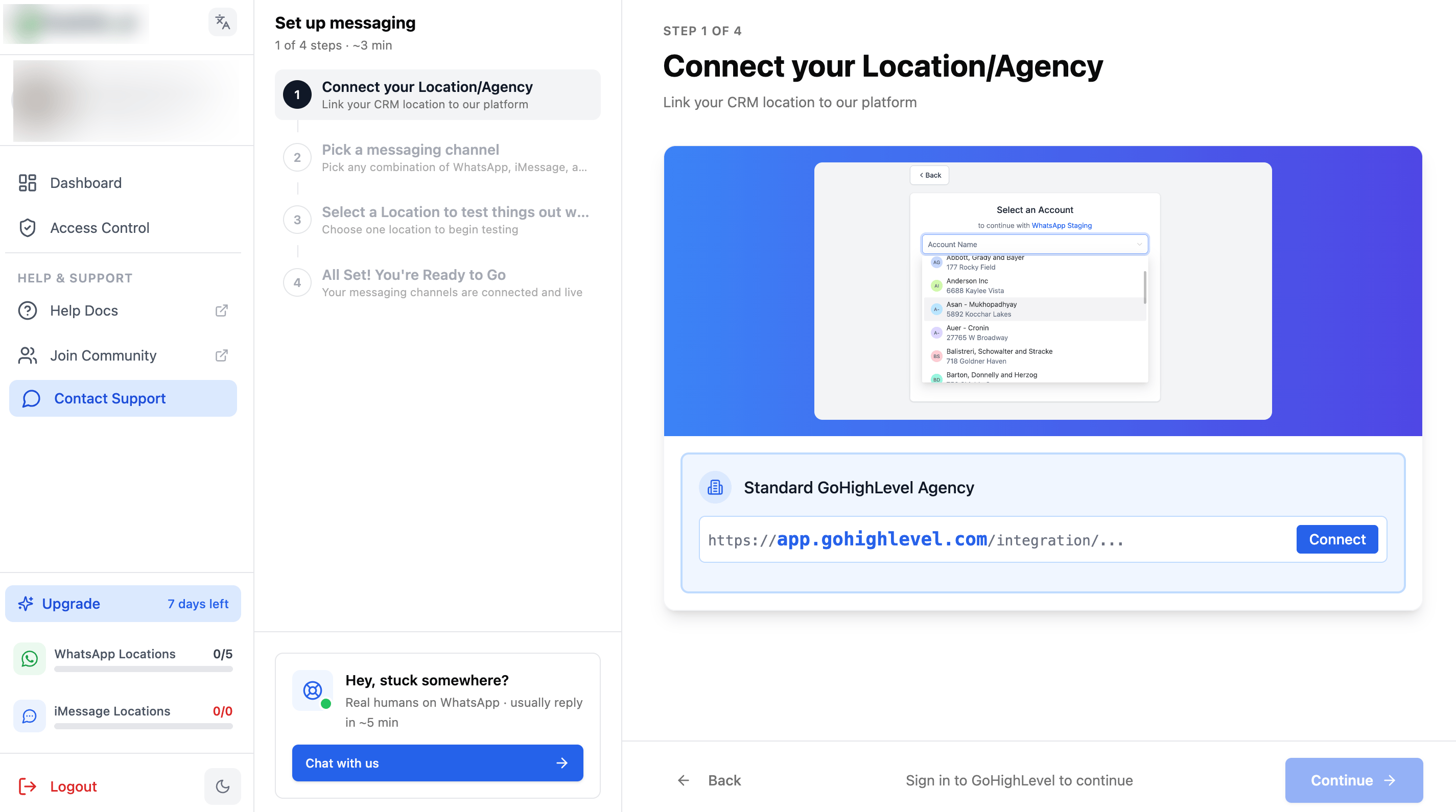
Go to your dashboard and click the **Connect** button, then follow the onboarding to connect your sub-accounts.
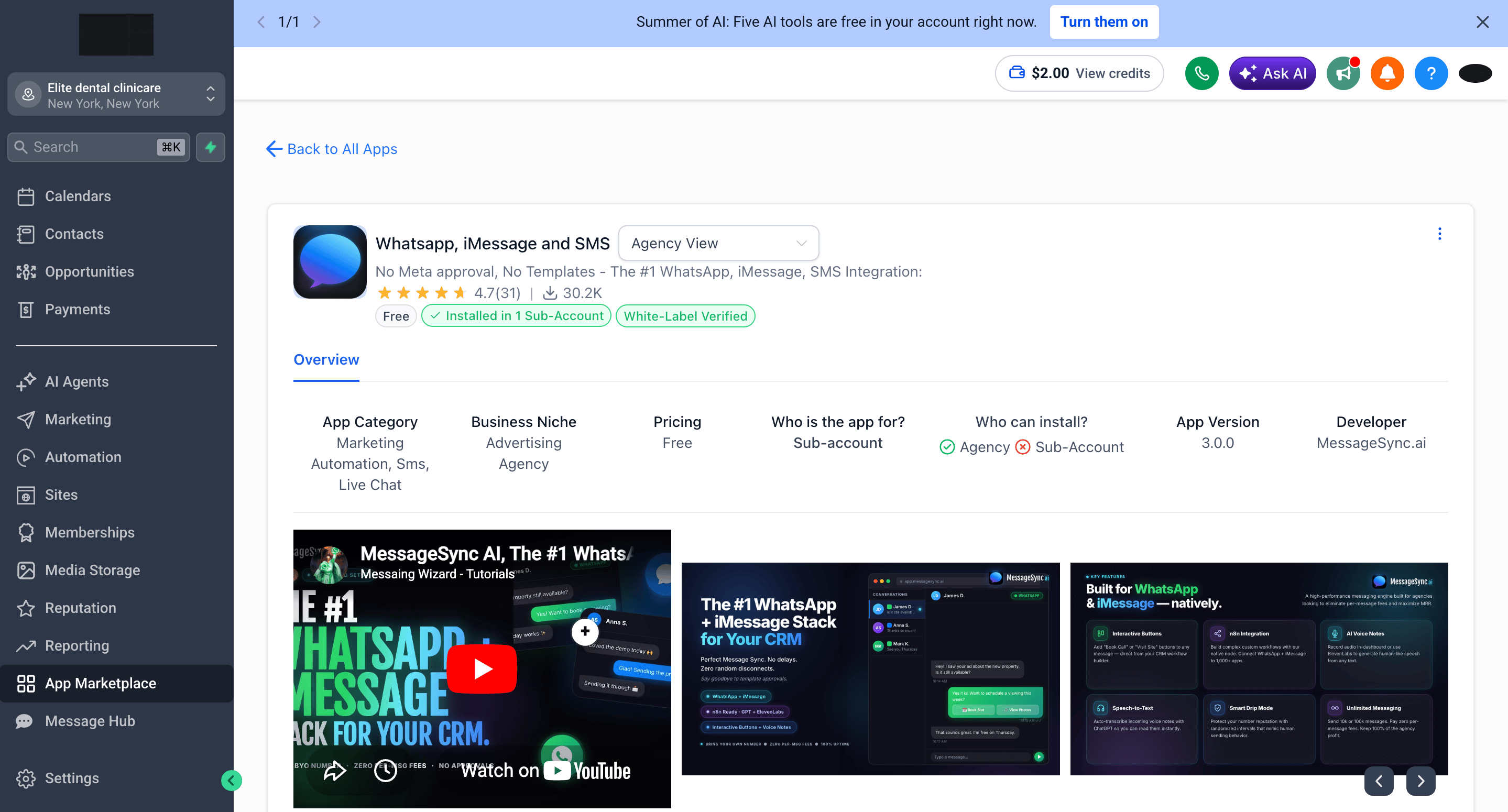
Install the marketplace app on your sub-accounts. If you're an **agency user**, choose **Install under all locations** and enable automatic installation for future locations.
For an easier setup, click **Select All** to install on every sub-account at once.
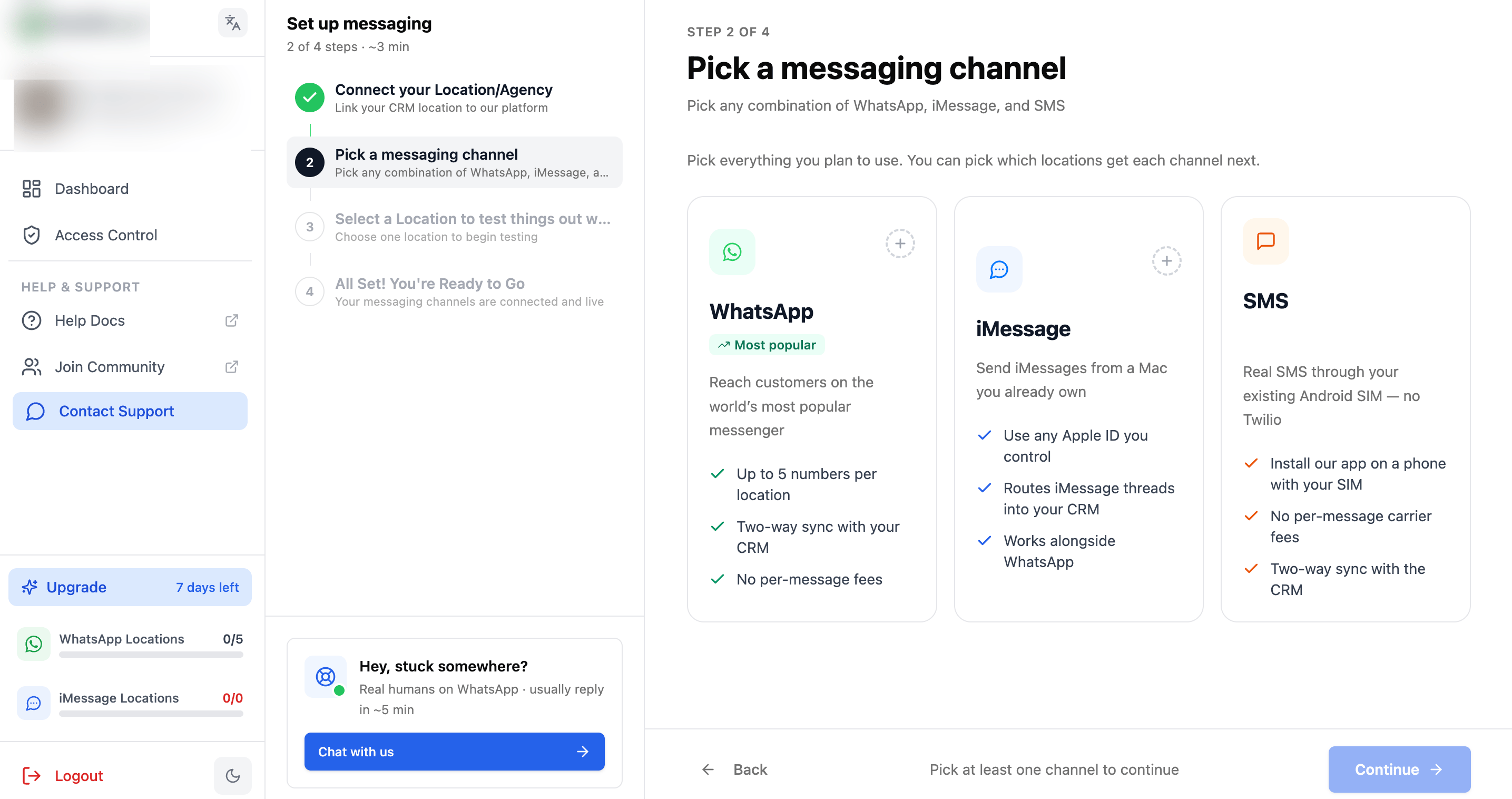
When asked which messaging channel to set up, choose **WhatsApp**.
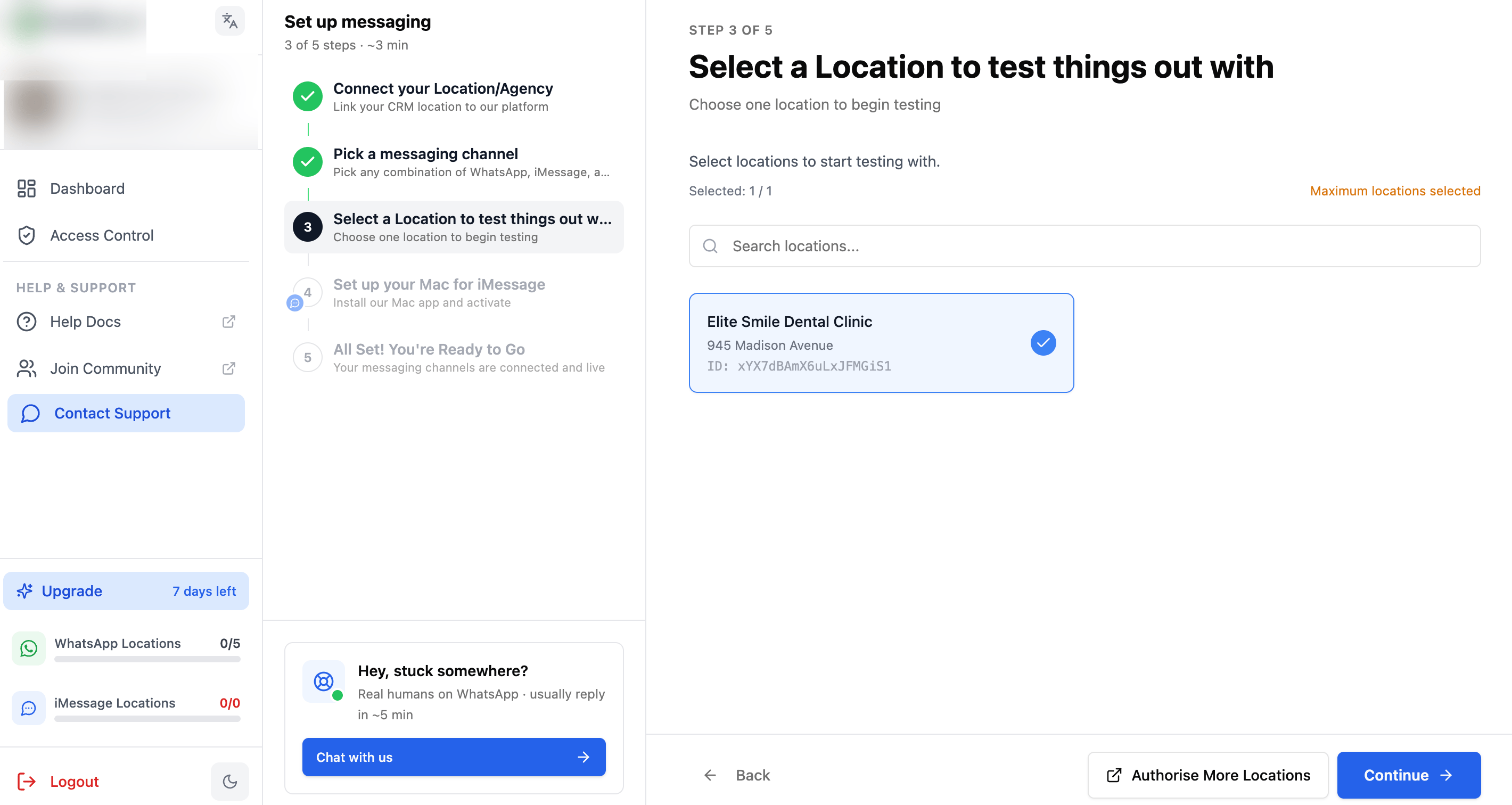
Choose the location you want to connect. You can always connect more than one later.
***
## Part 2: Connect Your WhatsApp Number[](#part-2-connect-your-whatsapp-number "Direct link to Part 2: Connect Your WhatsApp Number")
With the app installed, link your WhatsApp number by scanning a QR code, exactly like WhatsApp Web.
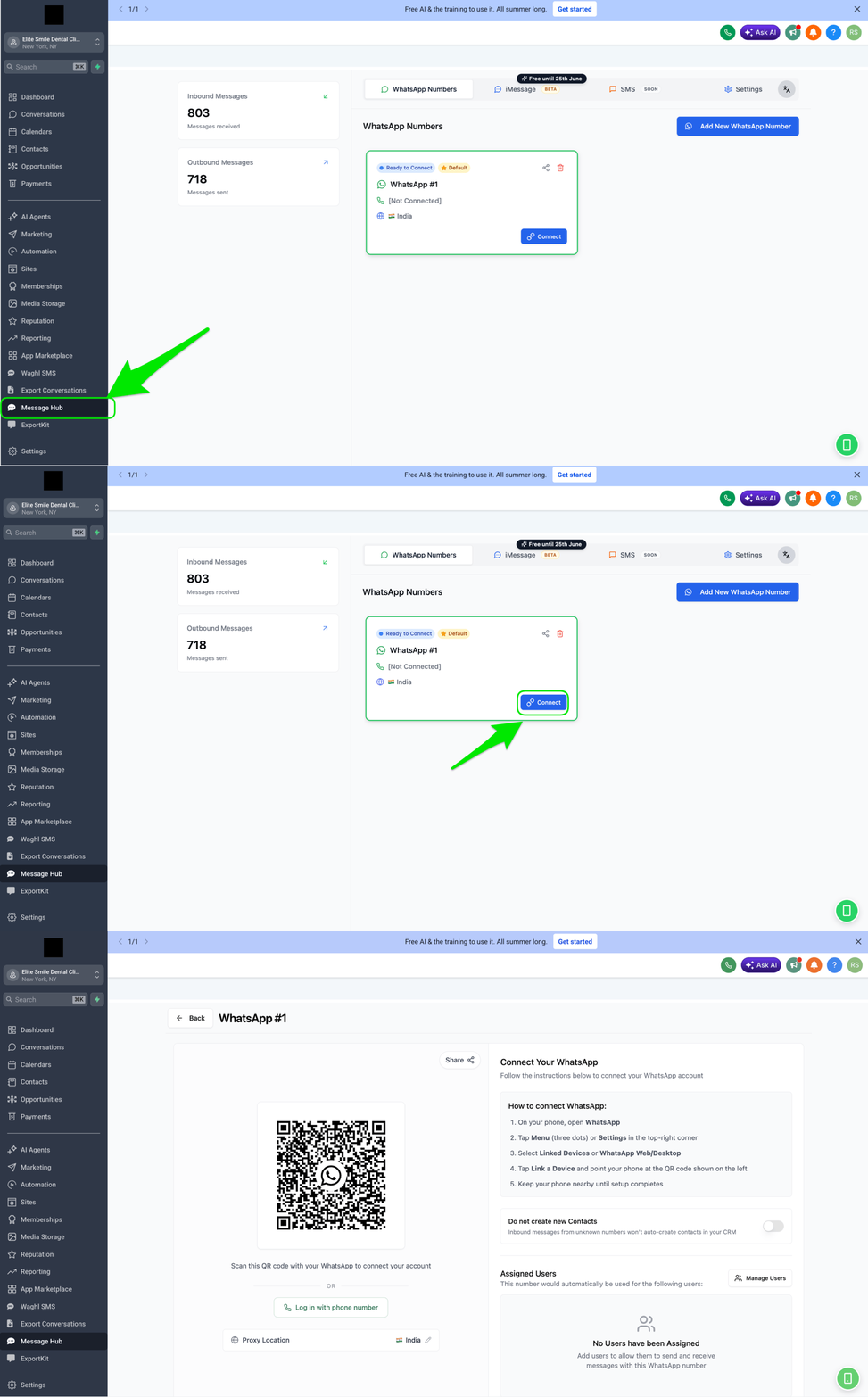
Go to the **Message hub** tab in your sub-account (or open the [GoGHL.ai dashboard](https://app.goghl.ai/dashboard/)), then click **Connect** and wait for the QR code to appear.
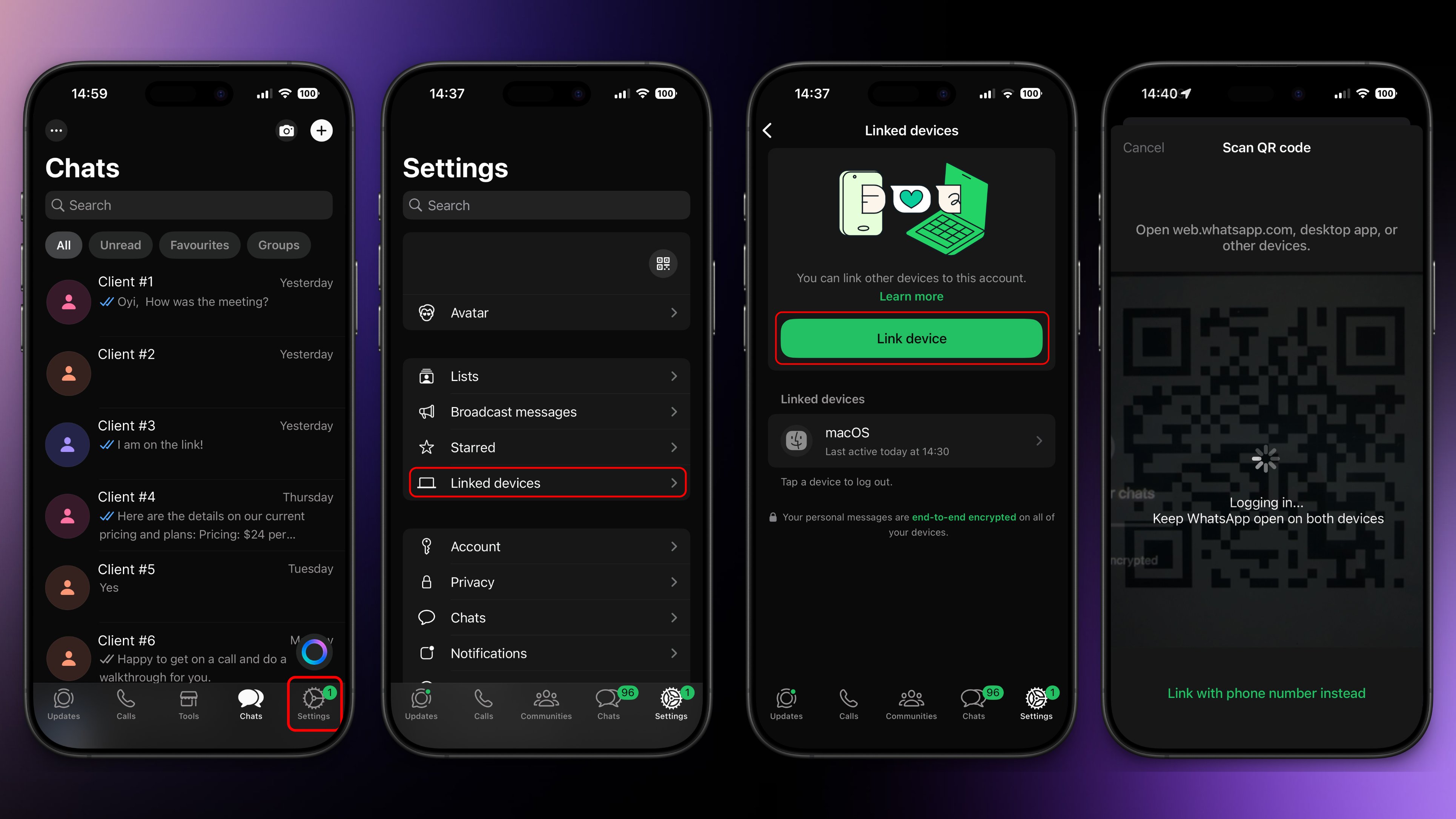
On the phone with your WhatsApp account, open:
`WhatsApp → Settings → Linked Devices → Link a Device → Scan QR`
Point your camera at the QR code on screen.
These are iOS screenshots, the Android flow may vary slightly. Can't scan the QR code? Use [Log in with Phone Number](/whatsapp/link-with-phone-number) instead.
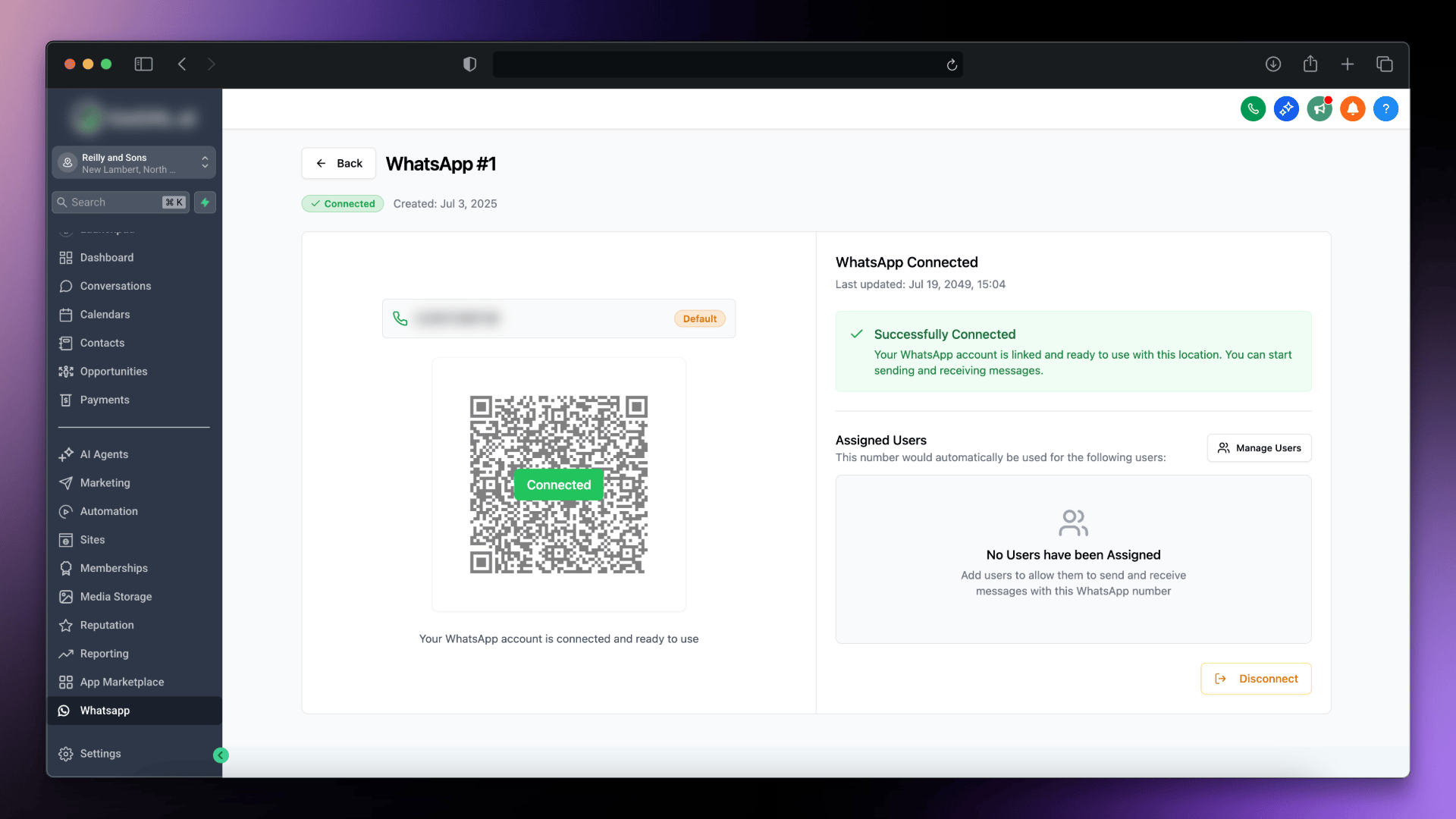
Give it a few moments. You'll see a confirmation in your console once WhatsApp is connected, your number is now ready to use.
***
## Part 3: Send a Test Message[](#part-3-send-a-test-message "Direct link to Part 3: Send a Test Message")
Let's confirm everything works end-to-end.
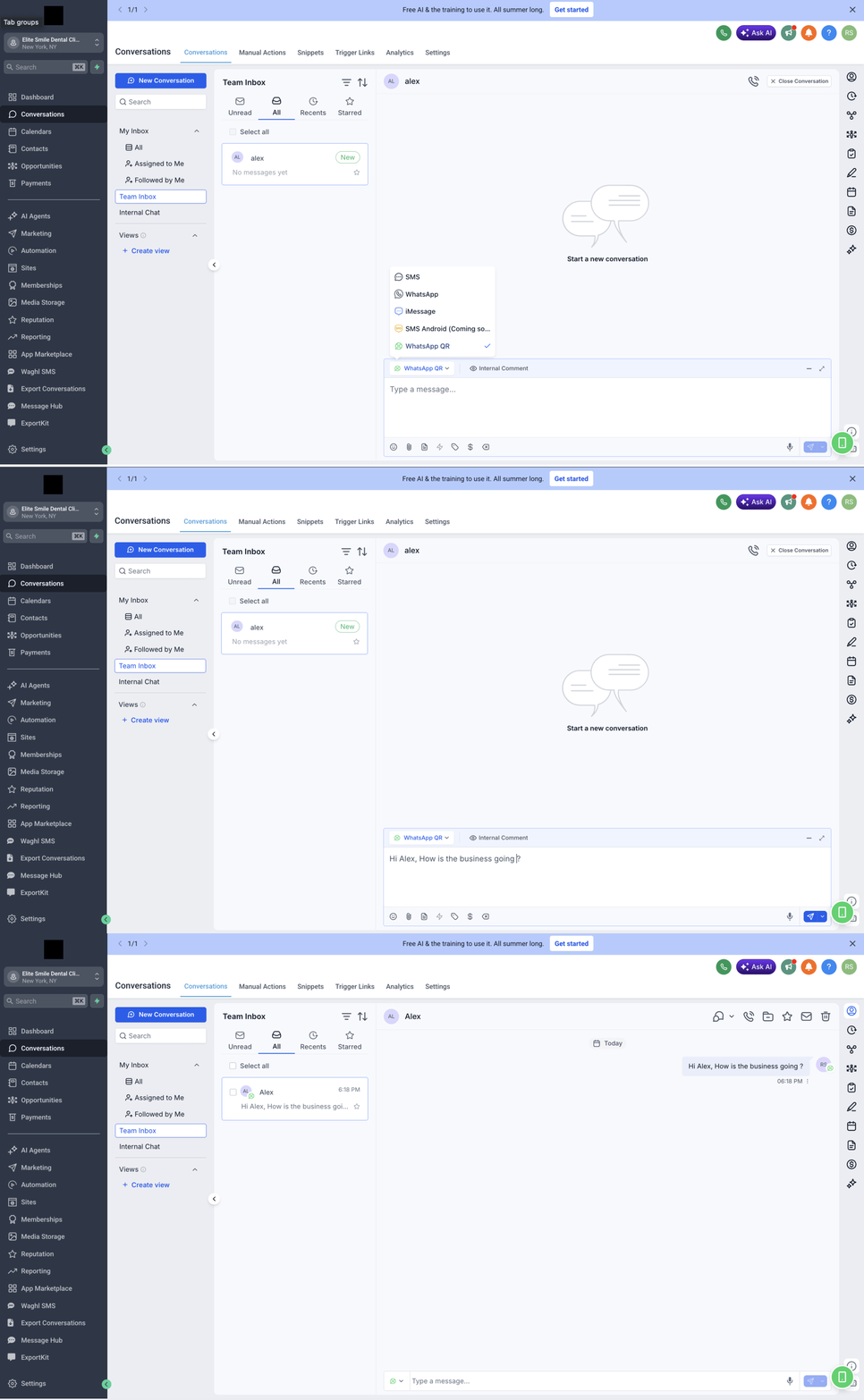
Go to **Contacts → select a contact → Send Message**.
Choose **WhatsApp** from the message-type dropdown.
Type a quick test message and hit **Send**.
Confirm the message **sends successfully** and the **reply is received**, both should appear in your CRM Conversations.
Hurray, you've completed the setup! Your WhatsApp number is now fully connected to your CRM.
***
## Number Needs a Passkey?[](#number-needs-a-passkey "Direct link to Number Needs a Passkey?")
Some numbers now require a **passkey** to link, so the usual QR scan won't connect them. If that's your number, follow the guided browser steps instead.
Link numbers that require a passkey using a short guided script in your browser when the QR scan won't connect.
***
## Keep Your Number Safe[](#keep-your-number-safe "Direct link to Keep Your Number Safe")
WhatsApp bans are the #1 reason numbers stop working. Before you start messaging at scale, set up protection:
Gradually ramp up sending on a new number so WhatsApp trusts it.
Pace your messages automatically to stay under the radar.
Route traffic through a location-matched IP to reduce ban risk.
Spread volume across several connected numbers per location.
***
## Final Checklist[](#final-checklist "Direct link to Final Checklist")
Keep your WhatsApp connection running reliably:
* Phone with the linked WhatsApp account stays **online** and charged
* You're following the [safety guidelines](/safety-and-protection/introduction) (warm-up, drip mode)
* Only **one** WhatsApp account is connected per instance
* The marketplace app is installed on the sub-account you're messaging from
* WhatsApp is selected as the **conversation provider** for the location
***
## Troubleshooting[](#troubleshooting "Direct link to Troubleshooting")
If WhatsApp isn't connecting or messages aren't sending, work through these in order:
| Symptom | Fix |
| --------------------------------- | ----------------------------------------------------------------------------------------------------- |
| QR code won't scan | Refresh for a new code, or use [Log in with Phone Number](/whatsapp/link-with-phone-number) |
| Disconnects shortly after linking | Keep the phone online; check [Disconnection Notifications](/whatsapp/disconnection-notifications) |
| Messages not sending | Confirm WhatsApp is the conversation provider and the app is installed on that sub-account |
| Number got banned / restricted | Review [Bans & Restrictions](/safety-and-protection/bans-and-restrictions) and enable safety features |
| Replies not reaching CRM | Re-check the connection in the Message hub and reconnect if status isn't **Connected** |
**Start messaging!** Your WhatsApp number is now a fully connected channel in your CRM.
***
## Support[](#support "Direct link to Support")
If you need help with the setup or onboarding:
* WhatsApp Support: [Chat on WhatsApp](https://wa.me/+12267248710?text=Hi%2C%20I%20need%20help%20with%20WhatsApp%20Setup.)
* Email: [**support@goghl.ai**](mailto:support@goghl.ai)