> ## Documentation Index
> Fetch the complete documentation index at: https://help.goghl.ai/llms.txt
> Use this file to discover all available pages before exploring further.
# List Button
## GoGHL.ai | WhatsApp List Button Setup Guide[](#goghlai--whatsapp-list-button-setup-guide "Direct link to GoGHL.ai | WhatsApp List Button Setup Guide")
This guide explains how to create List Messages in GoGHL.ai. Follow the formats carefully, once you get used to it, creating list will take only a few minutes.
## What are WhatsApp List Buttons?[](#what-are-whatsapp-list-buttons "Direct link to What are WhatsApp List Buttons?")
WhatsApp List Buttons (List Messages) present a structured, interactive menu inside the chat, letting customers select from multiple options without typing. They are best used when you have more than a few choices and want them organized into categories.
* Present multiple choices in a single message
* Group options into named sections (e.g., categories or menus)
* Reduce typing and invalid free-text responses
* Render consistently with WhatsApp’s native list UI across devices
## Who should use them?[](#who-should-use-them "Direct link to Who should use them?")
* Agencies: To help clients build interactive flows and improve response rates.
* Businesses: For faster customer support, product catalogs, booking flows, or marketing campaigns.
* Sales teams: To collect structured responses (like “Book Demo” or “Get Pricing”) instantly.
## Key Terms (Quick Definitions)[](#key-terms-quick-definitions "Direct link to Key Terms (Quick Definitions)")
* Command Prefix: The special code (#list) that tells GoGHL what type of message you’re sending.
* Section: A grouping of multiple options (e.g., “Electronics” or “Clothing” in a catalog).
* Option ID: A unique identifier for each button or list item (used to track which option was clicked).
* Media Header: An optional image or video at the top of a Button Message.
## List Messages[](#list-messages "Direct link to List Messages")
### Format[](#format "Direct link to Format")
```text theme={null}
#list|title|description|footer|buttonText|sections
```
### Sections format[](#sections-format "Direct link to Sections format")
```text theme={null}
SectionTitle*ItemTitle*ItemDescription*ItemId/SectionTitle2*ItemTitle2*ItemDescription2*ItemId2
```
### Example[](#example "Direct link to Example")
```text theme={null}
#list|Product Catalog|Choose your product|Powered by GoGhl|View Products|Electronics*iPhone 15*Latest iPhone model*iphone15/Electronics*Samsung Galaxy*Premium Android*galaxy01/Clothing*T-Shirt*Comfortable cotton*tshirt01/Clothing*Jeans*Classic denim*jeans01
```
### Format Breakdown[](#format-breakdown "Direct link to Format Breakdown")
\#list → Command prefix
title → List title (undefined to omit)
description → List description (required)
footer → Footer text (undefined to omit)
buttonText → Label for the button (undefined = default "View Options")
sections → Section entries separated by /
Each section entry = `SectionName*OptionTitle*Description*ID`
Automatic Grouping: Options with the same section name are grouped automatically.
Flexible Order: Add options in any order - grouping happens automatically.
Multiple Options: Each section can have unlimited options.
Make sure to use **`undefined`** for any optional parameter you don't want to include. For example, if you don't want a subtitle, use `undefined` instead of leaving it empty.
#### Mini Example[](#mini-example "Direct link to Mini Example")
`Electronics*iPhone*Latest model*iphone15/Electronics*Galaxy*Premium*galaxy01`
Creates one “Electronics” section with 2 options.
***
## Button Builder (No-Code)[](#button-builder-no-code "Direct link to Button Builder (No-Code)")
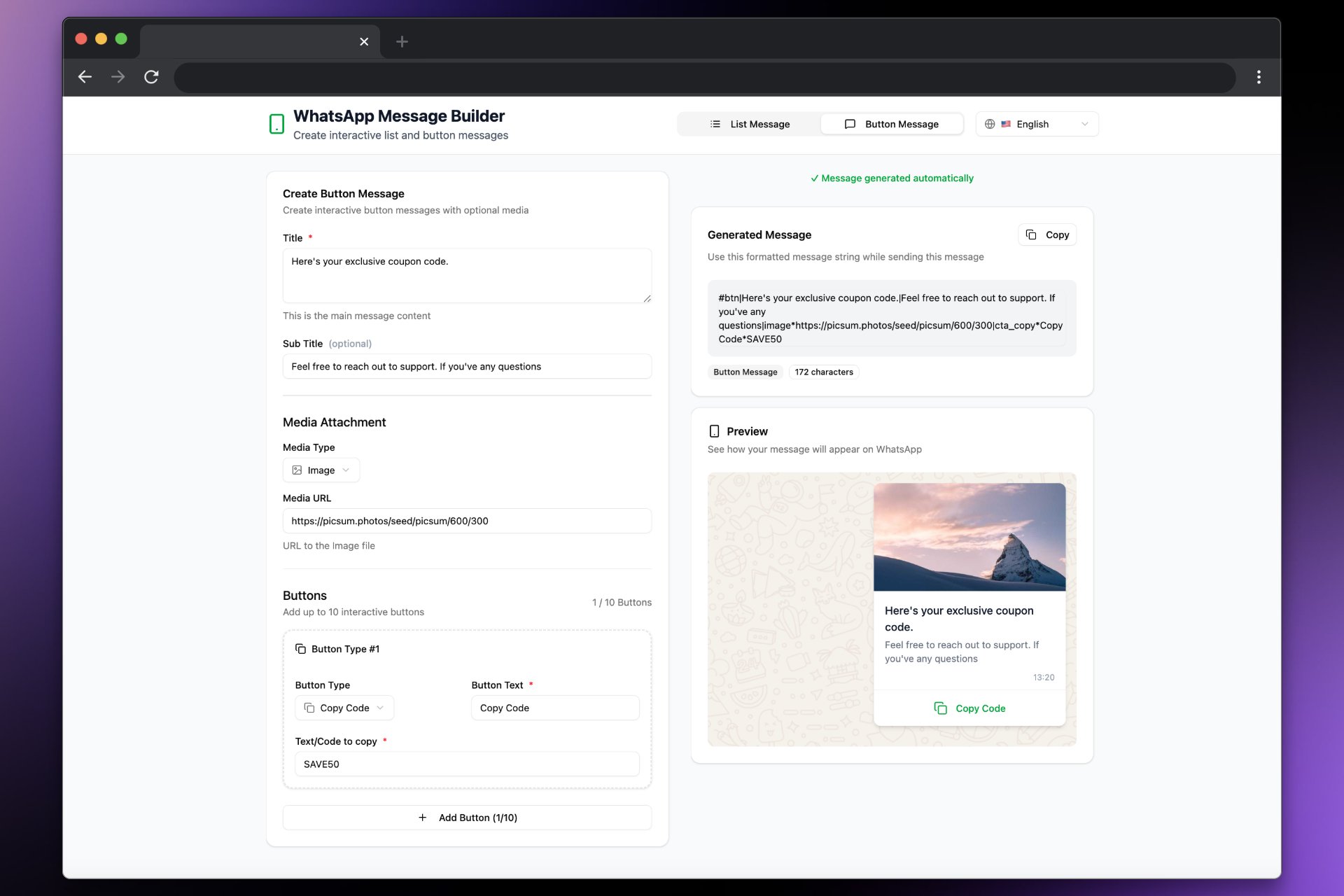
You can also build List Messages visually without hand-writing the string. The builder groups items by section name automatically and ensures the format is valid.
* Open the builder: [builder.goghl.ai](https://builder.goghl.ai/)
* Add sections and options (title, description, ID)
* Copy the generated `#list|...` payload and paste it into GoGHL
 ### Enable Button Builder for All Sub-Accounts (Whitelabel)[](#enable-button-builder-for-all-sub-accounts-whitelabel "Direct link to Enable Button Builder for All Sub-Accounts (Whitelabel)")
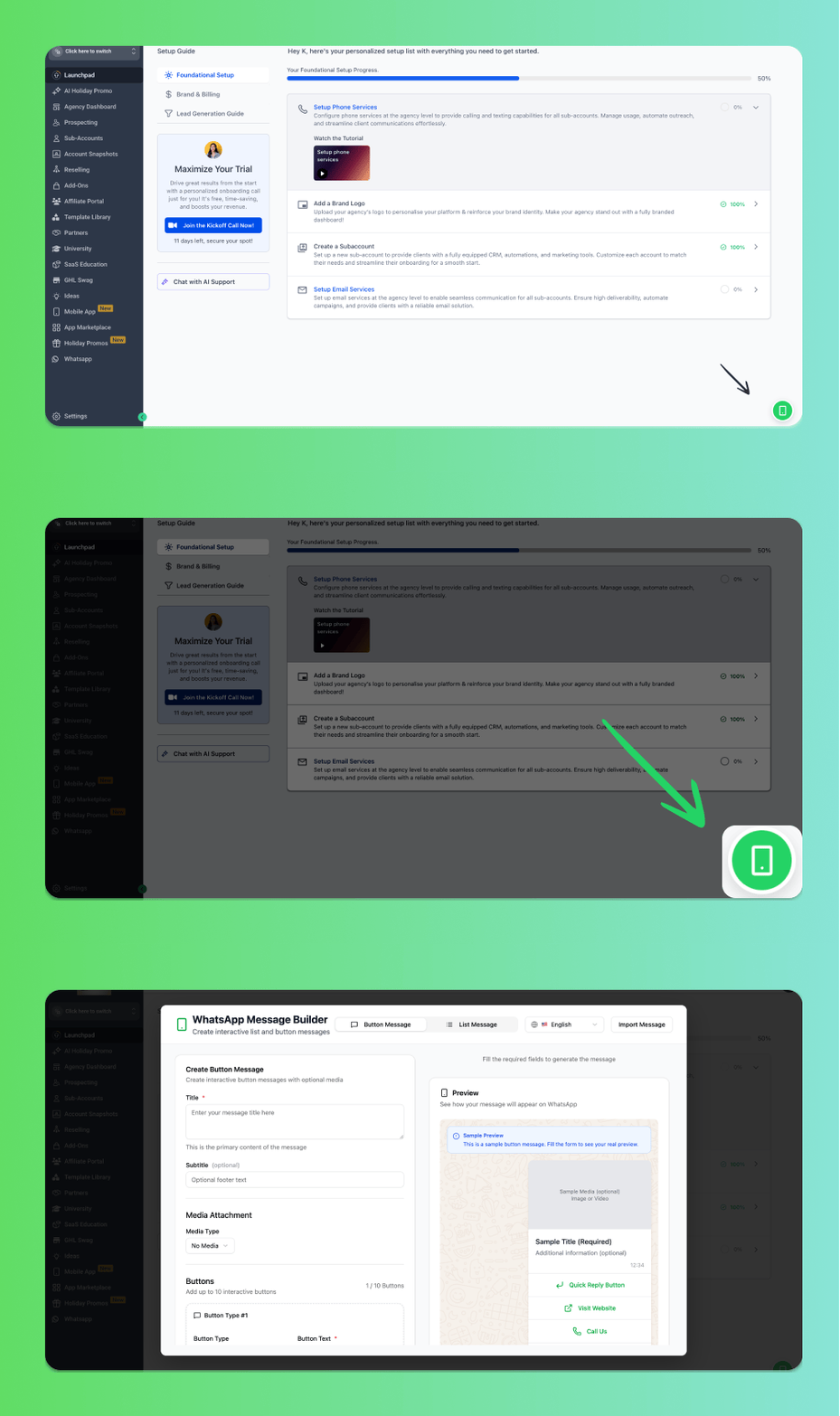
Want to enable the Button Builder as a global icon for all your sub-accounts? Follow these steps:
From the **Agency View**, go to **Settings**
Navigate to **Company** → **Whitelabel**
Scroll down to the **Custom JS** section
Add the following script:
```text theme={null}
```
Click **Save** and refresh the page
Once enabled, the Button Builder icon will appear globally across all your sub-accounts!
### Enable Button Builder for All Sub-Accounts (Whitelabel)[](#enable-button-builder-for-all-sub-accounts-whitelabel "Direct link to Enable Button Builder for All Sub-Accounts (Whitelabel)")
Want to enable the Button Builder as a global icon for all your sub-accounts? Follow these steps:
From the **Agency View**, go to **Settings**
Navigate to **Company** → **Whitelabel**
Scroll down to the **Custom JS** section
Add the following script:
```text theme={null}
```
Click **Save** and refresh the page
Once enabled, the Button Builder icon will appear globally across all your sub-accounts!
 ***
## Support[](#support "Direct link to Support")
If you need help with the setup or onboarding:
* WhatsApp Support: [Chat on WhatsApp](https://wa.me/+12267248710?text=Hi%2C%20I%20need%20help%20with%20List%20Button.)
* Email: [**support@goghl.ai**](mailto:support@goghl.ai)
***
## Support[](#support "Direct link to Support")
If you need help with the setup or onboarding:
* WhatsApp Support: [Chat on WhatsApp](https://wa.me/+12267248710?text=Hi%2C%20I%20need%20help%20with%20List%20Button.)
* Email: [**support@goghl.ai**](mailto:support@goghl.ai)