- Trigger workflows on inbound or outbound WhatsApp messages
- Send WhatsApp messages programmatically
- Build complex automation logic using n8n’s ecosystem
- Combine GoGHL messaging with external tools, APIs, CRMs, and databases
Prerequisites
Before getting started, ensure you have:- An active GoGHL.ai account
- A HighLevel sub-account to integrate with n8n
- Access to n8n (self-hosted)
- Permission to create API keys in GoGHL
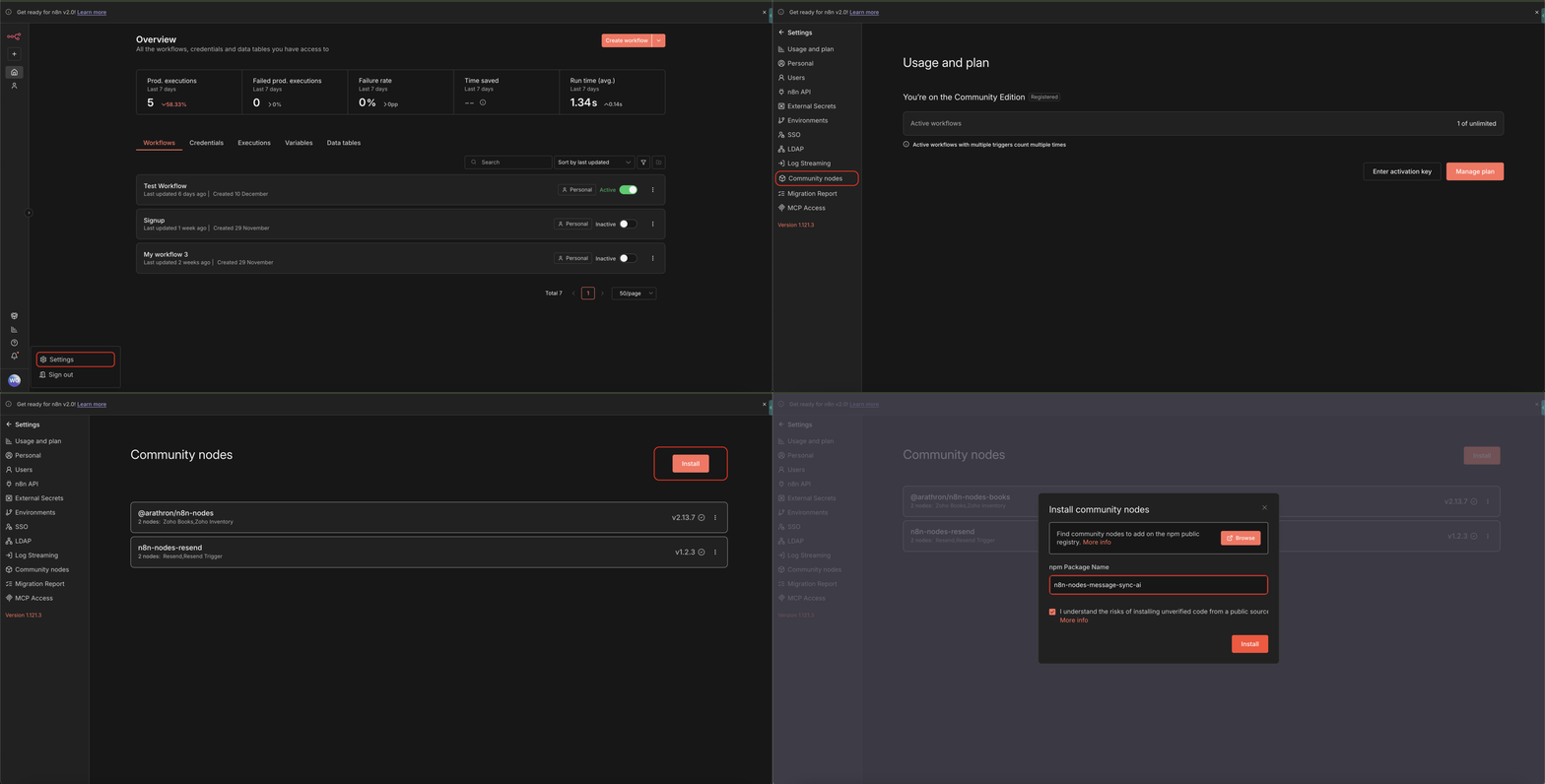
Step 1: Install the GoGHL Community Node in n8n
1
Log in to your n8n dashboard
2
Open Settings
3
Navigate to Community Nodes
4
Click Install
5
Paste the following package name:
6
Complete the installation and restart n8n if prompted
Step 2: Create Credentials in n8n
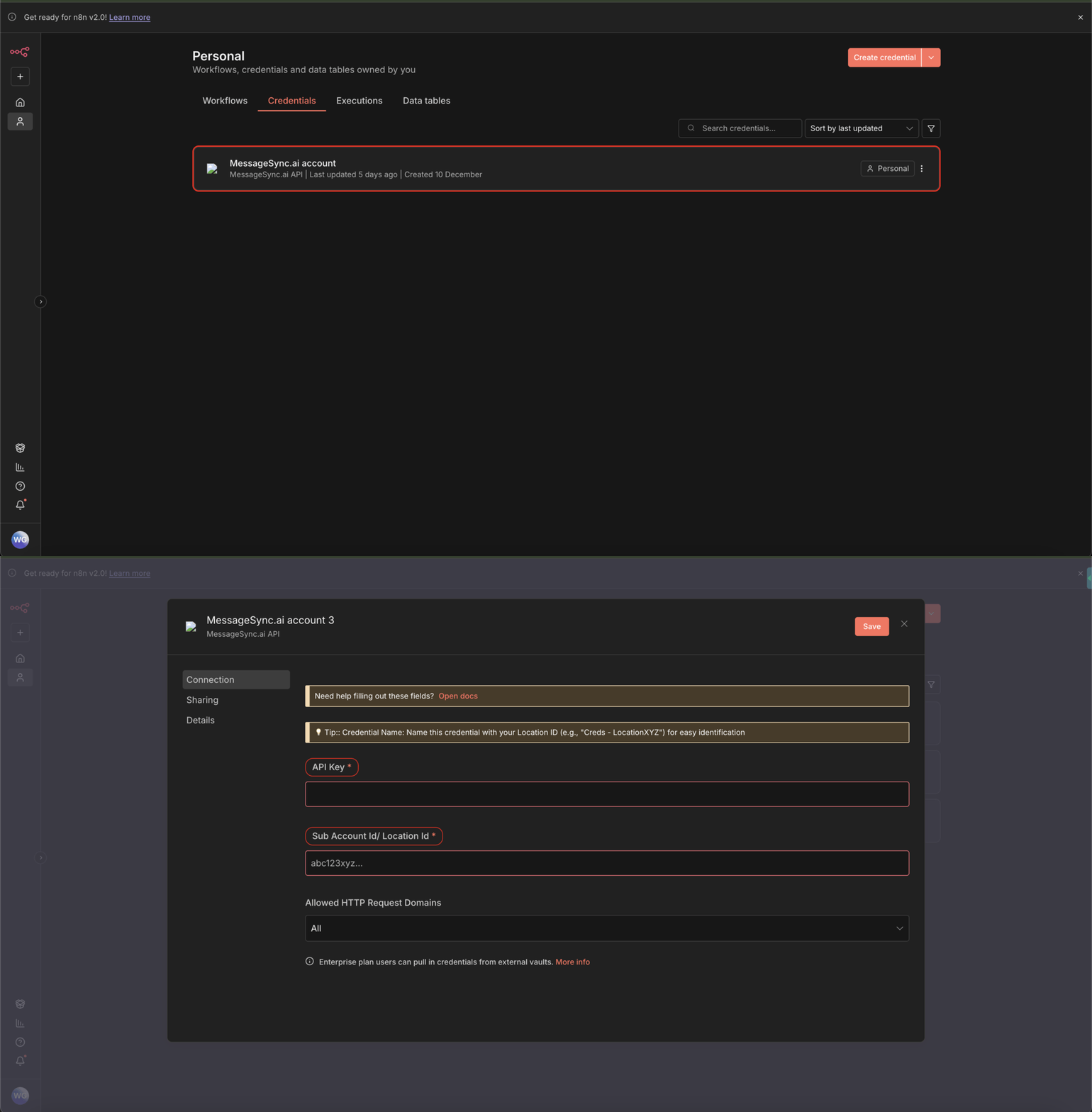
Once the package is installed, you need to configure credentials.1
Go to Credentials in n8n
2
Click on MessageSync.ai or Add Credential and search for MessageSync.ai
3
Open the MessageSync.ai Account credential
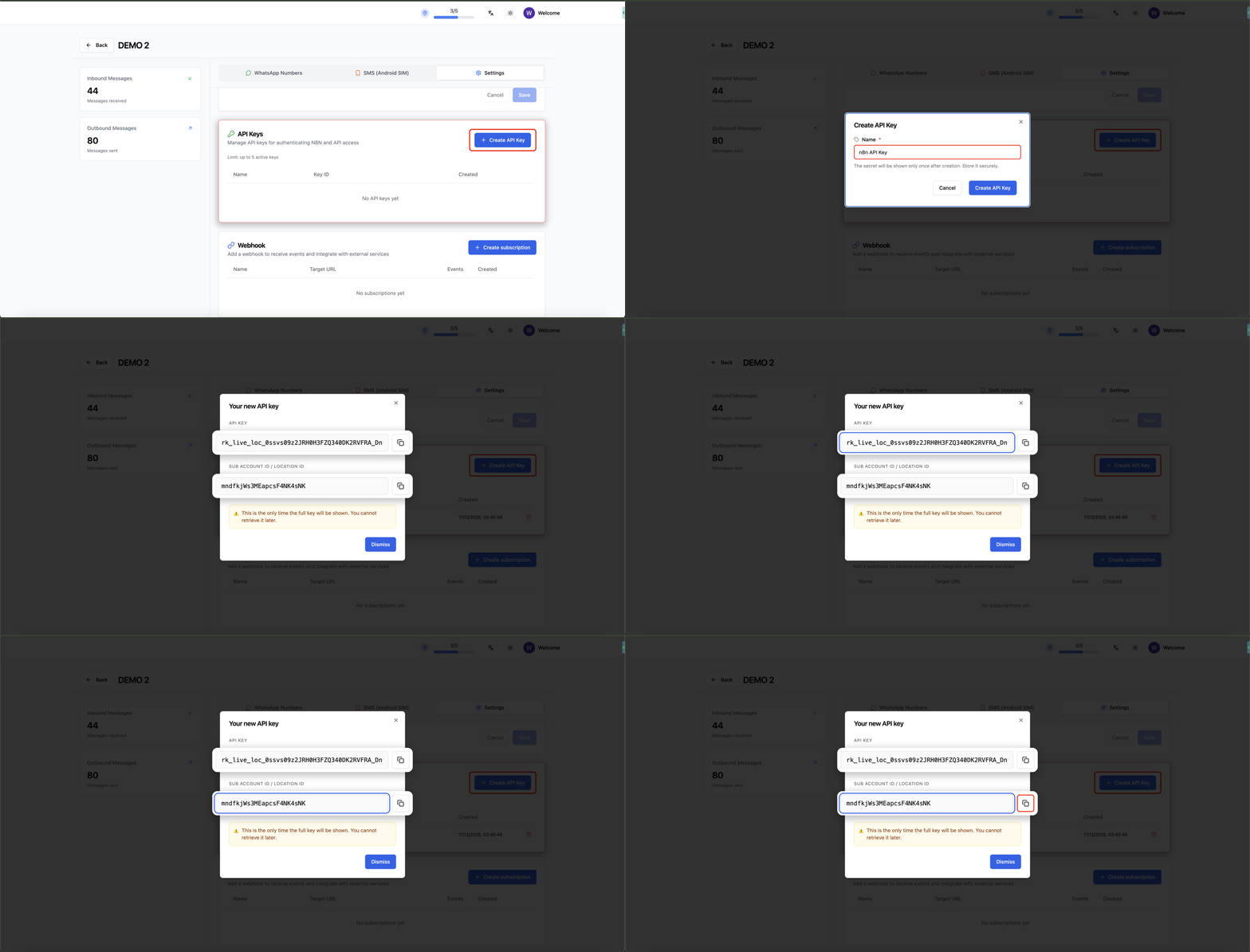
Step 3: Generate API Key from GoGHL
Now you’ll generate the API key required for n8n.1
Log in to your GoGHL.ai dashboard
2
Select the sub-account you want to connect
3
Go to Settings
4
Scroll down to API Keys Section
5
Create a new API Key for n8n
6
Copy:
- API Key
- Sub-account ID
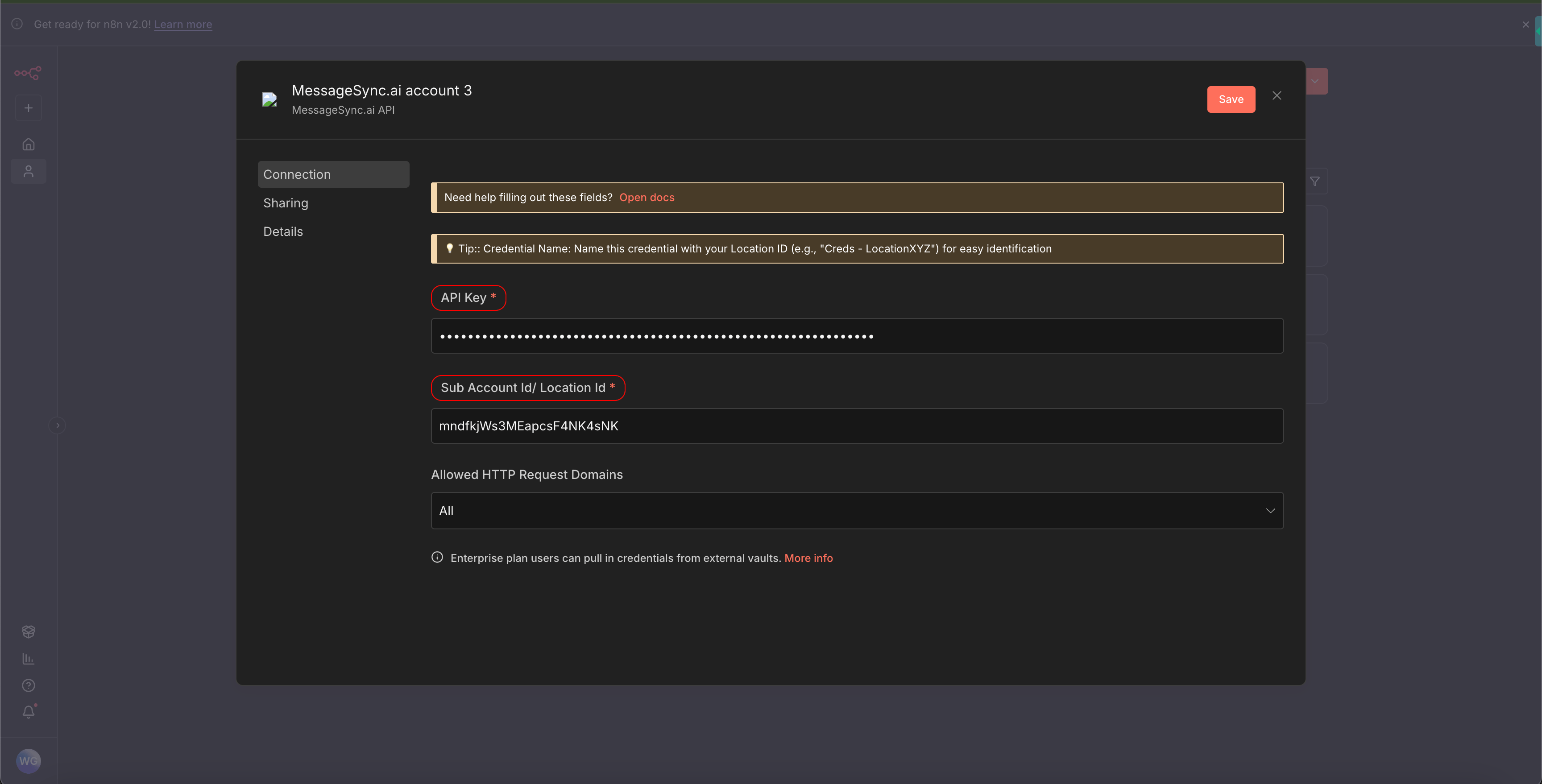
Step 4: Configure Credentials in n8n
1
Return to the MessageSync.ai credential in n8n
2
Paste:
- API Key
- Sub-account ID
3
Save the credential
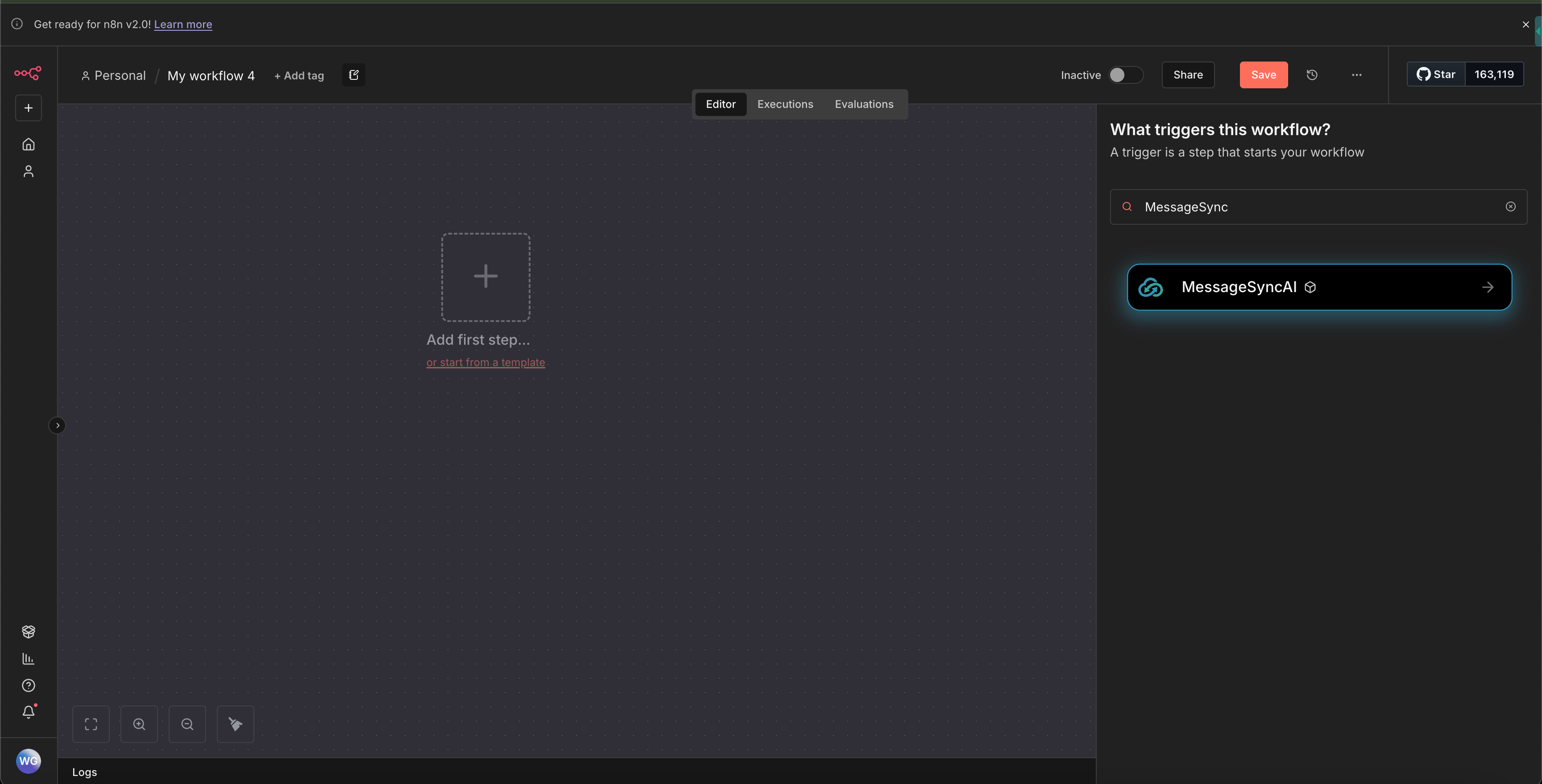
Step 5: Create Your First Workflow
1
Go to Workflows
2
Click Create Workflow
3
Click Add Node
4
Search for MessageSync
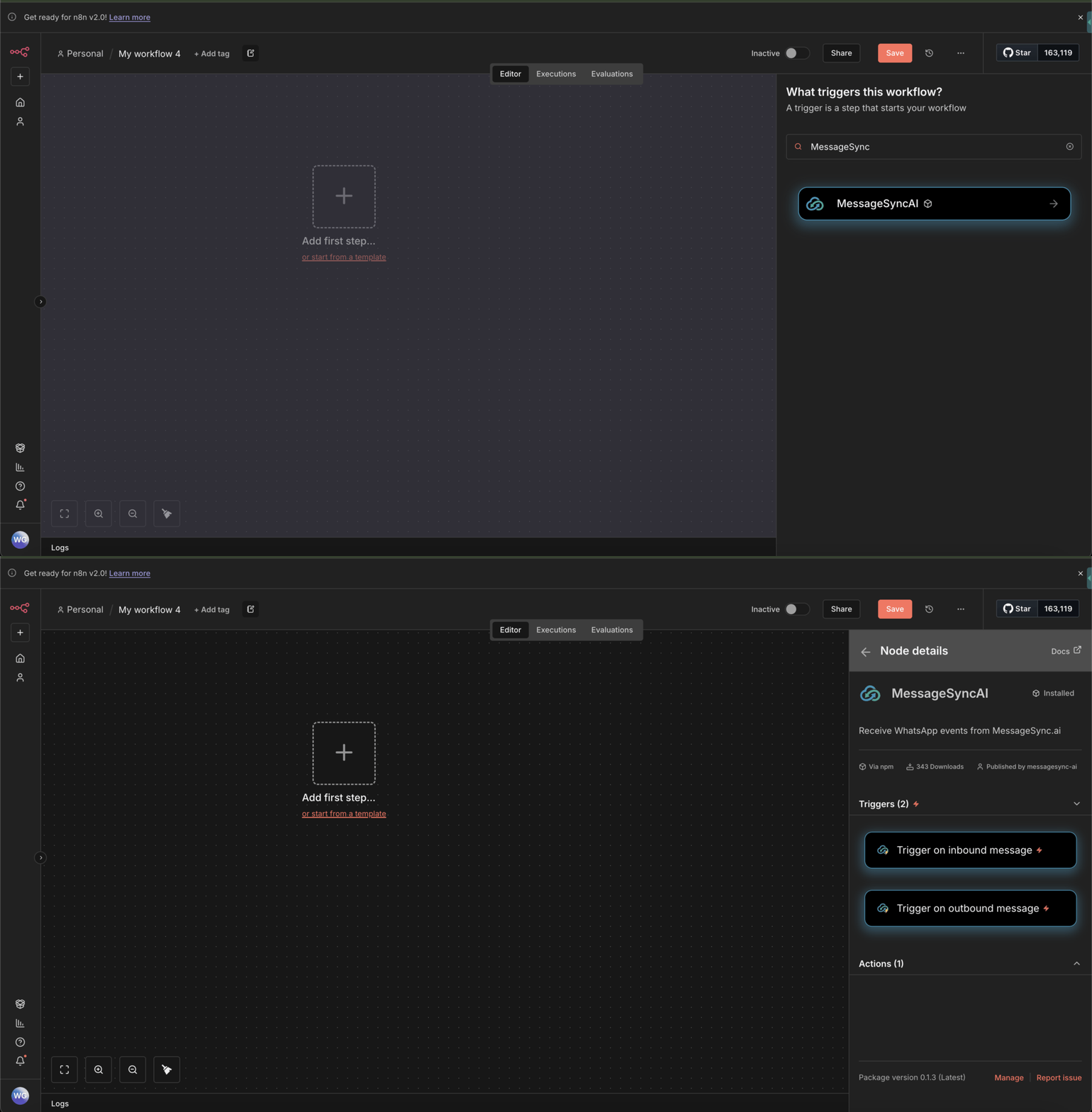
Available Triggers
You can start workflows using the following triggers:Inbound Message Trigger
Triggers when a WhatsApp message is received on GoGHL. Use cases:- Auto-replies
- Lead qualification
- Webhook forwarding
- CRM updates
Outbound Message Trigger
Triggers when a WhatsApp message is sent from GoGHL. Use cases:- Logging messages
- Analytics
- Syncing to external systems
Sending a Message Using n8n
You can also send WhatsApp messages directly from n8n.1
Add a MessageSync → Send Message node
2
Select your configured credentials
3
Provide required fields:
- Contact ID (from GoHighLevel) or Phone Number
- Message content
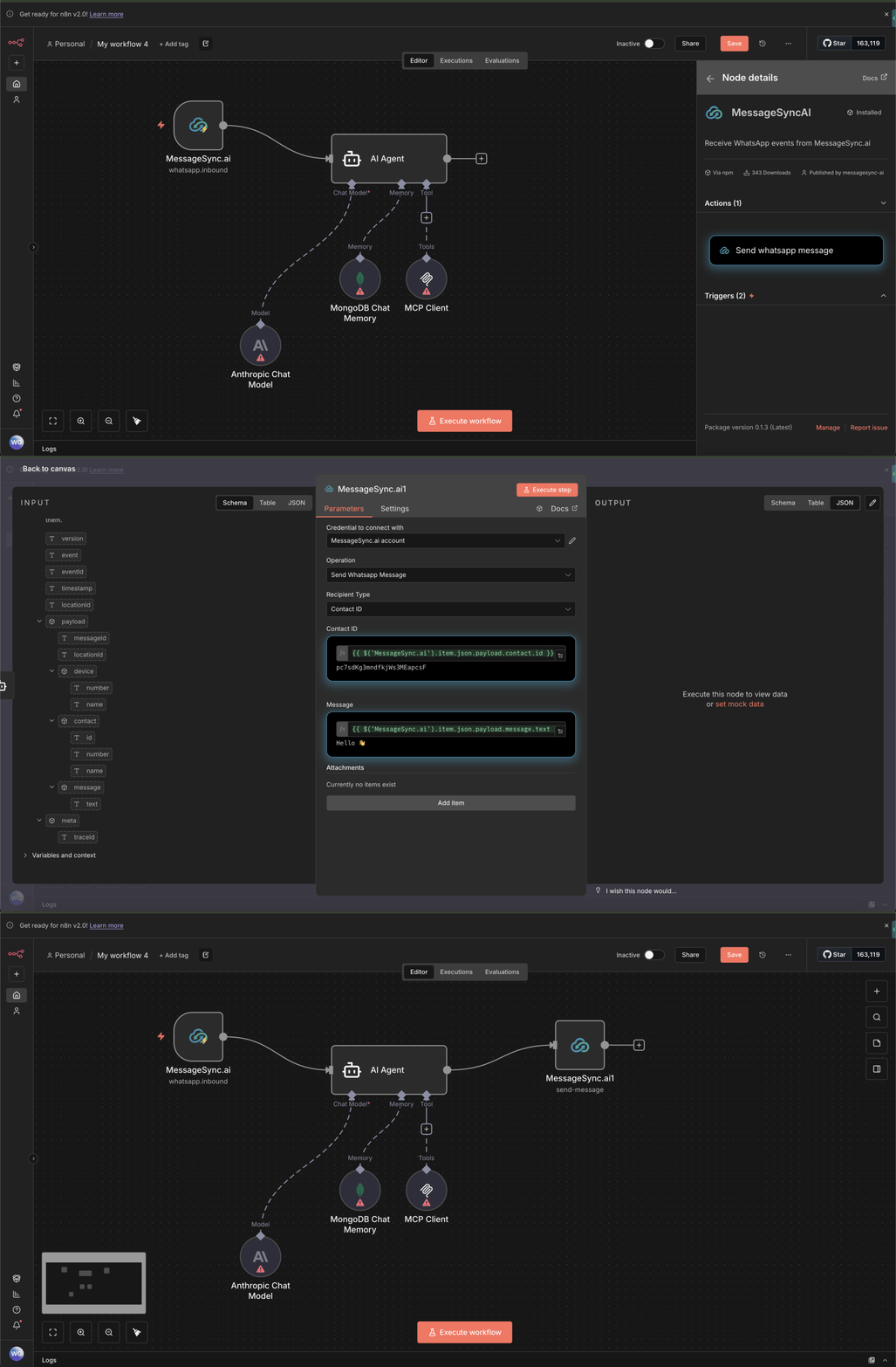
Example: Send Message Using GHL Contact ID
This allows you to:- Send messages to existing contacts
- Trigger WhatsApp messages from any n8n logic
- Combine with webhooks, forms, or databases
Best Practices
- Use inbound triggers for event-driven automations
- Keep API keys scoped to specific sub-accounts
- Log workflows during testing to avoid duplicate sends
- Combine n8n logic with GoGHL drip and rate-limiting features
Troubleshooting
Node not visible after install- Restart n8n
- Ensure community nodes are enabled
- Re-check API key and sub-account ID
- Ensure the key is active in GoGHL
- Confirm the contact exists in GHL
- Validate the WhatsApp number is connected
Support
If you need help setting this up or building workflows:- Reach out via WhatsApp Chat
- Contact support@goghl.ai
FAQ
Do I need a HighLevel sub-account to use this integration?
Do I need a HighLevel sub-account to use this integration?
Yes. The integration connects at the sub-account level, so you’ll need a HighLevel sub-account to integrate with n8n. The API key and Sub-account ID used in the credentials are generated from that sub-account.
Can I use this with multiple sub-accounts?
Can I use this with multiple sub-accounts?
Yes. Each sub-account requires its own API key and credential.
Does this replace GoHighLevel workflows?
Does this replace GoHighLevel workflows?
No. n8n complements GHL workflows and enables advanced automation.
You’re now ready to build powerful WhatsApp automations using GoGHL + n8n.