Shareable QR Link for WhatsApp Connection
The Shareable QR Link feature generates a temporary connection link that allows anyone to connect a WhatsApp account without CRM login credentials. The link is valid for 1 hour and provides direct access to the WhatsApp QR code scanning page.
This is useful for agencies setting up client accounts, business owners delegating WhatsApp management to team members, or any scenario where you need someone to connect WhatsApp without granting CRM access.
Key Benefits
Secure Delegation - Share connection access without exposing CRM credentials
Time-Limited - Links automatically expire after 1 hour
No Login Required - Recipients connect through a simple browser link
Quick Setup - Connection takes seconds with no authentication needed
Who Should Use It
Agencies - Set up client WhatsApp accounts without requesting CRM passwords
Business owners - Allow team members to connect WhatsApp without full system access
Account managers - Enable self-service WhatsApp setup for clients
How to Generate a Shareable Link
Step 1: Navigate to WhatsApp Section
- Log into your CRM dashboard
- Click WhatsApp in the left sidebar
- Select the WhatsApp instance and click on Manage button
Step 2: Generate the Link
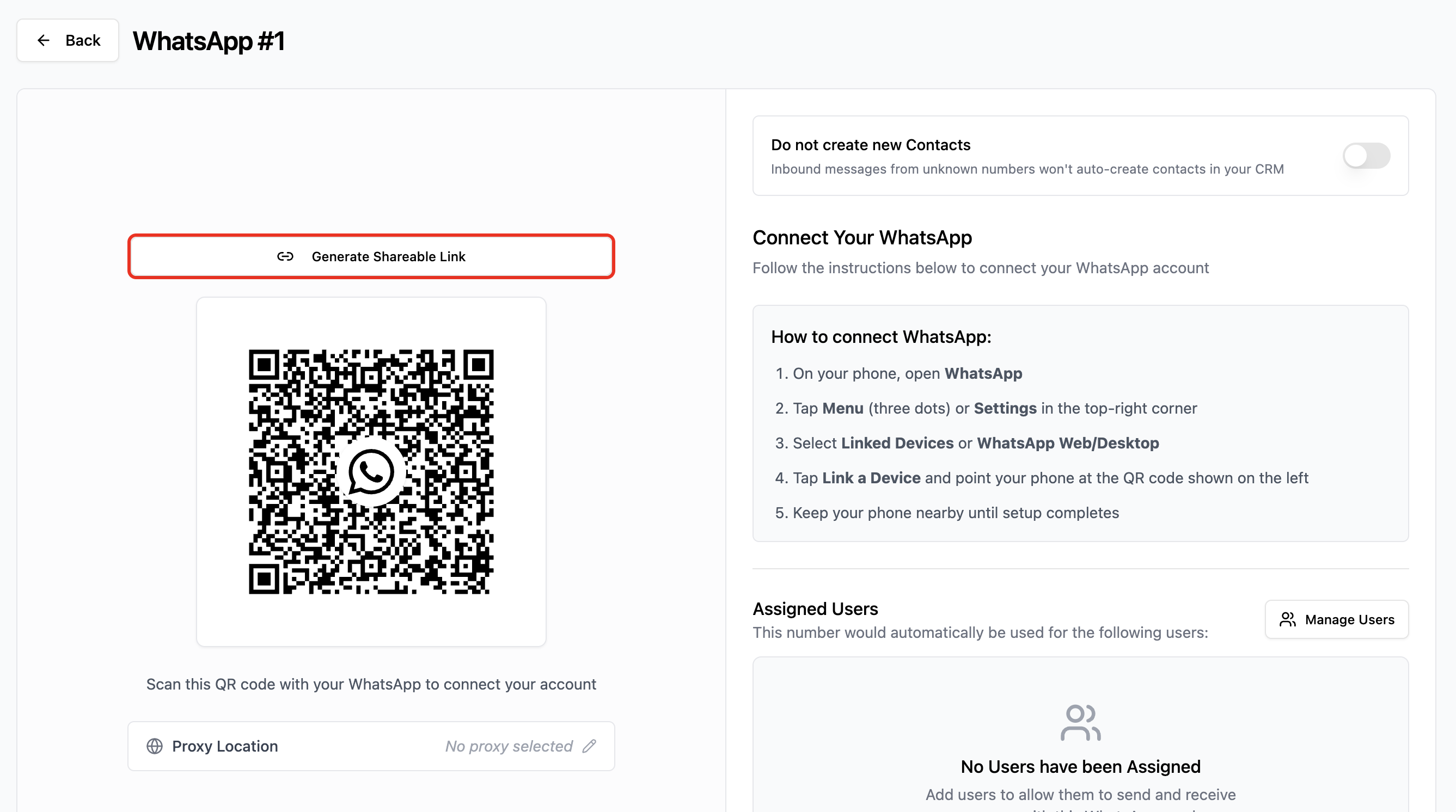
- Look for the QR code section
- Click Generate Shareable Link above the QR code
- Then copy the link to your clipboard
- Share the link with the person who will connect WhatsApp
Important: The link expires in 1 hour. Generate a new link if it expires before use.
How Recipients Use the Link
Step 1: Open the Link
- Click the link or paste it into any web browser
- A connection page will load showing the WhatsApp QR code
Step 2: Scan the QR Code
- Open WhatsApp on your mobile device
- Tap Menu (three dots) or Settings
- Select Linked Devices or WhatsApp Web/Desktop
- Tap Link a Device
- Scan the QR code displayed in the browser
Step 3: Connection Complete
- The QR code will show Connected
- Message confirms the account is connected and ready
- Browser can be closed
Important Notes
Security:
- Each link expires after 1 hour
- Recipients cannot access the CRM dashboard through the link
- Only grants WhatsApp connection capability
Best Practices:
- Only share links with trusted individuals
- Use links promptly after generation
- Generate a new link if the first one expires
Requirements:
- Recipients need a web browser and internet connection
- WhatsApp mobile app is required for scanning
- Only one WhatsApp account can be connected per instance
Troubleshooting
Link Does Not Open
- Verify the complete URL was copied correctly
- Try a different browser
- Generate a new link if expired
QR Code Does Not Scan
- Ensure good lighting on the screen
- Hold phone steady at proper distance
- Refresh the page to generate a new QR code
- Update WhatsApp app to latest version
Connection Fails
- Check internet connection on both devices
- Generate a new shareable link
- Ensure WhatsApp instance still exists in CRM
Link Expired
- Links expire after 1 hour for security
- Generate a new link from the CRM
- Share the new link with the recipient
Support
We're happy to help you with any questions about shareable QR links.
- WhatsApp chat: Chat on WhatsApp
- Email: support@goghl.ai