

Why it matters: Manually sending updates to WhatsApp groups is time-consuming and easy to forget. Now you can automate group messages triggered by any CRM event-new leads, appointments, form submissions, and more.
Key Benefits
Automated Group Updates - Send team notifications automatically No Manual Messaging - Eliminate repetitive group messages Workflow Integration - Combine with any CRM trigger for powerful automation Attachment Support - Include images or videos via URL Custom Variables - Personalize messages with contact and trigger dataWho Should Use It
Sales Teams - Notify team groups when new leads come in Support Teams - Alert support groups when tickets are created Agencies - Update client groups on campaign progress automatically Operations - Send daily summaries or status updates to internal groups Managers - Get automated reports on team activityRequirements
Before using this action:1
Update your WhatsApp provider app to the latest version
- Go to App Marketplace → Installed Apps → WhatsApp provider → Update
2
Allow groups in WhatsApp Settings
- Groups must be enabled in your WhatsApp dashboard before they appear in the action dropdown
How to Set Up
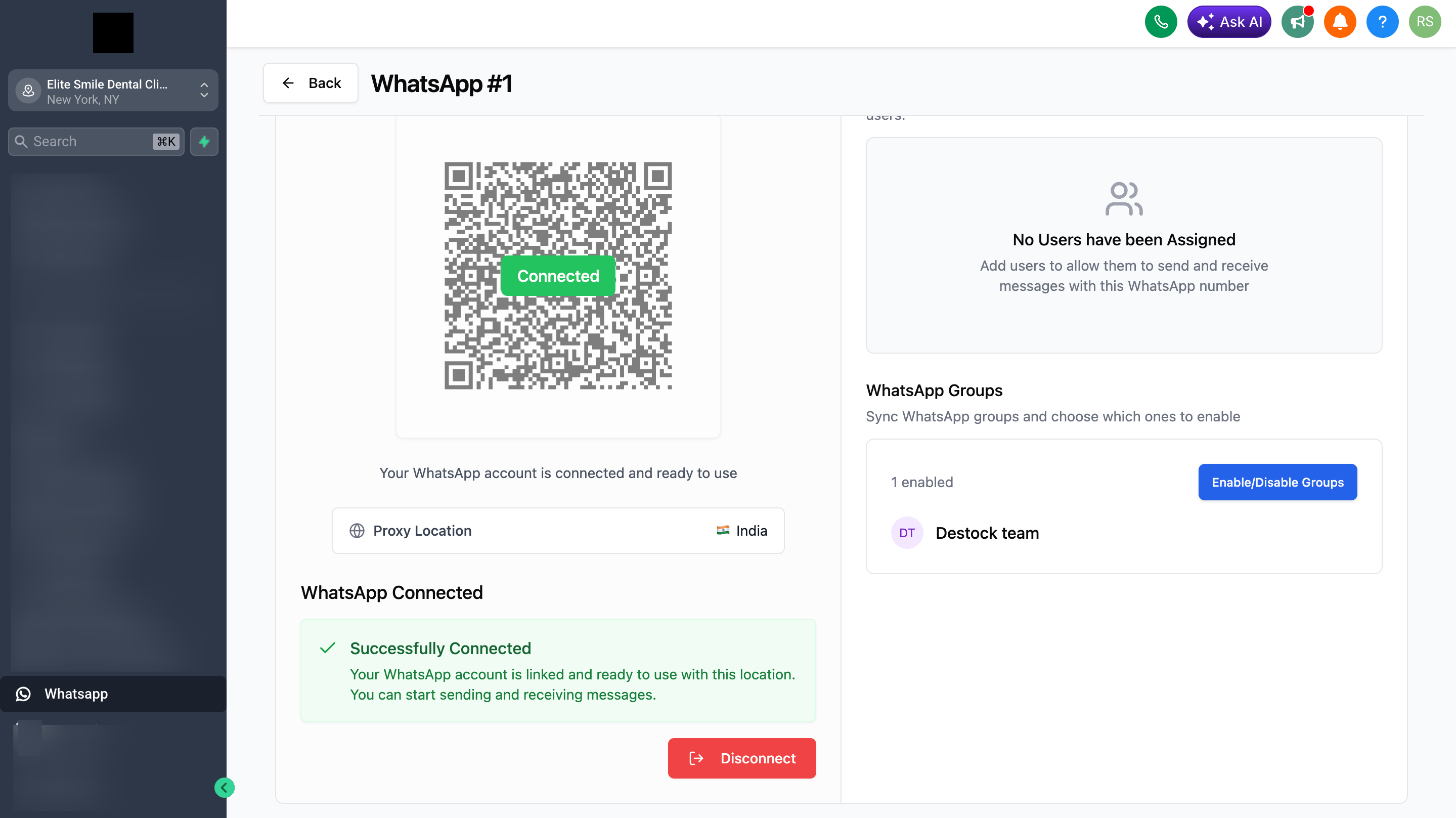
Step 1: Allow Groups in WhatsApp Settings
1
Go to WhatsApp in your sidebar
2
Click Manage on your WhatsApp instance
3
Navigate to group settings
4
Allow the groups you want to use in workflows
5
Save your settings
Important: Only groups that are allowed will appear in the action dropdown.
Step 2: Create or Edit a Workflow
1
Go to Automation → Workflows
2
Create a new workflow or edit an existing one
3
Add your desired trigger (Form Submitted, Appointment Booked, Customer Reply, etc.)
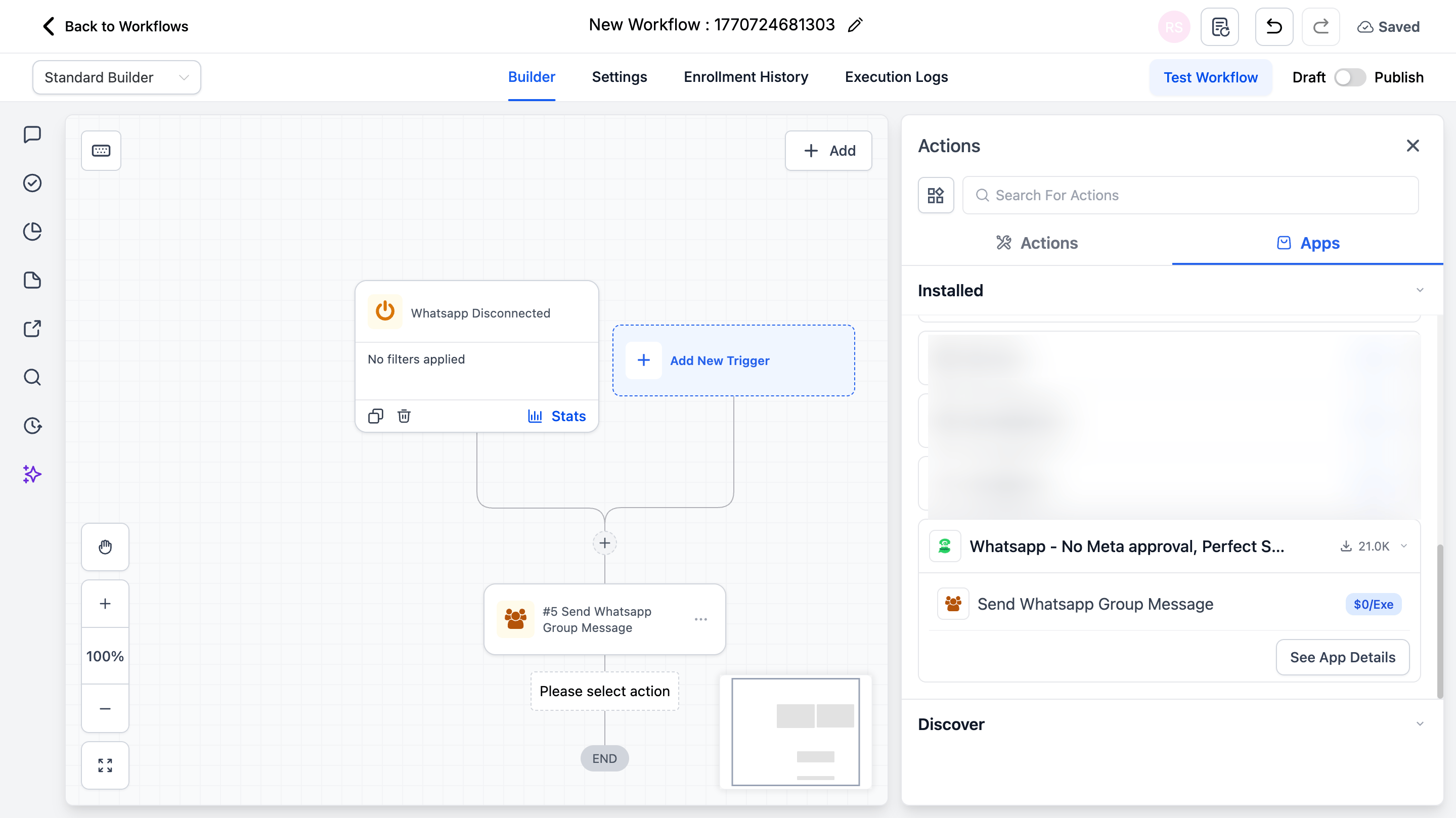
Step 3: Add the Action
1
Click + or Add New Action after your trigger
2
Switch to the Apps tab
3
Click the WhatsApp provider app icon
4
Select Send WhatsApp Group Message
Step 4: Configure the Action
Step 5: Save and Publish
1
Click Save action
2
Review your complete workflow
3
Toggle from Draft to Published
Action Fields Explained
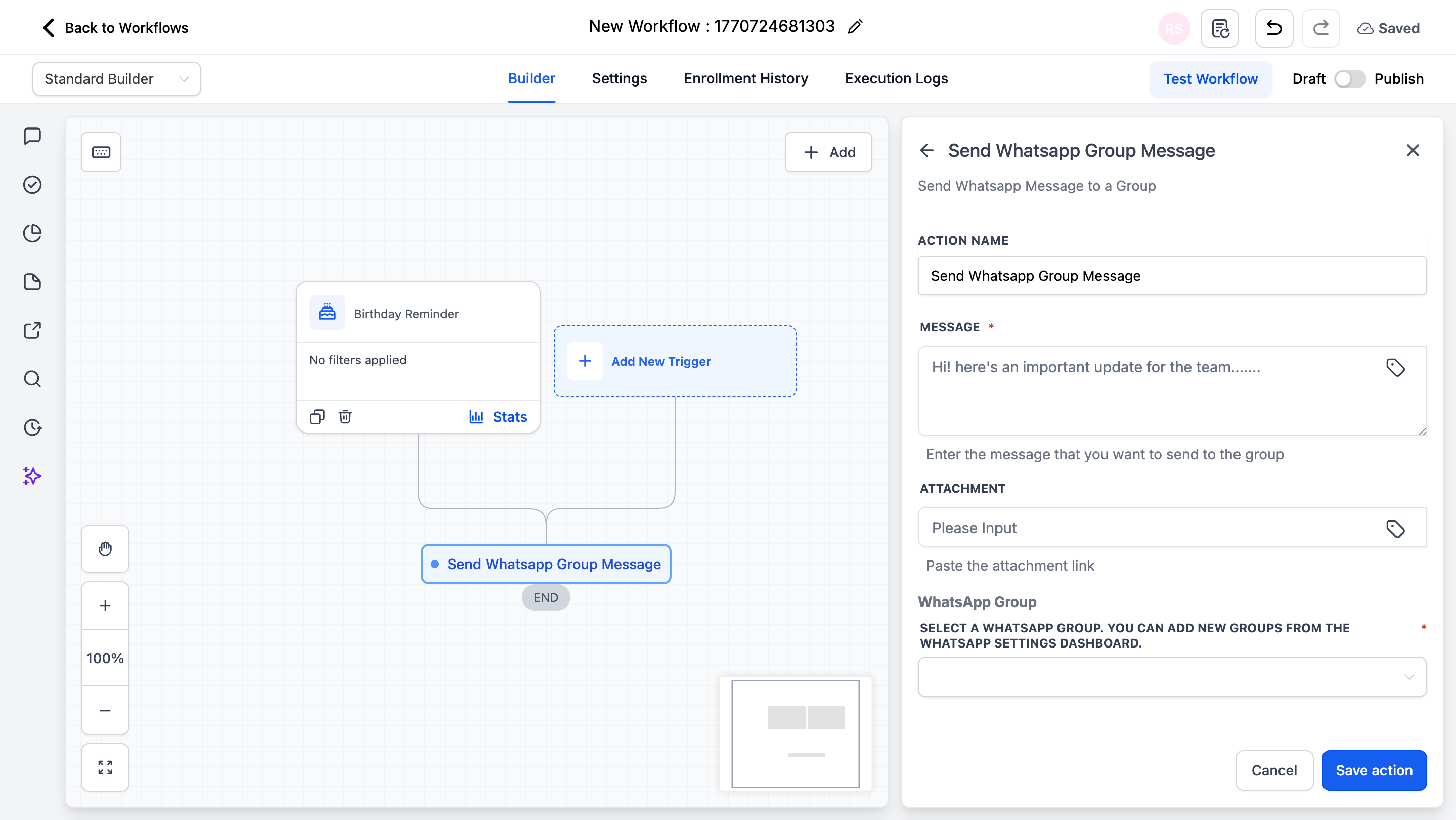
Message Field
Enter the message you want to send. You can:- Type plain text
- Use custom variables (click the tag icon to insert)
- Include emojis
- Use line breaks for formatting
Attachment Field
Paste a direct URL to an image or video file. This field is optional. Supported formats: PNG, JPG, JPEG, GIF, WebP, MP4, MOV Requirements:- URL must be publicly accessible
- Direct link to the file (not a webpage)
- File size under 16MB for videos
WhatsApp Group Dropdown
Select the destination group. Only groups allowed in your WhatsApp Settings will appear. If you don’t see your group:1
Go to WhatsApp → Manage
2
Allow the group in settings
3
Return to workflow and refresh
Example Use Cases
Use Case 1: New Lead Notification
Alert your sales team when a new lead submits a form. Trigger: Form Submitted Action: Send WhatsApp Group Message- Group: Sales Team
- Message:
Use Case 2: Appointment Notification
Notify your operations team when a new appointment is booked. Trigger: Appointment Scheduled Action: Send WhatsApp Group Message- Group: Operations Team
- Message:
Important Notes
Technical Details
- Messages send from your connected WhatsApp number
- Groups must be allowed first in WhatsApp Settings
- Supports text, emojis, and one attachment per message
- Works with all standard CRM workflow triggers
Best Practices
- Keep messages concise and scannable
- Use relevant variables only
- Test before publishing
- Don’t over-notify - too many messages cause fatigue
FAQs
Can I send to multiple groups from one workflow?
Can I send to multiple groups from one workflow?
Yes. Add multiple “Send WhatsApp Group Message” actions, each targeting a different group.
Why don't I see my group in the dropdown?
Why don't I see my group in the dropdown?
Groups must be allowed in WhatsApp Settings first. Go to WhatsApp → Manage → Group Settings.
Can I include images or videos?
Can I include images or videos?
Yes. Paste a public URL in the Attachment field. Supported formats: PNG, JPG, GIF, WebP, MP4, MOV.
What happens if WhatsApp is disconnected?
What happens if WhatsApp is disconnected?
The message will fail to send. We recommend setting up the WhatsApp Disconnected trigger to get alerts when your number goes offline.
Support
If you need help with the setup or onboarding:- WhatsApp Support: Chat on WhatsApp
- Email: support@goghl.ai