

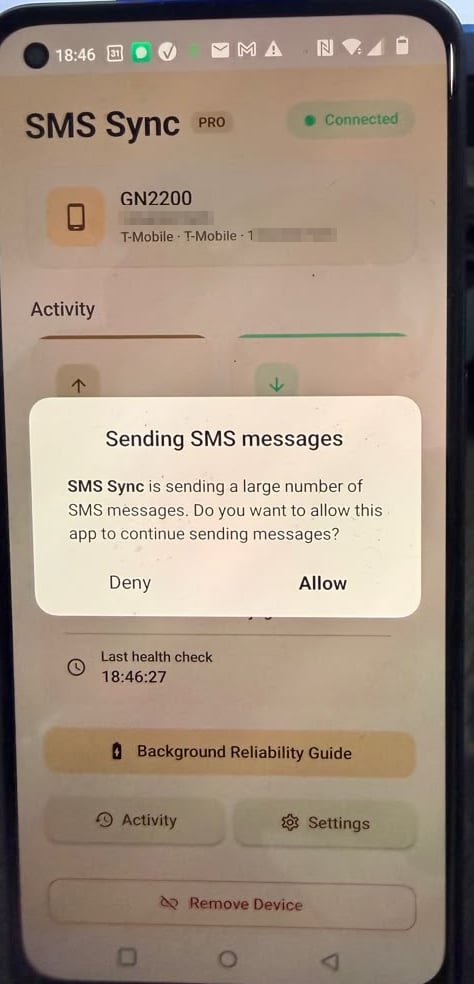
SMS Sync is sending a large number of SMS messages. Do you want to allow this app to continue sending messages?
What you’ll need
- The Android phone running your SMS gateway (Android 11 or newer for the Wi-Fi method).
- A Windows, macOS, or Linux computer.
- One of these connection methods:
- USB (recommended): a USB cable, and (on Windows) a working USB driver for your phone. If Windows doesn’t recognize it, install your manufacturer’s OEM USB driver.
- Wi-Fi (alternative): the phone and computer on the same Wi-Fi network (Android 11 or newer). No cable or drivers needed.
You do not need to install ADB or any developer tools yourself. The tool below downloads everything it needs automatically.
Step 1: Turn on Developer Options
The tool needs Developer Options, which is hidden by default.1
Open Settings and search for Build number (or Version number).
The exact location differs by brand, so searching is the most reliable way to find it. It’s usually under About phone → Version.
2
Tap Build number 7 times in a row. You’ll see a message confirming that Developer Mode (or Developer Options) is now enabled.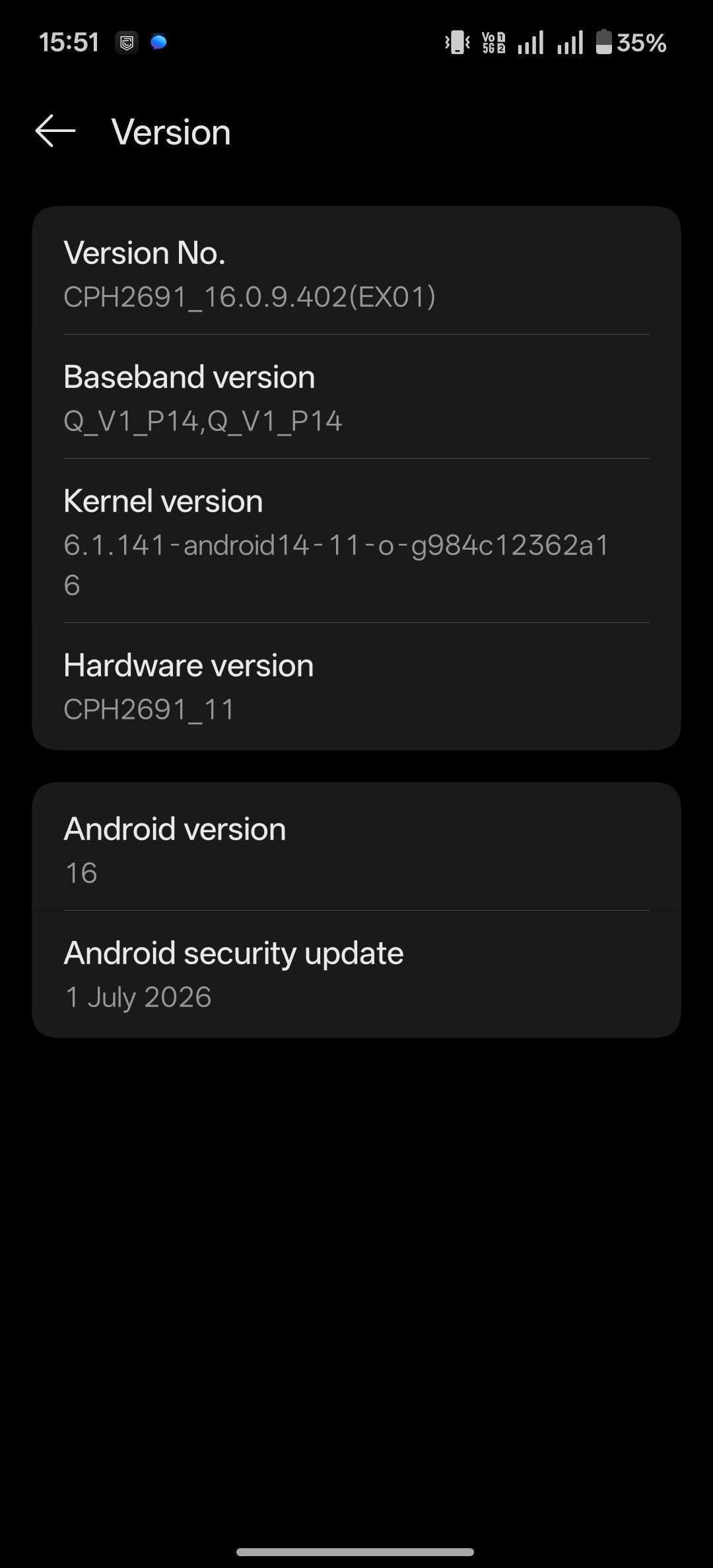
3
If prompted, enter your PIN / password. Some brands also ask you to sign in to your manufacturer account (Mi, Vivo, etc.) before Developer Options can be turned on.
Extra step for some phone brands
Some Android “skins” gate the SMS setting behind one more toggle in Developer options. If you have one of these brands, enable it now so the change can take effect:Xiaomi / Redmi / POCO (MIUI / HyperOS)
Xiaomi / Redmi / POCO (MIUI / HyperOS)
Enable USB debugging (Security settings). You usually need to be signed in to a Mi account with a SIM inserted for this toggle to be available.
Oppo / Realme / OnePlus (ColorOS)
Oppo / Realme / OnePlus (ColorOS)
Turn on Disable permission monitoring. Without this, ColorOS can silently block the command.
Vivo / iQOO (Funtouch OS / OriginOS)
Vivo / iQOO (Funtouch OS / OriginOS)
Enable USB debugging (Security settings). This may require you to be signed in to a Vivo account.
Samsung (One UI)
Samsung (One UI)
Usually works with no extra toggle. If the command is refused, check whether a Knox / work profile is active on the device.
Step 2: Download and launch the tool
Pick the tab for your computer’s operating system. The tool downloads the required Android platform tools automatically on first run.- Windows
- macOS / Linux
1
Download and unzip the Windows tool. Keep both files in the same folder - the 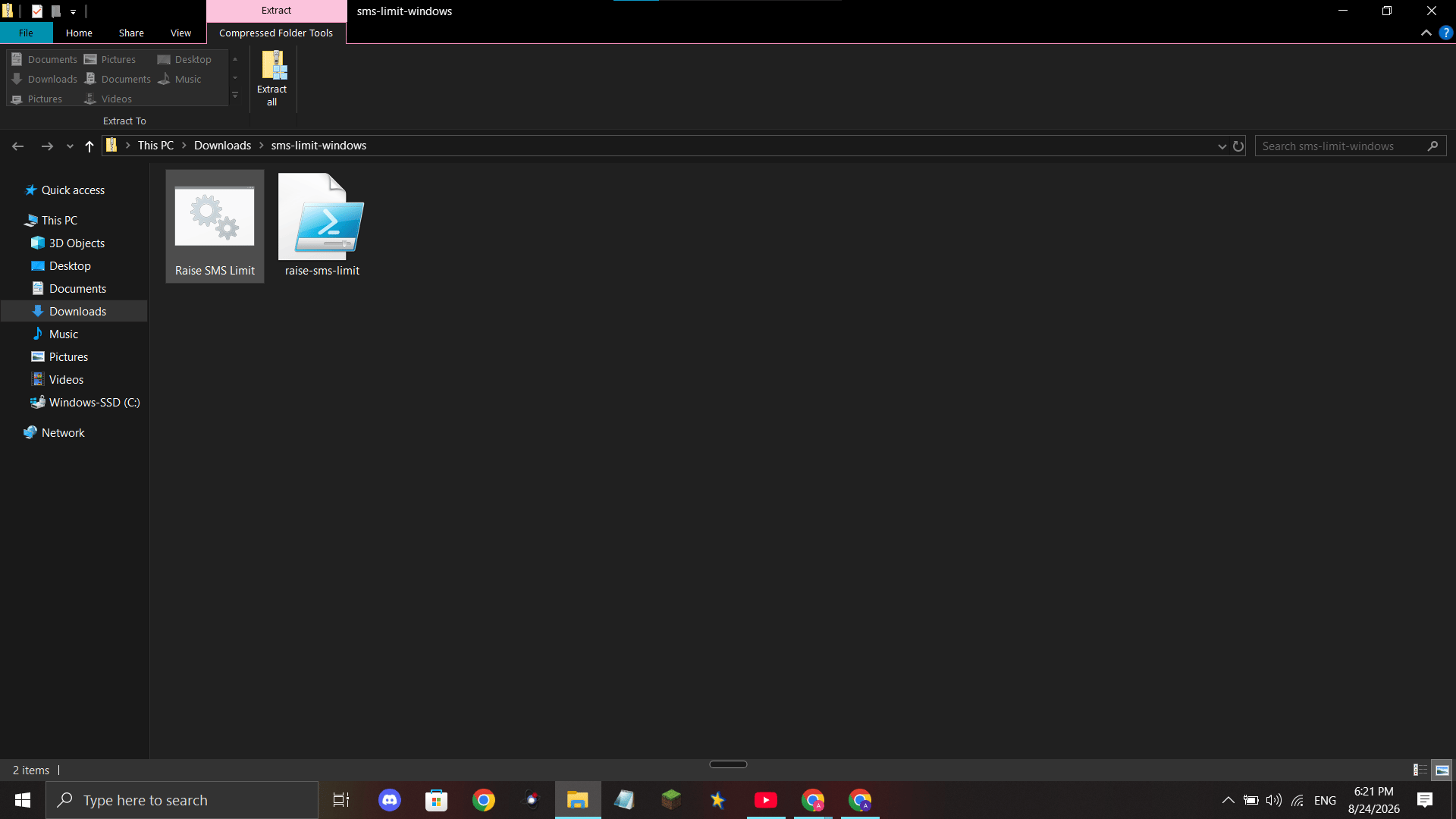
.bat launcher needs the .ps1 script next to it.Download the Windows tool (.zip)
Contains
Raise SMS Limit.bat and raise-sms-limit.ps1.2
Double-click
Raise SMS Limit.bat. A terminal window opens and downloads the platform tools on first run.3
Continue with Step 3: Connect your phone when the tool asks how to connect.
Step 3: Connect your phone when the tool asks
The tool asks how you want to connect your phone:2 and press Enter, then follow the USB tab below. (Wi-Fi works too if you’d rather not use a cable.)
- USB (Recommended)
- Wi-Fi (Alternative)
1
On the phone, go to Developer options → USB debugging and turn it on.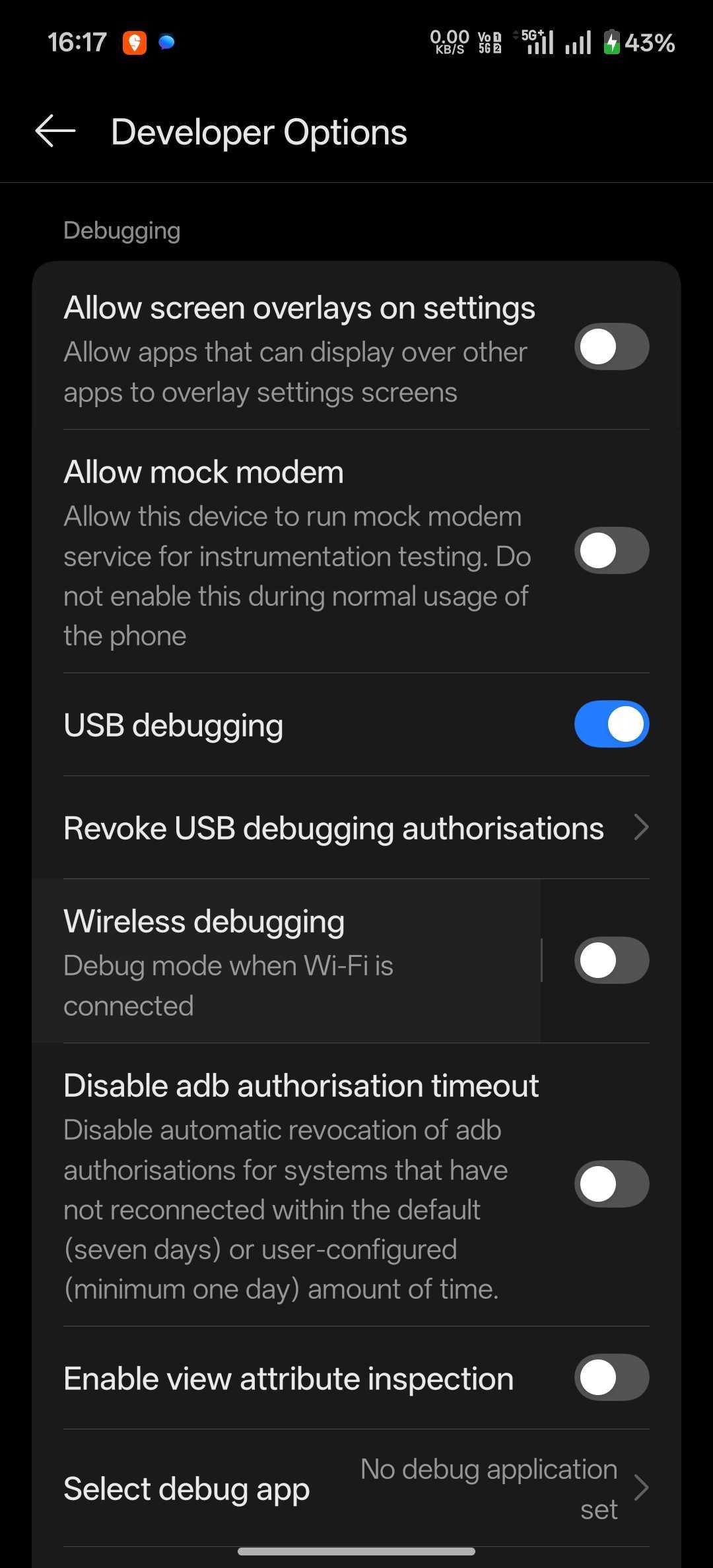
2
Plug the phone into your computer with a USB cable, then press Enter in the tool.
3
Look at your phone screen: tap Allow on the Allow USB debugging? prompt. Tick Always allow from this computer first if you’d like to skip this next time.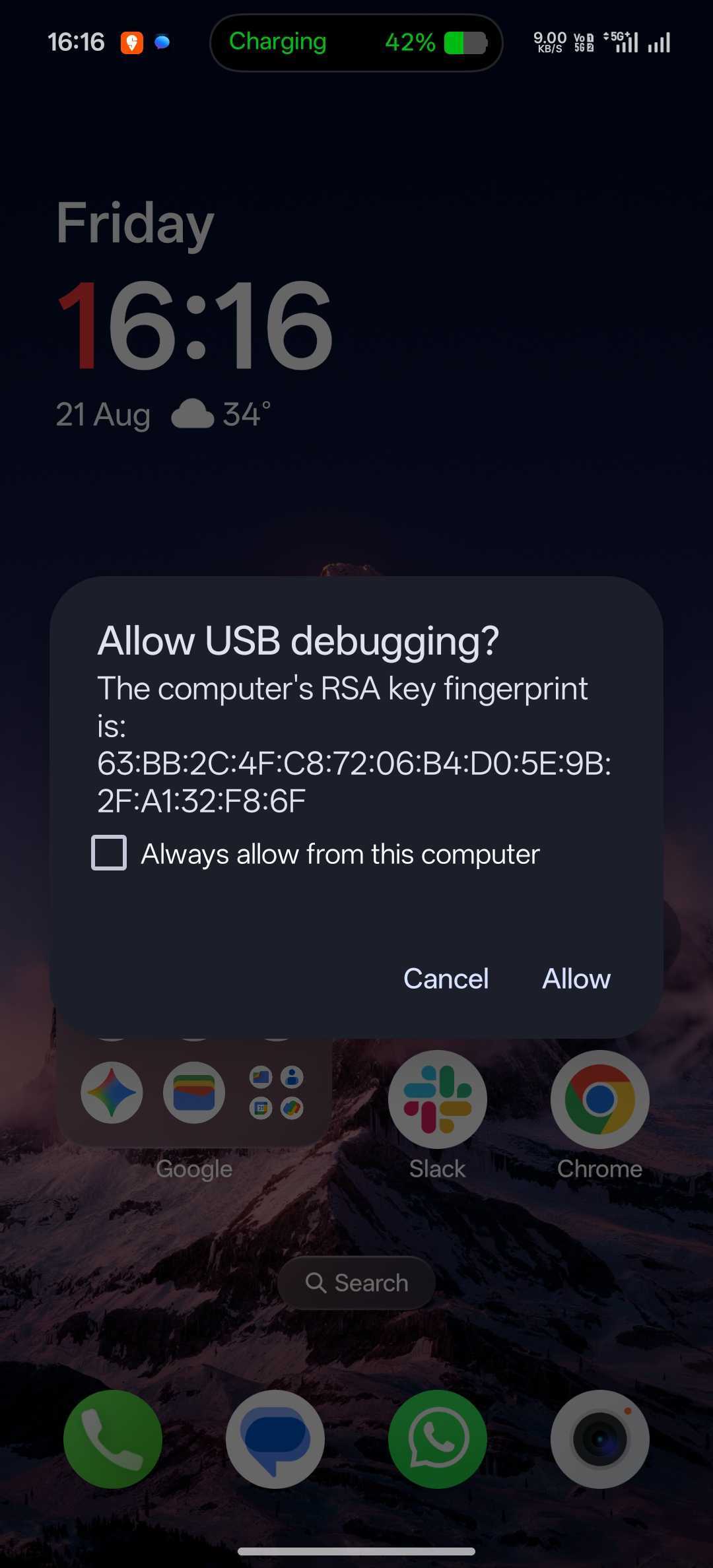
If the phone never appears, the cable may be charge-only or Windows may be missing the OEM USB driver for your phone. Install your manufacturer’s driver from Google’s list - Install OEM USB drivers - then reconnect. Or use the Wi-Fi method instead, which needs no cable or drivers.
Step 4: Confirm the new limit
Once connected, the tool writes the new values and prints Done. New limit: 10000 messages per 15 minutes.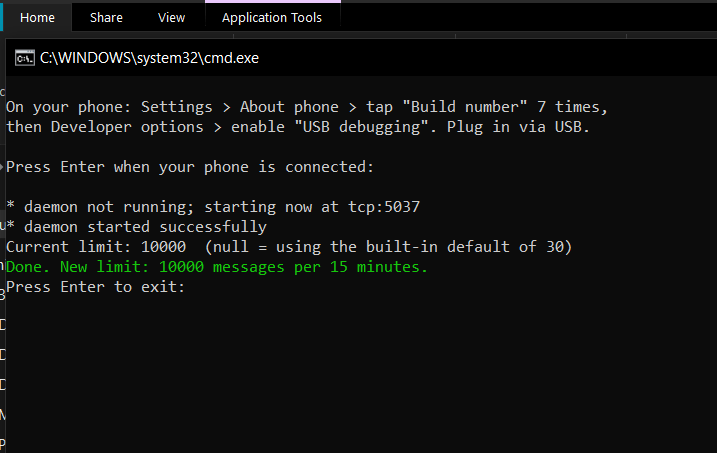
Windows
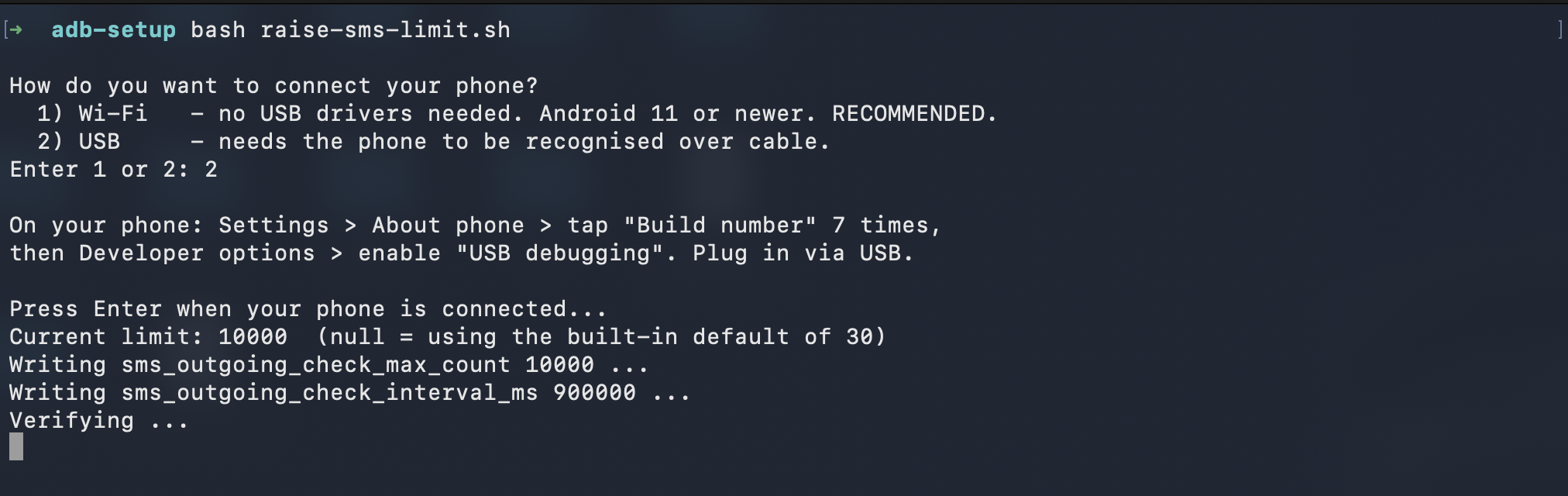
macOS / Linux
A new limit of 10000 messages per 15 minutes is high enough that normal gateway sending will no longer trigger the warning.
Confirm it worked
Send a batch of messages from your CRM as you normally would. The “SMS Sync is sending a large number of SMS messages” warning should no longer appear. The change stays in place until the phone is factory reset. If you connected over USB, you can unplug the cable straight away - it’s only needed while the tool runs.If it doesn’t work
If the tool reports “The setting did not stick,” or you saw a SecurityException aboutWRITE_SECURE_SETTINGS:
- The adb shell isn’t privileged on this ROM. Enable the brand-specific toggle for your device (for example, ColorOS’s Disable permission monitoring, or USB debugging (Security settings) on Xiaomi/Vivo), then run the tool again.
- A few Samsung and Xiaomi ROMs enforce their own SMS guard that overrides this setting entirely - on those devices this method can’t raise the limit.
- If pairing or connecting failed, re-open the phone’s Wireless debugging screen for fresh values (the code and ports rotate) and try again.
Support
If you need help increasing the SMS limit:- WhatsApp Support: Chat on WhatsApp
- Email: support@goghl.ai