

- Import the snapshot into your Agency account using the share link
- Load the snapshot into the sub-account where you want to use it
Snapshots contain the structure only: workflows, fields, pipelines, templates. They never include contacts, conversation history or any data from another account.
Available Snapshot Packs
Repeat the steps below once per pack you want. Each link imports one snapshot.
Prerequisites
Before getting started, ensure you have:- A HighLevel Agency account (agency admin access)
- At least one sub-account to load the snapshot into
Step 1: Import the Snapshot into Your Agency
1
Log in to your HighLevel Agency account at app.gohighlevel.com. Do this first, in the same browser
2
Open one of the snapshot links above in a new tab
3
On the page that opens, click Import to confirm
Imported - <Snapshot Name> (e.g. Imported - Ghost Campaign Workflow Pack).
If the link opens a page without an import prompt, you are not logged in to your Agency account in that browser. Log in first, then open the link again.
Step 2: Open Snapshot Actions on the Sub-Account
1
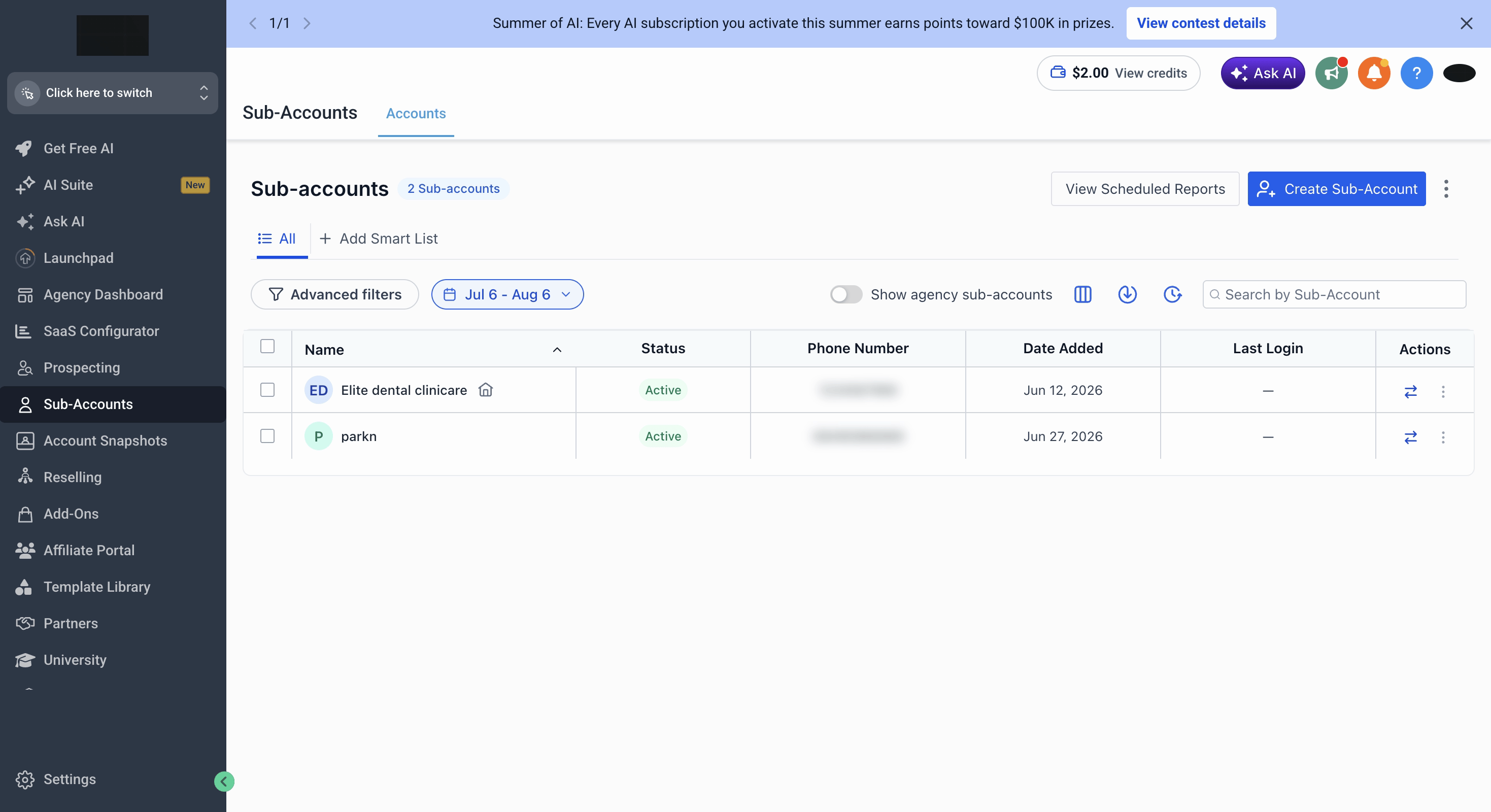
In Agency View, go to Sub-Accounts
2
Click the sub-account you want to load the snapshot into
3
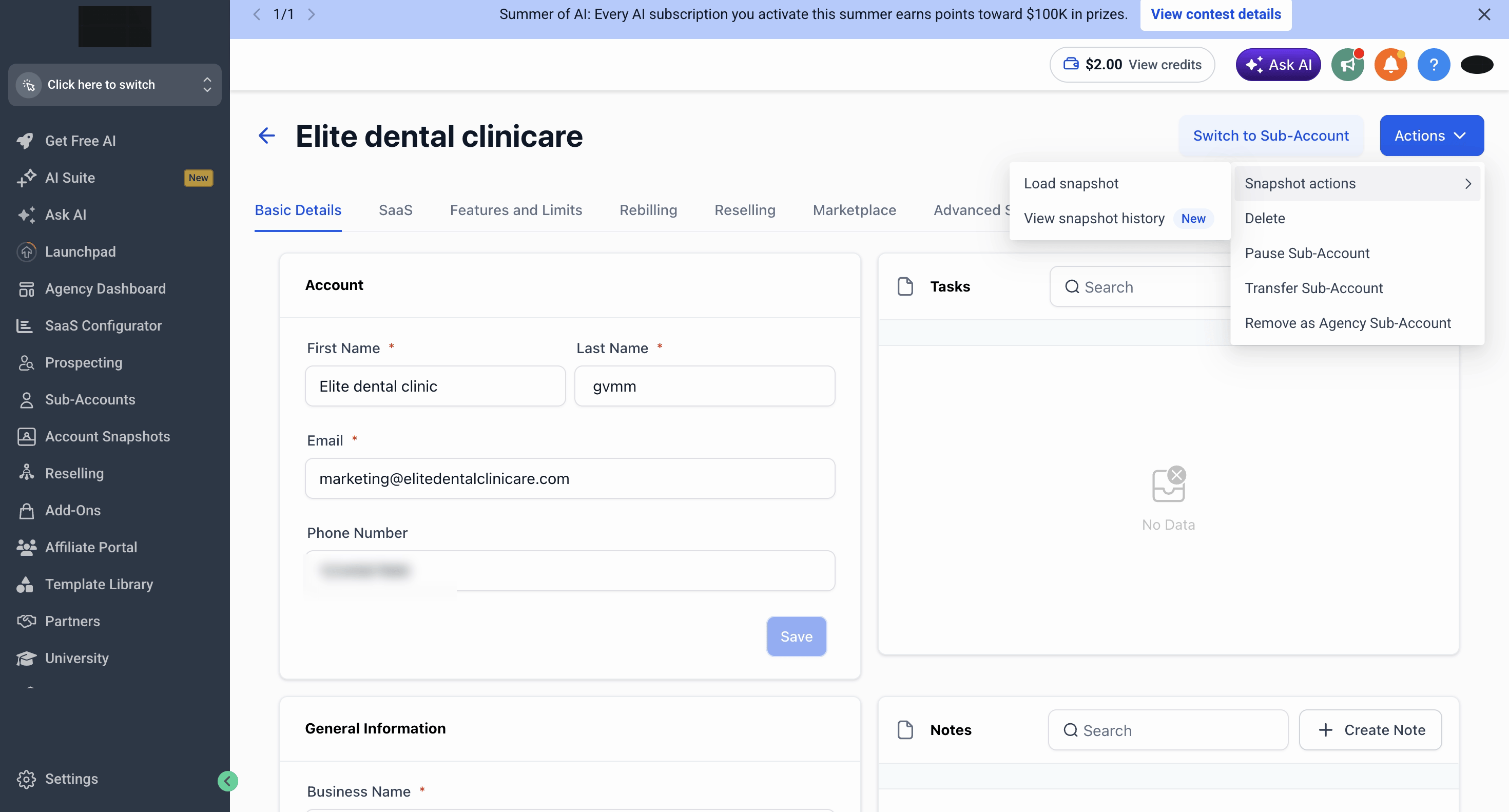
Click Actions (top-right) → Snapshot Actions → Load Snapshot
Step 3: Load the Snapshot
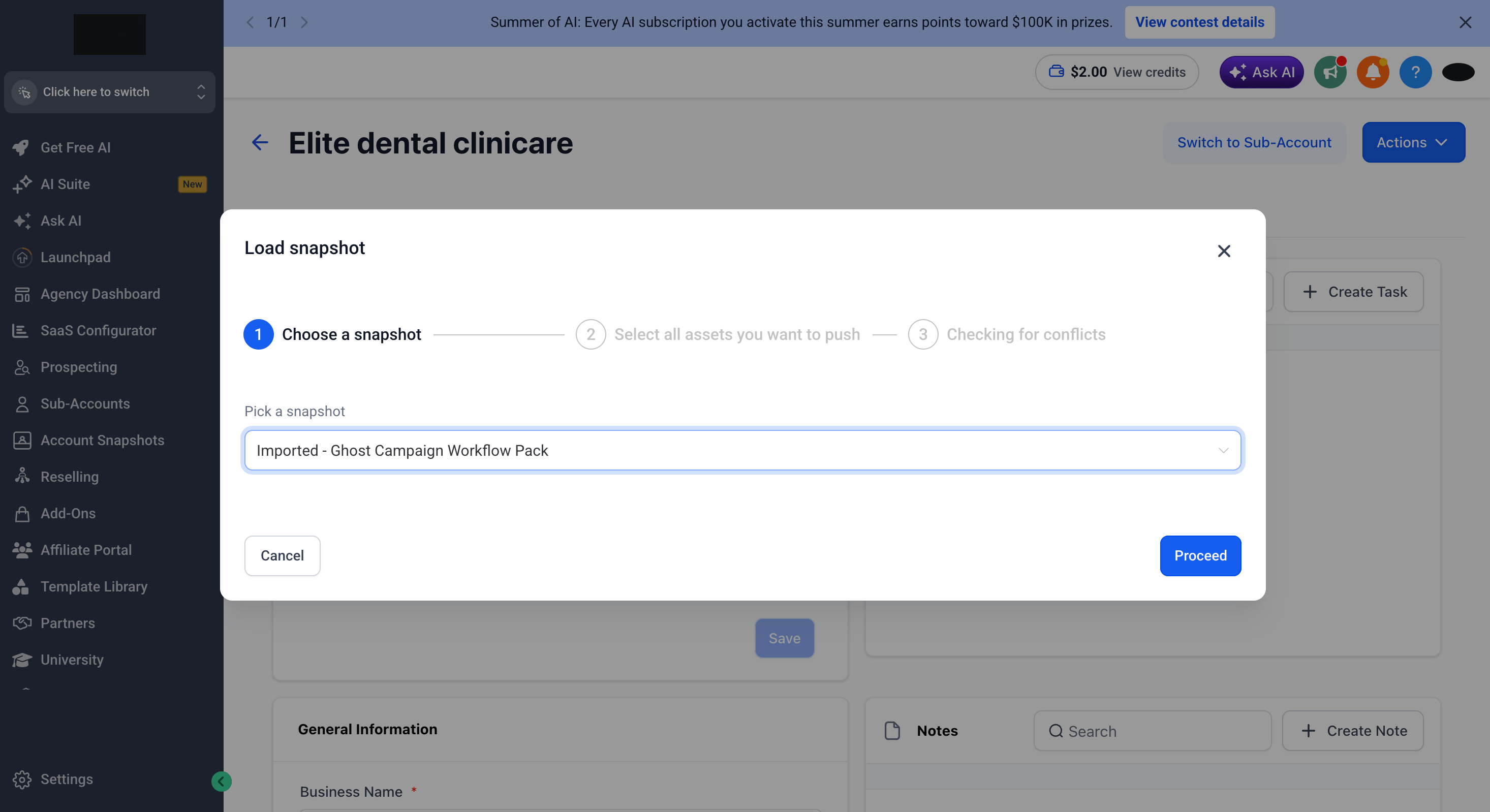
The Load Snapshot wizard has three steps.1. Choose a snapshot
Pick the imported snapshot (e.g.Imported - Ghost Campaign Workflow Pack) and click Proceed.
2. Select the assets you want to push
All assets linked to the snapshot are listed by type (Workflows, Custom Fields, Pipelines, Calendars, …). Keep Select all checked to load everything, or Skip asset types you don’t want. Click Proceed.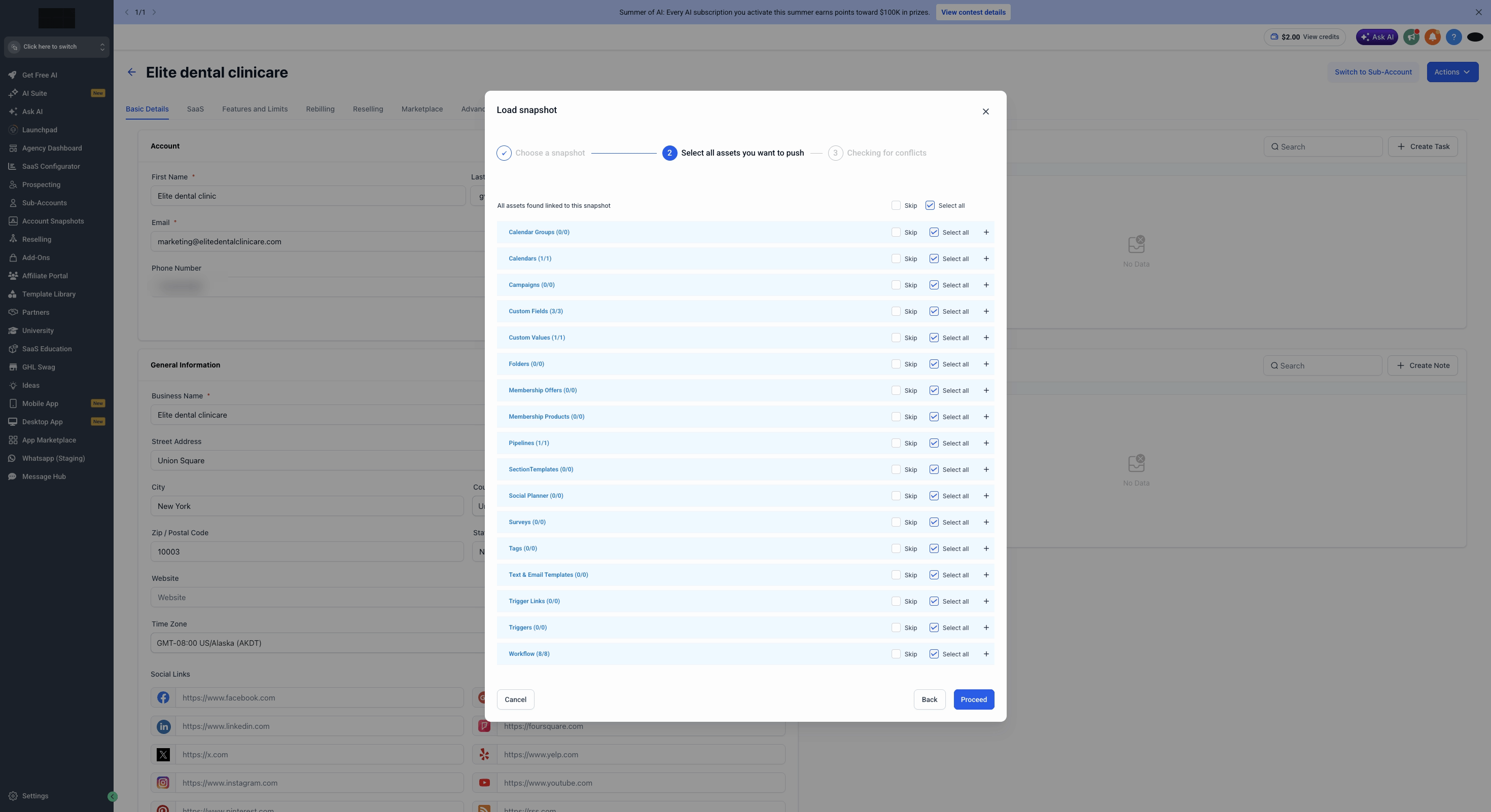
3. Check for conflicts
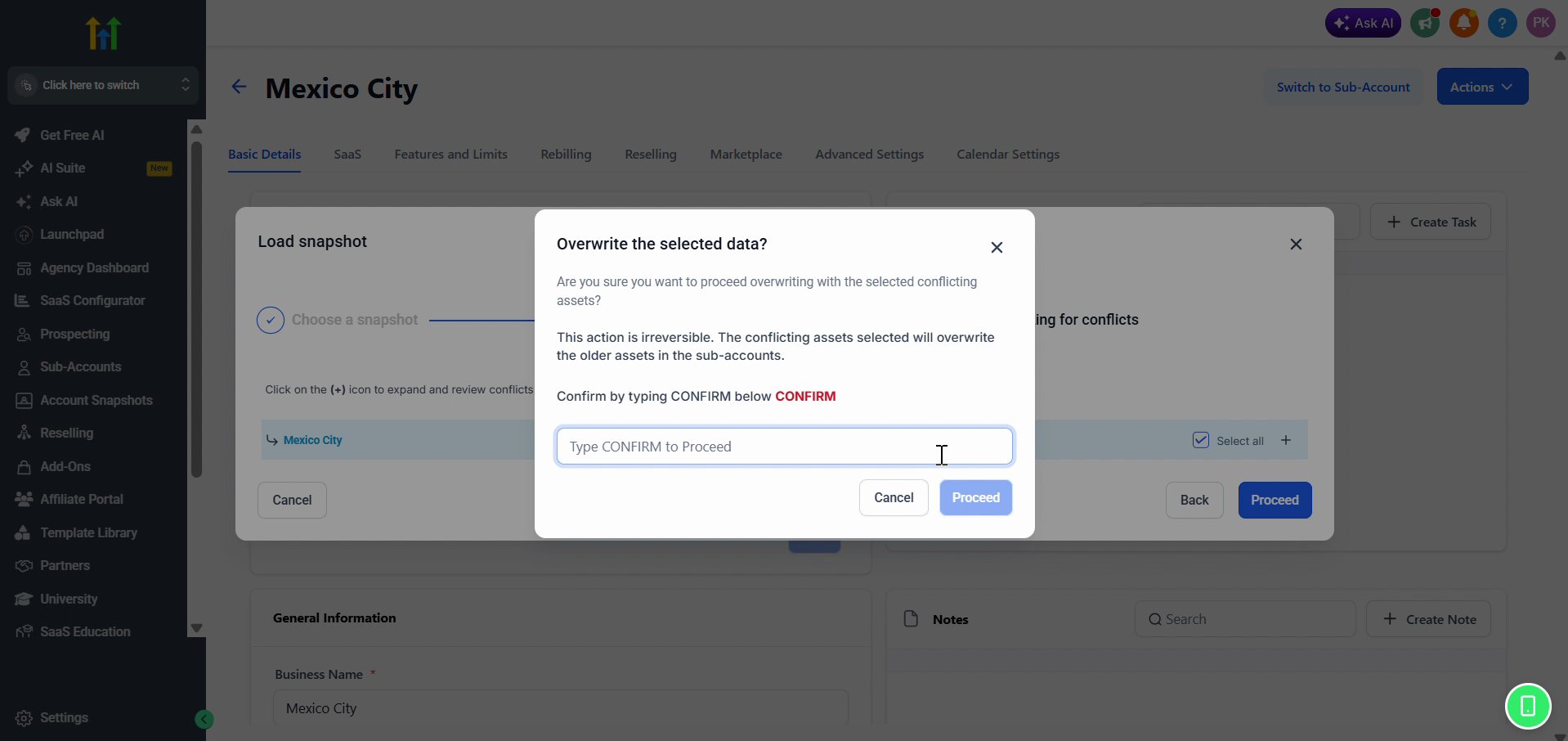
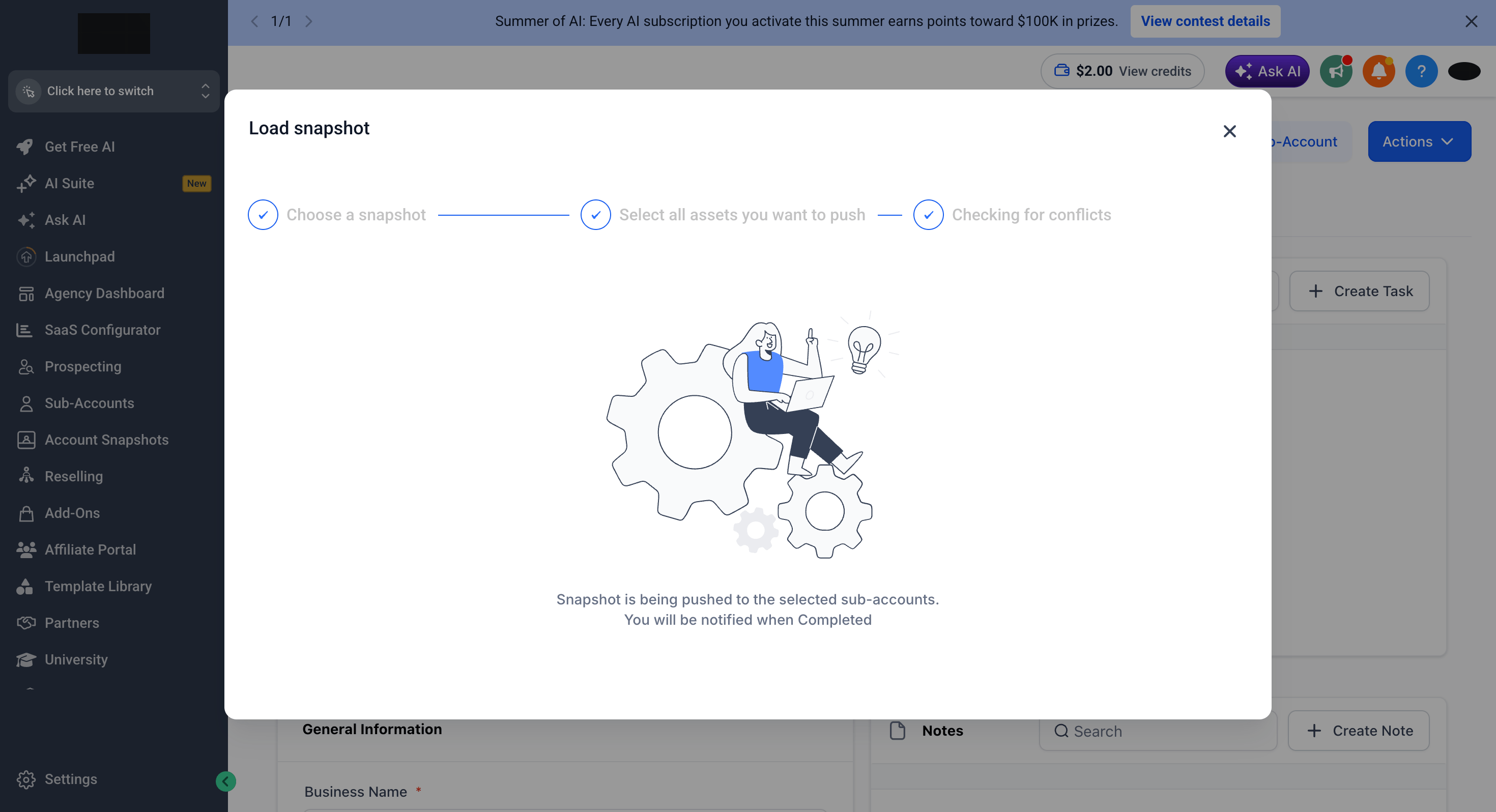
If the sub-account already contains assets with the same name, they appear here. Click the (+) icon to expand and review conflicts, then tick only the assets you want to overwrite. For a first-time import there is normally nothing to select. Just click Proceed.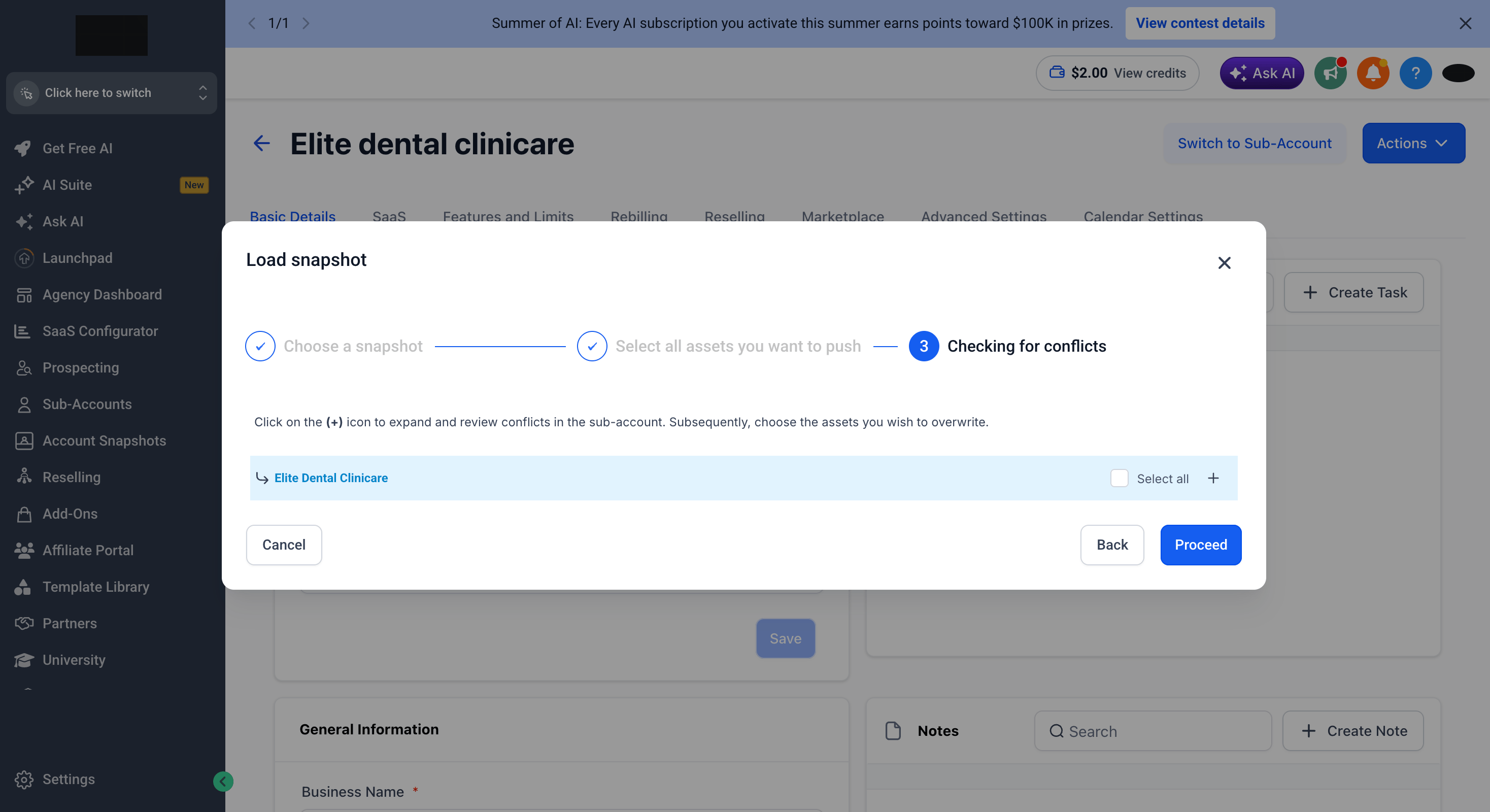
Step 4: Verify the Import
1
Click Switch to Sub-Account (or open the sub-account from Agency View)
2
Go to Automation → Workflows
3
Open the imported folder (e.g. Ghost Campaign Workflows) and confirm the workflows are there
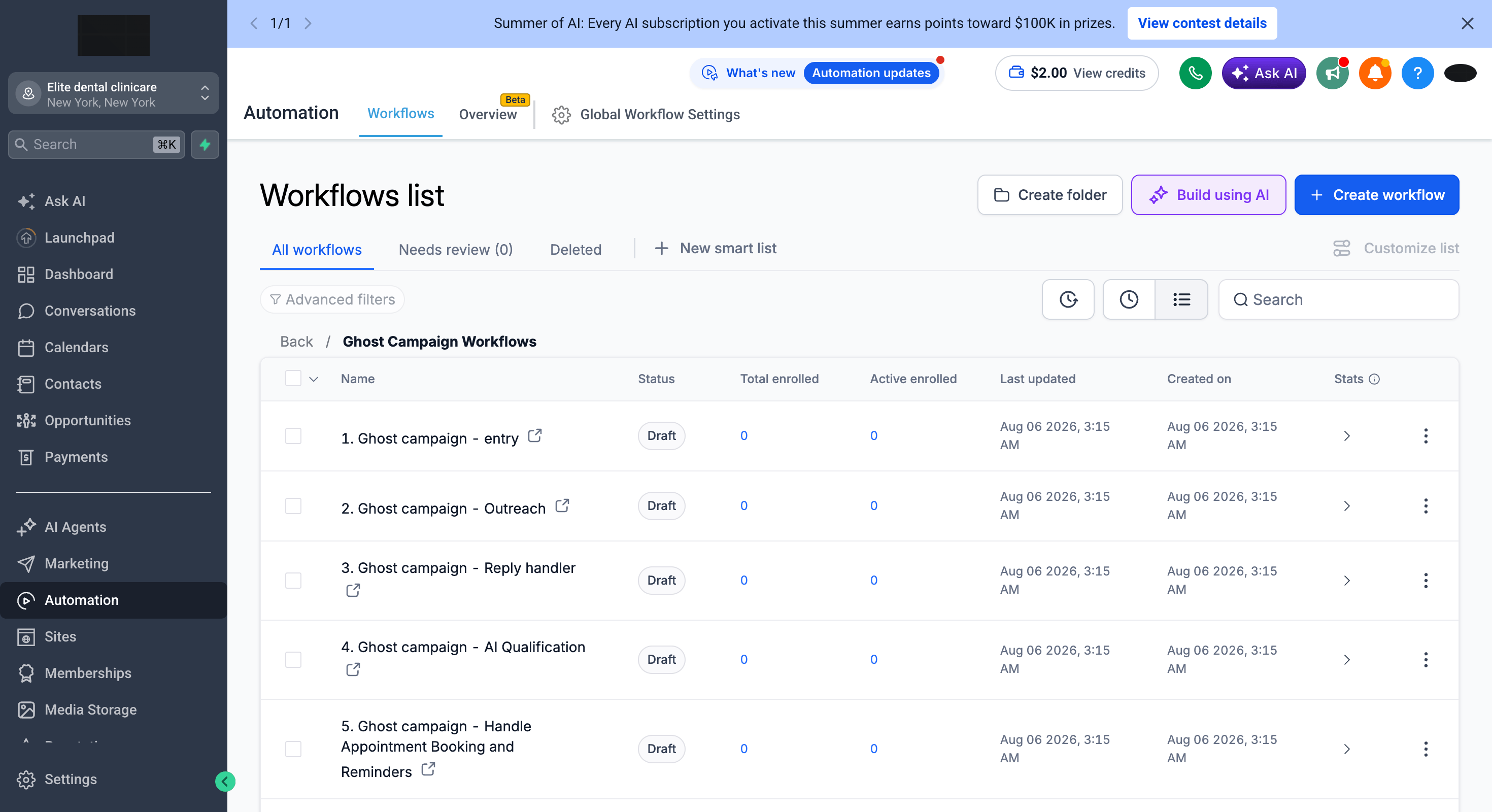
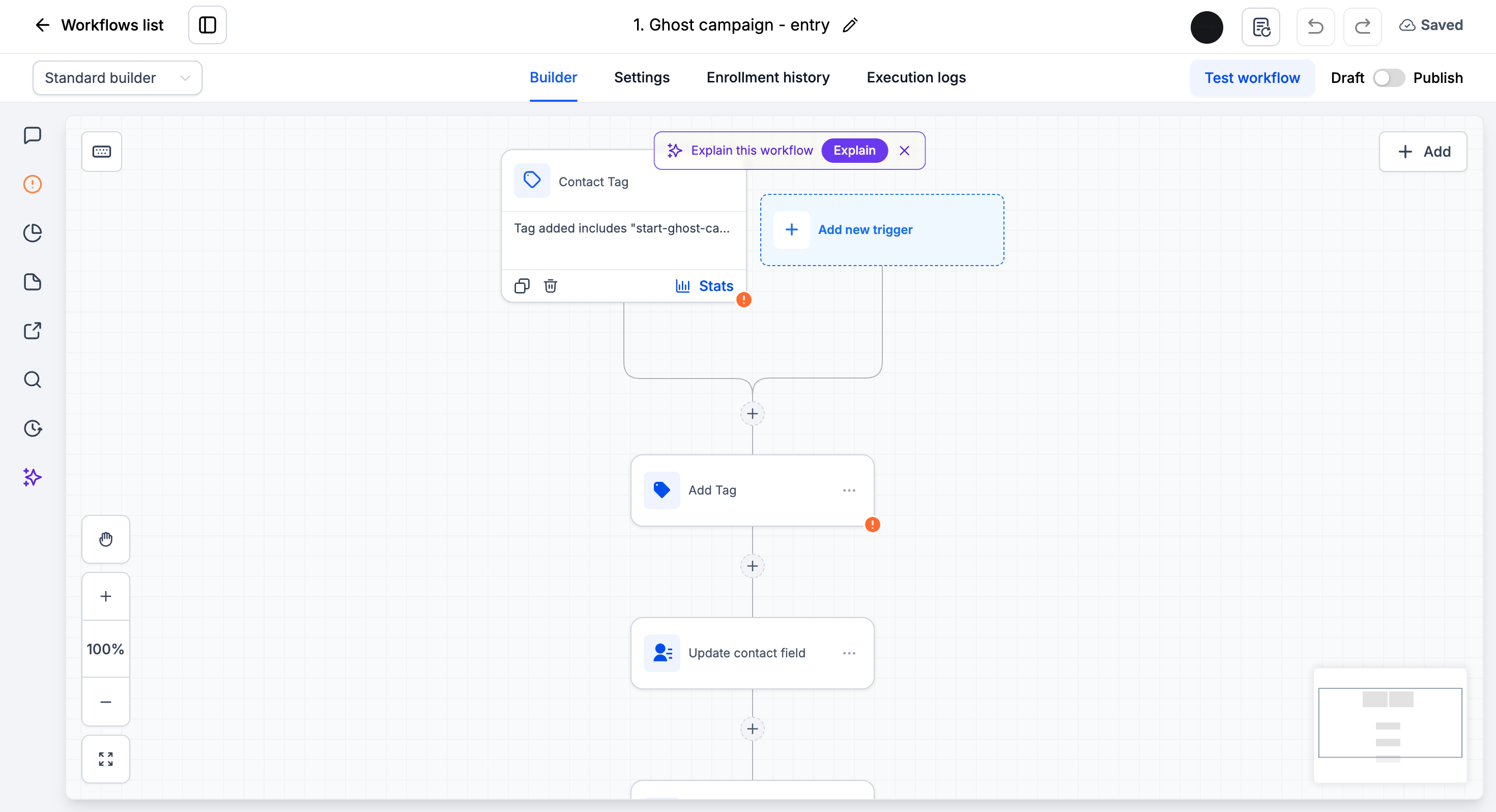
Imported workflows arrive in Draft status. Review each one, connect your channels (e.g. your WhatsApp number), update any account-specific values, then toggle Publish to activate.
Support
If you need help importing or setting up a snapshot:- WhatsApp Support: Chat on WhatsApp
- Email: support@goghl.ai
FAQ
Will importing a snapshot bring in contacts or conversations?
Will importing a snapshot bring in contacts or conversations?
No. Snapshots only contain structure: workflows, custom fields, pipelines, calendars, templates and similar assets. No contacts, conversations or account data are transferred.
Can I load the same snapshot into multiple sub-accounts?
Can I load the same snapshot into multiple sub-accounts?
Yes. Once imported into your agency, you can load the snapshot into as many sub-accounts as you like. Repeat Step 2 and Step 3 for each sub-account.
What happens if the sub-account already has assets with the same name?
What happens if the sub-account already has assets with the same name?
The conflict check (wizard step 3) lists them. Anything you don’t select is left untouched; anything you select is overwritten by the snapshot version after you type CONFIRM. Overwriting cannot be undone.
Why are the imported workflows not running?
Why are the imported workflows not running?
Workflows are imported in Draft status by design, so nothing fires before you’ve reviewed it. Open each workflow, check the trigger and actions, and switch it to Publish.