

What it is
Blocks inbound WhatsApp messages from specific phone numbers on a WhatsApp number. Any message from a blacklisted number is silently dropped before it reaches your CRM, so it never appears in your conversations. Every other number keeps coming through as normal, and outbound messages you send from your CRM are never affected.Where to find it
1
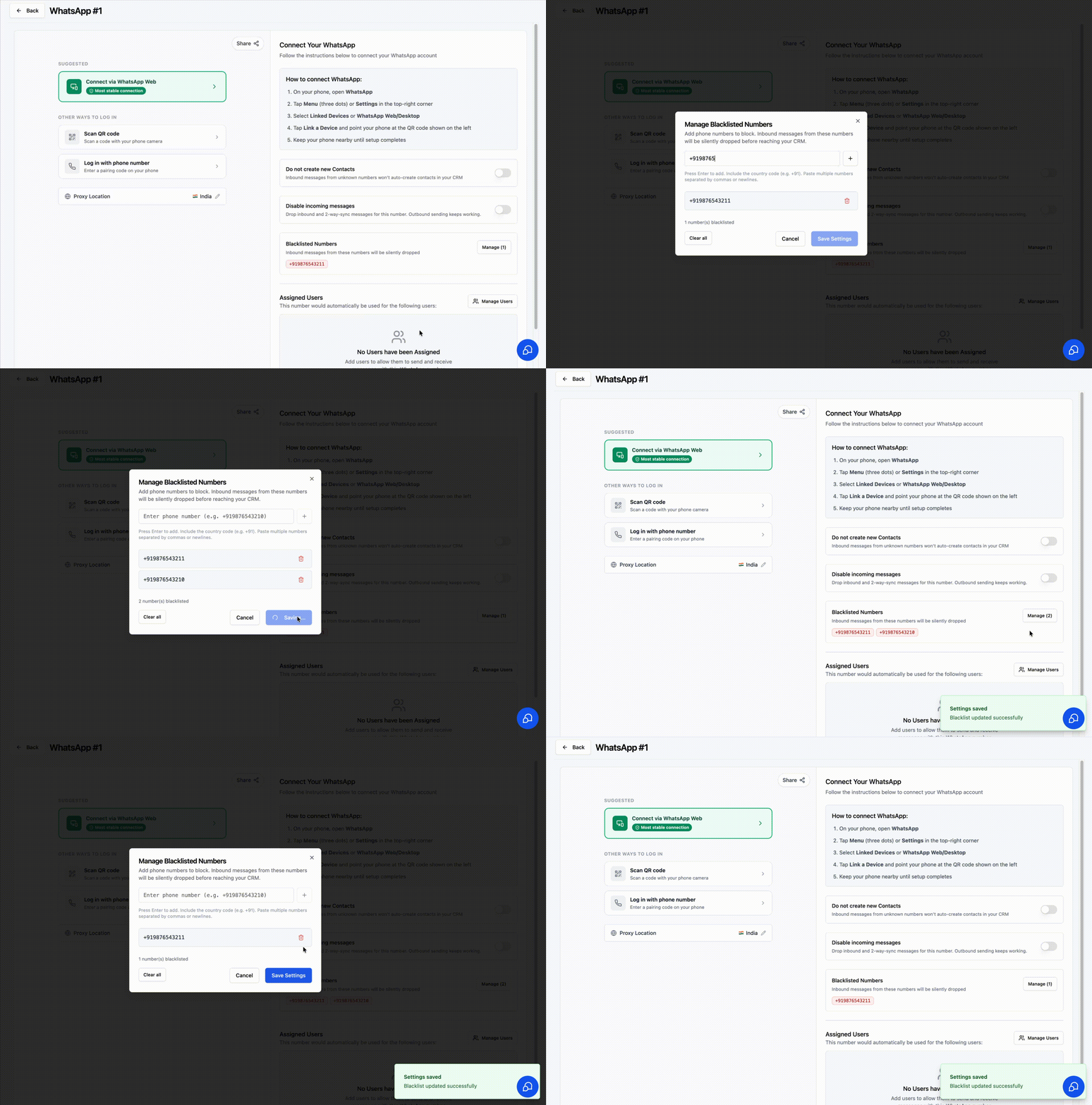
Go to Locations → WhatsApp Numbers
2
Open an instance (e.g., WhatsApp #1)
3
In the right panel, find “Blacklisted Numbers” and click Add Numbers (or Manage)
4
Enter one or more numbers in international format (e.g. +919876543210) and Save Settings
How it works
- Add phone numbers to the blacklist in international (E.164) format, including the country code (e.g. +91). You can paste several at once, separated by commas or new lines.
- Inbound messages from any blacklisted number - direct or group - are dropped before they reach your CRM.
- Every other number keeps working normally, and outbound messages you send from your CRM are never affected.
When to use
- Block spam or repeat unwanted senders on a specific number
- Stop a known bad actor from cluttering your CRM inbox
- Keep a high-traffic number clean while still receiving from everyone else
Notes & limitations
- Applies only to the selected instance; other WhatsApp numbers keep their own separate blacklists
- Affects inbound only - it does not block or change outbound messages you send from your CRM
- Does not delete existing conversations or messages already synced
- Blacklisted senders are dropped silently - they are not notified and receive no error
- Changes take effect right away - no need to reconnect the number
Support
If you need help with the setup or onboarding:- WhatsApp Support: Chat on WhatsApp
- Email: support@goghl.ai