

What it is
Convert text into a voice message using TTS voices. Type your message and send it as natural-sounding audio directly in the conversation.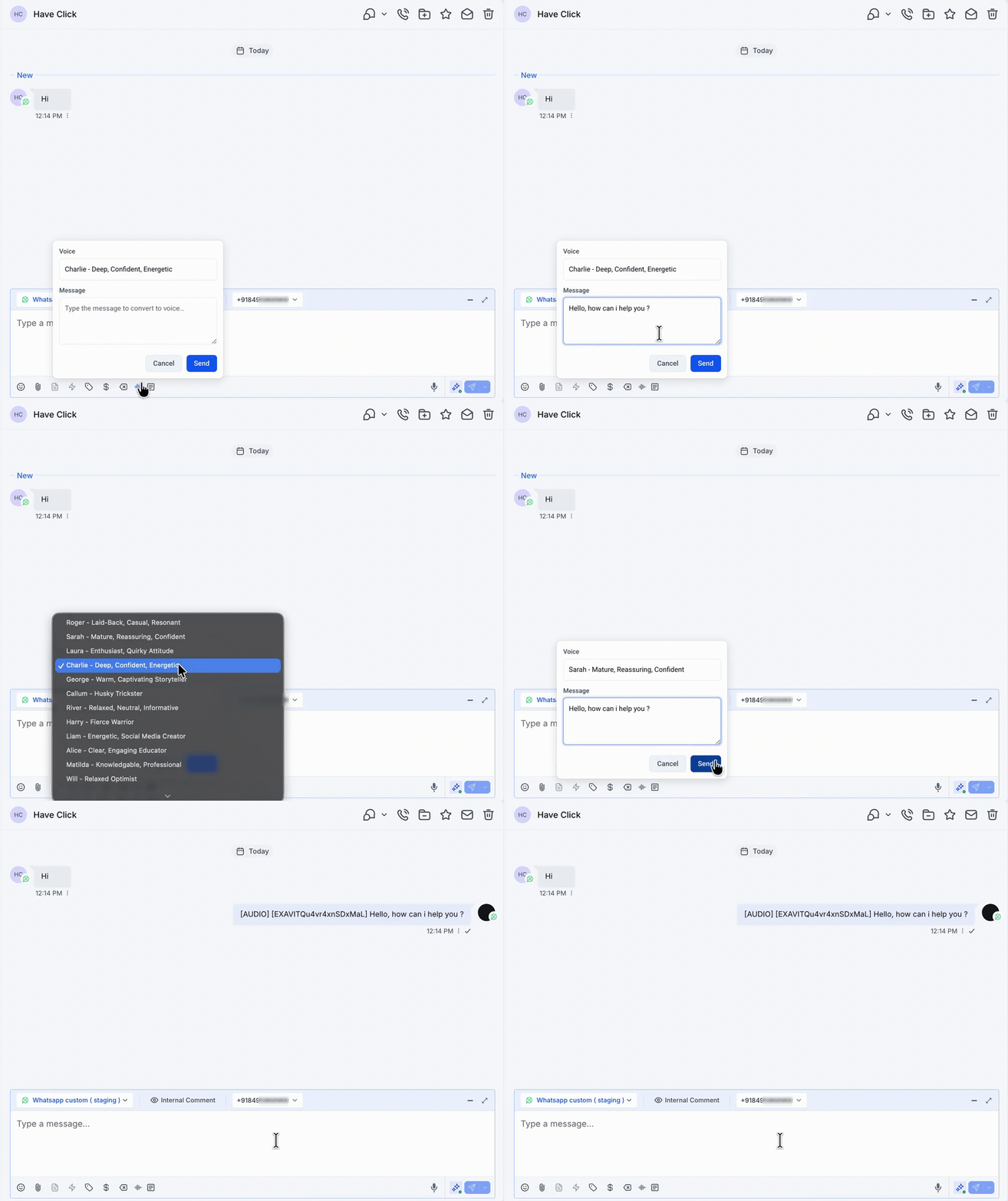
How to enable it
1
Open your GoGHL dashboard.
2
Go to the Custom Script settings.
3
Turn on the Text-to-Speech Formatter toggle.
How to use it
1
Open a WhatsApp conversation in the Conversations tab.
2
Click the text-to-speech icon in the composer toolbar.
3
Choose a Voice from the list.
4
Type your Message and click Send.
5
The message is delivered to the contact as an audio message.
Notes & limitations
- The audio is generated at send time, so keep messages short for the most natural result
- To set up your own TTS voices, see Text-to-Speech
Support
If you need help with the setup or onboarding:- WhatsApp Support: Chat on WhatsApp
- Email: support@goghl.ai