

Setup Video
When to Use It
QR scan won’t link - WhatsApp requires a passkey for your number, so scanning the QR code no longer completes the connection. Passkey-protected account - Your WhatsApp account is secured with a passkey (fingerprint, face, or screen lock), and WhatsApp asks for it before linking a new device.Before You Start
- The WhatsApp account you want to connect must be active on your phone.
- Keep your phone nearby and unlocked so you can approve the passkey prompt.
- Use a desktop browser (Chrome is recommended) so you can open the developer Console.
- Set aside about 3 minutes and follow the steps in order-there is a short timer.
Step-by-Step Setup
Step 1: Open the Passkey Setup Screen
If you need a passkey to log in, this window will pop up.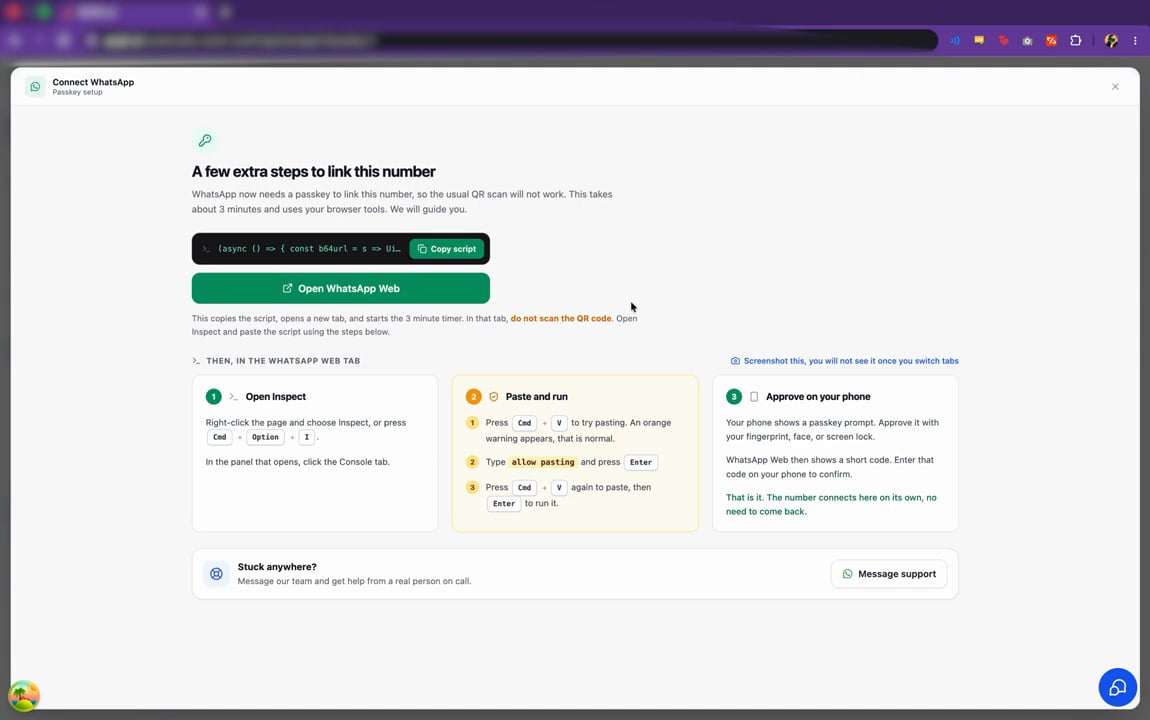
Step 2: Copy the Script and Open WhatsApp Web
1
Click Copy script to copy the connection script to your clipboard.
2
Click Open WhatsApp Web. This opens WhatsApp Web in a new tab and starts a 3-minute timer.
Important: In the WhatsApp Web tab, do not scan the QR code. You’ll paste the script into the browser Console instead.
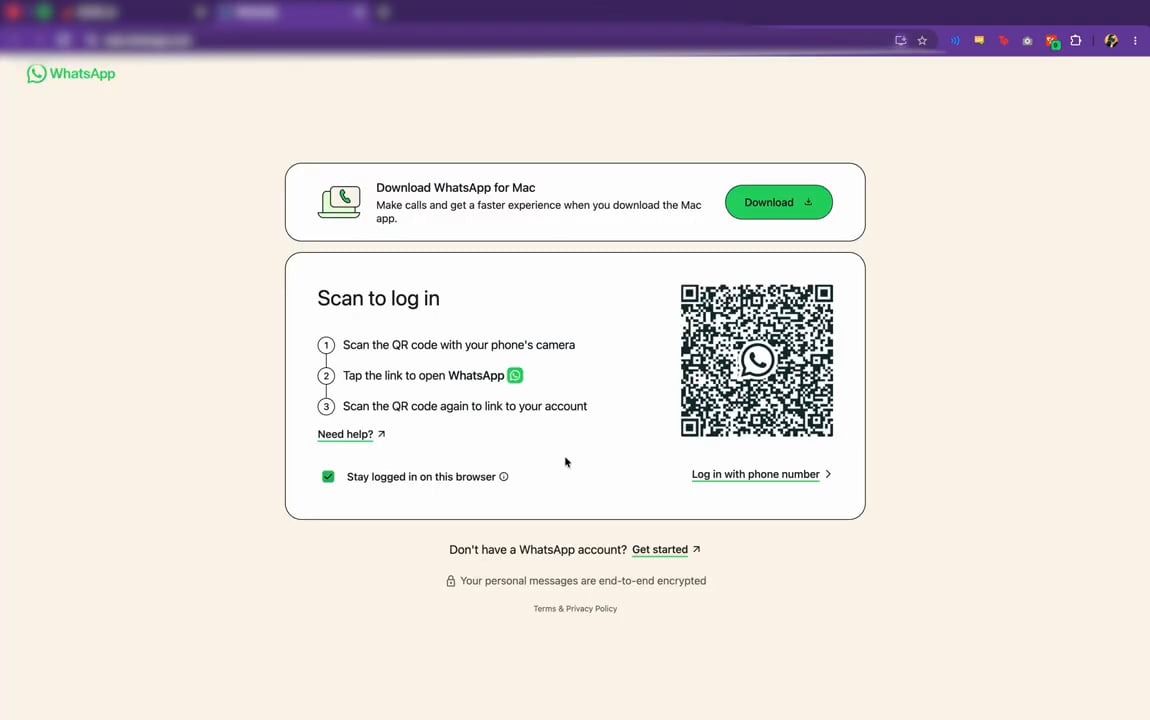
Step 3: Open the Console (Inspect)”)
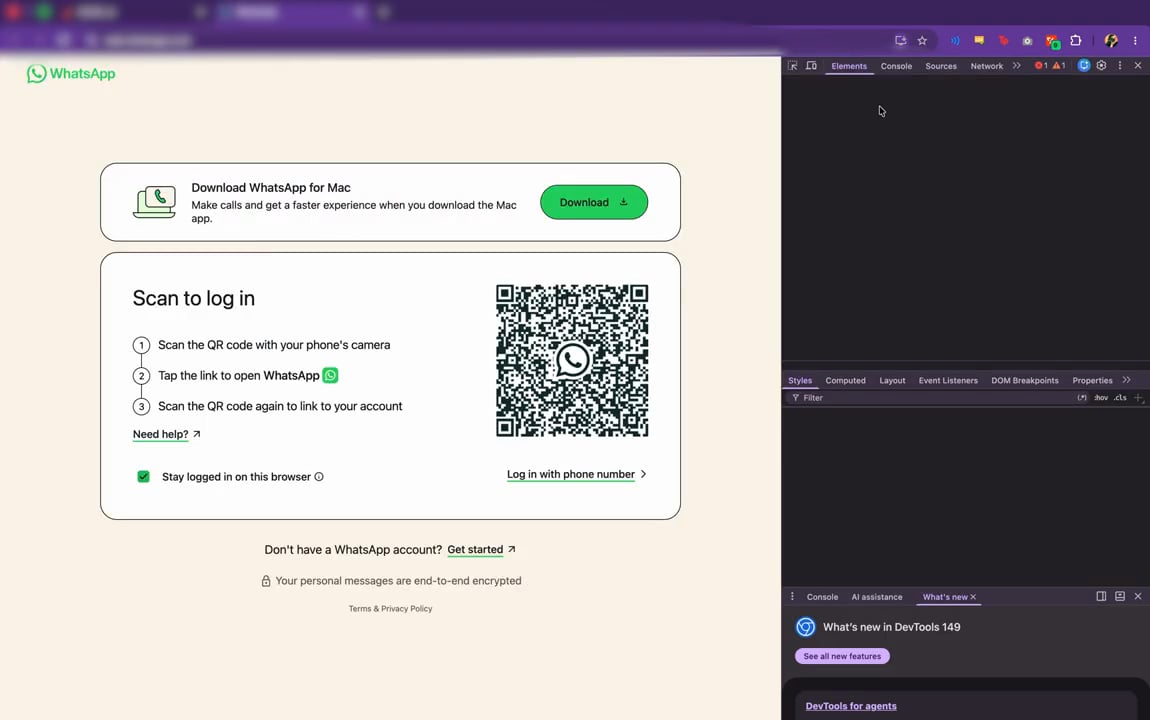
In the WhatsApp Web tab:1
Right-click anywhere on the page and choose Inspect, or press Cmd + Option + I (Mac) / Ctrl + Shift + I (Windows).
2
In the developer panel that opens, click the Console tab.
Step 4: Allow Pasting
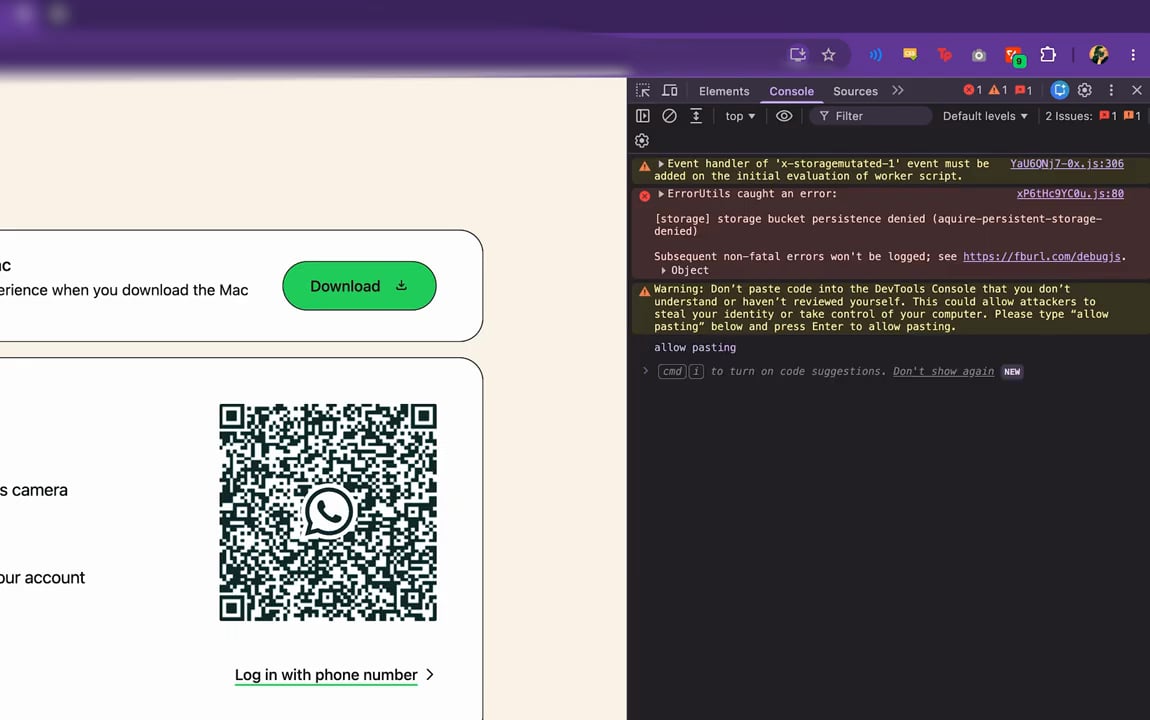
The first time you paste into the Console, the browser shows a warning and blocks the paste to keep you safe.1
Press Cmd + V (Mac) / Ctrl + V (Windows) to try pasting. An orange warning appears-this is normal.
2
Type allow pasting into the Console and press Enter.
Step 5: Paste and Run the Script
1
Press Cmd + V (Mac) / Ctrl + V (Windows) again to paste the script you copied from GoGHL.ai.
2
Press Enter to run it.
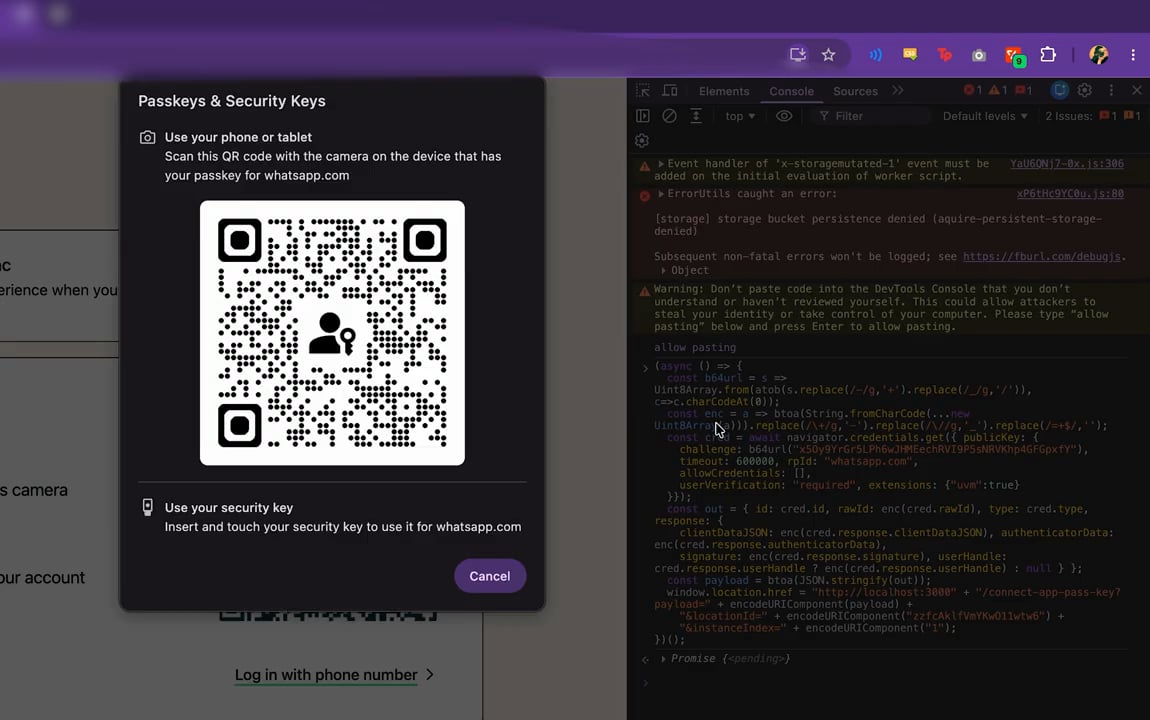
Step 6: Approve the Passkey
A Passkeys & Security Keys prompt appears. Approve the passkey with the device that holds it:- Use your phone or tablet - Scan the on-screen QR code with the camera on the device that has your passkey for whatsapp.com.
- Use your security key - Insert and touch your security key if you use one.
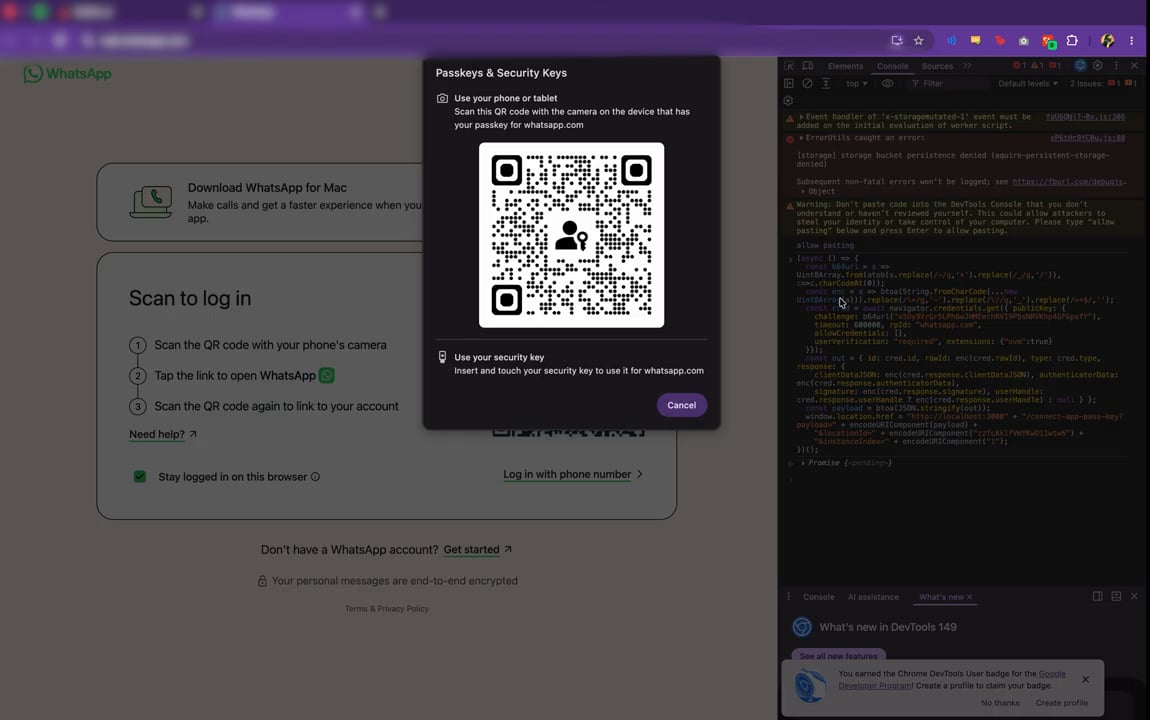
Step 7: Finish on Your Device
Your phone shows a passkey prompt-approve it with your fingerprint, face, or screen lock. The browser then shows Follow the steps on your device while it completes the link. That’s it. Once approved, the number connects on its own-you don’t need to switch back to the setup screen. Your WhatsApp account is now linked and ready to send and receive messages from this location.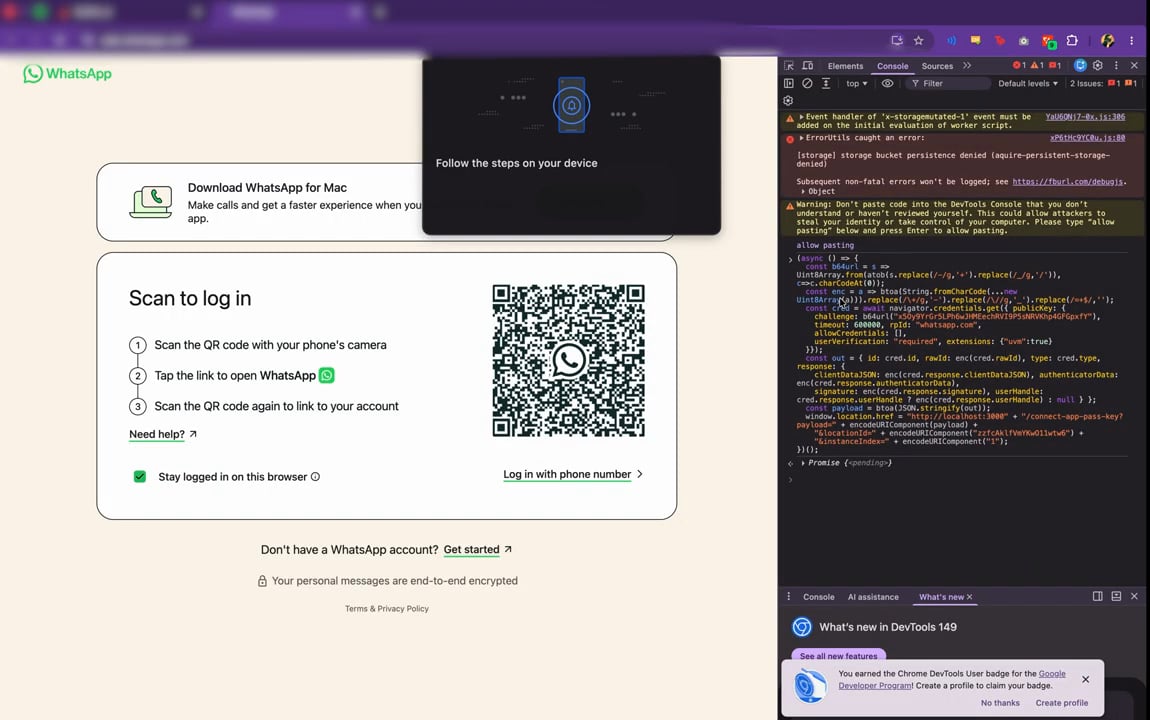
Important Notes
- Mind the timer. The setup starts a 3-minute timer. If it runs out, return to the connection screen and start again with a fresh script.
- Do not scan the QR code in the WhatsApp Web tab-this method uses the pasted script, not the QR scan.
- Only paste the GoGHL.ai script. Never paste code into the Console that you didn’t get from GoGHL.ai.
- Keep your phone unlocked so the passkey prompt can appear and be approved.
- One account per instance. Only one WhatsApp account can be connected per instance.
Troubleshooting
The Paste Is Blocked
- This is expected the first time. Type allow pasting in the Console, press Enter, then paste the script again.
The Timer Ran Out
- Go back to the GoGHL.ai connection screen, copy a fresh script, and start the process again.
No Passkey Prompt Appears
- Make sure you typed allow pasting and successfully pasted and ran the script.
- Keep your phone unlocked with the camera ready to scan the on-screen QR code.
- Check that both devices have a stable internet connection, then run the script again.
The Number Didn’t Connect
- Confirm you approved the passkey on the device that holds it.
- Start over with a fresh script if the timer expired mid-way.
FAQs
What is a passkey and why do I need it?
What is a passkey and why do I need it?
A passkey is a secure way to prove it’s really you, using your fingerprint, face, or screen lock instead of a password. WhatsApp now requires a passkey to link some numbers, so the usual QR scan won’t complete the connection on its own.
Is it safe to paste the script into the Console?
Is it safe to paste the script into the Console?
Yes, as long as it’s the script GoGHL.ai gave you. The browser shows a warning because pasting unknown code can be dangerous-only ever paste the script from GoGHL.ai, and never code from an untrusted source.
Why does it say 'do not scan the QR code'?
Why does it say 'do not scan the QR code'?
This method links your number through the pasted script and passkey approval, not through the QR scan. Scanning the QR code would start a different flow that won’t work for passkey-protected numbers.
What is the 3-minute timer for?
What is the 3-minute timer for?
The script and connection request are only valid for a short window. If the timer runs out before you finish, copy a fresh script from the connection screen and start again.
Do I need to switch back to GoGHL.ai after approving?
Do I need to switch back to GoGHL.ai after approving?
No. Once you approve the passkey on your device, the number connects on its own. You don’t need to return to the setup screen.
What if I can't open the Console?
What if I can't open the Console?
Use a desktop browser like Chrome, then right-click the page and choose Inspect, or press Cmd + Option + I (Mac) / Ctrl + Shift + I (Windows) and open the Console tab.
Support
If you need help with the setup or onboarding:- WhatsApp Support: Chat on WhatsApp
- Email: support@goghl.ai