

Most users should follow the newer WhatsApp Full Setup flow instead. Use this page only if you specifically need the SMS provider method.
1
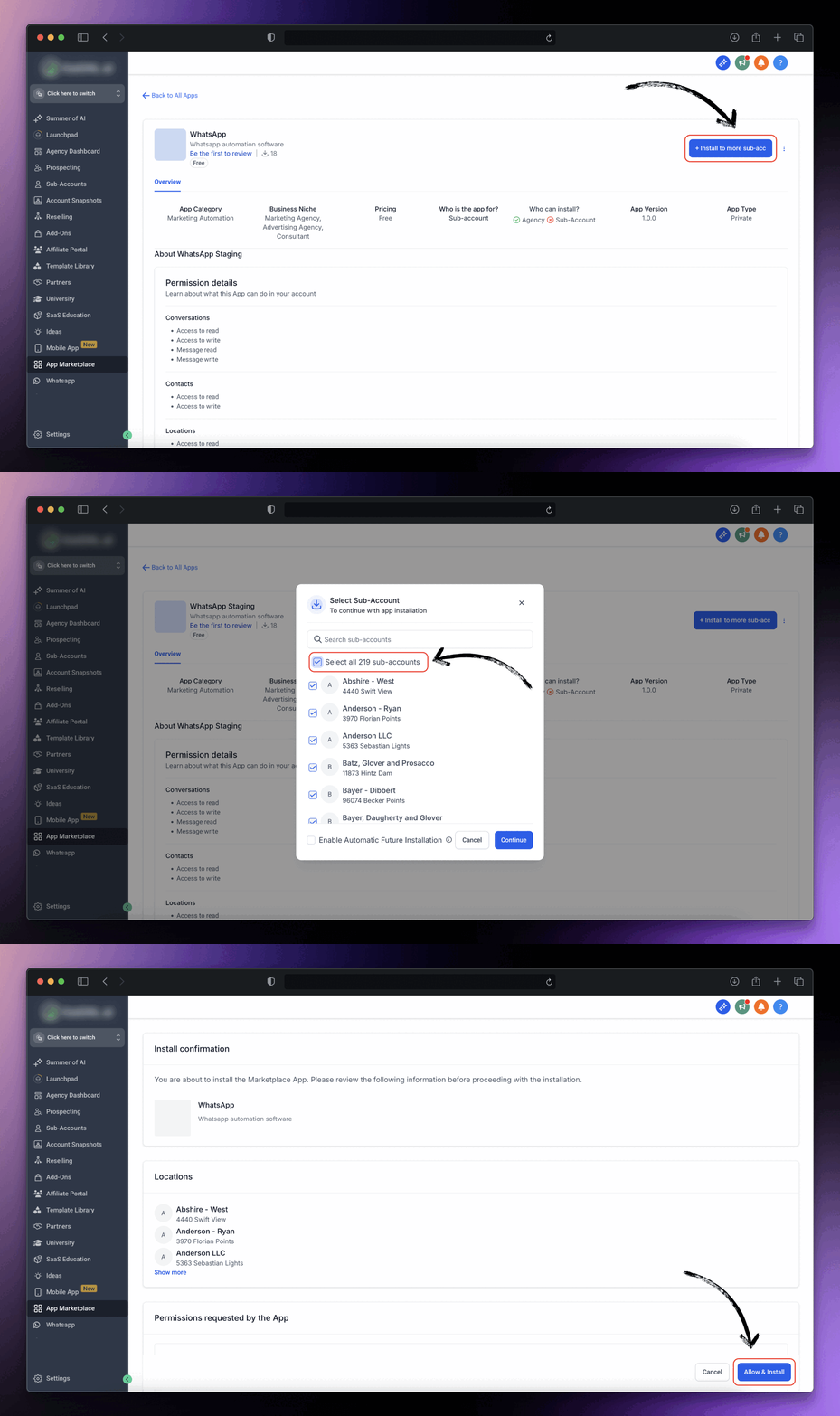
Install the app on sub-accounts
For an easier setup you can click on Select All sub-accounts
2
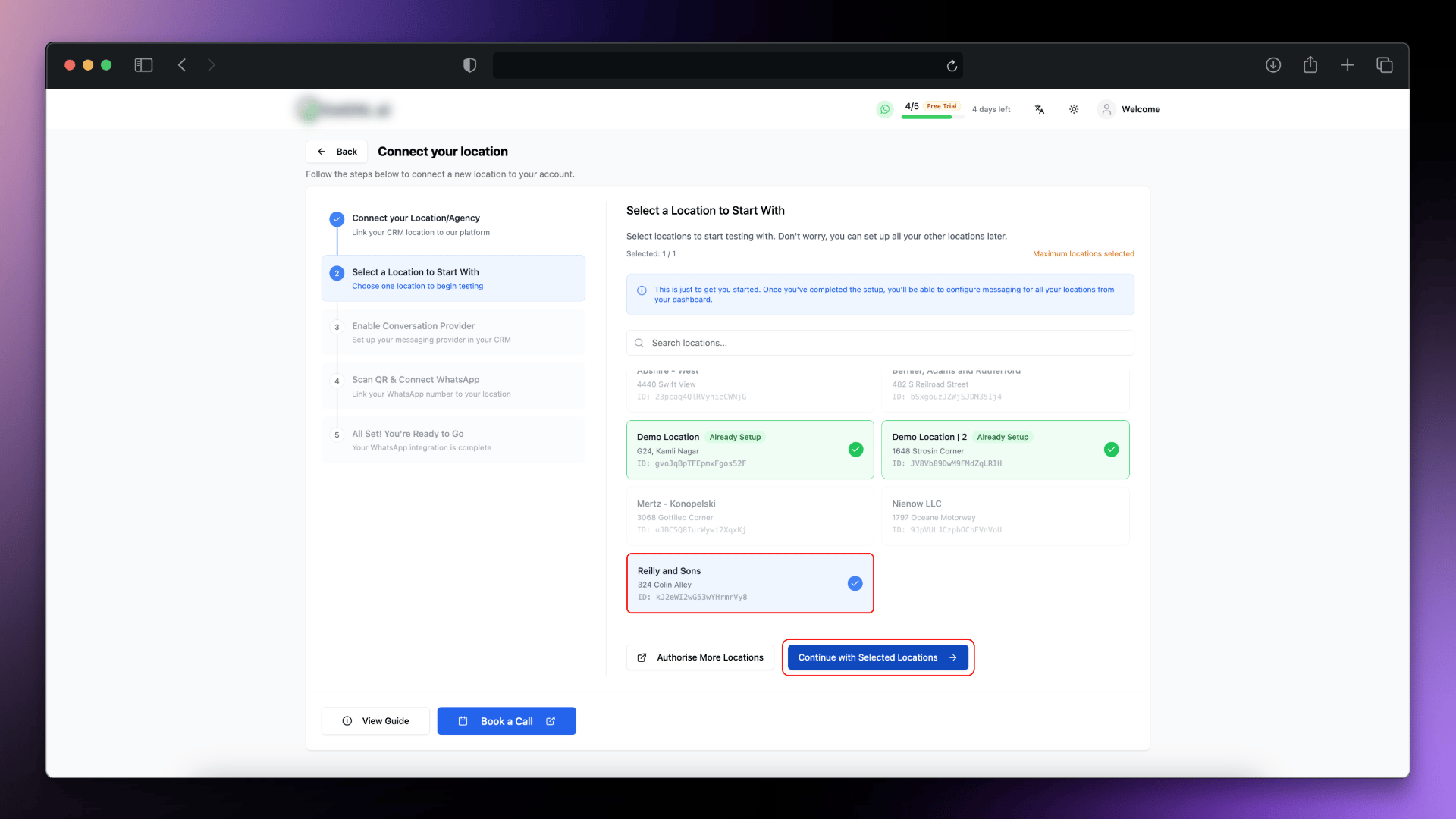
Select sub-account
3
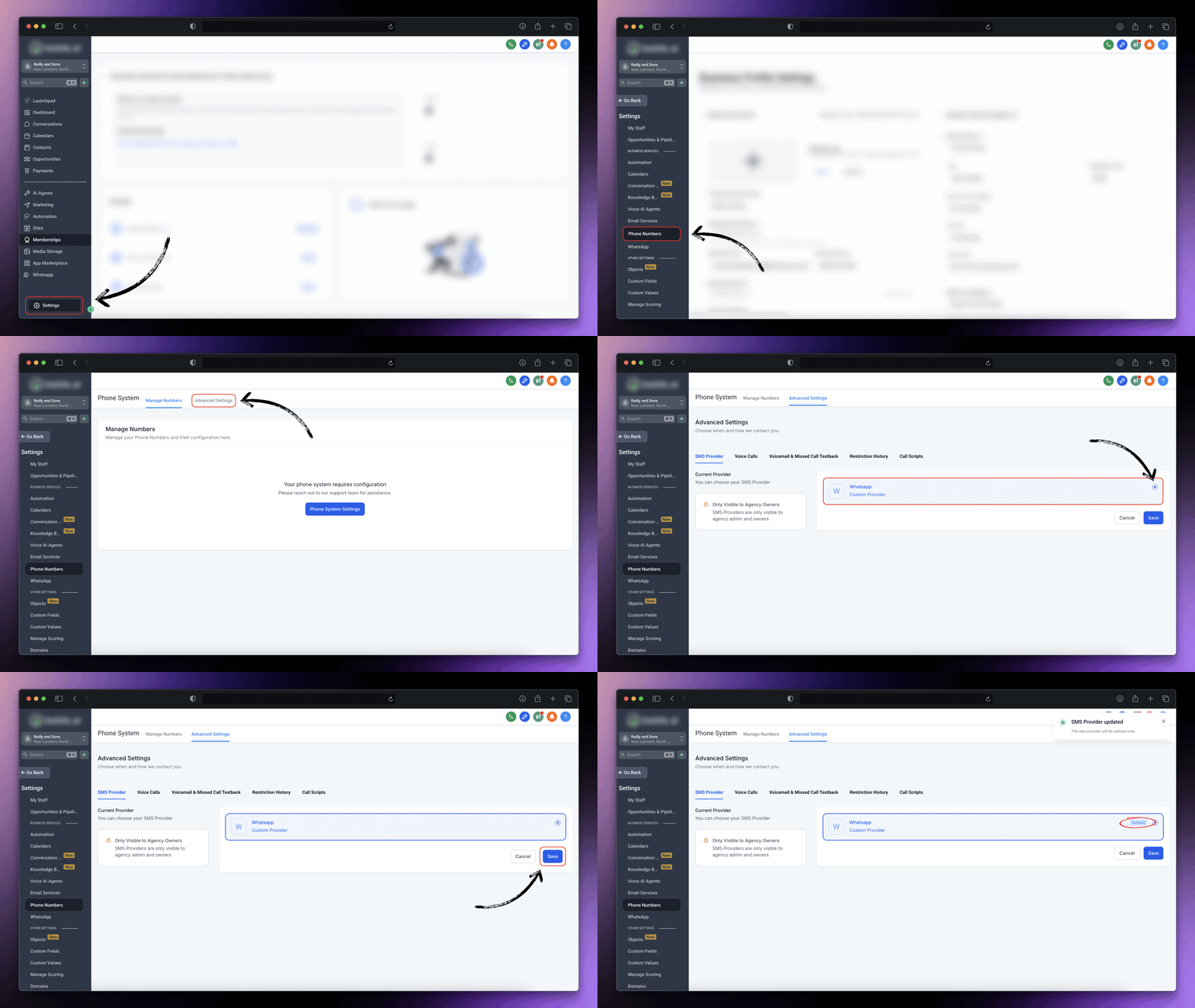
Enable SMS Provider for your Sub-account
- Select your target sub-account and go to settings
- Go to
Settings > Phone Number > Advance Settings
- Go to
- Select WhatsApp as custom SMS provider
- Click on Save button
4
Connect WhatsApp
Once you’ve successfully installed our app and changed the SMS provider, lets connect your WhatsApp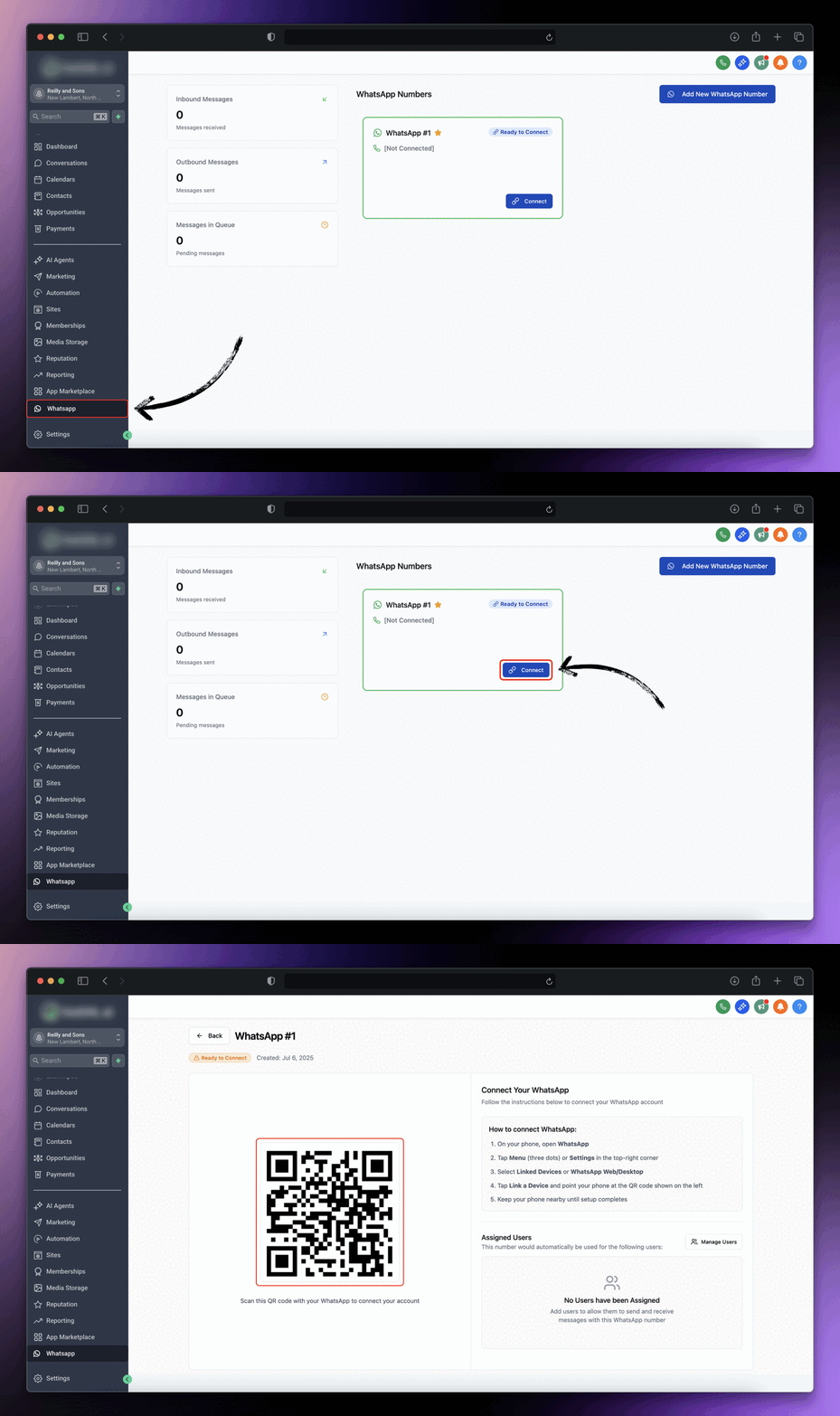
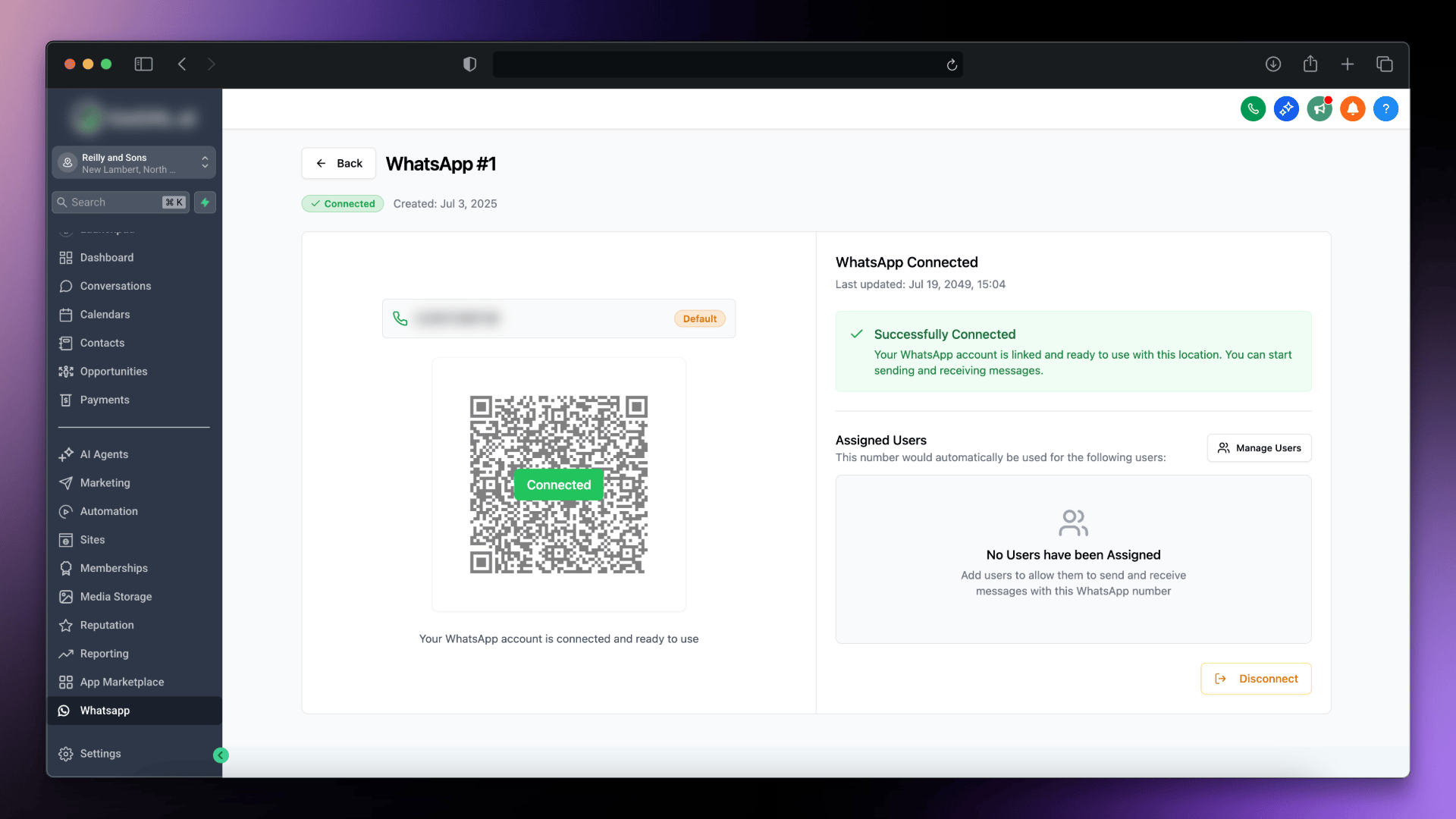
- Go to the WhatsApp tab from your sub-account or directly go to GoGHL.ai dashboard
- Click on
Connectbutton, wait for the QR Code.\
- Once QR code is visible follow the mentioned steps on your phone:
-
Open
WhatsApp → Settings → Linked Devices → Link Device → Scan QR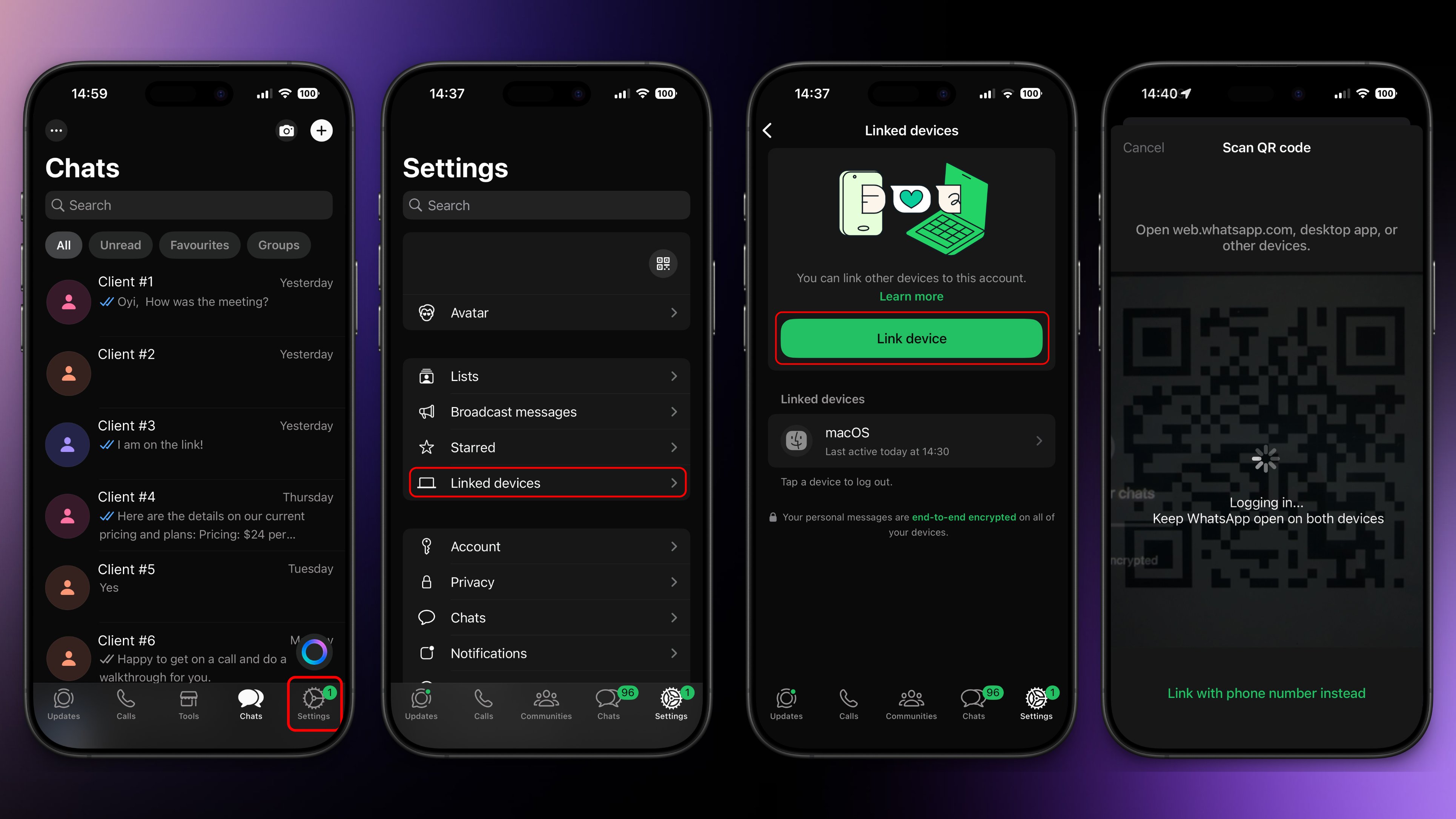
-
Open
- Wait a few moments, and you should see a confirmation in your console indicating that your WhatsApp is now connected.
5
Verify the setup
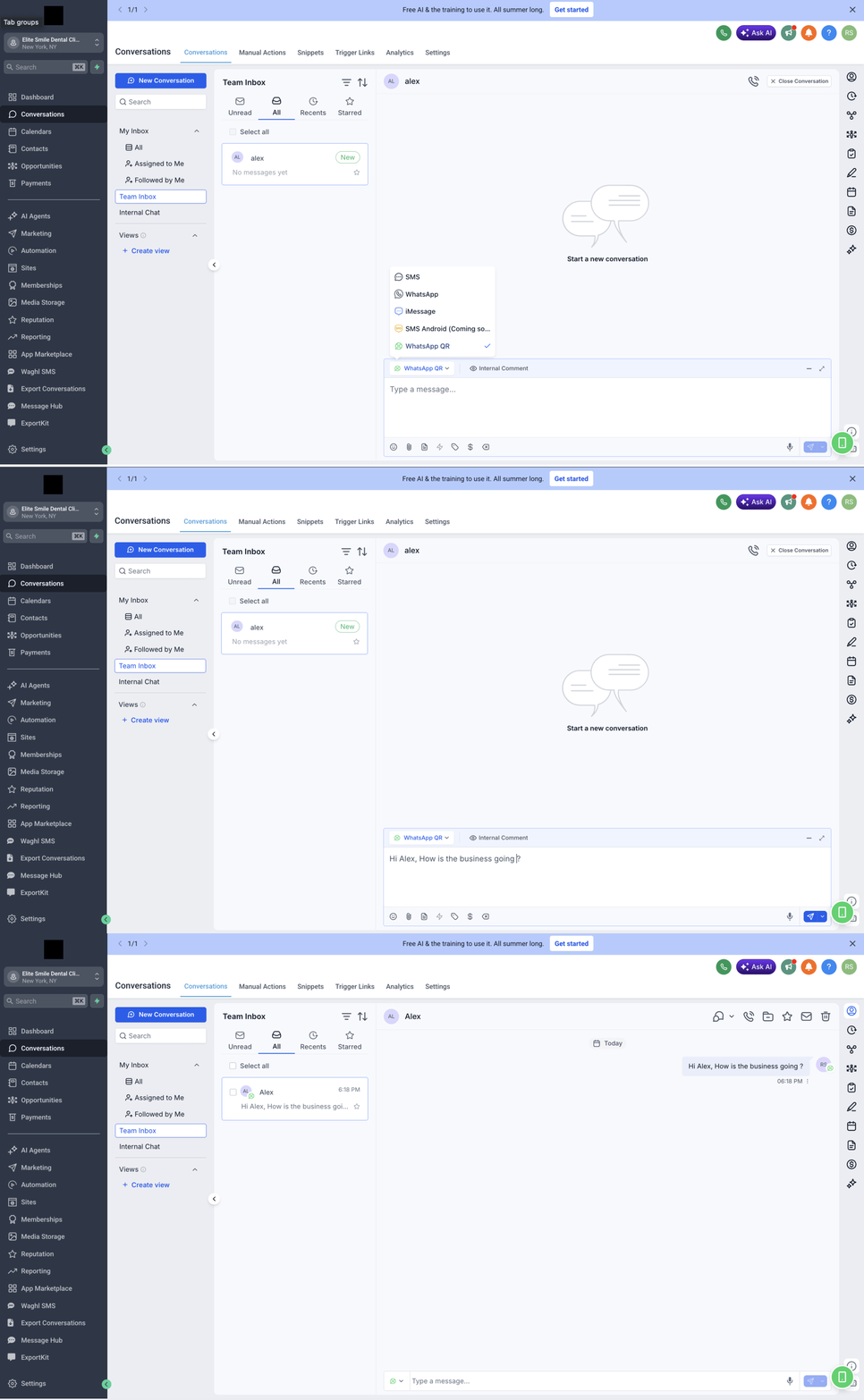
- Once connected, you can start sending messages directly to your contacts.
- Go to
Contacts → Select Contact → Send Message
Support
If you need help with the setup or onboarding:- WhatsApp Support: Chat on WhatsApp
- Email: support@goghl.ai