

Key Benefits
Instant Response - React the moment a message lands in the group Smart Routing - Direct conversations to the right rep or team Never Miss a Lead - Automate follow-up so no group message goes cold Filtered Automation - Trigger only on messages that match your criteria Zero Manual Monitoring - No need to watch the group around the clockWho Should Use It
Sales teams - Auto-respond and assign new group conversations instantly Support teams - Acknowledge group messages and create tickets automatically Agencies - Standardize group message handling across client sub-accounts High-volume operations - Keep response times fast even at scaleRequirements
Before using this trigger, update your Whatsapp provider app to the latest version:1
Go to App Marketplace → Installed Apps
2
Find Whatsapp provider
3
Click Update if available
How to Set Up
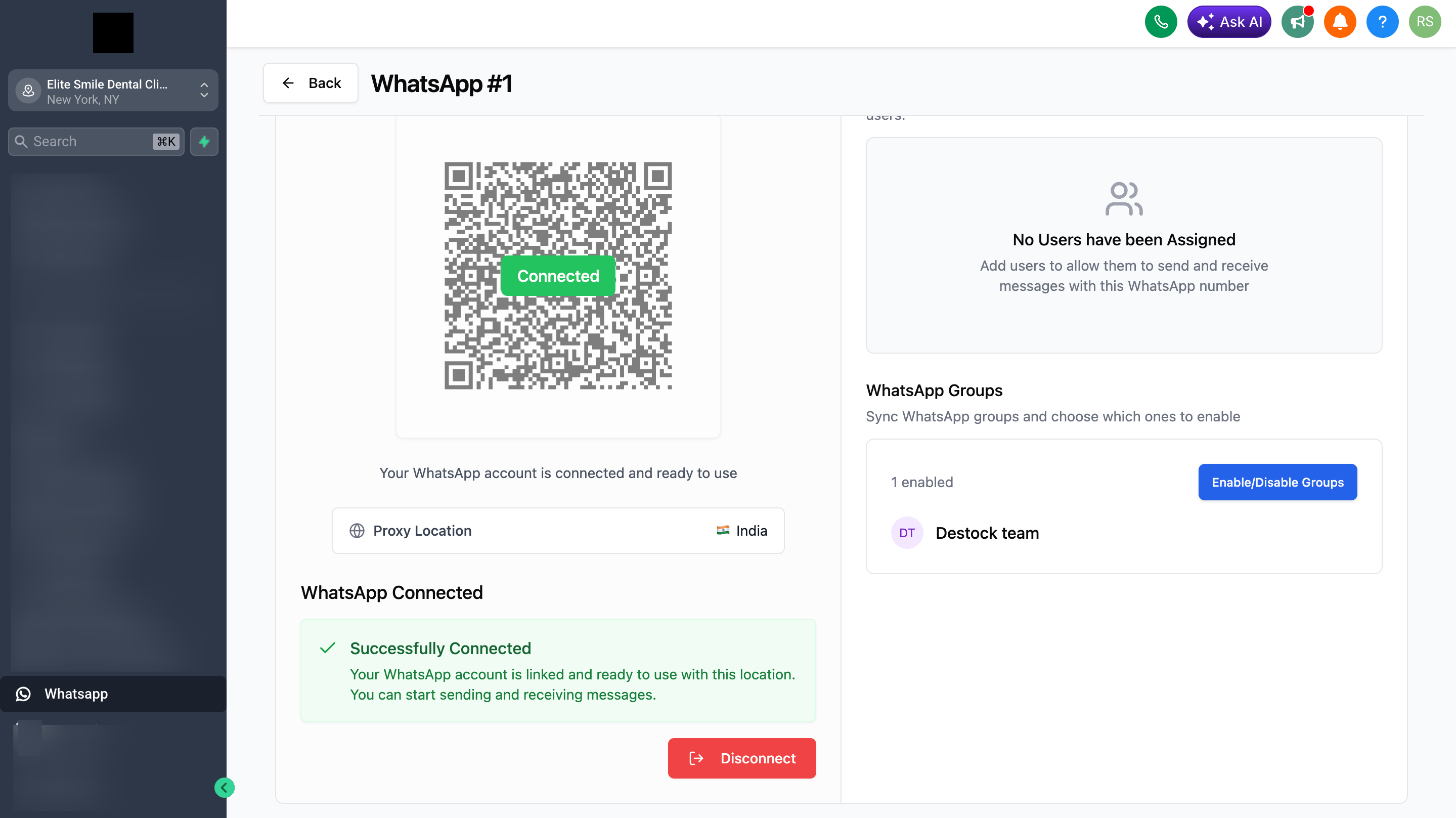
Step 1: Allow Groups in WhatsApp Settings
1
Go to WhatsApp in your sidebar
2
Click Manage on your WhatsApp instance
3
Navigate to group settings
4
Allow the groups you want to use in workflows
5
Save your settings
Important: Only messages from allowed groups will fire this trigger.
Step 2: Create a New Workflow
1
Go to Automation → Workflows
2
Click Create Workflow or + Add
3
Select Start from Scratch
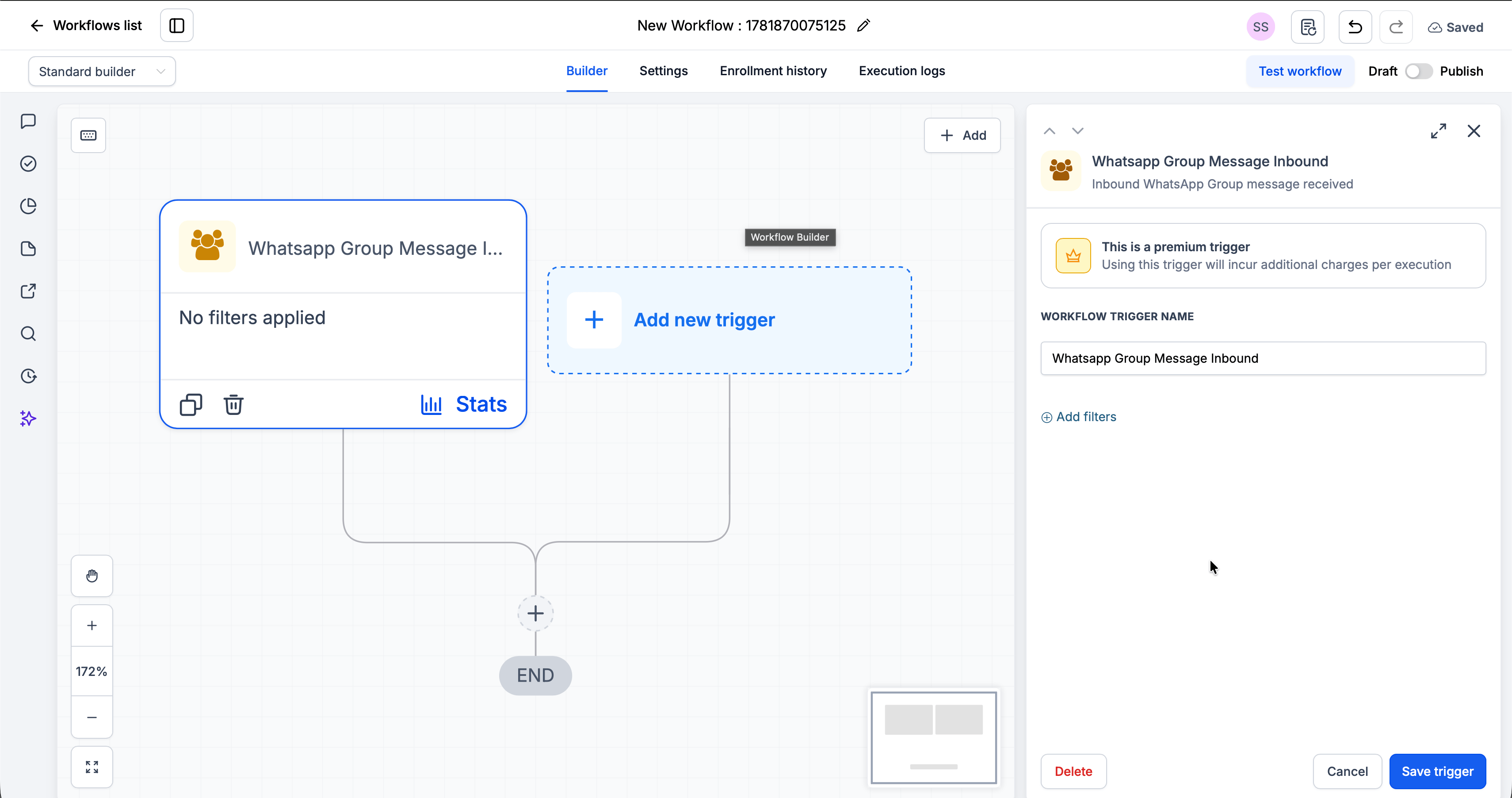
Step 3: Add the Trigger
1
Click Add New Trigger
2
Switch to the Apps tab (not the default triggers)
3
Find and click the Whatsapp provider app icon
4
Select WhatsApp Group Message Inbound from the dropdown
5
(Optional) Add Filters to narrow when the trigger fires
6
Click Save trigger
Step 4: Create the Contact
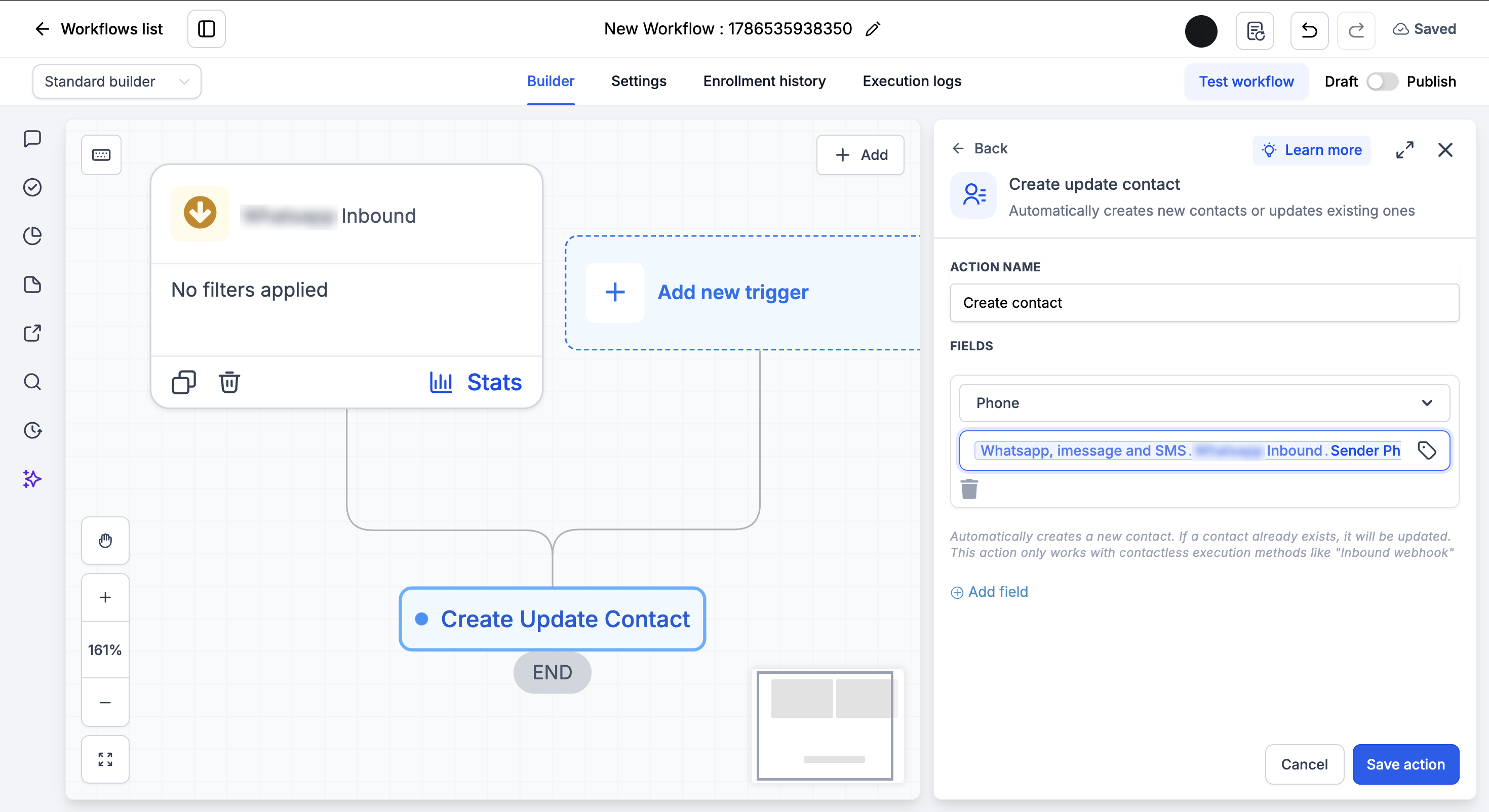
Group members who message you are often not in your CRM yet. Every action that follows - sending a reply, assigning an owner, adding a tag - needs a contact record to act on. Add the Create Contact action right after the trigger so the contact exists before the rest of the workflow runs. Create Contact is a HighLevel built-in action. It is already available in every workflow, so there is nothing extra to install.1
Click + Add below the trigger
2
Search for and select Create Contact
3
Under Fields, select Phone from the dropdown
4
Click the tag icon in the value box and insert Whatsapp, imessage and SMS → Whatsapp Group Message Inbound → Sender Number
5
Click Save action
If the contact already exists, the workflow skips the create step - no duplicate record is made - and moves straight to the next action.
Step 5: Add Your Actions
With the contact in place, add the actions you want to execute when an inbound group message is received:- Send Group Message → Reply in the same WhatsApp group
- Send Email → Notify the assigned rep
- Send Internal Notification → Alert your team inside the CRM
- Create Task → Queue a follow-up
- Add to Workflow / Pipeline → Move the contact through your funnel
Step 6: Save and Publish
1
Review your workflow
2
Click Save
3
Toggle workflow from Draft to Published
Available Filters
Use filters to control exactly which inbound group messages start the workflow. Each filter can be paired with an operator (equals, contains, etc.).Example Use Cases
Use Case 1: Instant Auto-Reply
Acknowledge every inbound group message immediately. Trigger: WhatsApp Group Message Inbound Action: Send a reply confirming the message was received and will be handled shortly.Use Case 2: Route by Keyword
Send leads to the right team based on what they say in the group. Trigger: WhatsApp Group Message Inbound Filter: Message contains “pricing” Action: Notify the sales team and create a high-priority follow-up task.Important Notes
Technical Details
- The trigger fires once per inbound group message
- Filters are optional - leave them blank to fire on every inbound group message
- Executes immediately when the message is received
Best Practices
- Add Create Contact as the first action so later steps always have a contact to work with
- Use the Message filter to build keyword-based routing flows
- Use the Group Name or Group Number filter to target a specific group
- Test your workflow by sending a message to your connected group
FAQs
Do I have to add filters?
Do I have to add filters?
No. Filters are optional. Without them, the trigger fires on every inbound group message.
Can I trigger different workflows for different groups?
Can I trigger different workflows for different groups?
Yes. Use the Group Name or Group Number filters to build separate workflows for different groups.
What happens if the contact already exists?
What happens if the contact already exists?
The Create Contact action skips the create step. No duplicate contact is made and the workflow moves straight to the next action.
Do I need to add Create Contact to every workflow?
Do I need to add Create Contact to every workflow?
Add it whenever the workflow can receive a message from a number that is not in your CRM yet, especially if Do not create new Contacts is enabled on the instance. If every sender is already a saved contact, you can skip it.
Support
If you need help with the setup or onboarding:- WhatsApp Support: Chat on WhatsApp
- Email: support@goghl.ai