

What it is
Record and send voice messages from inside the conversation. Add a more personal, human touch to your outreach without leaving the GHL conversation tab.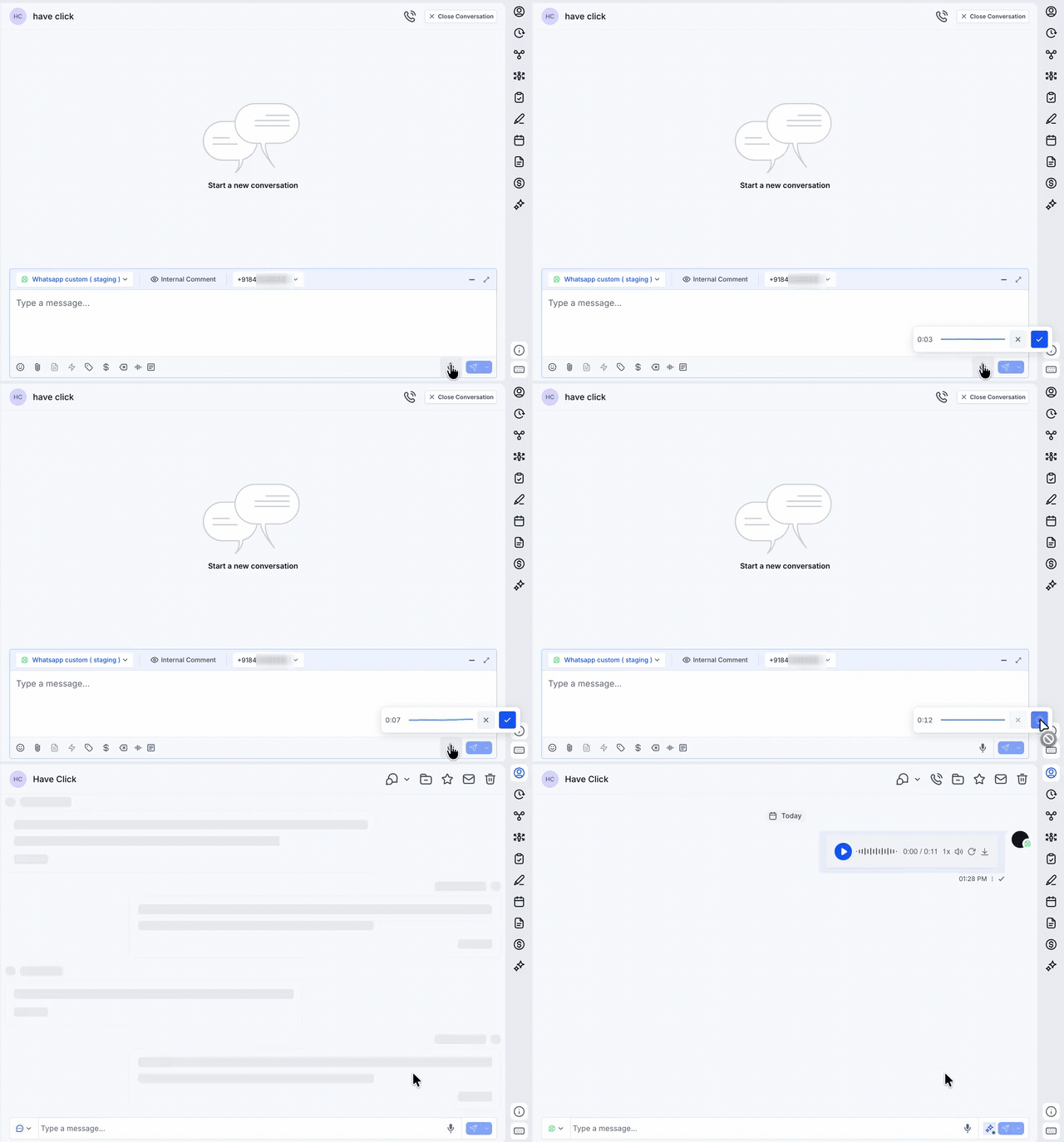
How to enable it
1
Open your GoGHL dashboard.
2
Go to the Custom Script settings.
3
Turn on the Audio Note toggle.
How to use it
1
Open a WhatsApp conversation in the Conversations tab.
2
Click the microphone icon in the message composer.
3
Record your message. Click the check mark to send it, or the X to discard it.
4
The voice note appears in the conversation as an audio player.
Send voice notes with workflows
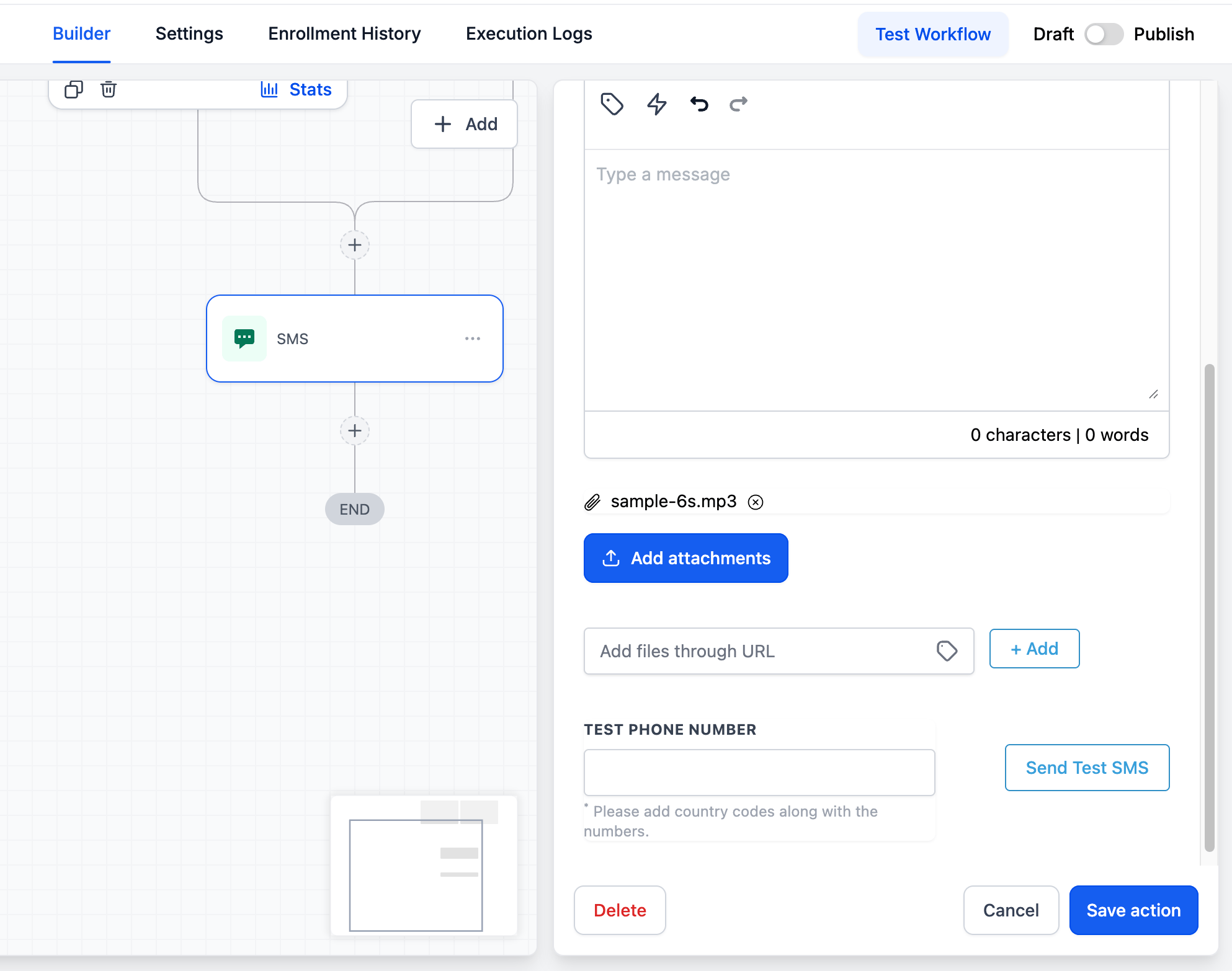
You can also send pre-recorded voice notes automatically using CRM Workflows. This is useful for automated follow-ups, welcome messages, or drip campaigns where you want to add a personal touch without manual effort.1
Go to Automation → Workflows in your CRM dashboard.
2
Click Create Workflow (or open an existing one).
3
Add a Trigger based on your use case (e.g., form submission, tag added, appointment booked).
4
Click the + button to add a new action step.
5
Choose SMS as the action type.
6
Inside the SMS action, click on Add Attachments.
7
Upload or select your pre-recorded voice note file.
8
Click Save Action.
9
Save and Publish the workflow.
Record your voice note in advance and keep it short (under 60 seconds) for the best engagement.
Notes & limitations
- To transcribe incoming voice notes, see Speech-to-Text
Support
If you need help with the setup or onboarding:- WhatsApp Support: Chat on WhatsApp
- Email: support@goghl.ai