

When you use your own Apple devices, your messages get delivered with the famous blue bubble. This means much higher open rates and trust from your clients, all controlled straight from your CRM.
- iMessage is made for real conversations with real people, not for mass marketing blasts.
- Stay Safe: Keep your messaging under 50 unique contacts per day so Apple doesn’t block you.
- Your Mac must be turned on and connected to the internet at all times to send or receive anything.
- Best Uses: Follow up with warm leads, chat with VIP clients, and handle customer support.
Setup Video
What You Need Before Starting
Make sure you have these ready before you begin:- An iPhone with iMessage turned on and a working cell plan (iOS 12.0 or newer)
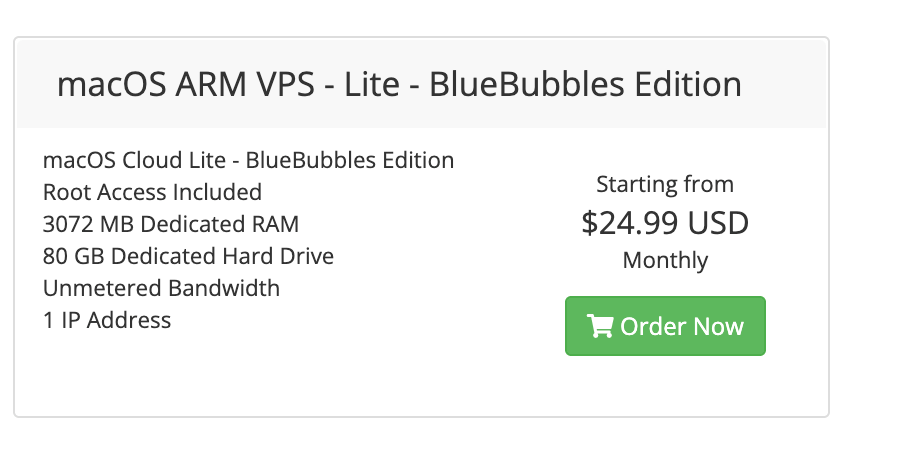
- A physical Mac computer (MacBook, iMac, or Mac mini) running macOS Monterey 12.4 or newer, OR a Cloud Mac (Recommended)
- The exact same Apple ID logged into both the iPhone and the Mac
- A solid internet connection on both devices
- Your GoGHL account linked to your CRM sub-account
Not sure if your computer or phone will work? Check our iMessage Device Specifications guide to see what’s supported.
The Best Way: Rent a Cloud Mac
We strongly suggest renting a Mac in the cloud instead of using your personal laptop. A Cloud Mac is on 24/7, never goes to sleep, and means you don’t have to leave a laptop running in your closet just to keep your messages syncing. Why we recommend this:- Never Miss a Beat: 100% uptime means your messages always send instantly.
- Zero Headaches: You never have to worry about dead batteries, sleep mode, or a dropped wifi signal.
- Easy Upgrades: Need more power? You can upgrade your cloud Mac with one click.
New to Cloud Macs? Follow our step-by-step Set Up a Cloud Mac guide to rent, connect, and configure yours.
Prerequisites: Link Your Apple Devices
Before installing any of our software, your iPhone and Mac need to be perfectly synced together using iCloud.Turn on iCloud Sync for iPhone
This makes sure your text messages appear on all your Apple devices:1
Open the Settings app on your iPhone.
2
Tap your name at the very top.
3
Tap iCloud.
4
Scroll down and tap Messages.
5
Turn on Sync this iPhone.
6
Give it a minute to finish syncing.
This guarantees that when you reply from your computer, it shows up on your phone, and vice-versa.
Set Up Your Mac Settings
Next, tell your Mac to use your phone number for iMessage: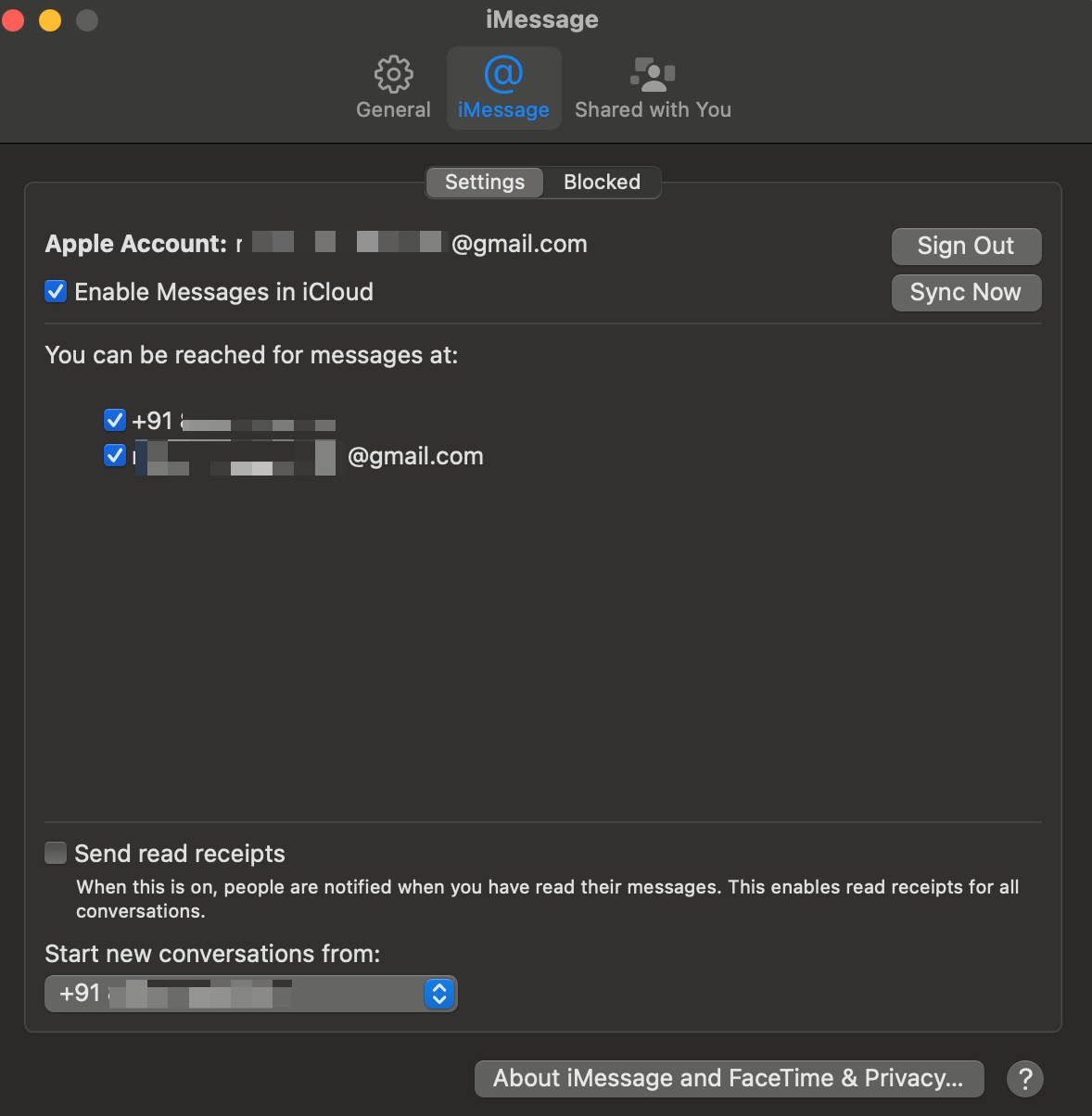
1
Open the Messages app on your Mac.
2
Make sure you are signed in with the exact same Apple ID as your iPhone.
3
Go to Messages → Settings (or Preferences) in the top menu bar.
4
Click the iMessage tab.
5
Check the box that says Enable Messages in iCloud.
6
Under “You can be reached for messages at”, check your phone number.
7
Under “Start new conversations from”, select your phone number (NOT your email address).
8
Very Important
Uncheck your email address entirely.
Enable SMS Forwarding
To ensure you can send and receive regular green-bubble SMS messages (for Android users) through your Mac, you must enable Text Message Forwarding on your iPhone:1
Open the Settings app on your iPhone.
2
Scroll down and tap Messages.
3
Tap Text Message Forwarding.
4
Find your Mac in the list of devices and toggle the switch to ON.
Check That It Works
Before moving to the next step, do a quick test:1
From your Mac, send an iMessage to a friend or your other phone.
2
Check your iPhone to make sure the message popped up there too.
3
Have your friend text you back.
4
Make sure their reply shows up on both your iPhone and your Mac.
If the messages are showing up everywhere, your sync is working perfectly!
Step 1: Connect your CRM & Install Marketplace App
1
Visit app.goghl.ai and create your account.
2
Go to your dashboard and click the Connect button.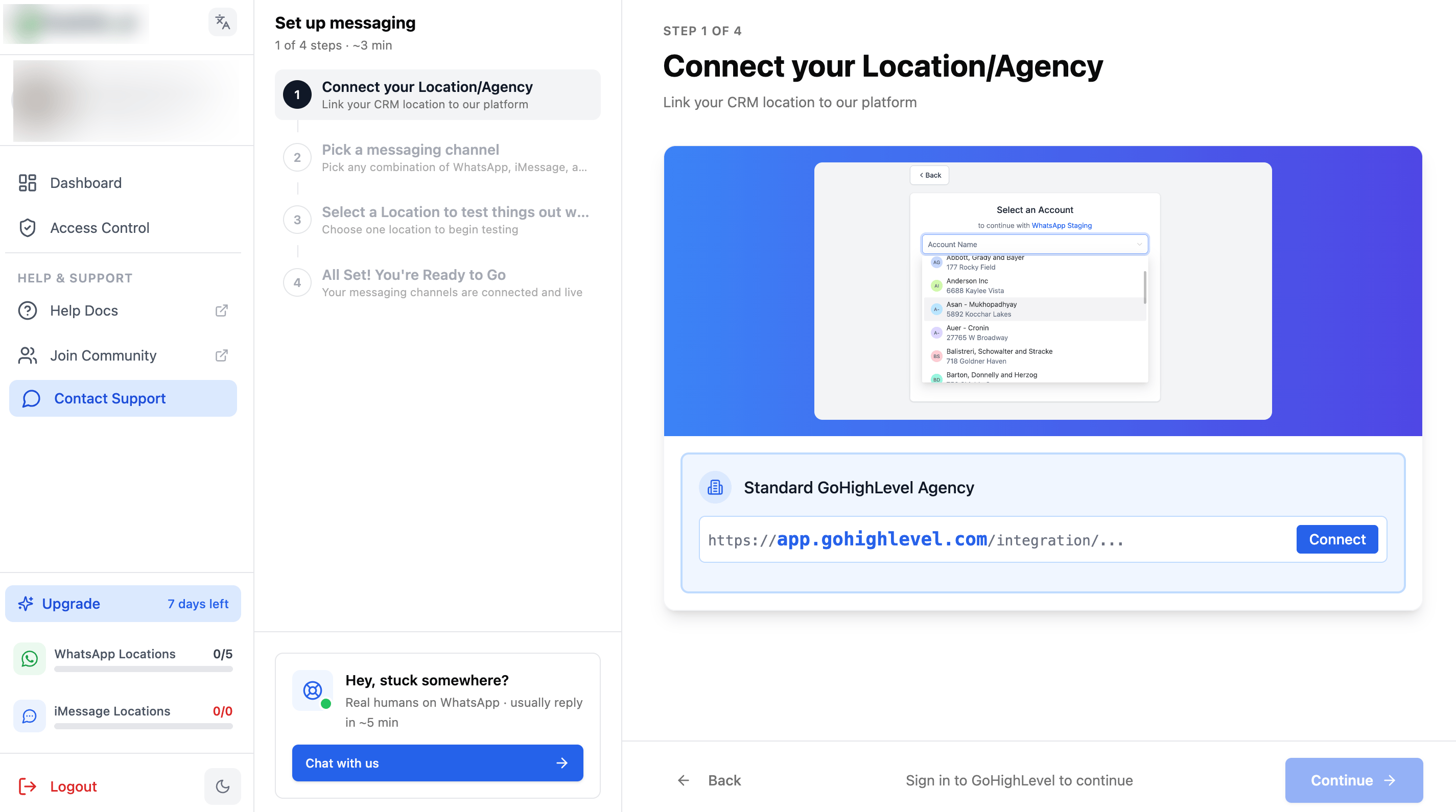
3
Install the marketplace app on your sub-accounts.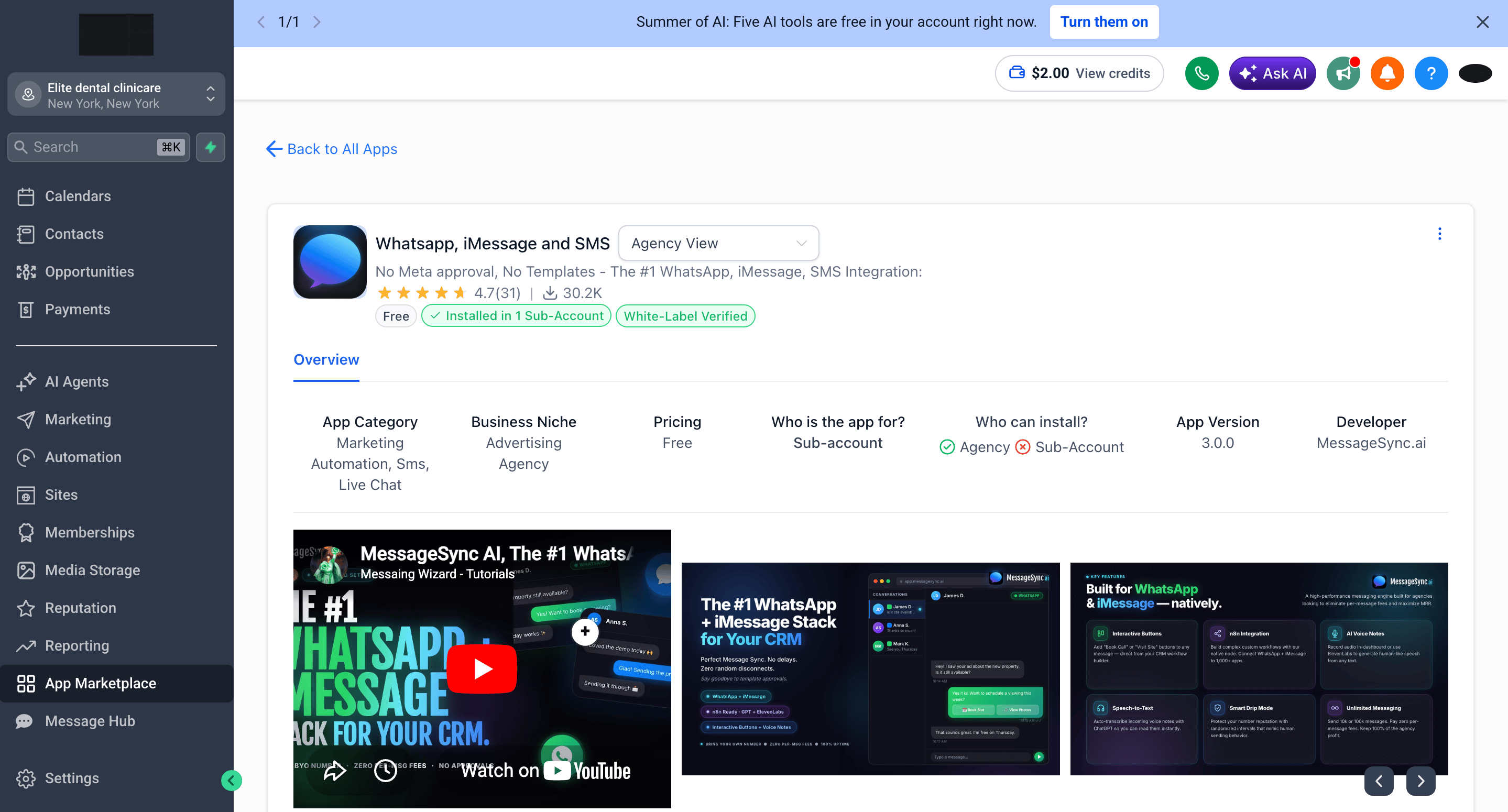
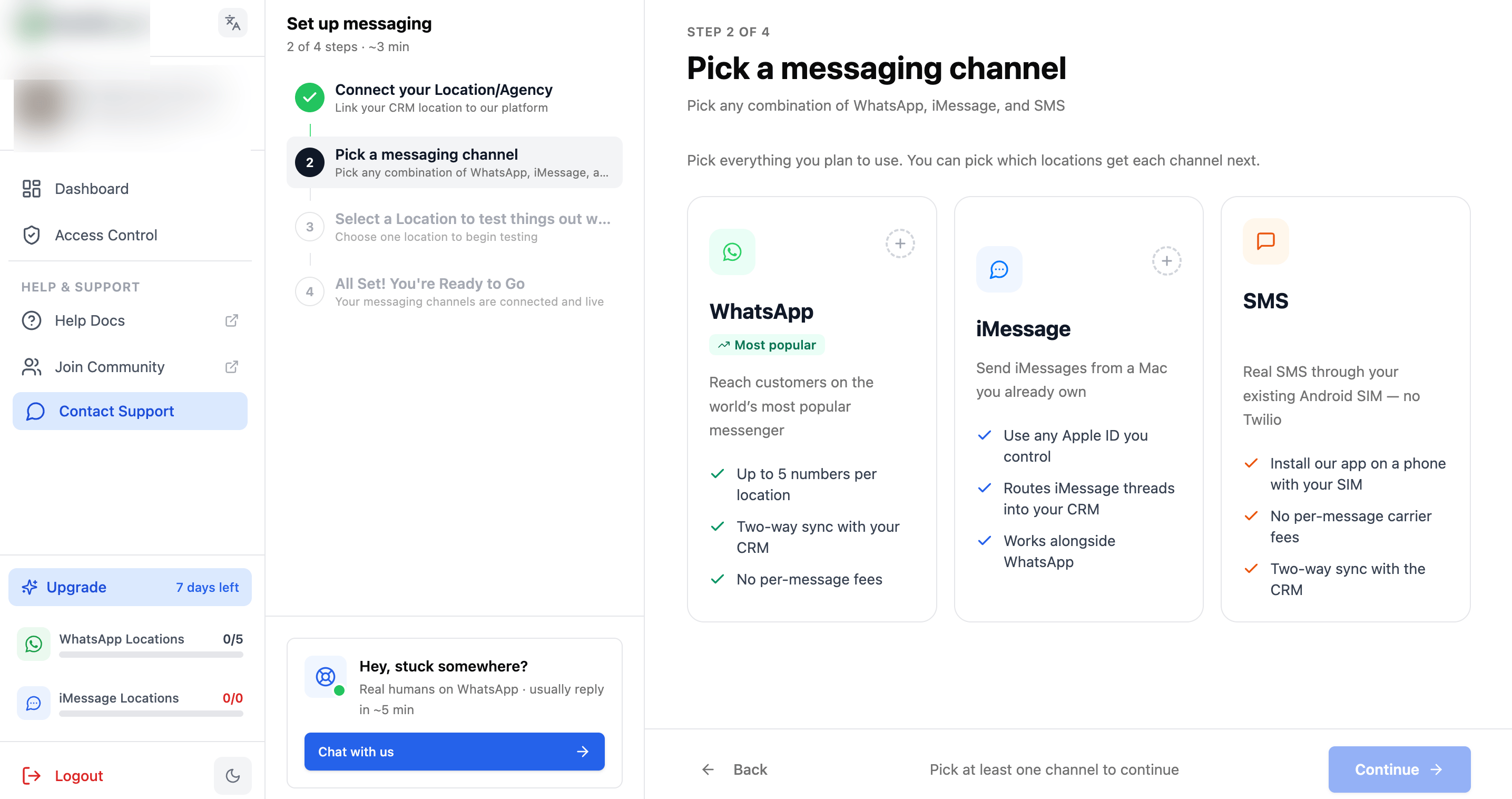
Step 2: Pick an iMessage channel
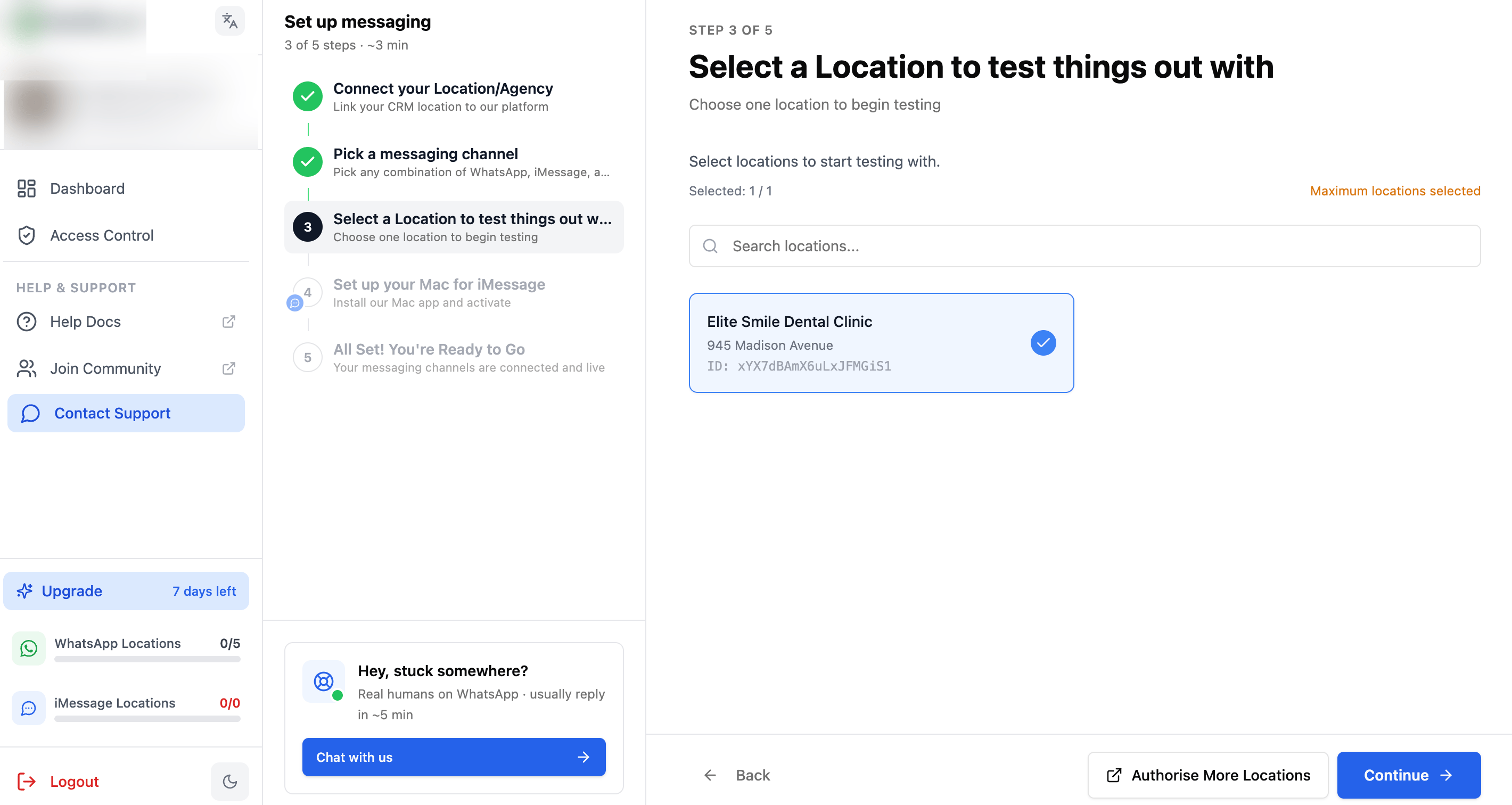
Step 3: Select the sub-account you want to connect
Step 4: Install the iMessage Sync App
Now we’ll install a small app on your Mac. This app acts as the bridge between your iMessage and CRM.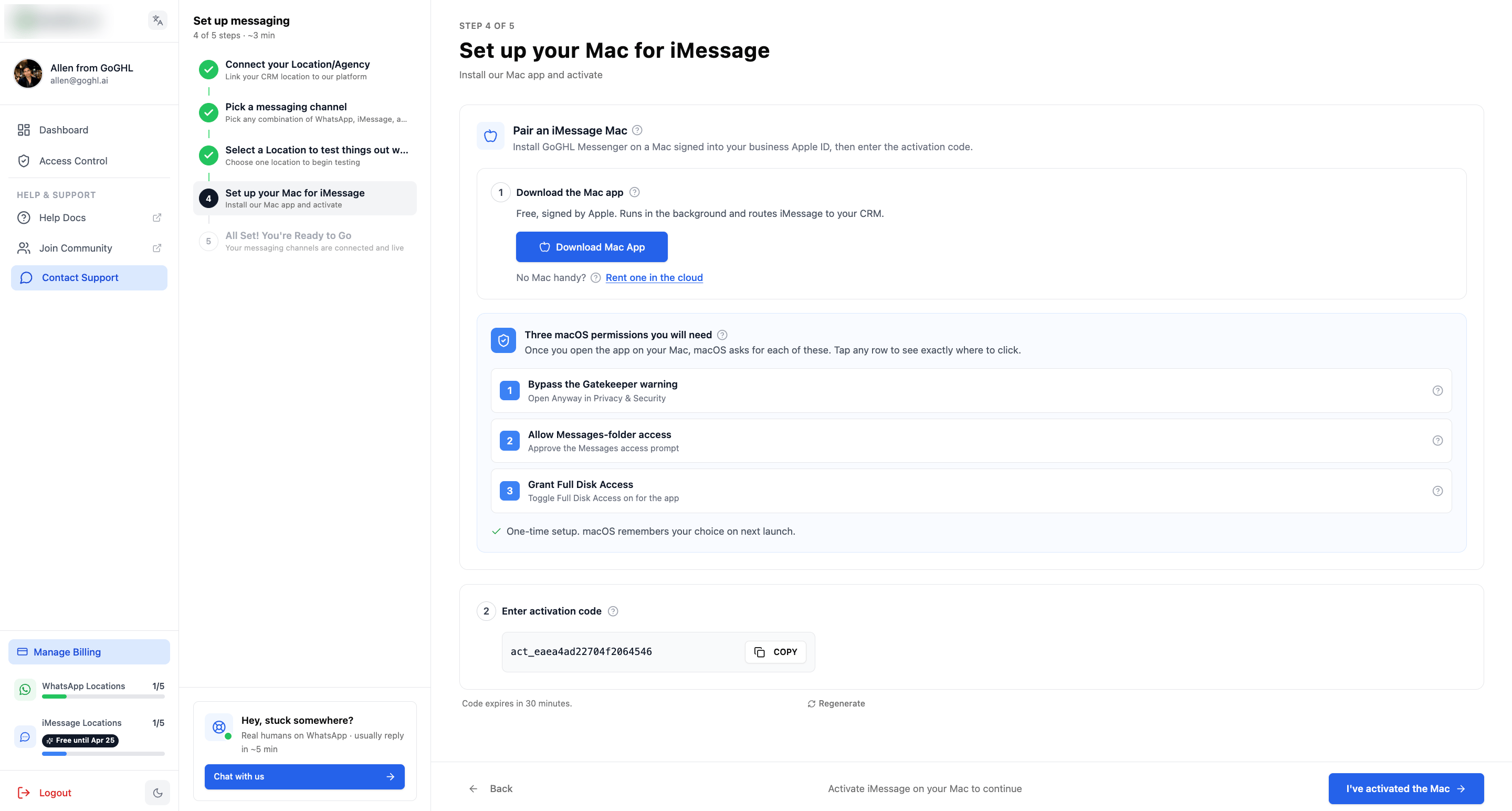
Download the App
1
Click download MacOS app.
2
Drag the app into your Mac’s Applications folder.
3
If your Mac blocks the app from opening:
- Open System Settings.
- Go to Privacy & Security.
- Scroll down to the Security section.
- Click Allow or Open Anyway next to the blocked app message.
Apple blocks apps that don’t come from their official App Store by default. You just need to tell your Mac that you trust this file.
Log In and Connect
1
Open the iMessage Sync app from your Applications folder.
2
Grant access to Messages.
3
Grant access to Full Disk Access.
4
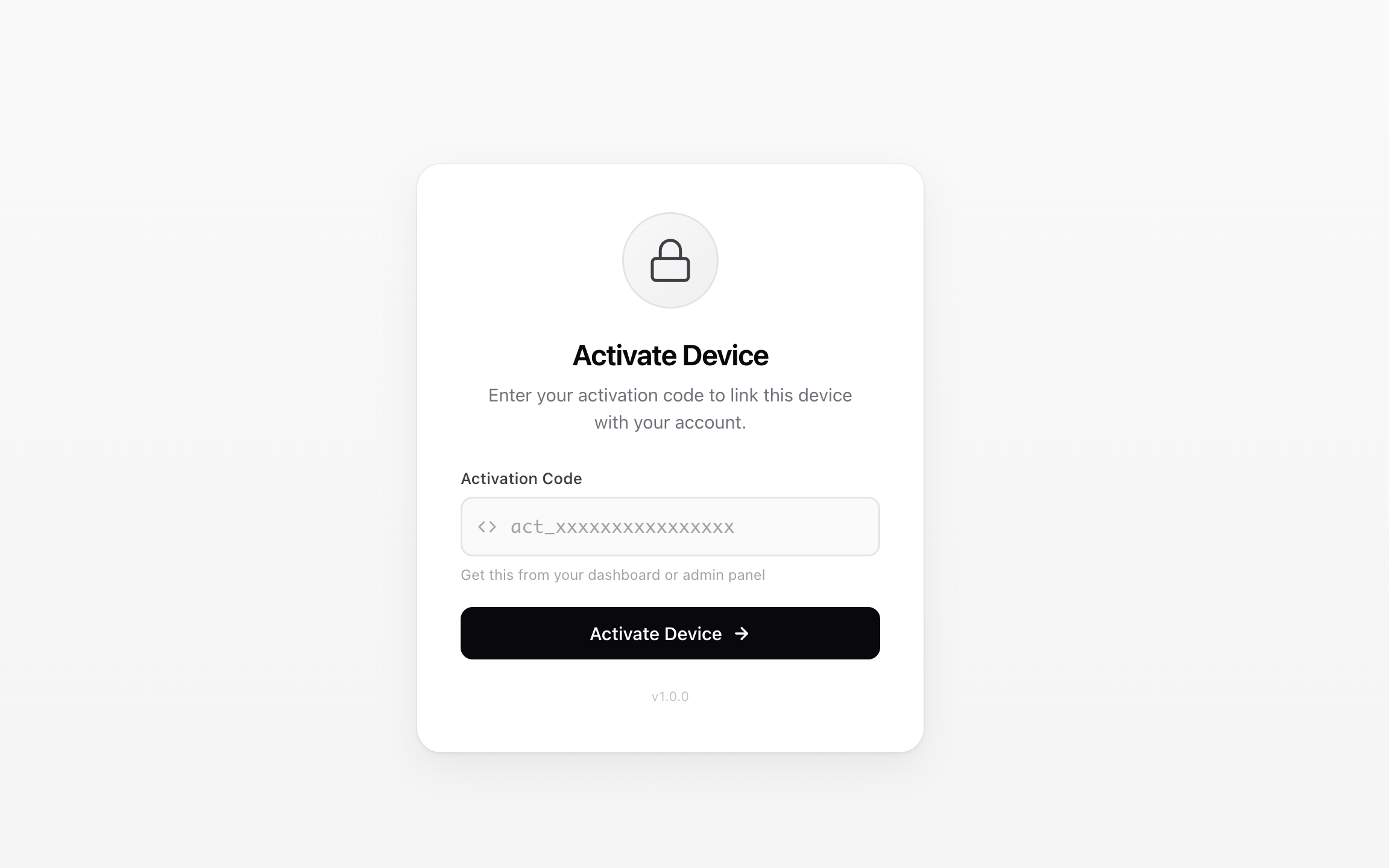
Go back to CRM, copy your Activation Code, and paste it into the Mac app.
5
Click Activate Device.
- Never use this app for cold spamming.
- Stick to a maximum of 50 new contacts a day.
- If you break Apple’s rules, they might lock your iMessage account.
Step 5: Send a Test Message
Let’s make sure everything is working end-to-end.Send a Message
1
Open any contact inside CRM.
2
Go to the Conversations tab.
3
Choose the “iMessage” option from the message type dropdown.
4
Type a friendly test message.
5
Hit Send.
- If you texted an iPhone, it sends as a blue bubble.
- You’ll see the message pop up on your Mac’s screen.
- When they reply, it shows up on your Mac, your iPhone, and inside CRM.
Check if it Delivered
1
Open the Messages app directly on your Mac.
2
Look at the conversation you just started.
3
If the person has an iPhone, look for the tiny Delivered text under the bubble.
If the person has read receipts turned on, you’ll also see when they’ve seen it!
Test the Reply
1
Tell the person to text you back.
2
Watch the reply instantly appear in:
- Your Mac
- Your iPhone
- The CRM chat window
Everything stays perfectly synced. You can reply from CRM while sitting at your desk, and continue the chat from your iPhone when you leave the office.
How Messages Are Delivered
Here is a quick cheat sheet on how the system routes your texts:If you message an Android user, GoGHL routes the message as a standard green SMS text through your iPhone’s cell plan. Your iPhone must be turned on and have service for this to work.
How to Keep Your Account Safe
This is a quick summary. For the full guide on daily limits, warming up a new Apple ID, account security, and what to do if you get blocked, see iMessage Safety & Protection.
Fixing Common Problems
If these quick fixes don’t work, check out our full Troubleshooting Guide for step-by-step solutions.
Messages Aren’t Sending
Why it happens:- Your Mac went to sleep.
- The sync app got closed.
- Your internet dropped.
1
Walk over to your Mac and make sure the iMessage Sync app is open.
2
Check your wifi connection.
3
Try sending a message normally through the Mac’s built-in Messages app to see if Apple is down.
4
Restart the sync app.
My Mac Keeps Falling Asleep
How to fix it:1
Open your Mac’s System Settings and click Energy (or Displays/Battery).
2
Turn on the setting that says Prevent automatic sleeping when the display is off.
3
Turn off Power Nap.
4
Pro Tip
Download a free app called Amphetamine from the Mac App Store to force your computer to stay awake forever.
I Sent Too Many Messages and Got Blocked
How to fix it:1
Stop all your workflows immediately.
2
Wait 24 to 48 hours for the block to lift.
3
Lower your daily sending limits so it doesn’t happen again.
4
If your account doesn’t unlock after a few days, you’ll need to call Apple Support and tell them your iMessage stopped working.
Support
If you need help with the setup or onboarding:- WhatsApp Support: Chat on WhatsApp
- Email: support@goghl.ai