

Key Benefits
Catch Failures Instantly - React the moment a message fails to deliver Channel Agnostic - Works across WhatsApp, iMessage, and Android SMS Smart Recovery - Automate retries, fallbacks, or alerts on failure Filtered Automation - Trigger only on the error codes or channels you care about Zero Manual Monitoring - No need to watch logs for failed sendsWho Should Use It
Sales teams - Get notified the instant an outreach message fails Support teams - Catch undelivered replies before they cost you a customer Agencies - Monitor delivery health across client sub-accounts Operations teams - Trigger fallbacks and clean up bad contact data automaticallyRequirements
Before using this trigger, update your messaging provider app to the latest version:1
Go to App Marketplace → Installed Apps
2
Find your messaging provider app (WhatsApp provider, iMessage provider, or SMS(Android) provider)
3
Click Update if available
How to Set Up
Step 1: Create a New Workflow
1
Go to Automation → Workflows
2
Click Create Workflow or + Add
3
Select Start from Scratch
Step 2: Add the Trigger
1
Click Add New Trigger
2
Switch to the Apps tab (not the default triggers)
3
Find and click your messaging provider app icon
4
Select Message Failed from the dropdown
5
(Optional) Add Filters to narrow when the trigger fires
6
Click Save trigger
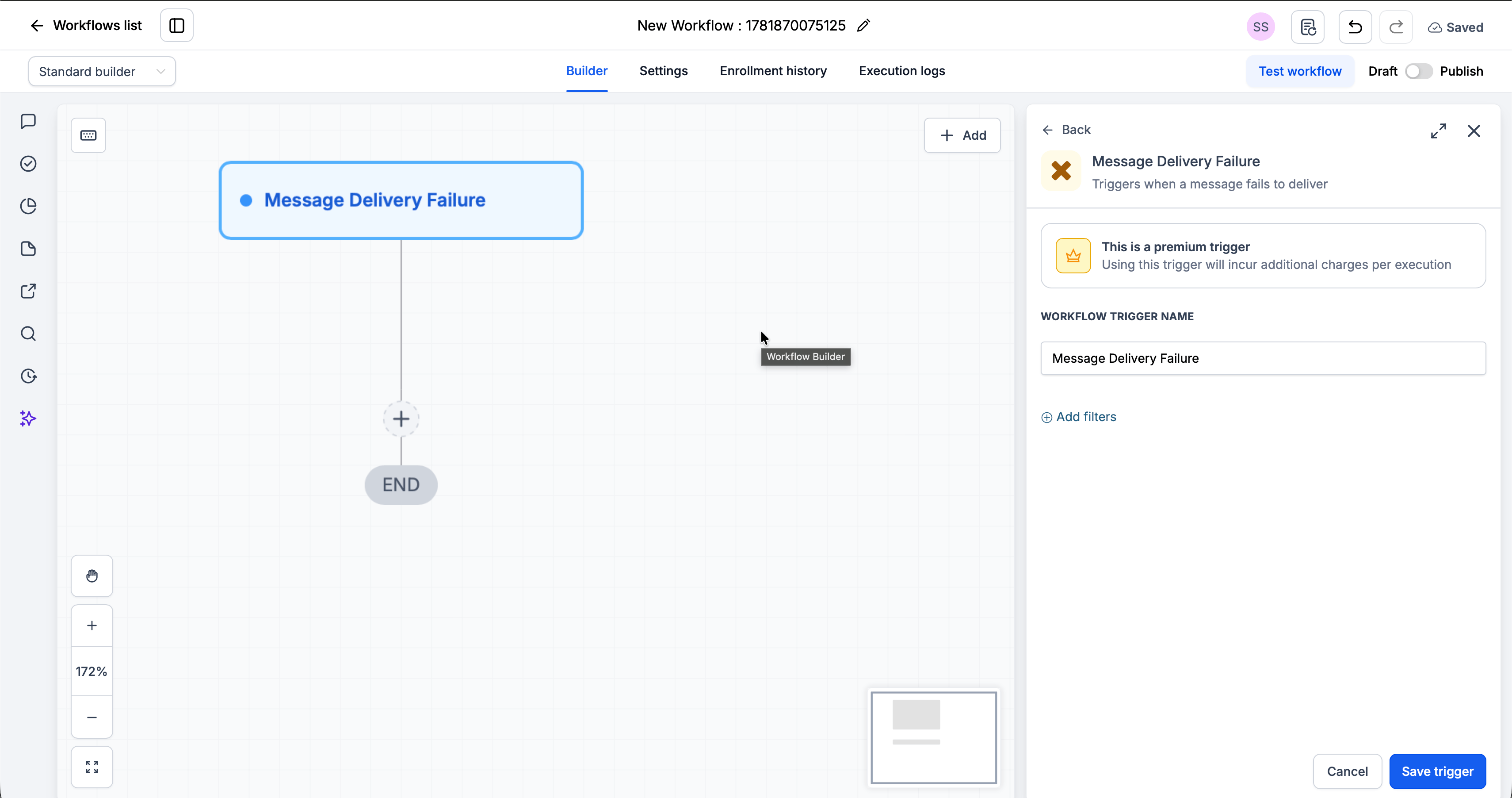
Step 3: Add Your Actions
Add any actions you want to execute when a message fails:- Send Internal Notification → Alert your team inside the CRM
- Wait + Resend → Retry the message after a delay
- Update Contact / Custom Field → Flag the contact for review
- Create Task → Queue a manual follow-up
Step 4: Save and Publish
1
Review your workflow
2
Click Save
3
Toggle workflow from Draft to Published
Available Filters
Use filters to control exactly which failed messages start the workflow. Each filter can be paired with an operator (equals, contains, etc.).Error Codes
Use these codes with the Error Code filter to build precise recovery flows.Example Use Cases
Use Case 1: Alert the Team on a Failed Send
Know the moment an outbound message doesn’t go through. Trigger: Message Failed Action: Send an internal notification to the assigned user.Use Case 2: Clean Up Invalid Numbers
Flag contacts that can’t receive messages. Trigger: Message Failed Filter: Error Code is 110 Action: Add a tag and move the contact out of active outreach.Important Notes
Technical Details
- The trigger fires once per failed message
- Filters are optional - leave them blank to fire on every failed message
- Error Code and Error Type support selecting multiple values
- Use the Channel Type filter to scope the workflow to a single channel
Best Practices
- Use the Error Code filter to build targeted recovery flows (e.g. retry on 108, tag on 110)
- Use the Channel Type filter when handling channels differently
- Test your workflow by forcing a failure (e.g. sending to a disconnected number)
FAQs
Which channels does this trigger cover?
Which channels does this trigger cover?
All of them - WhatsApp, iMessage, and Android SMS. Use the Channel Type filter to narrow to one channel.
Can I trigger on specific errors only?
Can I trigger on specific errors only?
Yes. The Error Code and Error Type filters are multi-select, so you can fire on one or several failure conditions.
Do I have to add filters?
Do I have to add filters?
No. Filters are optional. Without them, the trigger fires on every failed message.
Support
If you need help with the setup or onboarding:- WhatsApp Support: Chat on WhatsApp
- Email: support@goghl.ai