

What it is
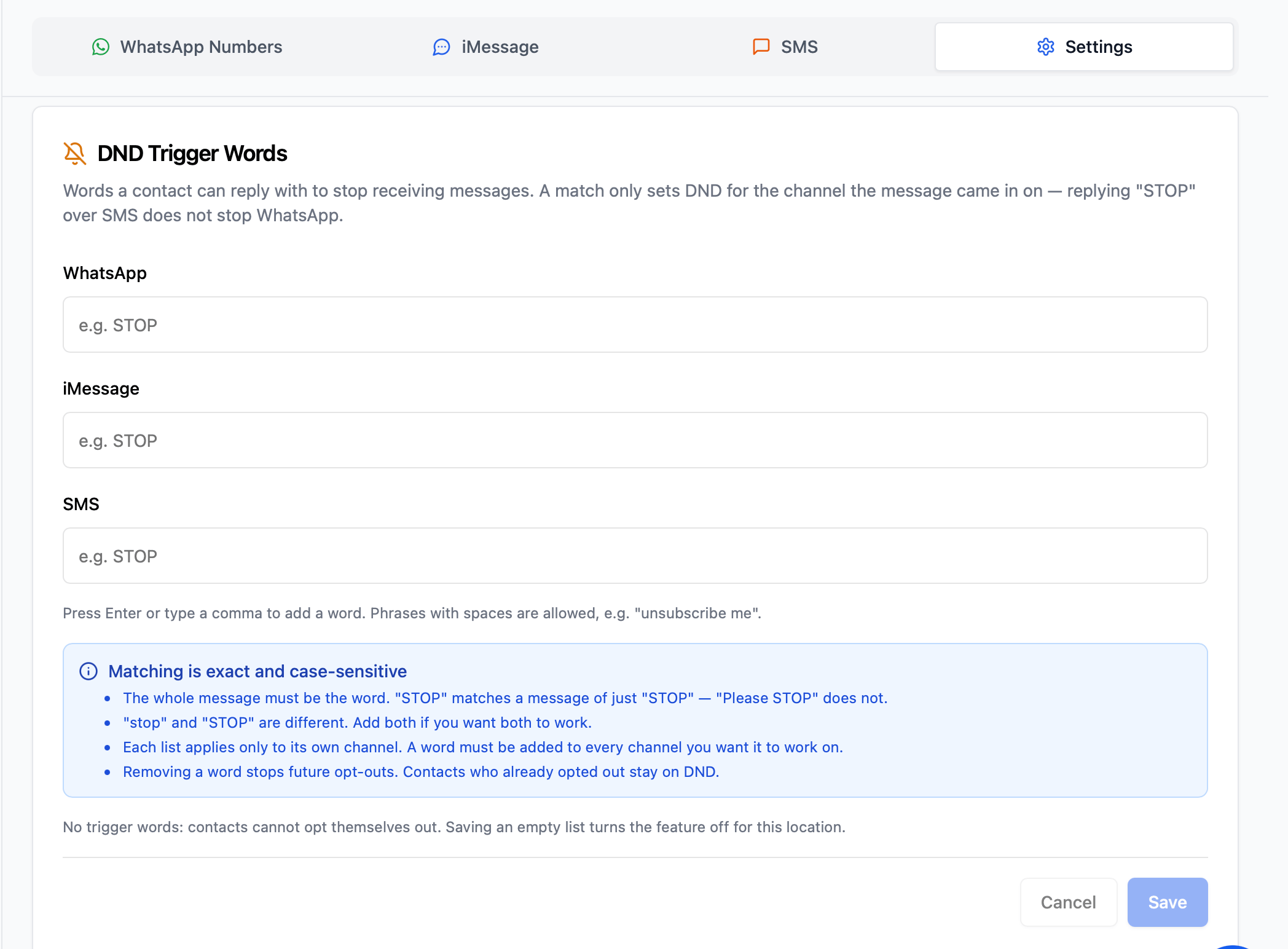
Lets a contact opt out of your messages by replying with a word you choose - for example “STOP”. The opt-out applies to one channel only: a contact who replies “STOP” over SMS stops receiving SMS, but still receives WhatsApp and iMessage as normal. You set the trigger words separately for each channel, and you can see and change any contact’s DND status directly on their contact record in your CRM. This is separate from GoHighLevel’s own DND setting on a contact. Both work at the same time and neither overrides the other.Where to find it
1
Go to Locations and open the location you want to configure
2
Open the Settings tab
3
Find the “DND Trigger Words” card
4
Add words under WhatsApp, iMessage and/or SMS, then click Save
How it works
- A contact replies to you with one of the trigger words on a channel.
- That channel is switched off for that contact. The other two keep working.
- An internal note is added to the conversation so your team can see what happened.
- Any message you send to that contact on that channel from then on is not delivered. It appears in the conversation as Failed, with the reason “Contact has opted out of WhatsApp messages” (or iMessage / SMS).
- The contact’s DND status is stored on their contact record, in a folder called dnd, with one field per channel set to On or Off.
Matching rules
These are the most common source of confusion, so they are worth reading carefully:- The whole message must be the word. “STOP” matches a message of just “STOP”. “Please STOP” does not match.
- Matching is case-sensitive. “stop” and “STOP” are treated as different words. Add both if you want both to work.
- Each list applies only to its own channel. A word has to be added to every channel you want it to work on.
- Removing a word only stops future opt-outs. Contacts who already opted out stay on DND.
- Extra spaces at the start or end of a message are ignored, so a stray space will not stop a match.
Turning DND off for a contact
There is no “resume” word a contact can send. To start messaging a contact again:1
Open the contact in your CRM
2
Find the dnd folder in their custom fields
3
Set the channel you want to re-enable (WhatsApp, iMessage or SMS) to Off
When to use
- Honour opt-out requests automatically instead of handling them by hand
- Let a contact mute one channel without losing the others
- Keep a record of who opted out, and when, on the contact itself
Notes & limitations
- Opting out is per channel. There is no single switch that stops all three at once - you would add the same word to all three lists.
- A contact is only ever blocked when their channel field is explicitly set to On. A blank or missing field means messages send normally.
- There is no resume trigger word. Re-enabling a channel is done on the contact record.
- Saving an empty list for a channel turns the feature off for that channel. Existing opt-outs are not cleared.
- The dnd folder and its fields are created automatically the first time a contact opts out in that location. You do not need to set them up.
- Listing the same word twice in one channel is harmless, but does nothing.
- DND only applies to messages sent to a known contact. It does not affect messages addressed to a phone number with no contact attached.
- This is separate from GoHighLevel’s built-in DND setting. If that one is active, GoHighLevel blocks the message itself and an internal note is added to the conversation explaining why.
Support
If you need help with the setup or onboarding:- WhatsApp Support: Chat on WhatsApp
- Email: support@goghl.ai