

What it is
React to WhatsApp messages with emojis from inside the conversation. Hover over any message, pick an emoji from the reaction bar, and it syncs instantly to your phone. It works the other way too: react on your phone and the reaction shows up in the CRM.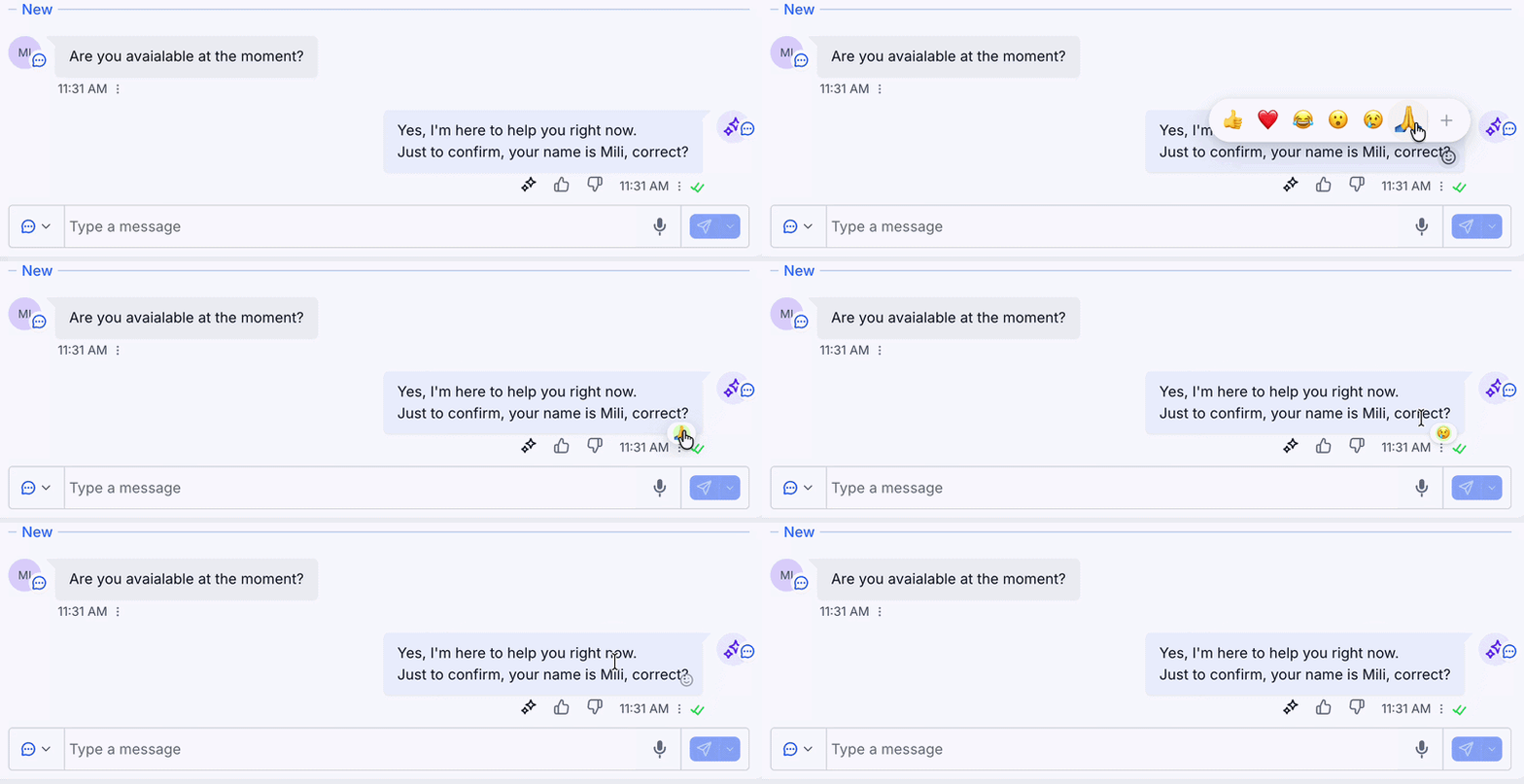
How to enable it
1
Open your GoGHL dashboard.
2
Go to the Custom Script settings.
3
Turn on the WhatsApp Reactions toggle.
How to use it
1
Open a WhatsApp conversation in the Conversations tab.
2
Hover over the message you want to react to and click the emoji icon.
3
Pick an emoji from the reaction bar, or click + to choose another one.
4
The reaction appears on the message bubble and syncs to the contact’s WhatsApp.
Notes & limitations
- Reactions sync both ways: react from the CRM and it shows on your phone, react from your phone and it shows in the CRM
- Reactions can be added to incoming and outgoing messages
Support
If you need help with the setup or onboarding:- WhatsApp Support: Chat on WhatsApp
- Email: support@goghl.ai