

When to Use It
Already logged in on WhatsApp Web - Your WhatsApp account is active on WhatsApp Web in your browser, so you can transfer it without touching your phone.Before You Start
- Use Google Chrome on a desktop or laptop - the Session Linker extension is a Chrome extension.
- If you’re not logged in to WhatsApp Web yet, keep your phone nearby so you can scan the WhatsApp Web login QR code.
- Set aside about 2 minutes - there is a short sync wait of around 30 seconds before the transfer.
Step-by-Step Setup
Step 1: Choose Connect via WhatsApp Web
1
Log into your CRM dashboard and open the WhatsApp connection screen for the instance you want to connect.
2
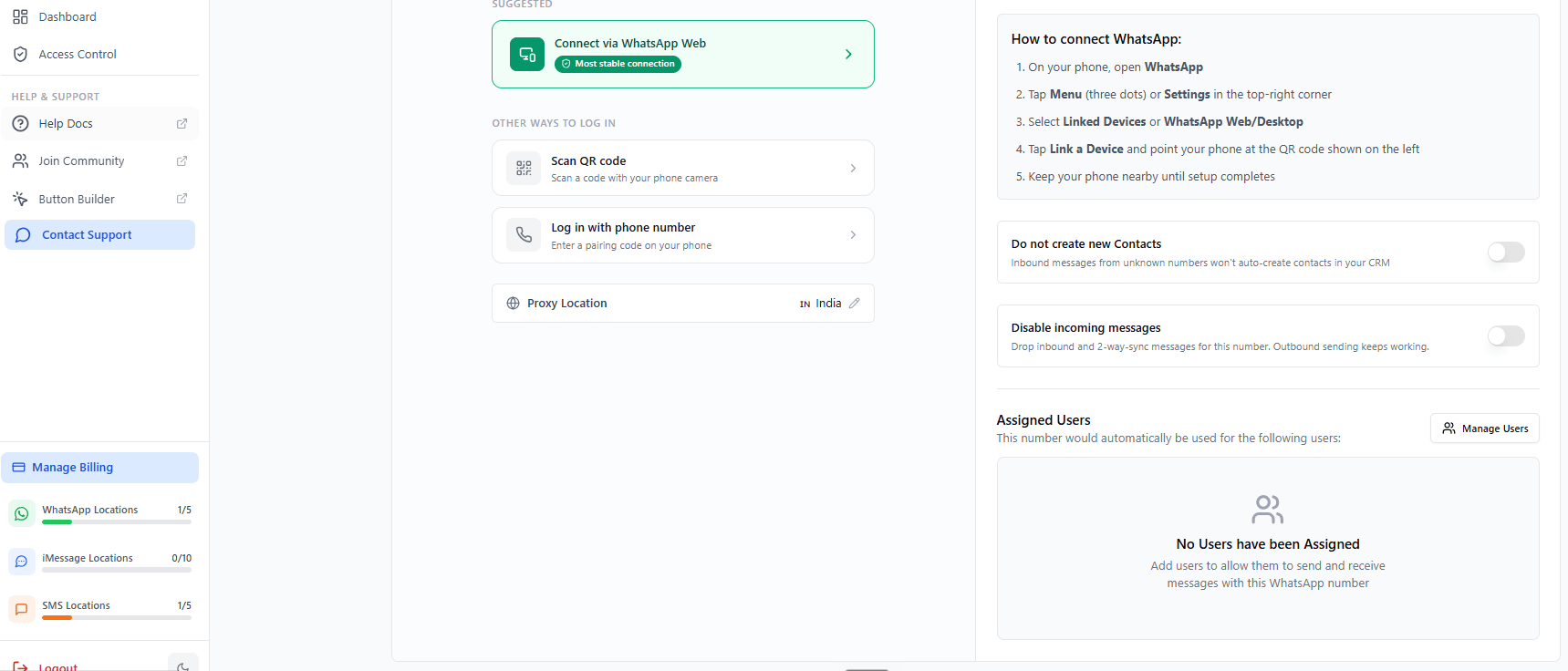
Under Suggested, click Connect via WhatsApp Web - it’s marked as the Most stable connection.
Step 2: Install the Session Linker Extension
If the extension isn’t installed yet, a Browser extension required panel appears.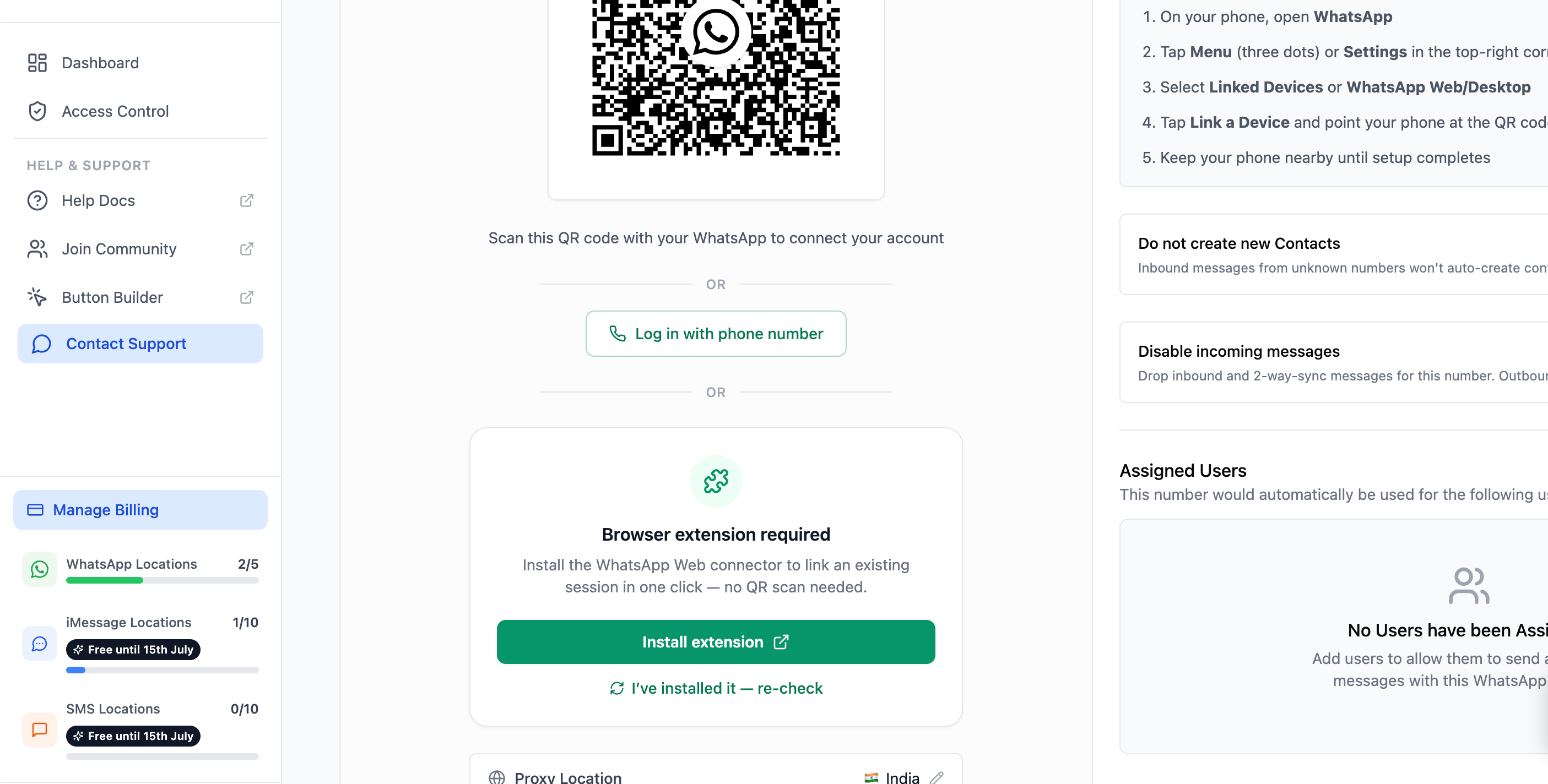
1
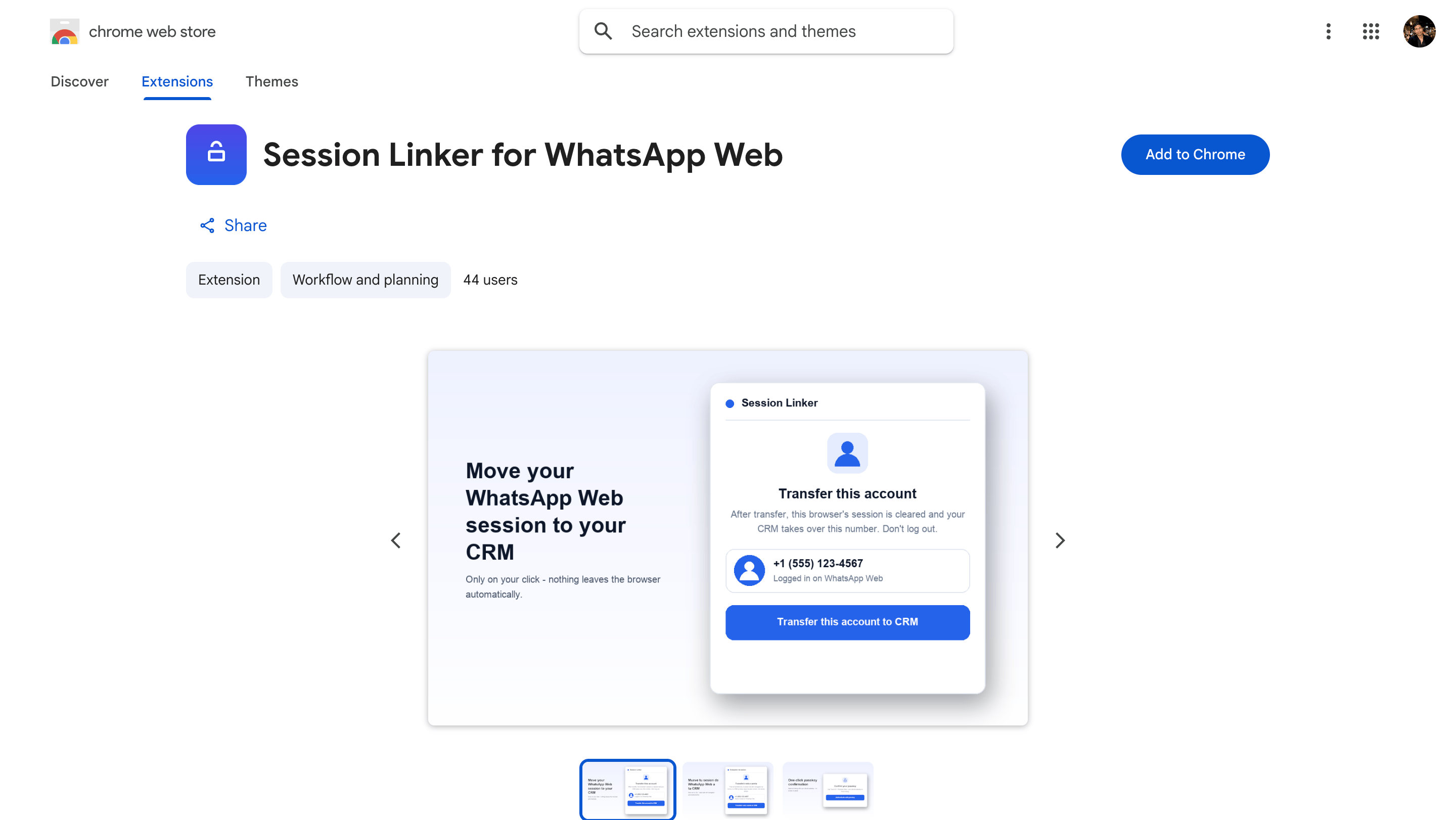
Click Install extension. The Session Linker for WhatsApp Web page opens in the Chrome Web Store.
2
Click Add to Chrome and confirm to install it.
3
Back on the connection screen, click I’ve installed it - re-check.
Step 3: Log In to WhatsApp Web
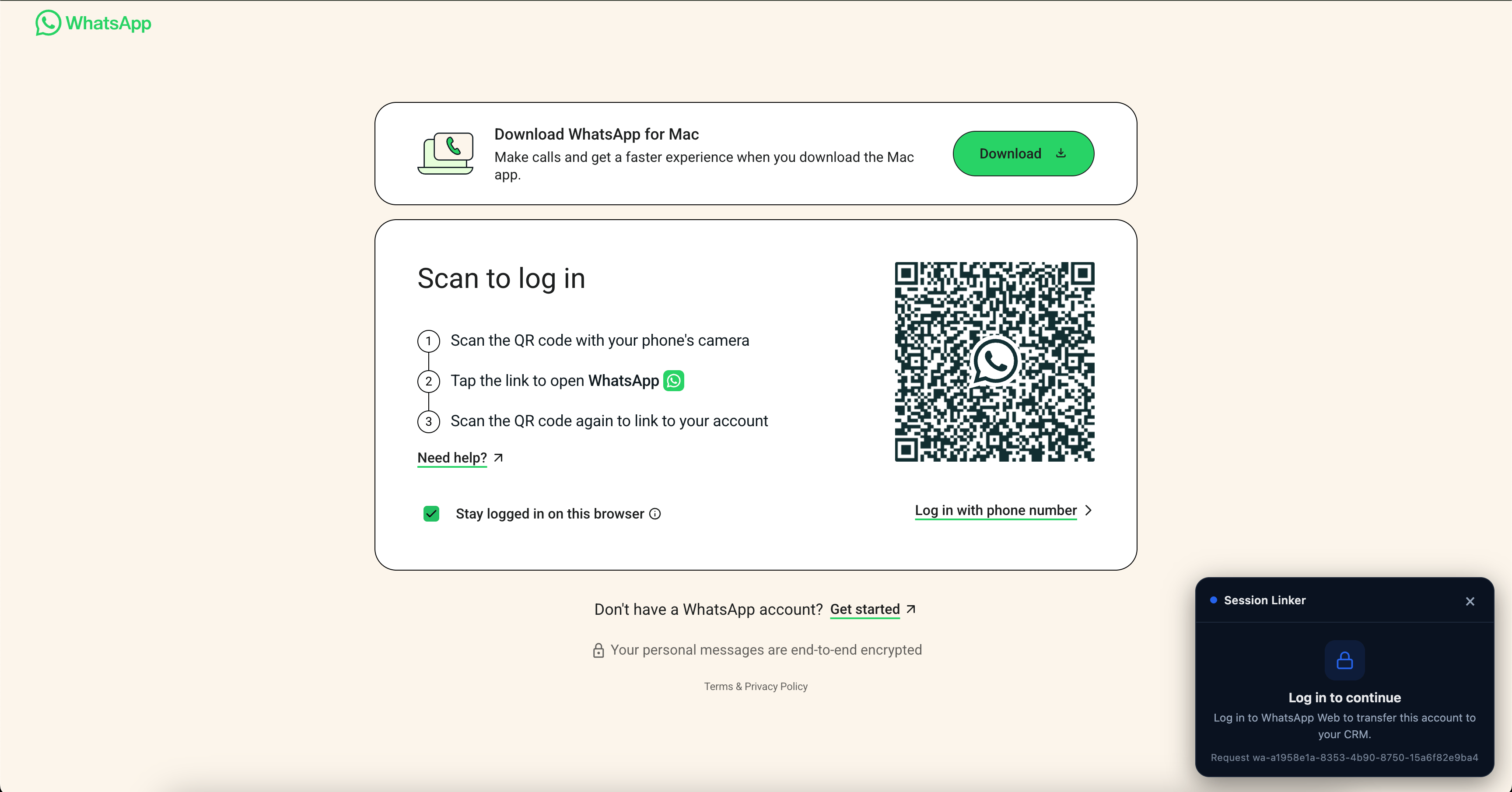
On WhatsApp Web, the Session Linker panel appears in the corner of the page.- Already logged in? Skip to the next step.
- Not logged in? The panel shows Log in to continue. Log in to WhatsApp Web as usual - scan the QR code with your phone (WhatsApp → Linked Devices → Link a Device) or use the phone number option.
Step 4: Wait for the Session to Sync
If the device was just linked, the panel shows Finalizing sync… with a short countdown of about 30 seconds. This gives WhatsApp Web a few moments to fully sync so the session is stable before the transfer. Leave the tab open and wait for the countdown to finish.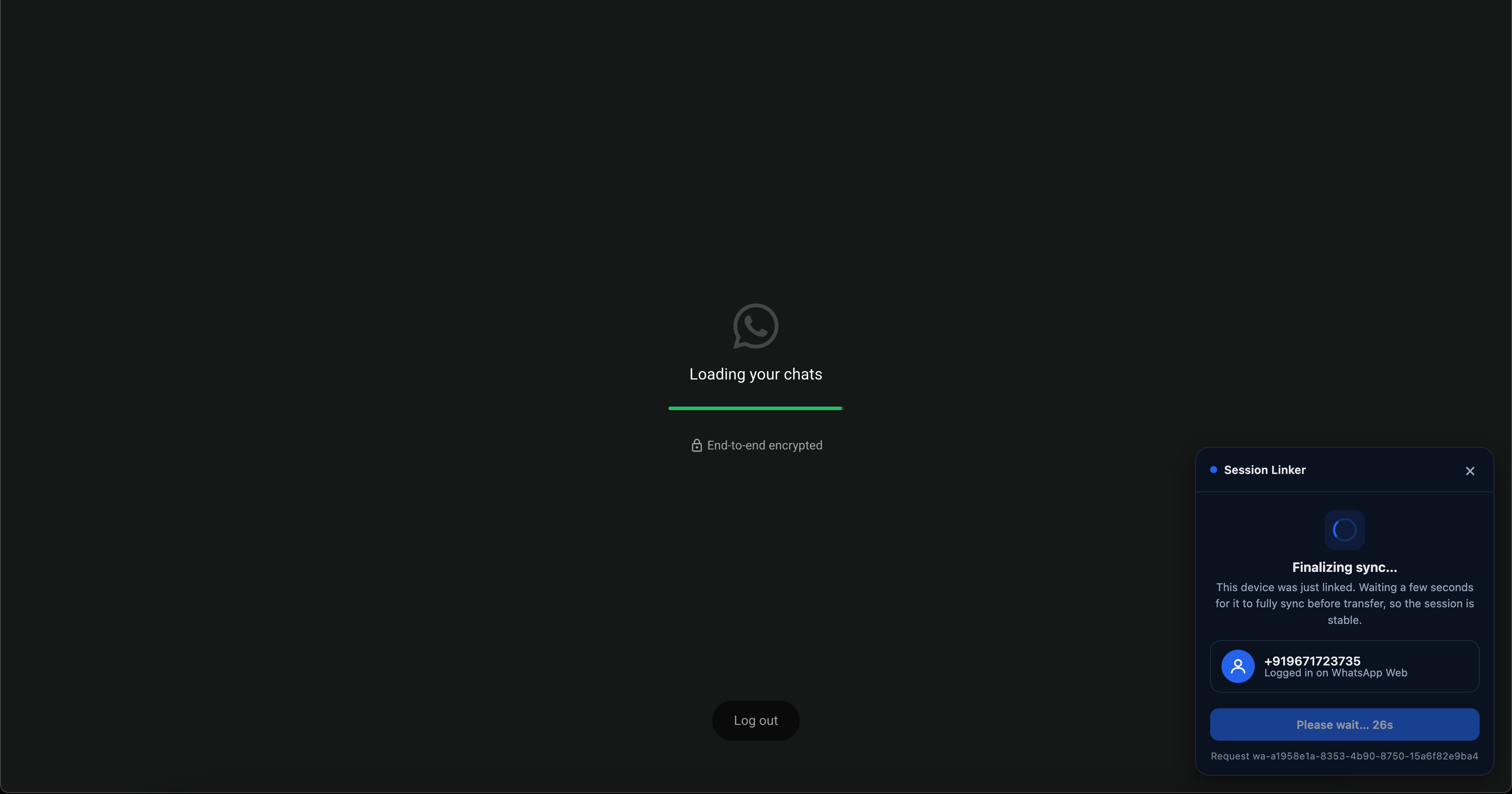
Step 5: Transfer the Account to Your CRM
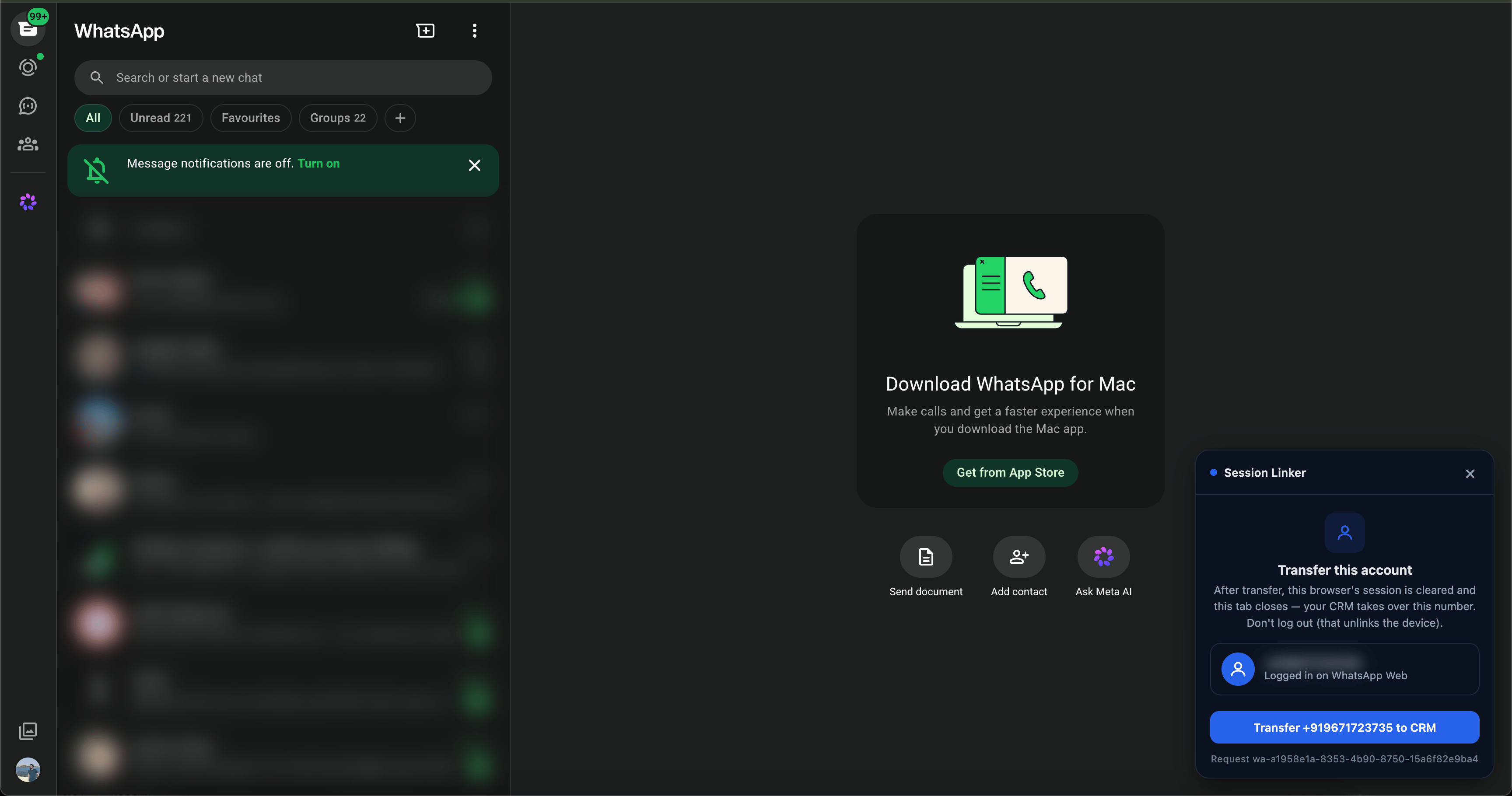
When the session is ready, the panel shows Transfer this account with your number listed as logged in on WhatsApp Web. Click Transfer +<your number> to CRM. That’s it - after the transfer, this browser’s session is cleared and the tab closes; your CRM takes over the number.Important: Do not click Log out in WhatsApp Web - that unlinks the device and cancels the connection.
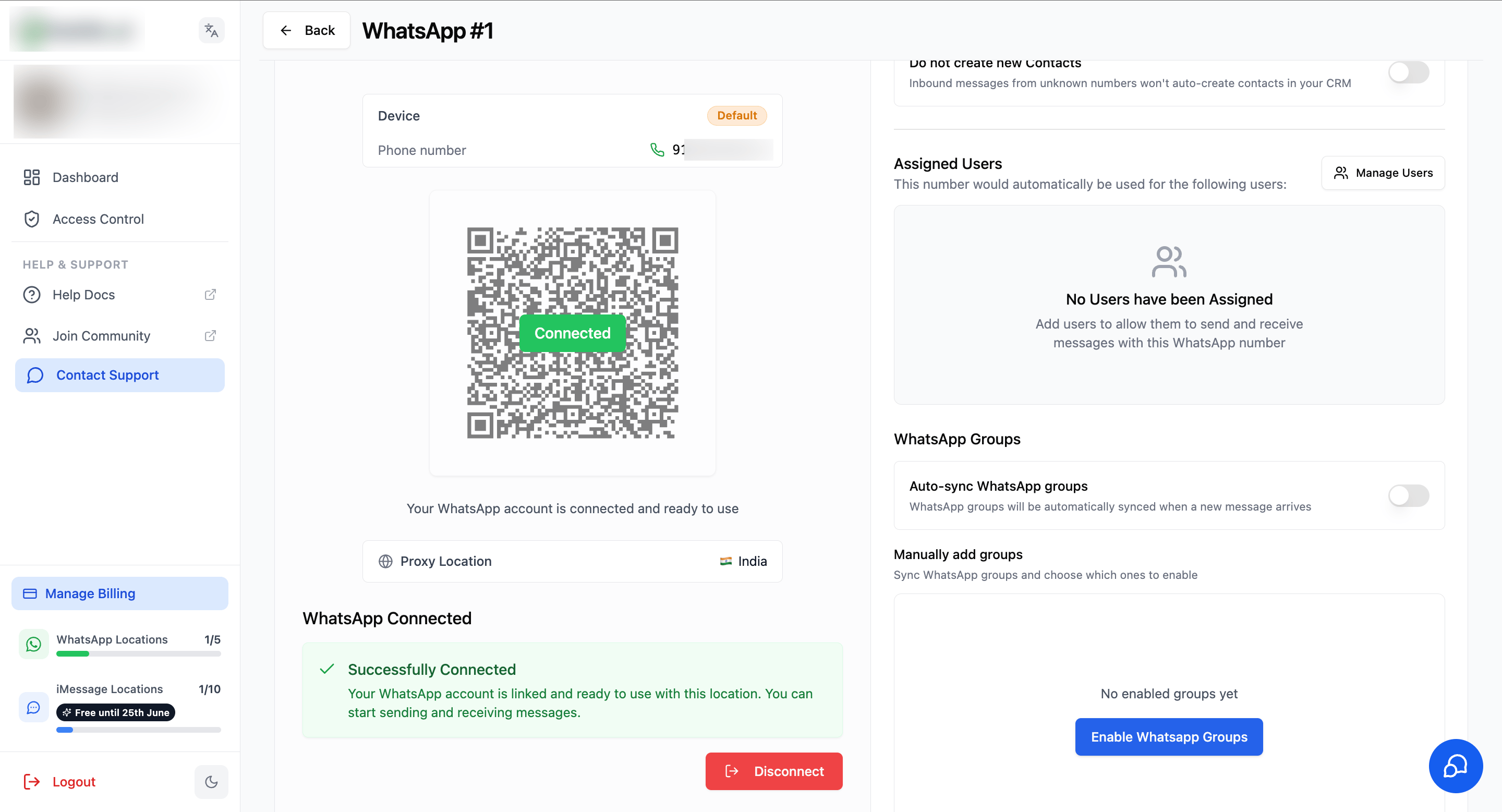
Step 6: Connection Complete
Back in your CRM dashboard, the connection screen shows Importing your WhatsApp session… while the transfer completes.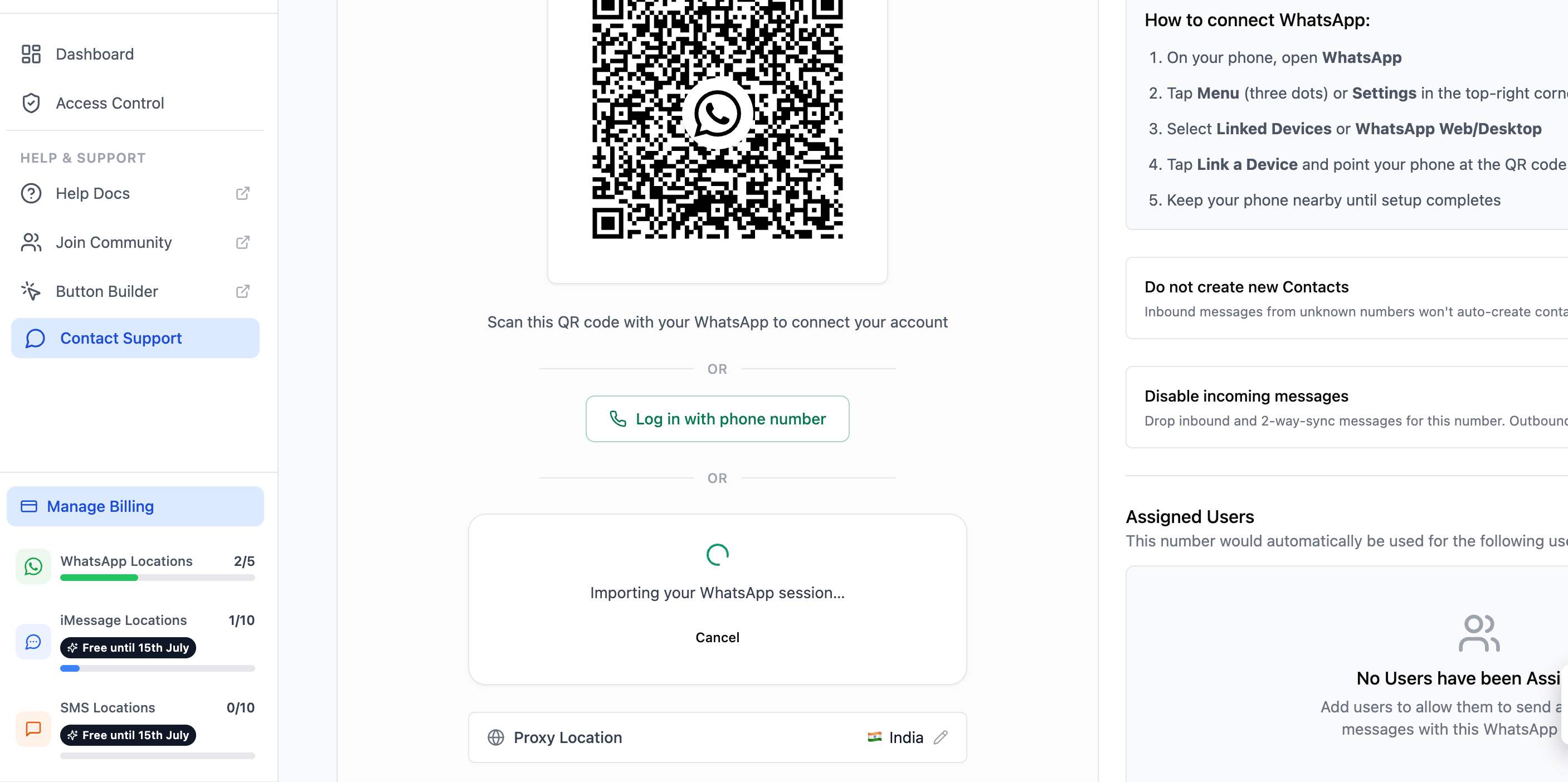
Important Notes
- Don’t log out of WhatsApp Web. Logging out unlinks the device. Use the Transfer button - it clears the browser session for you as part of the handover.
- The tab closes on its own. After the transfer, the WhatsApp Web tab closes and the browser session is cleared - this is expected. The session now lives in your CRM.
- One account per instance. Only one WhatsApp account can be connected per instance.
Troubleshooting
The Extension Isn’t Detected
- Make sure you completed the install in the Chrome Web Store, then click I’ve installed it - re-check.
- Confirm you’re using Google Chrome - the extension doesn’t run in other browsers.
- Refresh the connection screen and try again.
The Session Linker Panel Doesn’t Appear
- Start from the connection screen and click Connect via WhatsApp Web so the transfer request is created - opening WhatsApp Web directly isn’t enough.
- Check that the extension is installed and enabled in Chrome, then reload the WhatsApp Web tab.
The Transfer Button Says Please Wait
- This is the sync countdown after a fresh login. Leave the tab open and let it finish - it takes about 30 seconds.
The Import Doesn’t Finish
- Check your internet connection and keep the dashboard open while Importing your WhatsApp session… is shown.
- If it stalls, click Cancel on the connection screen and start the process again from Connect via WhatsApp Web.
FAQs
What is 'Connect via WhatsApp Web'?
What is 'Connect via WhatsApp Web'?
It is an alternative login method that transfers an existing WhatsApp Web session to your CRM. Instead of scanning a QR code on the connection screen, you install the Session Linker Chrome extension, log in to WhatsApp Web, and click one button to move the session across.
Do I still need my phone?
Do I still need my phone?
Only if you are not logged in to WhatsApp Web yet - you’ll scan the WhatsApp Web login QR code once. If your account is already active on WhatsApp Web, no phone is needed.
It's transferring a different WhatsApp number - what do I do?
It's transferring a different WhatsApp number - what do I do?
The extension transfers the account that is currently logged in on WhatsApp Web in your browser, so check which WhatsApp number is logged in - the Session Linker panel shows the number before you transfer. If a different number is logged in - for example, your personal WhatsApp number instead of your business WhatsApp number - log out of WhatsApp Web from that number, log back in with the required WhatsApp number, and then click the transfer button.
What happens to my WhatsApp Web session after the transfer?
What happens to my WhatsApp Web session after the transfer?
The session moves to your CRM. The browser’s session is cleared and the tab closes - you’ll no longer be logged in to WhatsApp Web in that browser. Messaging continues through your CRM.
Why do I have to wait about 30 seconds?
Why do I have to wait about 30 seconds?
If the device was just linked, the extension waits a few seconds for WhatsApp Web to fully sync before transferring, so the session is stable when your CRM takes it over.
Is it safe to install the extension?
Is it safe to install the extension?
Yes. Install it only from the official Chrome Web Store listing linked on the connection screen. The extension’s job is to hand your WhatsApp Web session over to your CRM - it clears the browser session as part of the transfer.
Support
If you need help with the setup or onboarding:- WhatsApp Support: Chat on WhatsApp
- Email: support@goghl.ai