

This page covers the workflow side only. For the connection itself, see WhatsApp Setup and Legacy WhatsApp Setup.
Nothing breaks if you do nothing. While the native SMS override is in place, native Send SMS keeps delivering over WhatsApp. Migrating is about gaining WhatsApp’s real capabilities, not repairing a broken setup.
Do you need this guide?
You do if any published workflow uses one of these and you expect it to reach people on WhatsApp:- Send SMS action
- Customer Replied trigger with Reply Channel set to SMS
- Internal Notification action on SMS or WhatsApp
- Wait action set to the contact to reply on SMS
Before you start
1
Update the WhatsApp provider app
App Marketplace → Installed Apps → WhatsApp provider → Update
2
Connect a WhatsApp number
Use the WhatsApp Settings dashboard to connect one or more instances
What replaces what
Every WhatsApp replacement lives on the Apps tab → WhatsApp provider app, never in the standard lists. Find Contact and Create Contact are HighLevel built-ins, already in every workflow.
How to migrate a workflow
Work through one workflow at a time.1
Duplicate, do not edit in place
Copy the workflow and rename it, for example “Lead Follow-Up - WhatsApp”. The original stays published and untouched while you build.
2
Swap the trigger, then resolve the contact
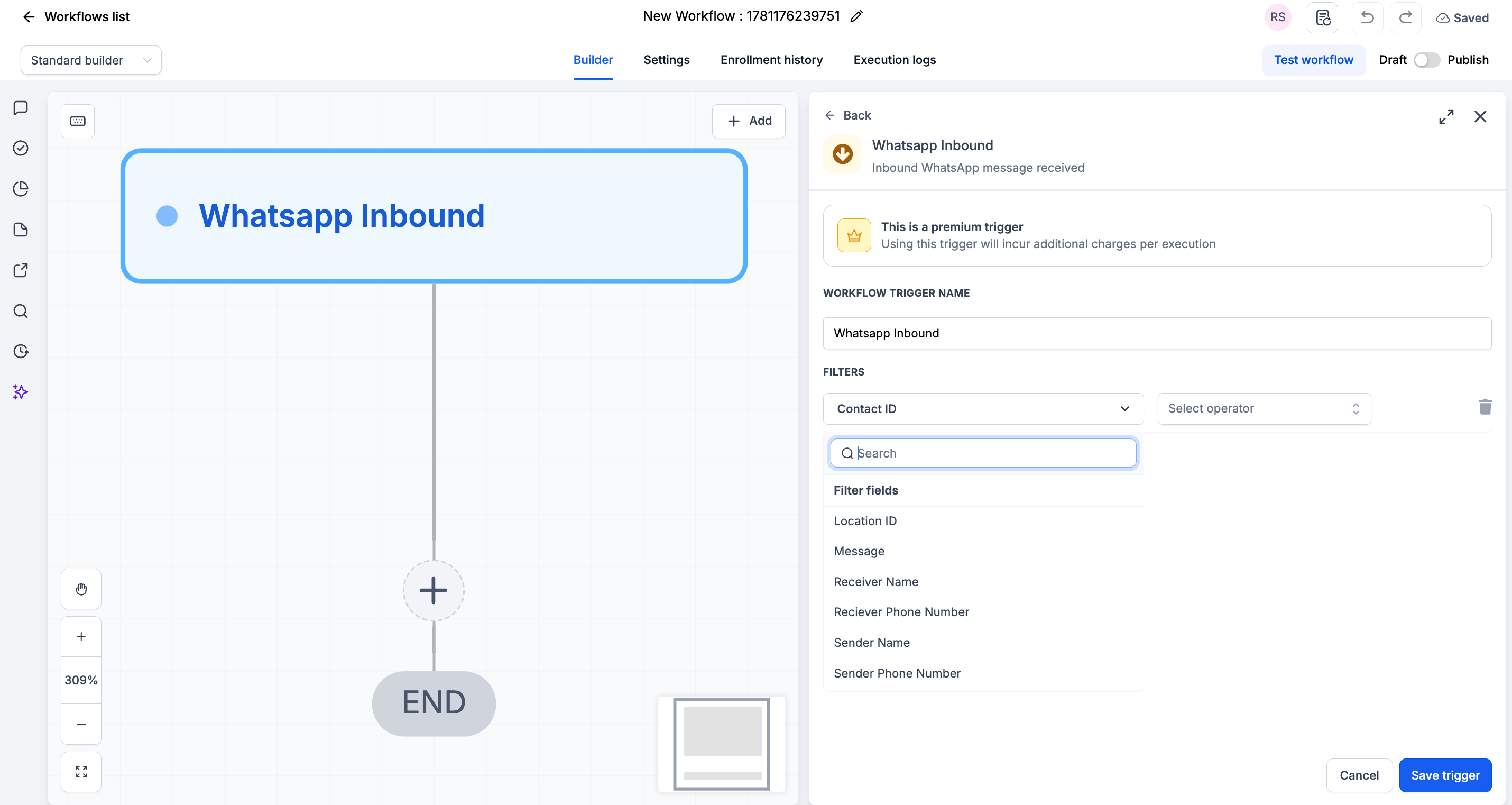
Replace Customer Replied with WhatsApp Inbound, then add Find Contact or Create Contact directly below it. Everything downstream depends on the contact existing.
3
Swap the actions
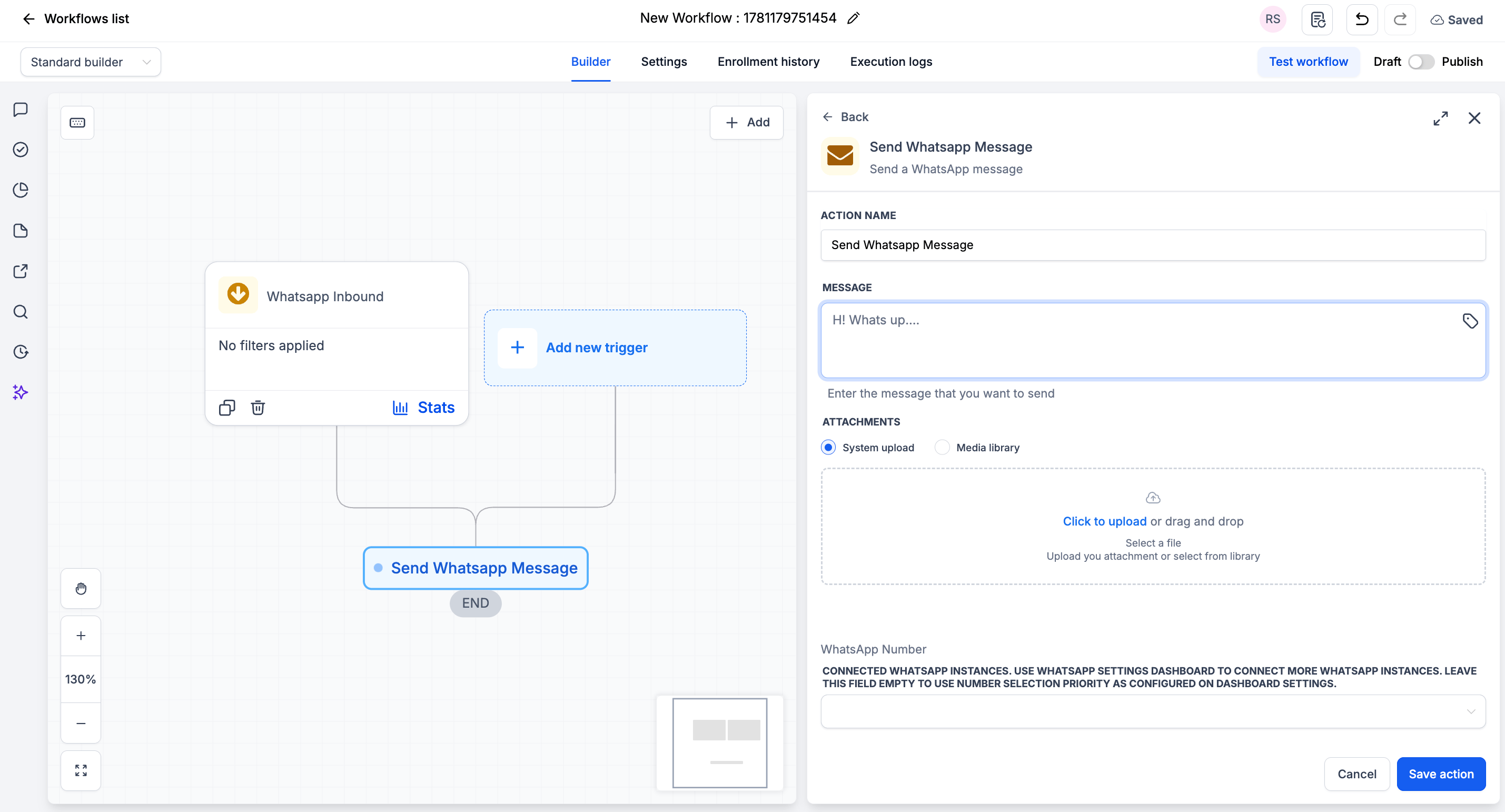
Use the table above. Re-insert variables with the tag icon rather than pasting them, so they bind to the right field.
4
Move dropped filters into the workflow
Tag checks, Intent Type, and Replied to Workflow become If/Else conditions after the contact step.
5
Publish the copy and test it on yourself
Message your connected number from your own phone and walk the whole path - reply arrives, contact resolved, message sends, internal alert lands.
6
Retire the original
Only once the new one is confirmed, set the old workflow back to Draft. Contacts already in it finish normally.
1. Customer Replied → WhatsApp Inbound
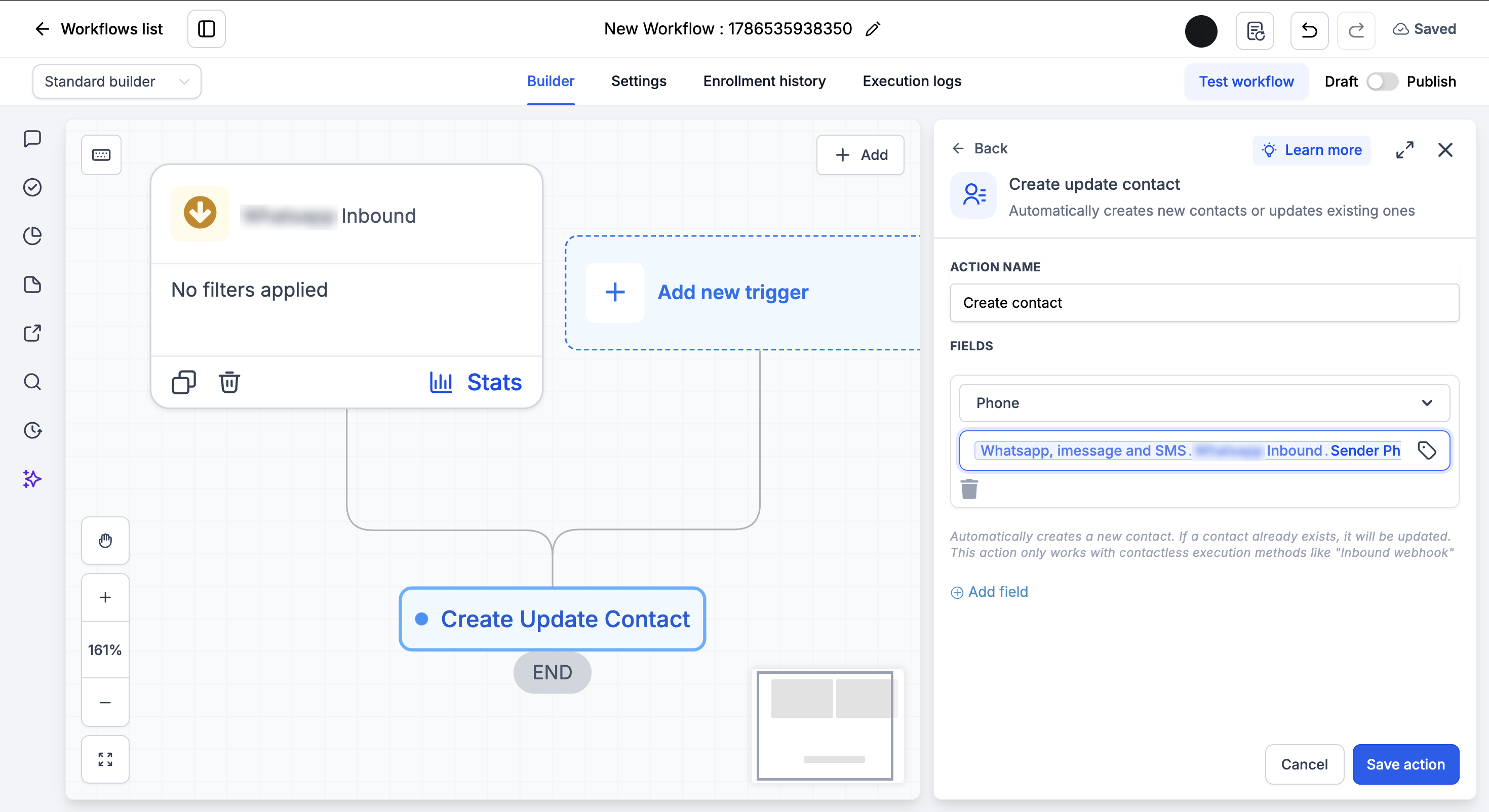
2. Resolve the contact: Find Contact or Create Contact
Both are HighLevel built-in actions, so there is nothing extra to install. Pick one:1
Click + Add below the trigger
2
Search for and select Find Contact or Create Contact
3
Map the field from the table above, inserting the value with the tag icon
4
Click Save action
3. Send SMS → Send WhatsApp Message
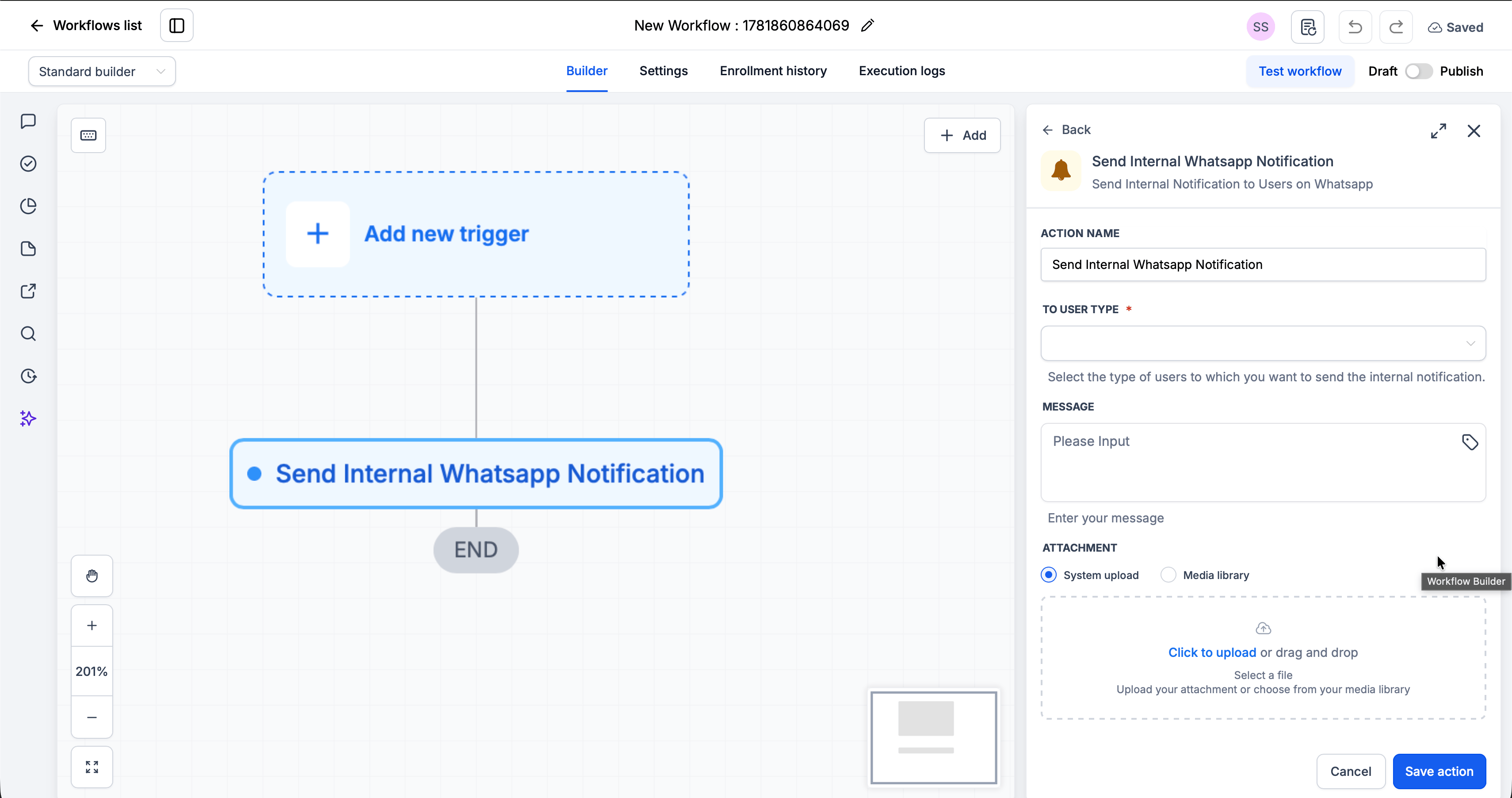
4. Internal Notification → Send Internal WhatsApp Notification
5. Wait → Wait Step
What you gain
- The reply comes with it. Message text and attachments are handed to the steps after Customer Responded, so you can branch on what the customer actually said
- Two named branches - Customer Responded and Timeout - instead of one path with a timeout escape
- Per-number scoping with the optional Connected Number field
FAQs
Can native SMS steps and WhatsApp provider steps coexist in one workflow?
Can native SMS steps and WhatsApp provider steps coexist in one workflow?
Yes, and it is the recommended way to migrate gradually. It is also required when part of the workflow needs a native-only feature, such as an email internal notification or a recurring-schedule Wait.
Why can't I find the WhatsApp trigger or action in the builder?
Why can't I find the WhatsApp trigger or action in the builder?
They only appear under the Apps tab, never in the standard lists. If the Apps tab has no WhatsApp provider app, update it from App Marketplace → Installed Apps and connect at least one number.
Should I use Find Contact or Create Contact?
Should I use Find Contact or Create Contact?
Create Contact when the sender may be new to your CRM - it skips creation for existing contacts, so no duplicates are made. Find Contact when every sender is already saved and you only need to look them up.
What happens to contacts already sitting in an old workflow?
What happens to contacts already sitting in an old workflow?
They finish the workflow they are in. Setting it back to Draft only stops new contacts entering, so let in-flight contacts drain before you delete anything.
I used Has Tag and Intent Type filters. What now?
I used Has Tag and Intent Type filters. What now?
Those filters do not exist on WhatsApp Inbound. Leave the trigger unfiltered or filter on message text, then add an If/Else after the contact step to check tags or any other contact field.
Do I need to migrate my Wait steps too?
Do I need to migrate my Wait steps too?
Only the ones set to the contact to reply on SMS. Every other kind of Wait stays on the native action.
Support
If you need help with the migration:- WhatsApp Support: Chat on WhatsApp
- Email: support@goghl.ai