

Why it matters: When a workflow runs on a contact, the people responsible for that contact need to know. This action notifies the assigned user(s) automatically - delivered both as a CRM notification and as a real WhatsApp message - so nothing slips through the cracks.
Key Benefits
Notify the Right People - Message the user(s) assigned to the contact automatically Flexible Targeting - Send to all assigned users, a specific user, or any phone number Synced Everywhere - Delivered to both the CRM and an actual WhatsApp message Attachment Support - Include a file with the notification Workflow Integration - Combine with any CRM trigger for powerful automationWho Should Use It
Sales Teams - Alert the assigned rep the moment a contact takes action Support Teams - Notify the contact owner about escalations Agencies - Route internal alerts across client sub-accounts Operations - Keep staff informed of status changes and hand-offsRequirements
Before using this action:1
Update your WhatsApp provider app to the latest version
- Go to App Marketplace → Installed Apps → WhatsApp provider → Update
2
Connect a WhatsApp number
- Use the WhatsApp Settings dashboard to connect one or more WhatsApp instances
How to Set Up
Step 1: Create or Edit a Workflow
1
Go to Automation → Workflows
2
Create a new workflow or edit an existing one
3
Add your desired trigger (Form Submitted, WhatsApp Inbound, Appointment Booked, etc.)
Step 2: Add the Action
1
Click + or Add New Action after your trigger
2
Switch to the Apps tab
3
Click the WhatsApp provider app icon
4
Select Send Internal WhatsApp Notification
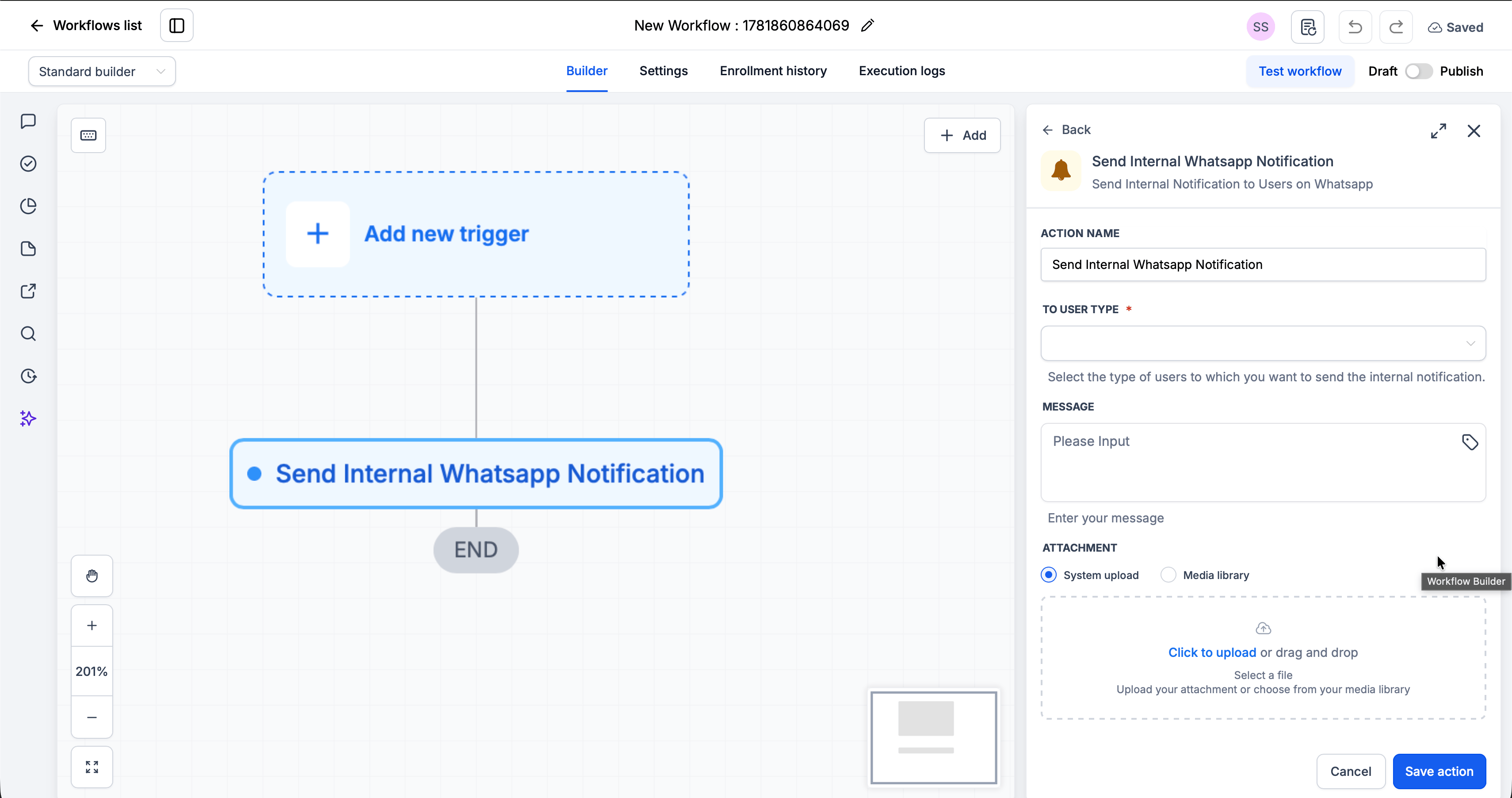
Step 3: Configure the Action
Step 4: Save and Publish
1
Click Save action
2
Review your complete workflow
3
Toggle from Draft to Published
Action Fields Explained
To User Type Field
Choose who the notification goes to. This selection controls what the Choose User field becomes.Choose User Field
This field adapts to your To User Type selection:- Assigned Users → hidden (the action resolves the assigned users automatically)
- Particular User → a dropdown to select the user
- Custom Number → a text field to type the destination phone number
Message Field
Enter the notification text. You can:- Type plain text
- Use custom variables (click the tag icon to insert)
- Include emojis
Attachment Field
Attach a file to send with the notification. This field is optional.Example Use Cases
Use Case 1: Alert the Assigned Rep
Notify whoever owns the contact when a new message comes in. Trigger: WhatsApp Inbound Action: Send Internal WhatsApp Notification- To User Type: Assigned Users
- Message:
Use Case 2: Notify a Specific Manager
Escalate high-value leads to a fixed recipient. Trigger: Form Submitted Action: Send Internal WhatsApp Notification- To User Type: Custom Number
- Choose User: +1 555 010 0000
- Message:
Important Notes
Technical Details
- The notification is synced to both the CRM and an actual WhatsApp message
- Assigned Users sends to every user assigned to the contact that runs the workflow
- Custom Number can reach any phone number, even someone not assigned to the contact
- Works with all standard CRM workflow triggers
Best Practices
- Use Assigned Users so the right owner is always notified as assignments change
- Use custom variables to give recipients context at a glance
- Keep notifications concise
- Test before publishing
FAQs
Who receives the notification?
Who receives the notification?
It depends on To User Type: every user assigned to the contact (Assigned Users), one user you pick (Particular User), or any number you type (Custom Number).
Can I notify someone who isn't assigned to the contact?
Can I notify someone who isn't assigned to the contact?
Yes. Choose Custom Number and enter any phone number.
Can I attach a file?
Can I attach a file?
Yes. Use the Attachment field to include a file with the notification.
Can I personalize the message?
Can I personalize the message?
Yes. Click the tag icon in the Message field to insert custom variables like
{{contact.first_name}}.Support
If you need help with the setup or onboarding:- WhatsApp Support: Chat on WhatsApp
- Email: support@goghl.ai