

What it is
Show interactive messages exactly as they appear on WhatsApp inside the conversation, so you can preview what your contact will see before and after sending.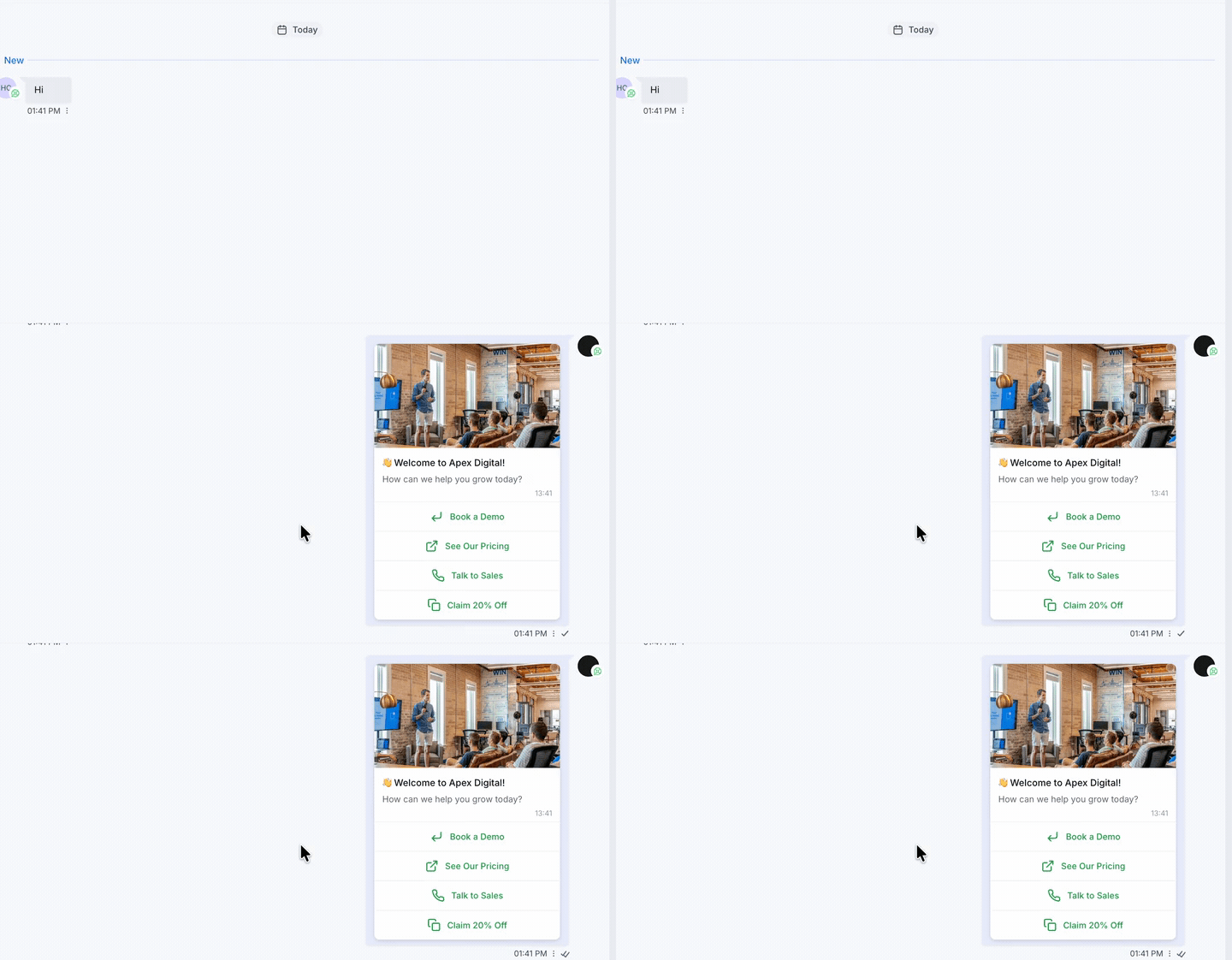
How to enable it
1
Open your GoGHL dashboard.
2
Go to the Custom Script settings.
3
Turn on the Interactive Message Preview toggle.
How to use it
Nothing else to configure. Once the toggle is on, interactive messages in the conversation render the way they look on WhatsApp instead of as raw text:- Button messages show their header media, title, body and tappable buttons
- List messages show their title and menu items
- The preview applies both to new messages you send and to the existing conversation history
Notes & limitations
- Pair this with the Button Builder to compose and preview interactive messages in one place
Support
If you need help with the setup or onboarding:- WhatsApp Support: Chat on WhatsApp
- Email: support@goghl.ai