

Why it matters: A disconnected WhatsApp number stops sending and receiving messages silently. Campaigns pause, leads go unanswered, and customers assume you are ignoring them. If you run many sub-accounts, you cannot rely on each client to notice. Disconnection Alerts put your agency team in the loop the moment it happens, so the number is back online before anyone notices it was gone.
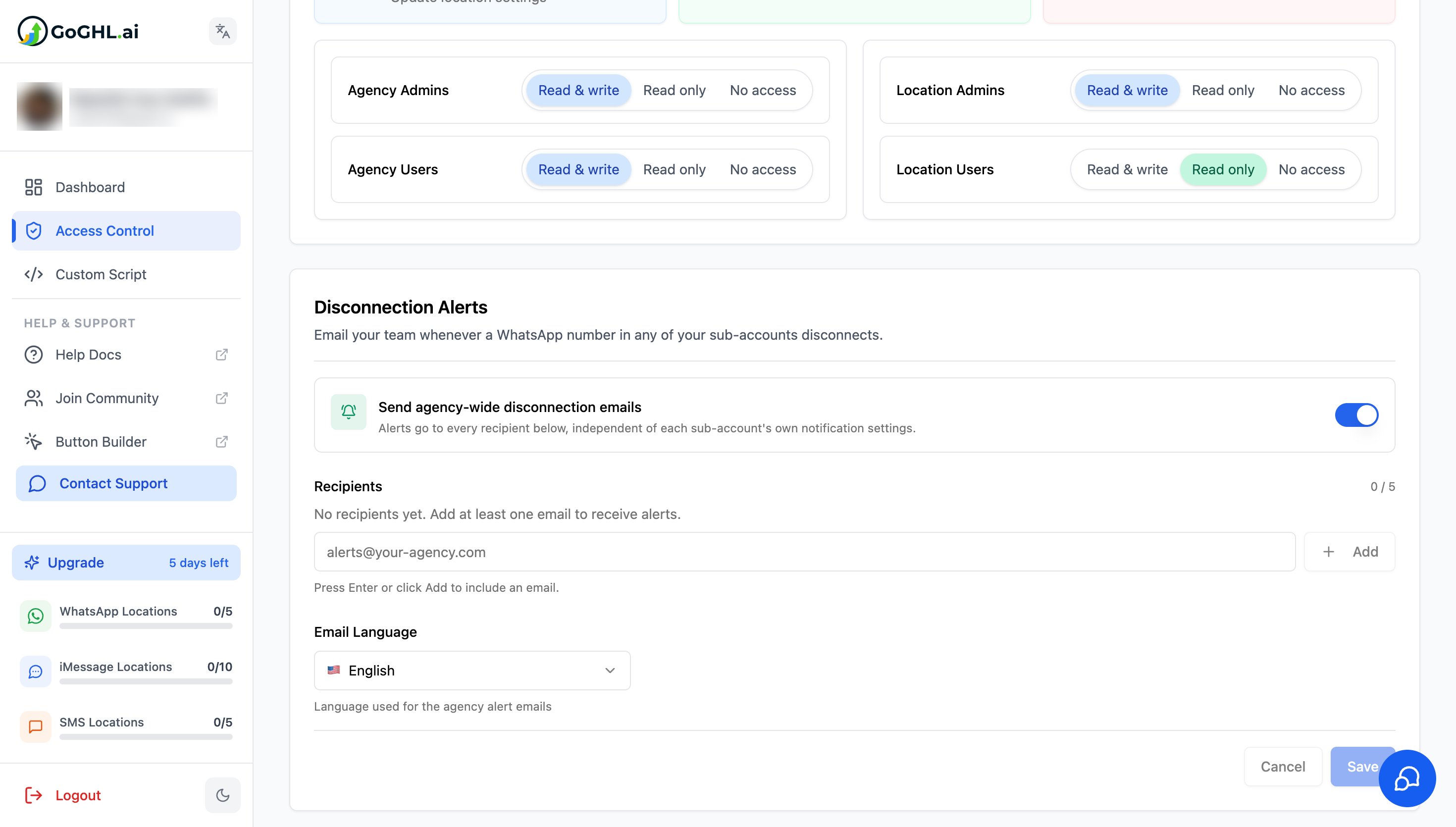
Disconnection Alerts are an agency-level feature. They are configured once from the agency dashboard and cover every sub-account under your agency. Sub-account users do not see this setting. For per-location alerts, see Disconnection Notifications.
What it does
When any WhatsApp instance in any of your sub-accounts loses its connection, GoGHL sends an email to every recipient on your agency list. The alert tells you exactly which number went down, where it lives, what it affects, and how to bring it back.- Agency-wide coverage: one list of recipients receives alerts for every sub-account under your agency
- Independent of sub-account settings: alerts go out regardless of what each sub-account has configured in its own notification settings
- Up to 5 recipients: add the people on your team who should act on a disconnection
- Your choice of email language: alerts are sent in the language you pick for the agency
- Direct link to the sub-account: every email includes a button that opens the affected sub-account in the dashboard
How to set it up
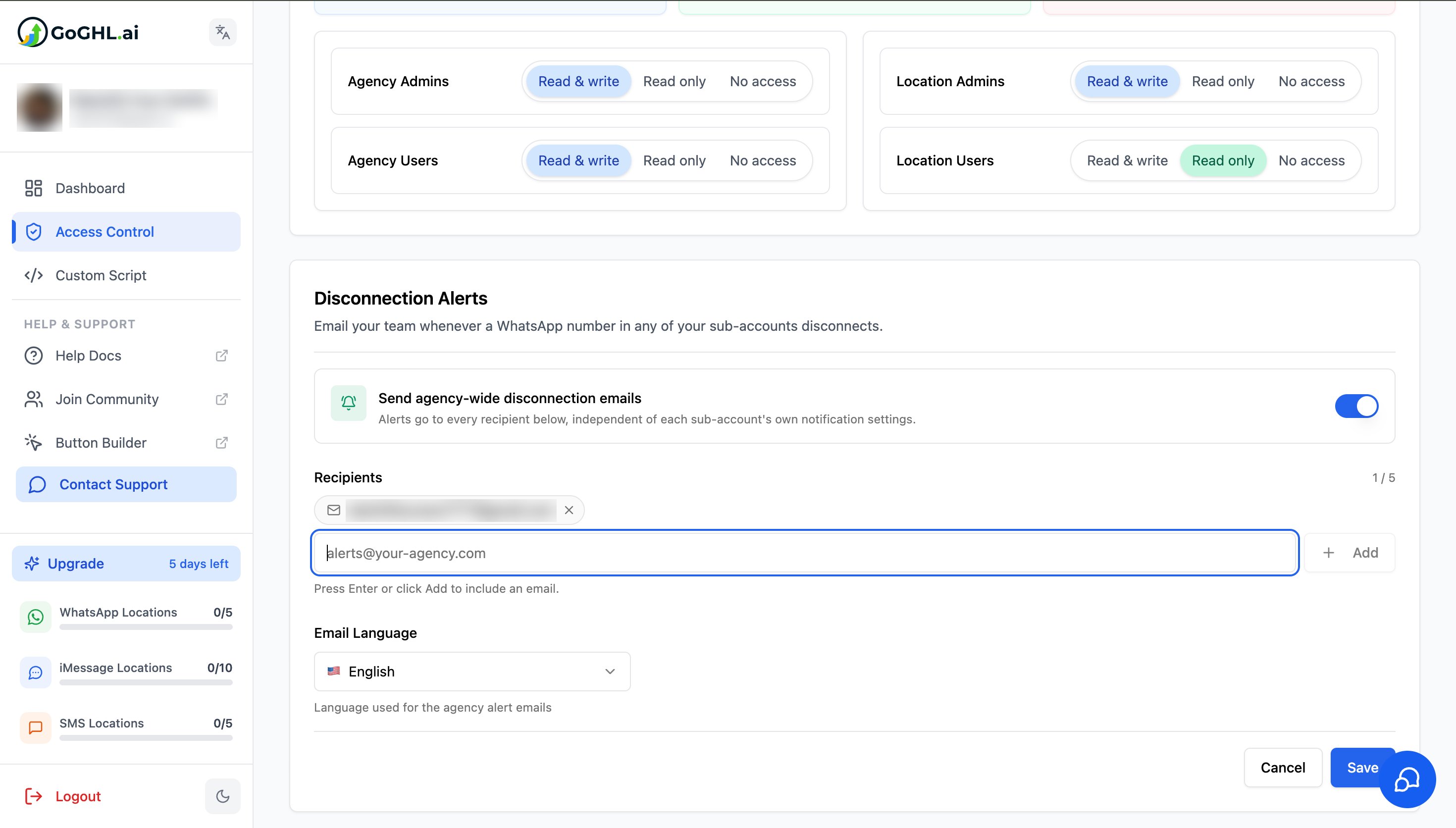
The feature is enabled by default for every agency. All you need to do is add at least one recipient email so the alerts have somewhere to go.1
Log in to the agency dashboard at app.goghl.ai
2
Click Access Control in the left sidebar
3
Scroll down to the Disconnection Alerts card
4
Confirm the Send agency-wide disconnection emails toggle is on. It is on by default.
5
Type an email address in the Recipients field and press Enter or click Add. Repeat for up to 5 recipients.
6
Choose the Email Language for the alert emails
7
Click Save
Settings explained
What the alert email contains
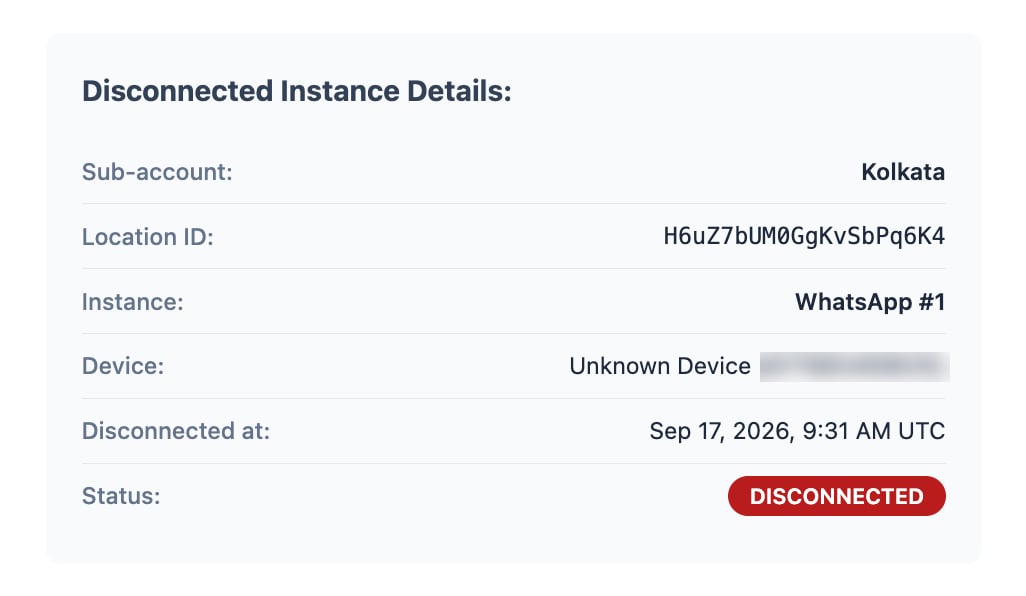
Each alert is built so the person reading it can act without opening anything else first.Disconnected instance details
Service impact
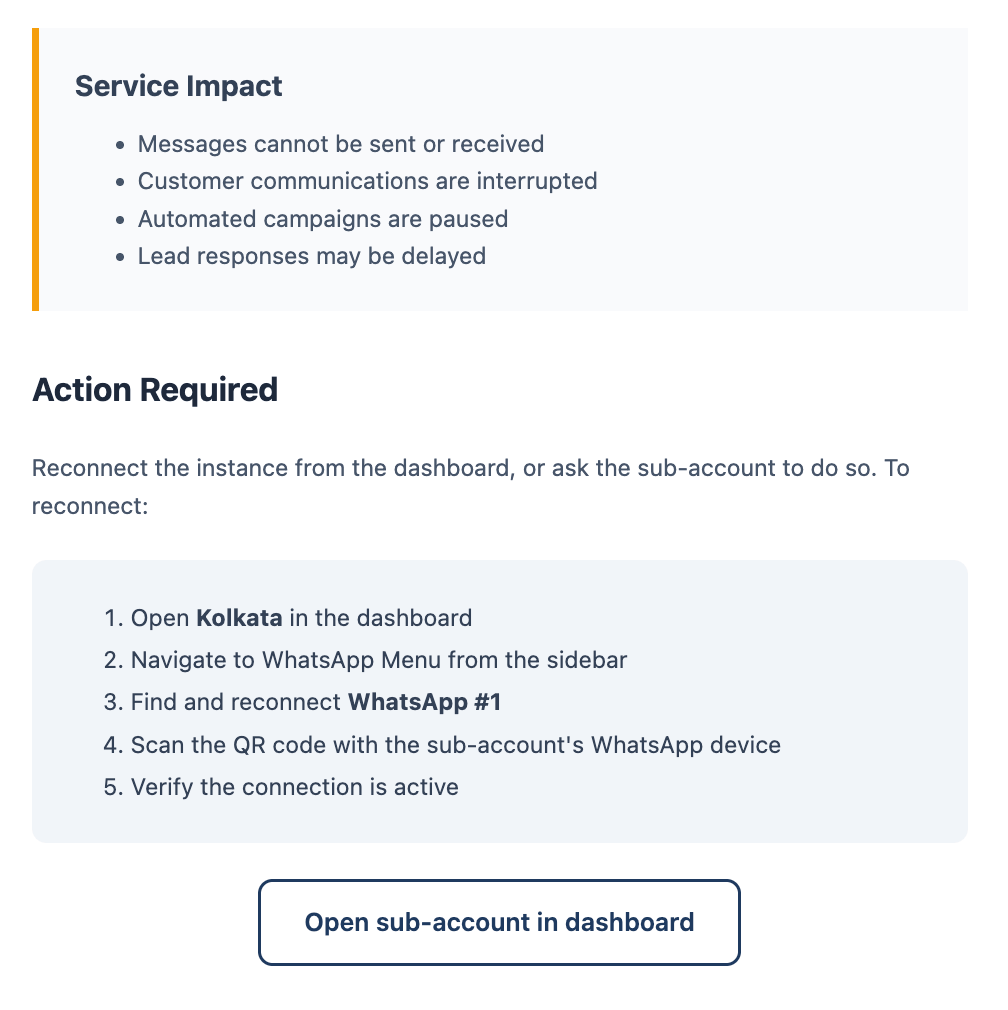
The email spells out what stops working while the number is offline, so the urgency is clear to whoever picks it up:- Messages cannot be sent or received
- Customer communications are interrupted
- Automated campaigns are paused
- Lead responses may be delayed
Action required
1
Click Open sub-account in dashboard in the email, or open the sub-account manually
2
Navigate to the WhatsApp menu from the sidebar
3
Find the disconnected instance and click reconnect
4
Scan the QR code with the sub-account’s WhatsApp device. If you do not have the device, forward the email to the client and ask them to scan.
5
Verify the connection shows as active
Agency alerts vs sub-account notifications
GoGHL has two layers of disconnection alerting. They work independently and you can use both.
Agency alerts fire even if a sub-account has its own notifications turned off or never set them up. This is what makes them reliable for agencies managing clients who may not check their own inbox.
How to use it
- Add a shared inbox such as
alerts@your-agency.comas the first recipient, so alerts are never stuck in one person’s mailbox - Add the account managers responsible for reconnecting numbers as additional recipients
- Treat every alert as time-sensitive. The longer a number stays offline, the more messages queue up and the more customers go unanswered.
- Frequent disconnections on the same number are a warning sign. Check the number’s AI Ban Protection Insights and review Bans and Restrictions to rule out an account issue.
- If a number keeps dropping, make sure the phone stays online and charged, and consider a Residential Proxy for a more stable connection
Disconnection Alerts do not prevent a disconnection. They make sure it never goes unnoticed, which is what protects your clients’ campaigns and your agency’s reputation.