

Key benefits
No login required - The device owner pairs the phone without access to your dashboard Time-limited - Each link expires after about 12 hours Guided pairing - The link opens a setup page with the settings, permissions, and activation QR codeStep 1: Share the app download link
The page the shareable link opens doesn’t include a link to download the SMS Sync app. Send the download link first so the device owner can install the app before pairing.1
Copy the download link
On the device page, find Install the SMS Sync app and click Copy link.
2
Send it to the device owner
Send the link to the person who has the Android phone. They open it on that phone to download and install SMS Sync.
Step 2: Generate a shareable link
1
Open the device page
In your SMS provider dashboard, open the SMS device you want to connect (for example SMS #1). The device shows a Ready to Connect status until a phone is linked.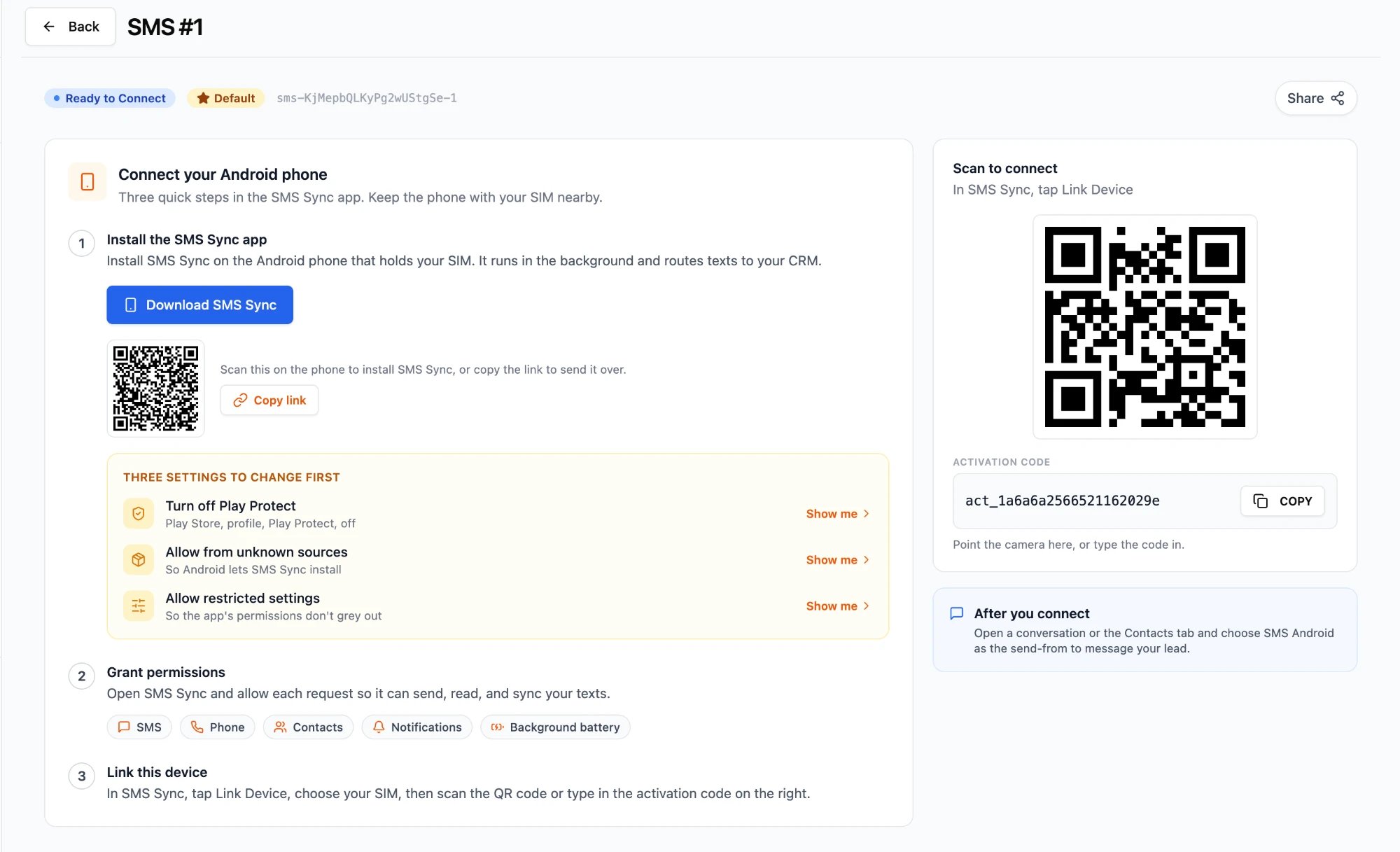
2
Click Share
Click Share in the top right of the device page. The Create Shareable Link window opens.
3
Copy the link
Click anywhere on the link, or click the copy icon, to copy it to your clipboard.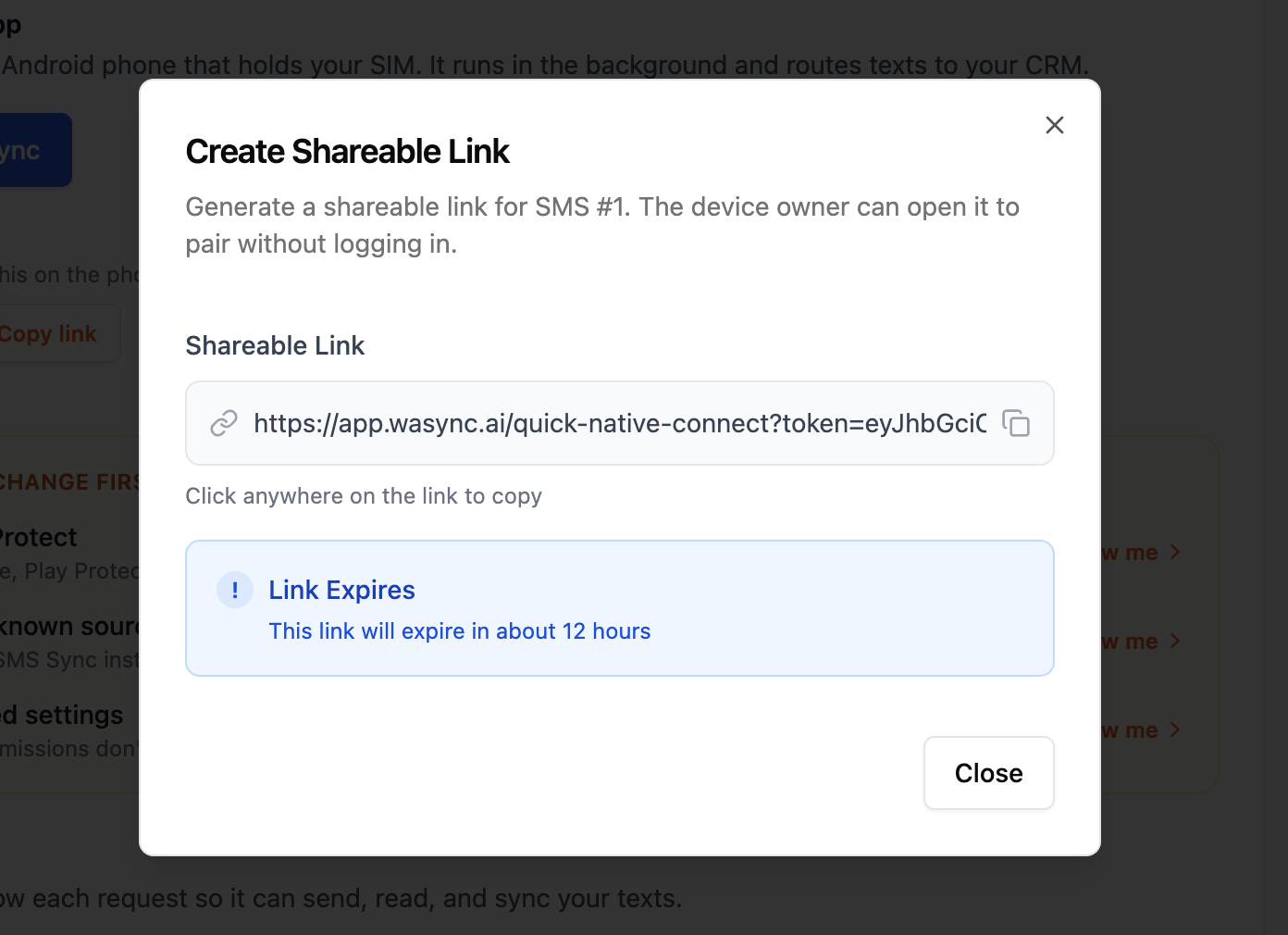
4
Send it to the device owner
Send the link to the person who has the Android phone, for example by email or chat. Click Close when you’re done.
How the device owner uses the link
1
Open the link
Open the link in a browser. A computer is easiest, since the phone is needed to scan the QR code.
2
Change the three settings
Turn off Play Protect, allow installs from unknown sources, and allow restricted settings. Tap Show me next to each one for help.
3
Grant permissions
Open SMS Sync and allow every request: SMS, Phone, Contacts, Notifications, and Background battery.
4
Link the device
In SMS Sync, tap Link Device, choose the SIM, then scan the QR code or type in the activation code shown on the page.
Important notes
- Only share links with people you trust. Anyone with the link can pair a phone to that device until it expires.
- The link only opens the pairing page for that one device. It doesn’t give access to your dashboard or CRM.
- Generate a separate link for each device you want to connect.
Troubleshooting
FAQs
How long is the link valid?
How long is the link valid?
About 12 hours from when you generate it. The Create Shareable Link window shows the exact time left.
Can someone access my dashboard through the link?
Can someone access my dashboard through the link?
No. The link only opens the pairing page for that device.
Does the device owner need an account?
Does the device owner need an account?
No. They only need the link, a browser, and the Android phone with the SIM.
What if the link expires before it's used?
What if the link expires before it's used?
Click Share on the device page again to generate a new link.
Support
- WhatsApp chat: Chat on WhatsApp
- Email: support@goghl.ai