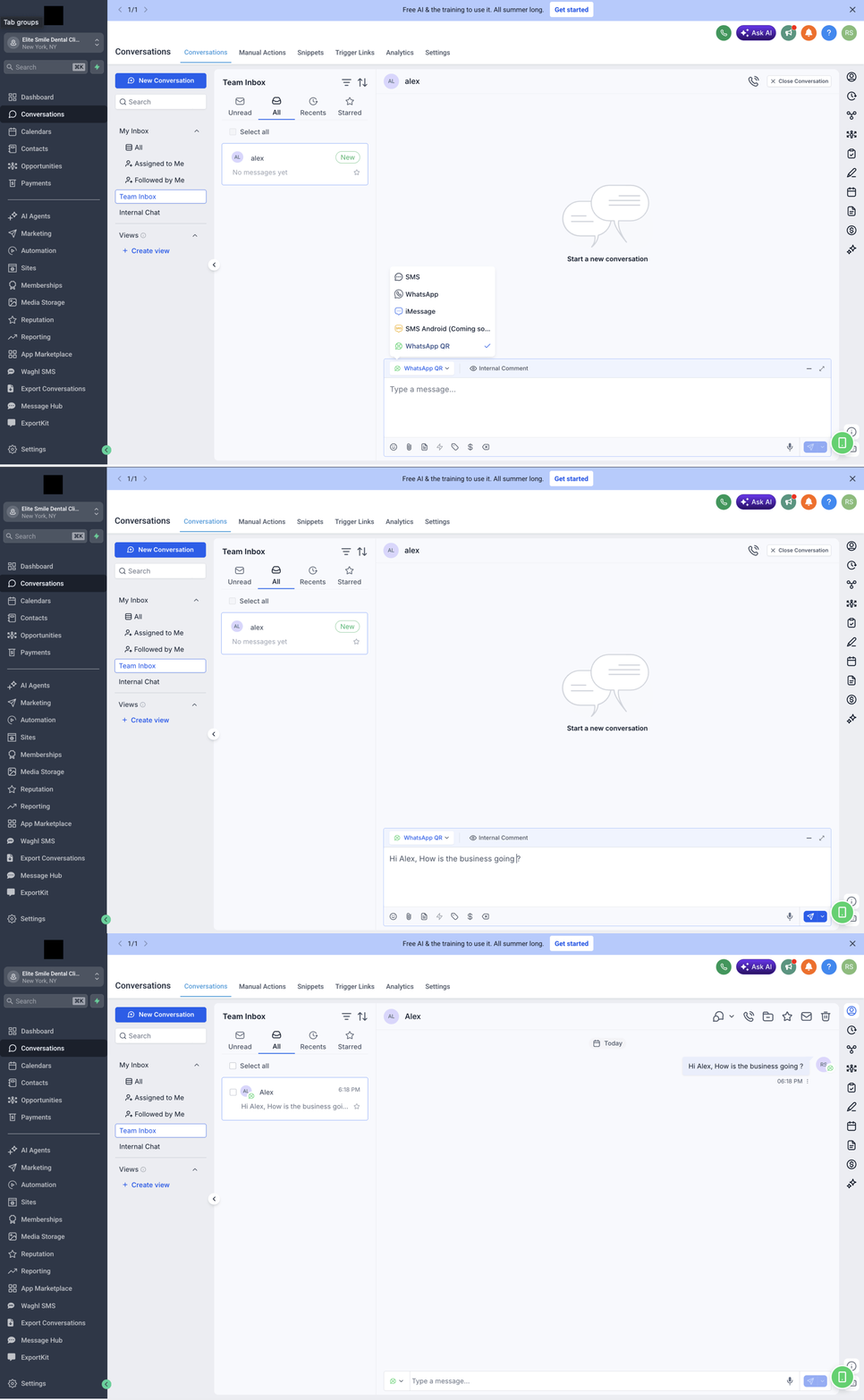
Replace SMS as Conversation Provider (WhatsApp)
This is the alternative method (SMS Provider) for connecting WhatsApp. It sets WhatsApp as a custom SMS provider for your sub-account before connecting.
Recommended
Most users should follow the newer WhatsApp Full Setup flow instead. Use this page only if you specifically need the SMS provider method.
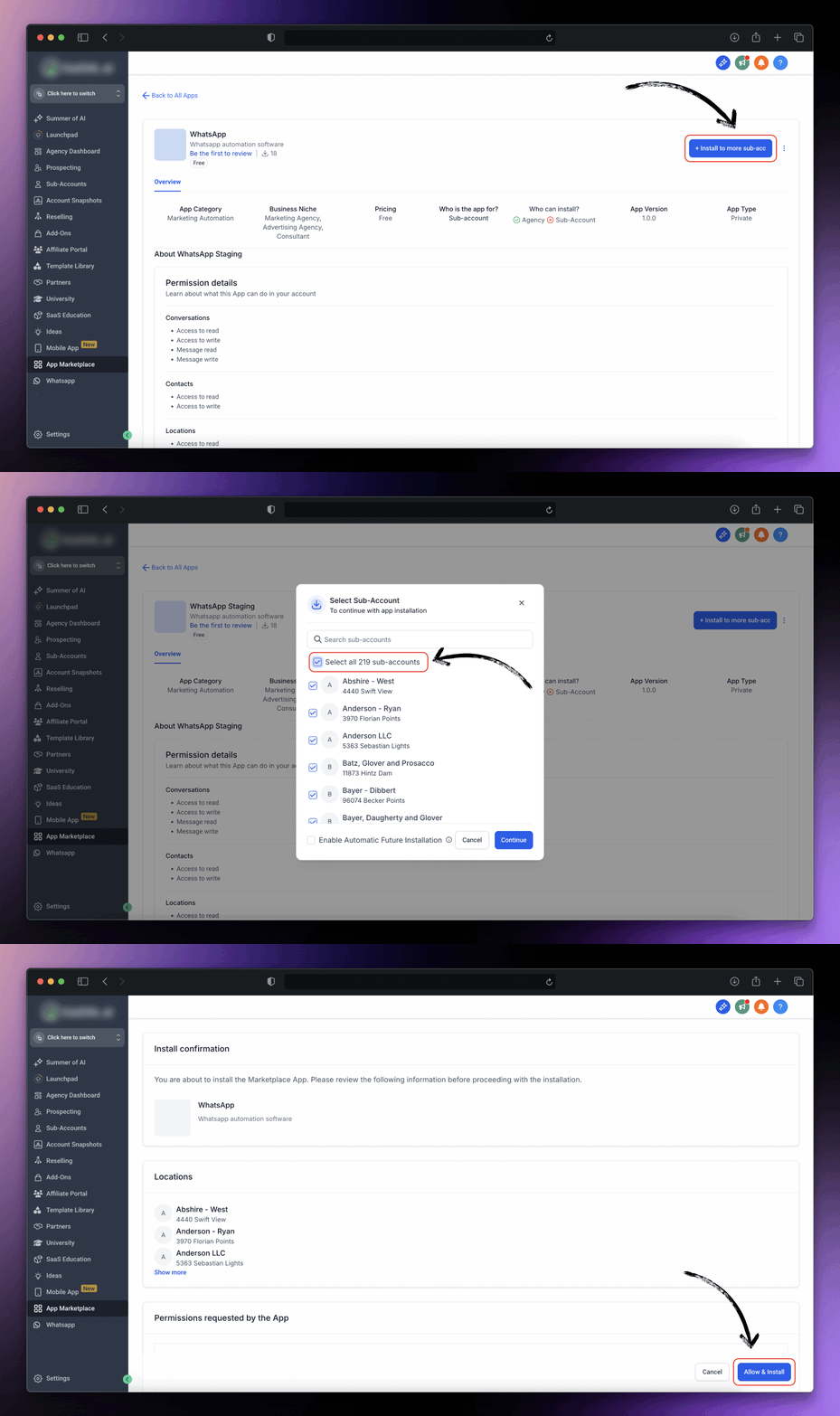
Step 1: Install the app on sub-accounts
Quick Tip
For an easier setup you can click on Select All sub-accounts
Step 2: Select sub-account
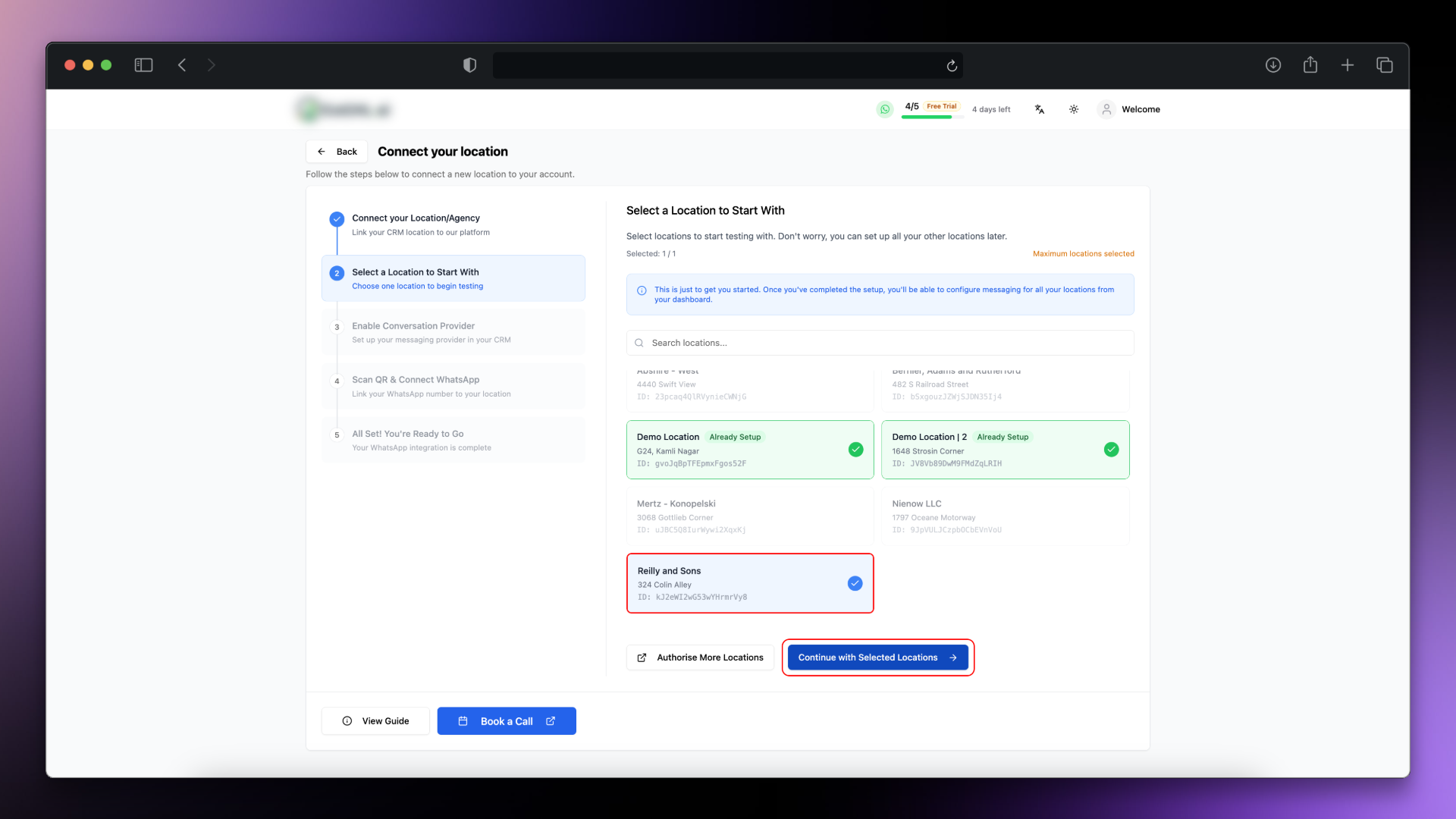
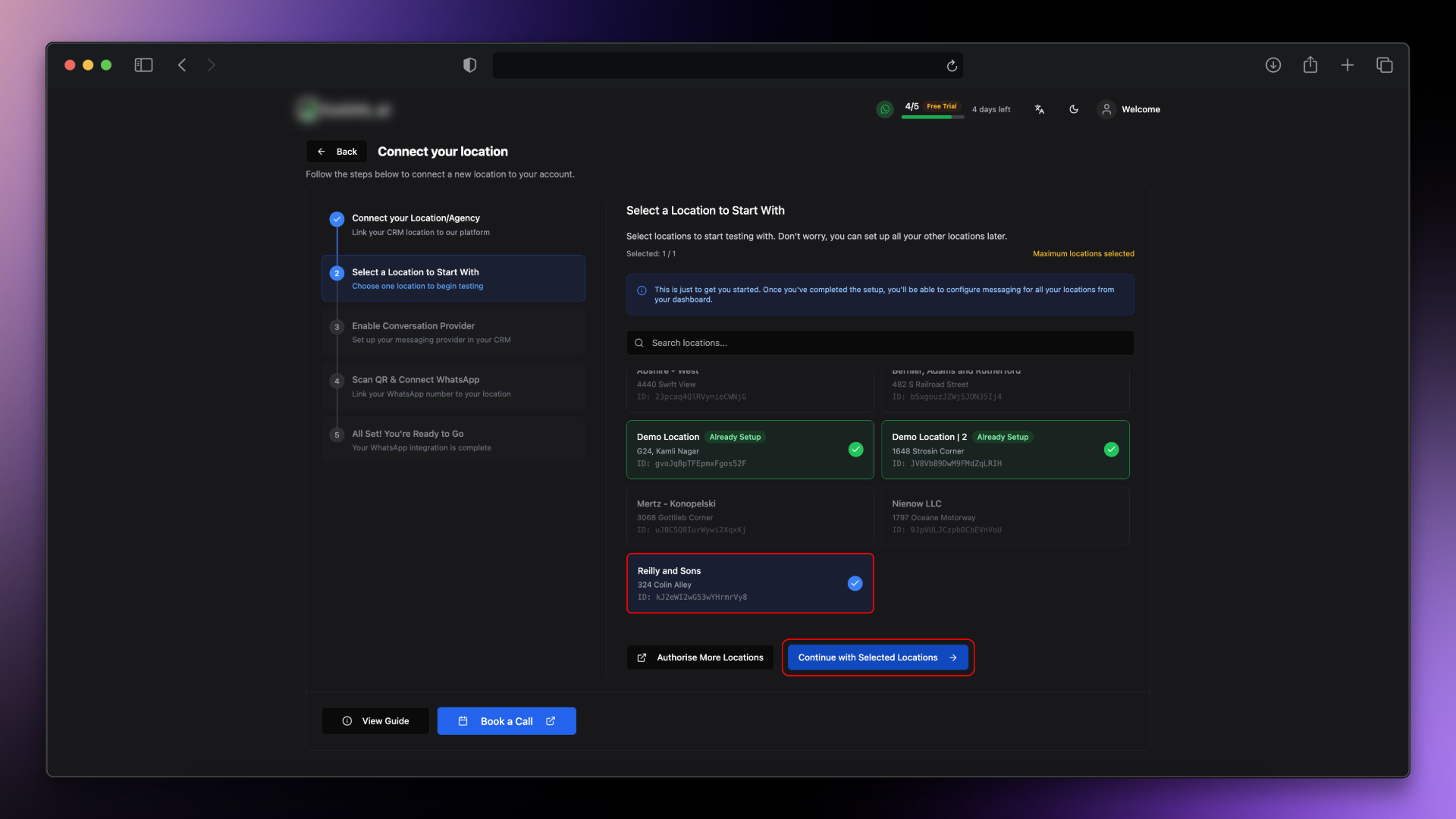
Step 3: Enable SMS Provider for your Sub-account
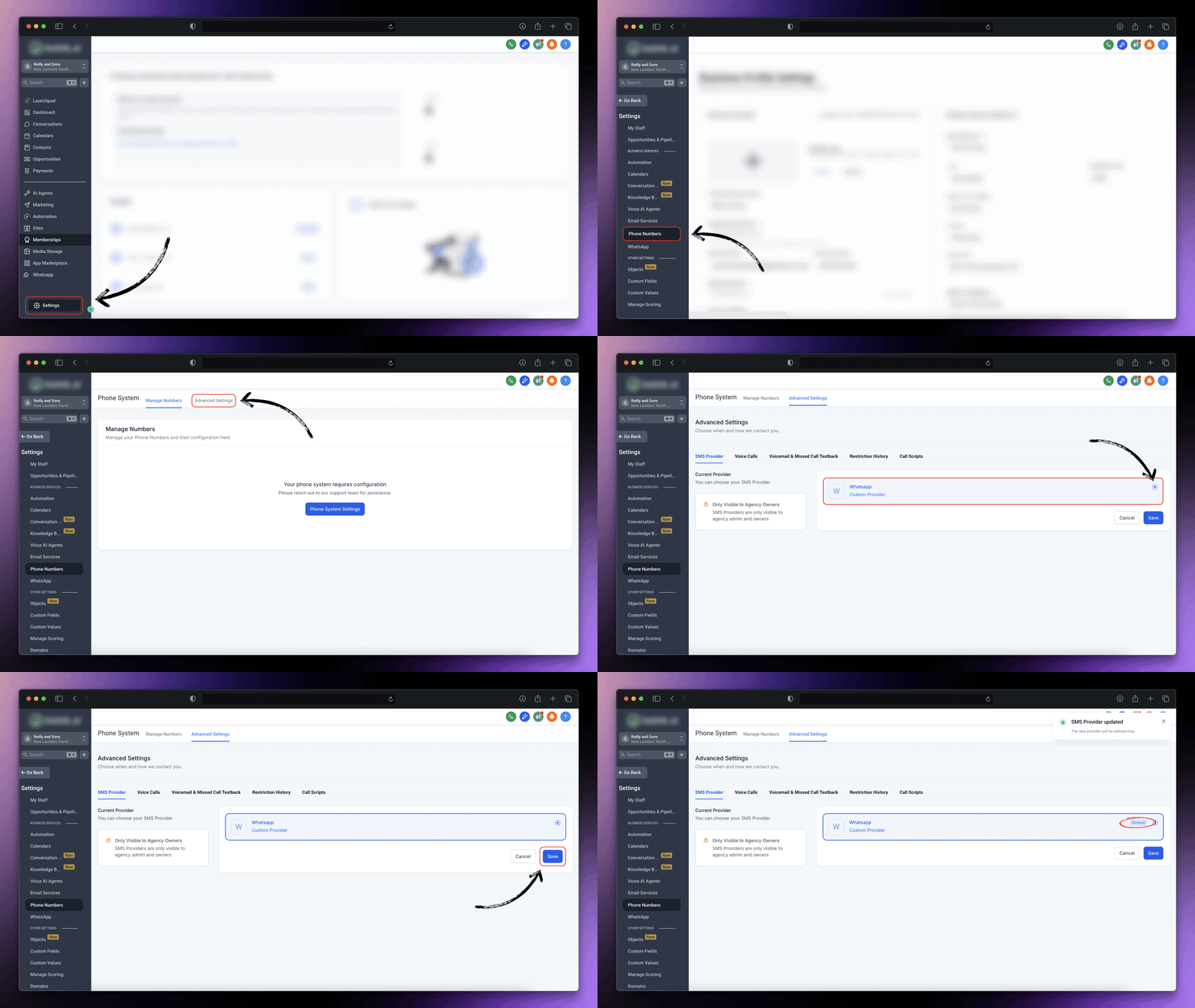
- Select your target sub-account and go to settings
- Go to
Settings > Phone Number > Advance Settings
- Go to
- Select WhatsApp as custom SMS provider
- Click on Save button
IMPORTANT!
Make sure WhatsApp custom provider have Default tag.
Click on Save Button to add Default tag.
Step 4: Connect WhatsApp
Once you've successfully installed our app and changed the SMS provider, lets connect your WhatsApp
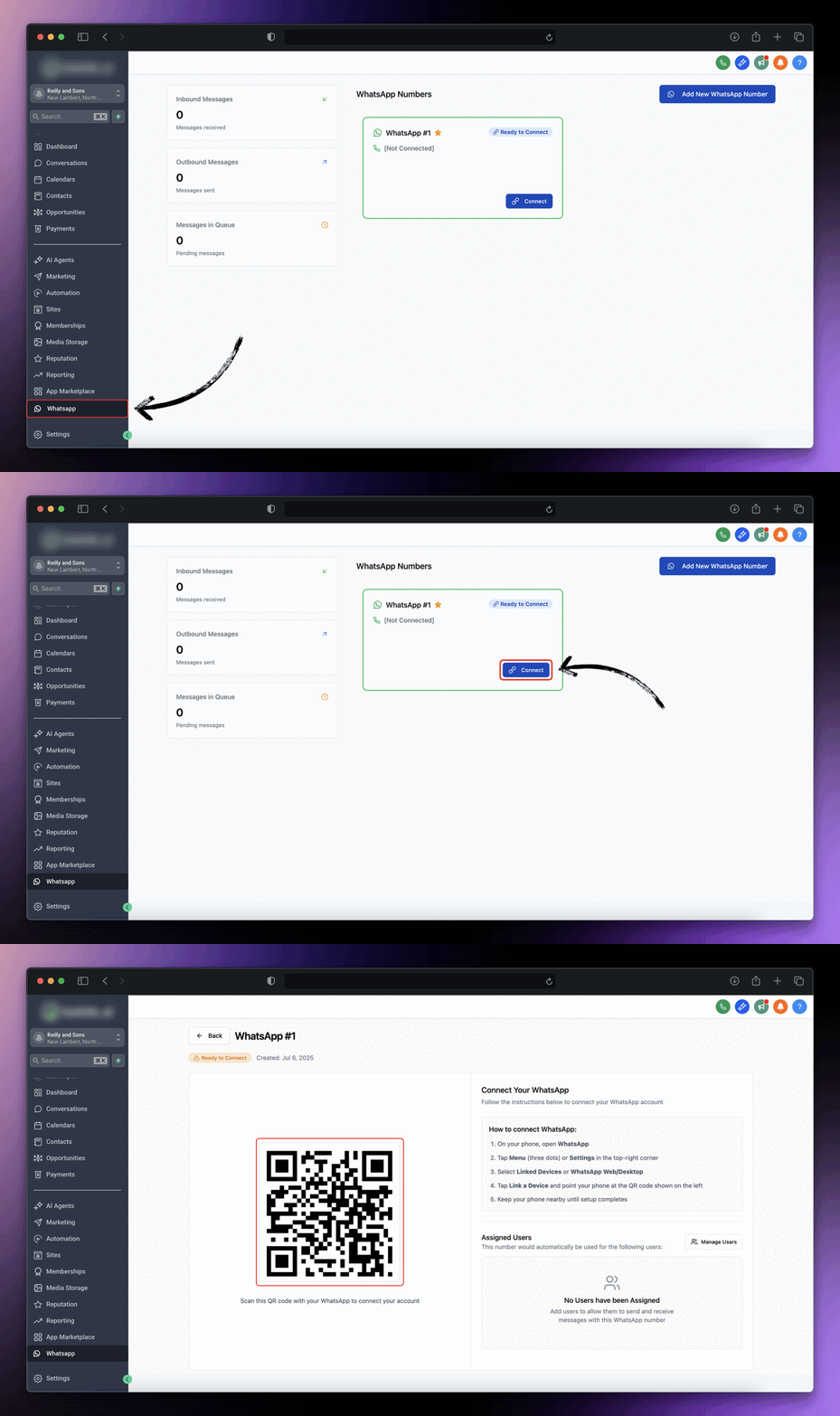
- Go to the WhatsApp tab from your sub-account or directly go to GoGHL.ai dashboard
- Click on
Connetbutton, wait for the QR Code.\
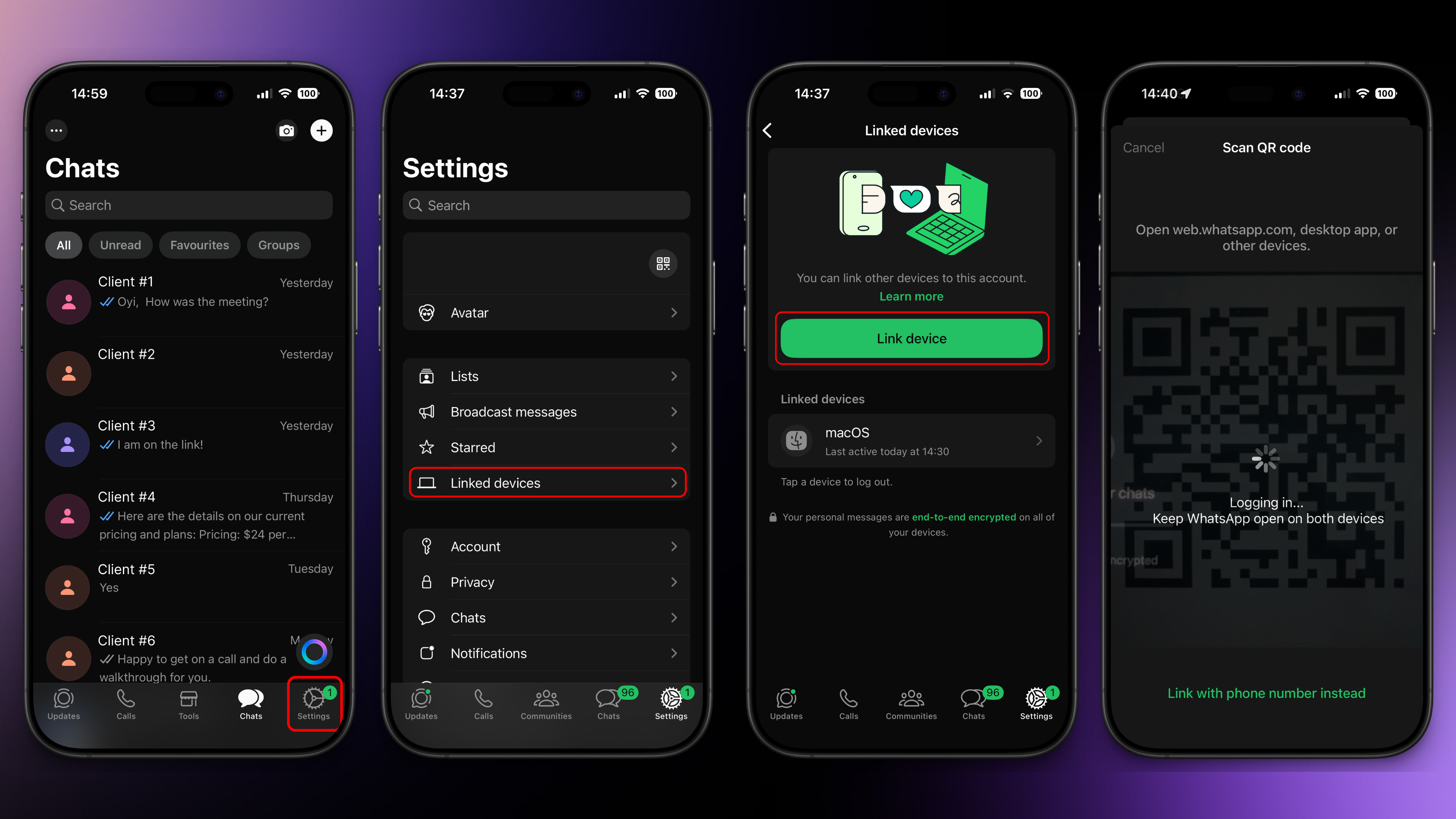
- Once QR code is visible follow the mentioned steps on your phone:
- Open
WhatsApp → Settings → Linked Devices → Link Device → Scan QR
- Open
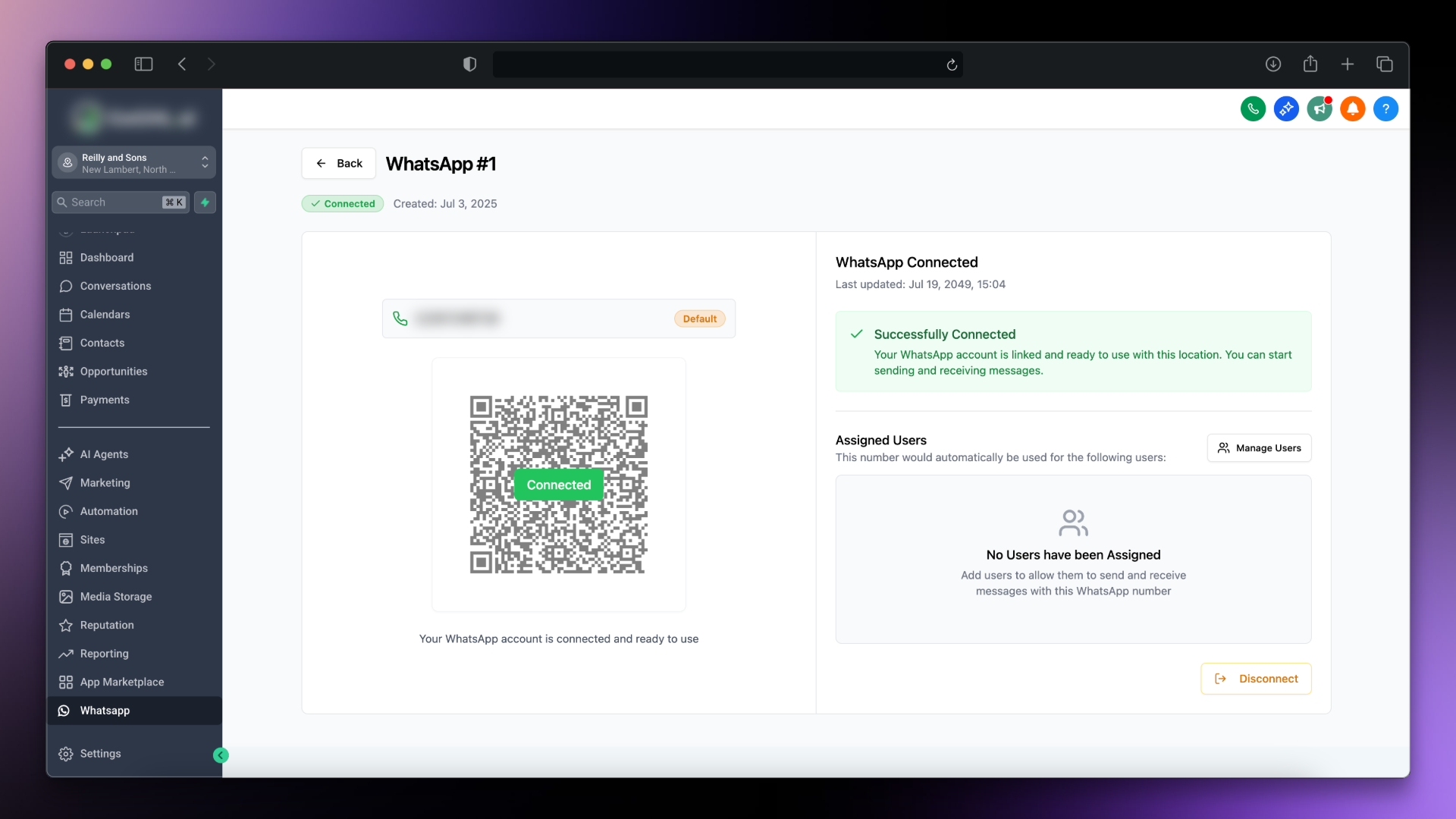
- Wait a few moments, and you should see a confirmation in your console indicating that your WhatsApp is now connected.
Step 5: Verify the setup
- Once connected, you can start sending messages directly to your contacts.
- Go to
Contacts → Select Contact → Send Message